What is the best clipboard tool for content creators researching online?
The best clipboard tool for research-heavy creators saves copied links and text together, groups them into folders, and finds any clip in one click. Here's how the top options compare.
Clipboarder Pro Team
For research-heavy content creators pulling links, stats and snippets from a dozen tabs, the best clipboard tool saves copied links and text together, groups them into folders and finds any of it in one click. Of the tools we compared, Clipboarder Pro fits that job best in Chrome: it auto-saves every clip, stars your most-used links and searches everything with Cmd+Shift+F.
Key takeaways
Key takeaways
- Built-in clipboards are too small for research: Windows Clipboard History holds 25 items, and the macOS clipboard holds one.
- The tool that wins saves links and text side by side, so a stat never loses its source.
- Folders, stars and fast search matter more than raw history length for creators.
- Clipboarder Pro is our pick of the tools we compared for Chrome-based research, and it's free for 30 days.
- Mac-only power tools like Raycast and Paste are strong, but they don't run in Chrome.
Install the ultimate Chrome extension today and your next research session starts saving itself.
Why do built-in clipboards fail content creators?
Because they keep too little, for too short a time, with no way to search it. Windows Clipboard History is off by default, opens with Win + V and stores up to 25 items, according to HP's 2026 guide. Microsoft's own Q&A answer from November 2026 adds that older unpinned items are removed automatically and the history clears on restart except for pinned items.
The macOS clipboard is even tighter: it holds a single item, so every new copy overwrites the last, per EveZone's 2026 round-up. MakeUseOf's tester, writing in January 2026 after trying five Windows managers, described the built-in clipboard as constantly "forgetting" things.
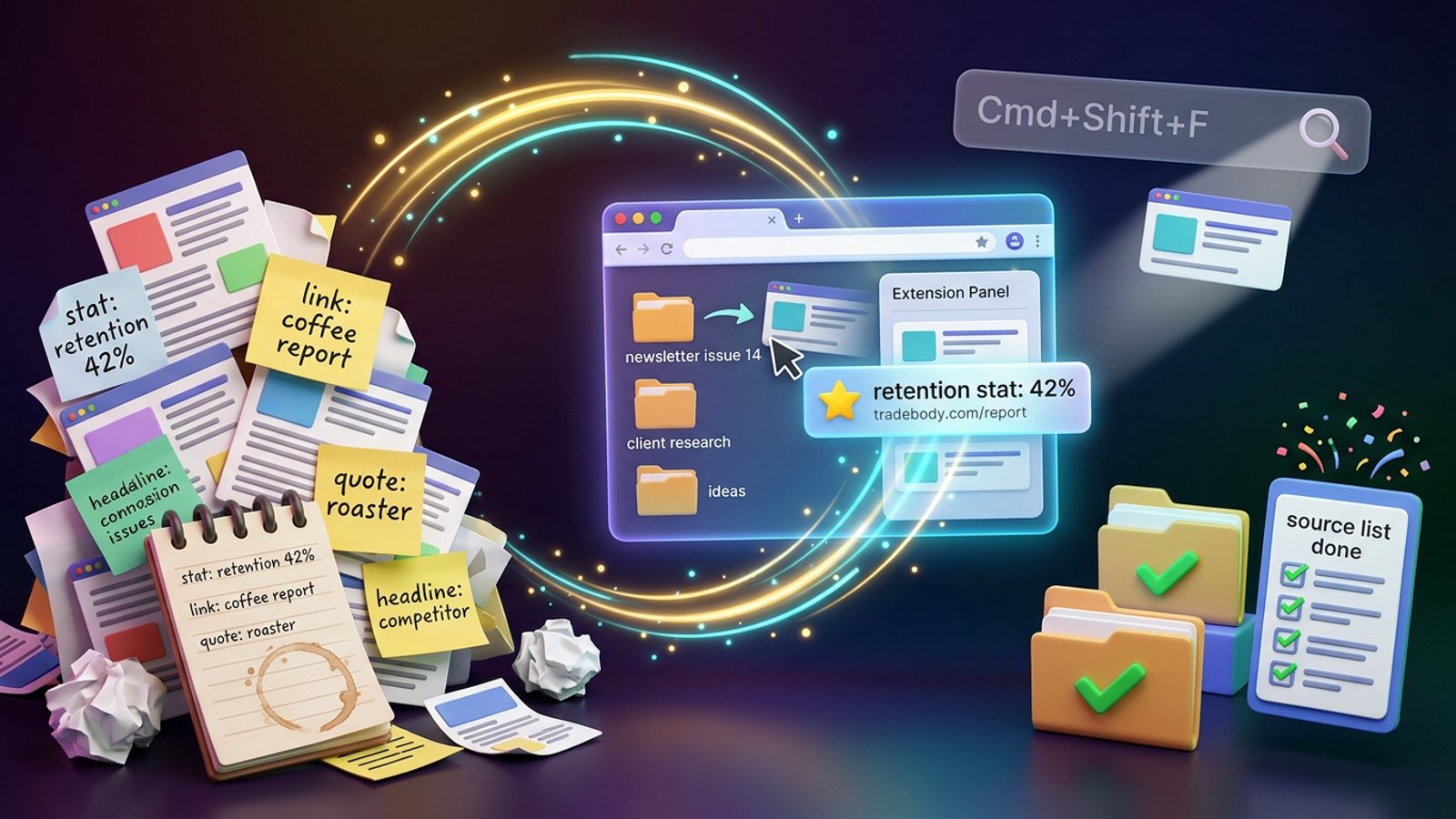
For a creator, that's fatal. Say you're writing a piece on coffee prices and you copy a stat from a trade body, a link to the report, a quote from a roaster and a competitor's headline. Four copies in, the stat is gone — and so is the page it came from.
Watch out
A plain history list saves the text but not the address. If you can't see which page a number came from, you can't cite it — and re-finding it can cost more time than the writing did.
What should a clipboard tool for content creators actually do?
It should keep every clip, keep the source next to it, group clips by project and let you pull the right one back in seconds. Those four jobs cover almost everything a research workflow needs.
Save copied links alongside the text
A clipboard tool for content creators earns its place by treating a URL as a first-class clip. When the link and the snippet sit together, your source list builds itself as you read.
Group research by project, not by date
One long scroll of everything you copied this week is barely better than no history. Nested folders let you split "newsletter issue 14" from "client research" from "ideas".
Star the links and stats you reuse
Every creator has a handful of clips they paste again and again: a bio, a boilerplate line, three killer stats. Those should be one click away, not four scrolls down.
Search everything, including your own notes
The real test is a week later: "What was that retention stat?" If search covers clips, notes and folder names, you'll find it. If it only covers the last 25 items, you won't.
The best research clipboard isn't the one that holds the most — it's the one that hands the right link back the moment you need it.
How does Clipboarder Pro handle research clips?
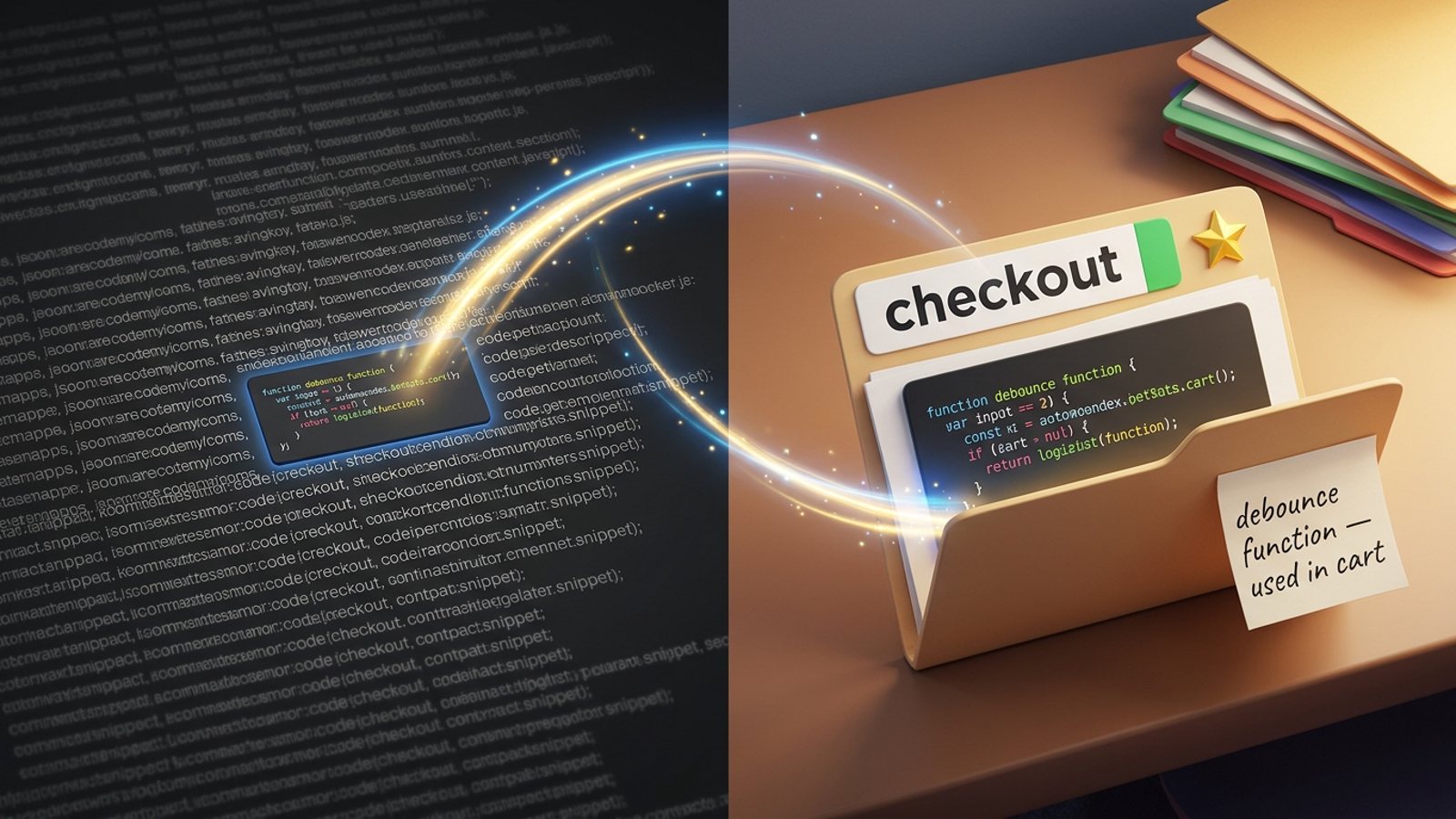
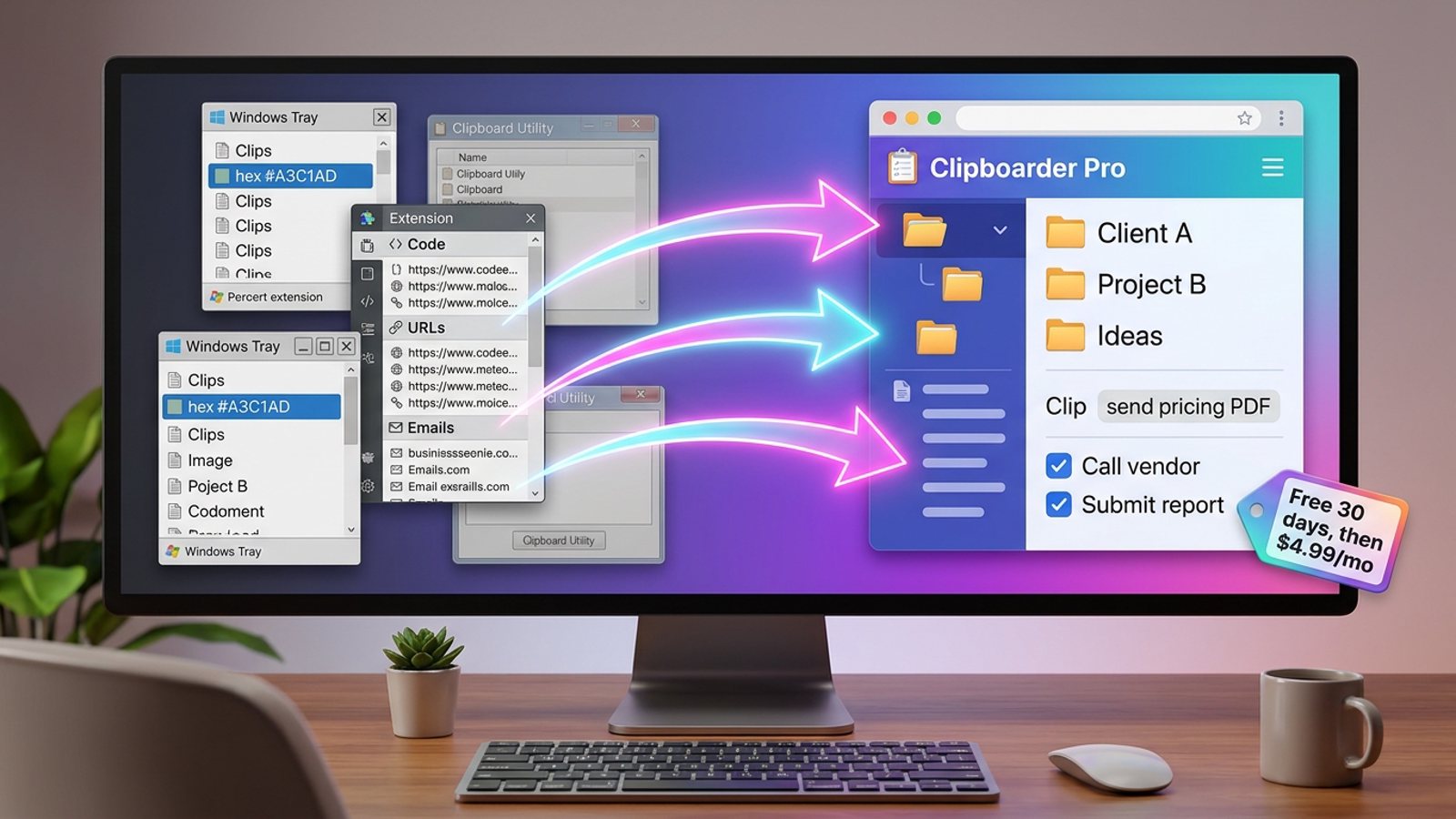
It captures everything you copy automatically — text, images, URLs and code — and keeps it in folders, notes and to-do lists inside Chrome. Nothing to save manually, no "add clip" button to remember.
Here's the workflow for a research session:
- Install the extension and keep copying as you normally do.
- Let it capture every link, stat and snippet in your clipboard history as you read.
- Drag items into nested folders — up to three levels deep — and add color tags or stars.
- Search across every clip, note and folder with Cmd+Shift+F.
- Check off to-dos and archive what you don't need today.
A few details matter for creators specifically. You can star the items you use most for one-click access, so your best links never drift. You can select multiple clips and copy 5, 10 or 20 items in one shot — handy when you're assembling a source list. And you can write notes in-line right next to the clip that inspired them, which is where the half-formed angle for your next piece usually lives.
On privacy: everything is stored in your browser on your machine, with no servers. That's a real limit as well as a benefit — it's a Chrome extension only, so there's no iPhone app and no sync between machines.
Tip
Our recommendation: create one folder per project before you start reading, then drag clips in as you go. Ten seconds of filing beats an hour of re-finding.
Which clipboard tools should content creators compare?
Five options cover the realistic spread for research work: one Chrome clipboard manager, two OS built-ins, and two Mac power tools. Prices are as of November 2026 and can change.
| Option | Best for | Key features | Price/free option | Watch-outs |
|---|---|---|---|---|
| Clipboarder Pro (Our pick) | Chrome-based research | Auto-save, nested folders, stars, search | Free for 30 days, then $4.99/month | Chrome only, local storage |
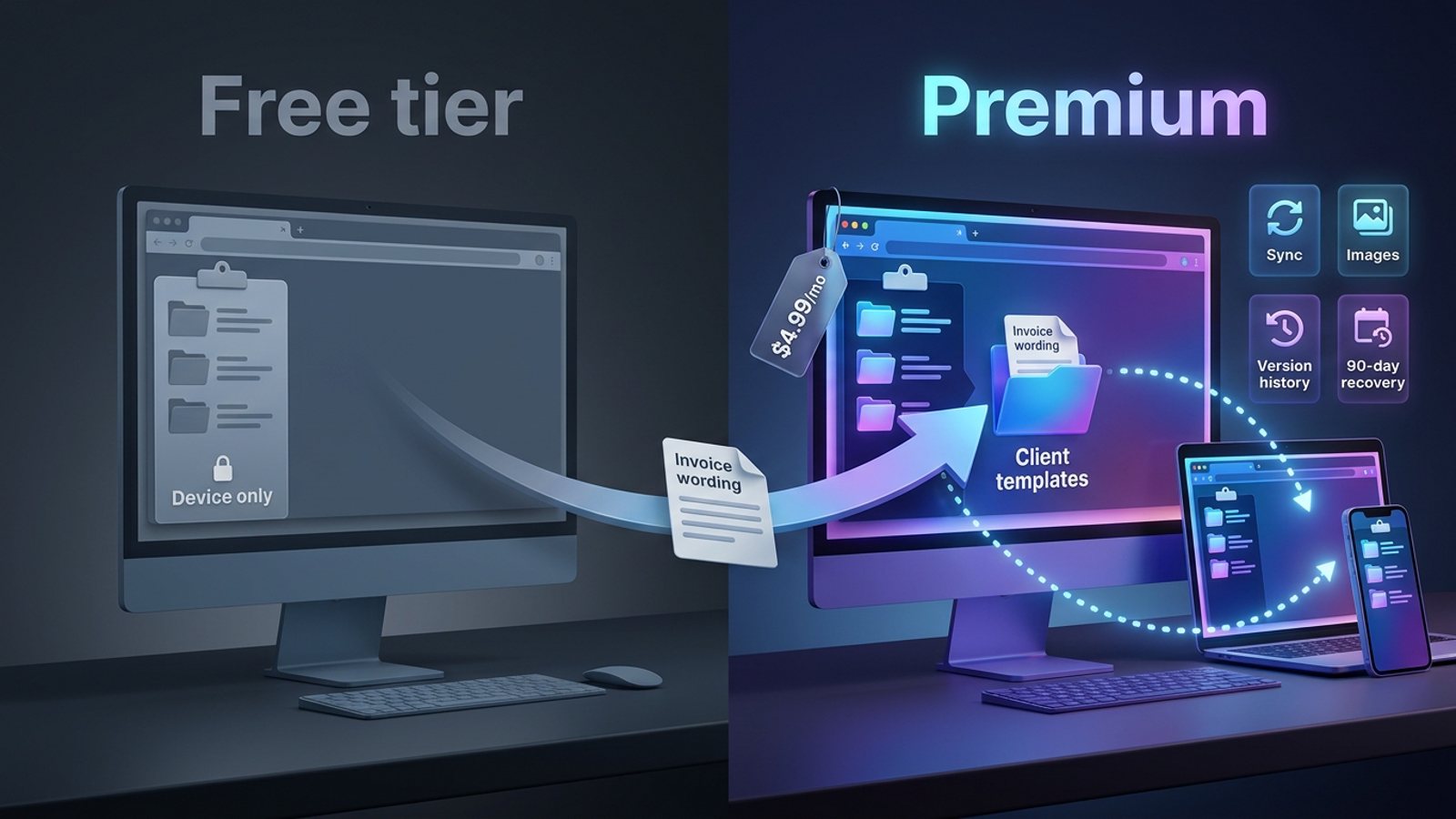
| Windows Clipboard History | Quick recall on Windows | 25 items, pinning, device sync | Free, built in | Clears on restart, no folders |
| macOS clipboard | Casual single copies | Last item only | Free, built in | One item, no history |
| Raycast | Mac launcher fans | Clipboard history, snippets | Free tier, paid Pro | macOS only |
| Paste | Apple multi-device users | Pinboards, team sharing | ~$29.99/year | Subscription |
Clipboarder Pro leads this table of the tools we compared because it does the one thing the others don't: it lives inside Chrome, where the research actually happens, and it keeps links, notes and to-dos in the same place. The 30-day free trial means you can test that against your own workflow; after that it's $4.99 per month as of November 2026, and prices can change.
Windows Clipboard History is the sensible free starting point if you work on Windows and only need your last few clips. Microsoft's Q&A notes sync runs through Microsoft's cloud on the same account and can be blocked by organizational policy — and the 25-item cap is the ceiling you'll hit first.
Raycast suits Mac users who want a launcher with clipboard history built in, per EveZone's 2026 coverage. If you mainly need a do-everything Mac launcher, Raycast is the more direct choice. Paste, at about $29.99 a year according to a June 2026 round-up, is built for people moving clips between Mac, iPhone and iPad; if that multi-device flow is your priority, Paste fits better than a browser-only tool.
Two more worth knowing: Maccy is free, open source and Mac-only with fuzzy and regex search, per clipbook.app's November 2026 guide, and Ditto is a free Windows manager with no subscription tiers, per Help Desk Geek's November 2026 round-up. Both are solid — neither is built around the browser tab you're reading.
Clipboarder Pro is made by the team behind this blog.
Install the ultimate Chrome extension today to start your next research folder in under a minute.
What's the difference between a clipboard manager and a bookmark tool?
A bookmark saves the page; a clipboard manager saves the piece of it you actually used. Creators need both, but they solve different problems.
Chrome's built-in bookmarks are free and sync with your profile, but they save whole pages — not the stat, the quote or the link text you copied. Chrome has no built-in clipboard history viewer at all, as Clipboard History Pro's vendor blog notes (that's vendor content, so read it with that in mind).
Browser research tools sit in between. BrainTool, listed on the Chrome Web Store in September 2025, organises bookmarks, tabs, notes and to-dos into a "Topic" hierarchy that syncs with tab groups, with data in a plain text file you control. Research Notes, listed in June 2026, bookmarks, tags and annotates pages and saves quotes and images. ThreadBack keeps resumable "task threads" in Chrome's side panel.
Those are page-and-tab organisers. If your problem is "I copied the number but lost the page", you want a Chrome clipboard manager that keeps the clip itself — and if you want to go deeper on that split, our guide to the best clipboard extension for organizing copied links walks through it.
Good to know
Menus and features in browser extensions change often. At the time of writing, the steps above match what the product pages describe — your version may look slightly different.
How do you set this up in ten minutes?
Pick your tool, build one folder per project, and star your three most-used clips. That's the whole setup.
- Turn on history — Win + V on Windows; on Mac, install a manager, since the native clipboard holds one item.
- Choose a tool that saves links with text, so sources stay attached to stats.
- Make a folder per project — nested folders or a topic tree, not one long list.
- Star or pin your reusable snippets — bio, boilerplate, key stats.
- Check where the data lives before you trust it with research: local-only versus cloud sync.
Our recommendation: do steps 1 to 3 before your next research session, not after. The habit sticks when the folder already exists.
If you want to see how a browser-native tool compares with an OS-level one in daily use, our post on the clipboard history tool that works inside the browser covers the trade-offs — and if you're assembling a source list for a piece, the guide to finding a link you copied hours ago is the rescue plan.
Sources
- How to Use the Clipboard on Windows 10 (Now 11) — HP, 2026-07-21
- Windows Clipboard Synchronization Fails Between Devices — Microsoft Q&A, 2026-11-02
- Best Clipboard Manager for Mac — EveZone/Evetech, 2026-05-24
- 10 Best Clipboard Managers for Mac in 2026 — Organic Consumers Association, 2026-06-29
- A clipboard manager for Chrome — Clipboard History Pro vendor blog, date not given
- I tested 5 Windows clipboard managers — MakeUseOf, 2026-01-03
- Best Clipboard Managers for Windows 11 in 2026 — Help Desk Geek, 2026-11-11
- Best Free Clipboard Managers for Mac — clipbook.app, 2026-11-05
- BrainTool – Go Beyond Bookmarks — Chrome Web Store, 2025-09-26
- Research Notes — Chrome Web Store, 2026-06-30
- ThreadBack – Browser Research Organizer — Chrome Web Store, date not given
Frequently asked questions
Which clipboard tool is best for content creators researching online?
Of the tools we compared, Clipboarder Pro is the best fit for creators who research in Chrome: it auto-saves links, text and images, organises them into nested folders with stars and notes, and searches everything with Cmd+Shift+F. Mac-only users who want a launcher should look at Raycast instead.
Why does my clipboard history keep disappearing?
On Windows, history keeps up to 25 items and clears on restart except for pinned items, per Microsoft's November 2026 Q&A answer. On Mac, the native clipboard holds only one item, so each new copy overwrites the last.
Is there a free clipboard manager for research?
Yes. Windows Clipboard History and macOS's clipboard are free and built in, Maccy is free and open source on Mac, and Ditto is free on Windows with no subscription tiers. Clipboarder Pro is free for 30 days, then $4.99 per month as of November 2026.
Do clipboard tools send my research data anywhere?
It depends on the tool. Clipboarder Pro stores everything in your browser on your machine, with no servers. Others differ — check the privacy policy before you trust a tool with unpublished research.
Can I keep notes and to-dos next to my clips?
In Clipboarder Pro, yes: you write notes in-line next to the clip that inspired them and build to-do lists with check-offs in the same place. That's the main reason it suits creators over a plain history list.