ClipAmigo vs Copy History +: which is better for saving code snippets?
Copy History + wins on scale and export; ClipAmigo wins on code filtering and free encryption. For filing snippets into folders with notes, Clipboarder Pro is the honest fit.
Clipboarder Pro Team
If you want a straight verdict on clipamigo vs copy history for code snippets: Copy History + is the safer pick for most Chrome users, with 10,000 users, a 4.5 rating from 85 ratings and CSV/JSON/TXT export as of November 2026. ClipAmigo is newer and smaller, but its code-type filter and free end-to-end encryption are genuinely useful. Neither publishes a code-snippet workflow with folders, so a dedicated Chrome clipboard manager like Clipboarder Pro is the honest fit for that job.
Key takeaways
Key takeaways
- Copy History + has the larger, longer-tracked base: 10,000 users, 4.5 from 85 ratings, version 3.2.1 updated 17 November 2026.
- ClipAmigo filters your history by type — URLs, emails, code or plain text — which is the closest thing either tool has to a code view.
- Copy History + exports to CSV, JSON and TXT; ClipAmigo's export isn't documented in the listings we checked.
- Neither publishes nested folders, in-line notes or a to-do layer. If that's your snippet workflow, Clipboarder Pro does it in Chrome.
Install the ultimate Chrome extension today and every snippet you copy lands in a searchable history instead of vanishing on the next Ctrl+C.
What does each tool actually do with a code snippet?
Both are clipboard history extensions: you copy as normal, they save it, you search it back later. That's the shared core, and it's the reason the comparison comes down to details rather than category.
Copy History + is a Chrome extension that automatically saves copied text, keeps recent entries searchable, and works with content copied from desktop apps — per its Chrome Web Store listing (17 November 2026). You can favorite and tag entries, group items, and search instantly.
ClipAmigo is described on its Firefox Add-ons listing (1 June 2026) as saving full clipboard history including "text, links, emails, code snippets, and colors", with unlimited history and capture from desktop apps such as Word, Outlook, Slack and the terminal.
So for the code-snippet job specifically, the question becomes: which one helps you find and reuse a snippet faster? That's where they diverge.
Good to know
Chrome itself has no built-in clipboard history — the OS clipboard holds one item at a time, per the Clipboard History README (16 February 2026). Any history you get in Chrome comes from an extension.
Which one is better at finding an old snippet?
ClipAmigo wins on filtering by type. Its search lets you filter to URLs, emails, code or plain text, with matches highlighted as you type, according to its Firefox listing (1 June 2026). If you copy a mix of links, emails and code all day, that code filter is a real time-saver.
Copy History + approaches it differently: favorites, tags, grouping and instant search, per its Chrome Web Store listing (17 November 2026). There's no documented code-type filter, so you'd lean on tags and favorites to mark the snippets worth keeping.
If you mainly need to pull up a snippet by remembering roughly what it looked like, both work. If you want the tool to sort code from everything else automatically, ClipAmigo is the more direct choice.
How do the two compare on price and free limits?
Both are free to install with paid extras, and neither publishes a dollar figure in the listings we checked.
- Copy History +: free core. Text shortcuts (a text expander) are free for 5 shortcuts and unlimited with PRO. Encrypted cloud sync is also PRO-only — Chrome Web Store (17 November 2026).
- ClipAmigo: free to install; the free tier includes 1 cloud item, and unlimited cross-device cloud sync requires Pro, per its Firefox listing (1 June 2026). Its end-to-end encryption is described as free for everyone.
Watch out
Copy History + warns on its store listing that uninstalling the extension or resetting the browser deletes saved content. If your snippets only live there, back them up (Settings → Import & Backup) or use encrypted cloud sync on PRO.
Which one keeps your snippets safer?
Both say your data stays on your device by default, which matters when the "snippet" is a proprietary query or an API key you shouldn't have copied at all.
ClipAmigo says it collects no data and runs no ads, analytics or tracking, with everything on-device unless you opt in to per-item cloud sync — encrypted on-device with your own passphrase, zero-knowledge (Firefox listing, 1 June 2026). It also offers a password lock for the popup.
Copy History + says data stays local by default and it doesn't collect or read your copied content, with PRO cloud sync encrypting on-device with your own key before sending (Chrome Web Store, 17 November 2026). Two caveats from the same listing: it discloses that it handles personally identifiable information, and its "Non-trader" status means EU consumer rights may not apply.
Tip
Our recommendation: before you paste a database URL or token into any clipboard tool, check whether that tool offers a per-site monitoring toggle. Copy History + lets you disable clipboard monitoring per site, per its Japanese store listing (20 November 2024) — handy for banking and admin dashboards.
How do they compare on moving your snippets out?
Copy History + is clearly ahead here. It supports export to CSV, JSON or TXT — whole history or selected items — and import of JSON, CSV and TXT, including backups from other clipboard managers (Chrome Web Store, 17 November 2026). It can also merge multiple selected items into one, choosing order and delimiter (new line, none, or custom), saved as a new item and copied to the clipboard.
That merge feature is quietly great for code: select three CSS declarations, merge with a new-line delimiter, paste once.
ClipAmigo's export options aren't documented in the listings we checked, so plan around that if portability matters to you.
ClipAmigo vs Copy History + vs the alternatives
Here's how the two rivals stack up against each other and against tools that approach the snippet job from a different angle. Clipboarder Pro goes first because this is our blog — the disclosure is below the table.
| Option | Best for | Key features | Price / free option | Watch-outs |
|---|---|---|---|---|
| Clipboarder Pro (Our pick) | Code snippets you want filed, not just found | Auto-saves text, images, URLs, code; nested folders 3 deep; stars; in-line notes; to-do lists | Free for 30 days, then $4.99/month as of November 2026 | Chrome only; data stays in your browser |
| ClipAmigo | Filtering history by code vs links vs text | Unlimited history; code-type filter; #hashtag tags; free E2E encryption | Free; Pro for unlimited cloud sync | Very small user base; no documented folders or notes |
| Copy History + | Long-lived history plus export and text expansion | Favorites, tags, grouping, instant search; merge items; CSV/JSON/TXT export | Free; PRO for unlimited shortcuts and sync | Free tier caps shortcuts at 5; no folder tree |
| CopyQ | One desktop manager across Windows, macOS and Linux | Tabs, tags, editing, scripting, CLI, custom formats | Free, open source (GPL-3.0) | Complex; not a Chrome extension |
| VS Code snippets | Reusable boilerplate inside your editor | Built-in snippet functionality in a free editor | Free with VS Code | Only works if you create them, and only in VS Code |
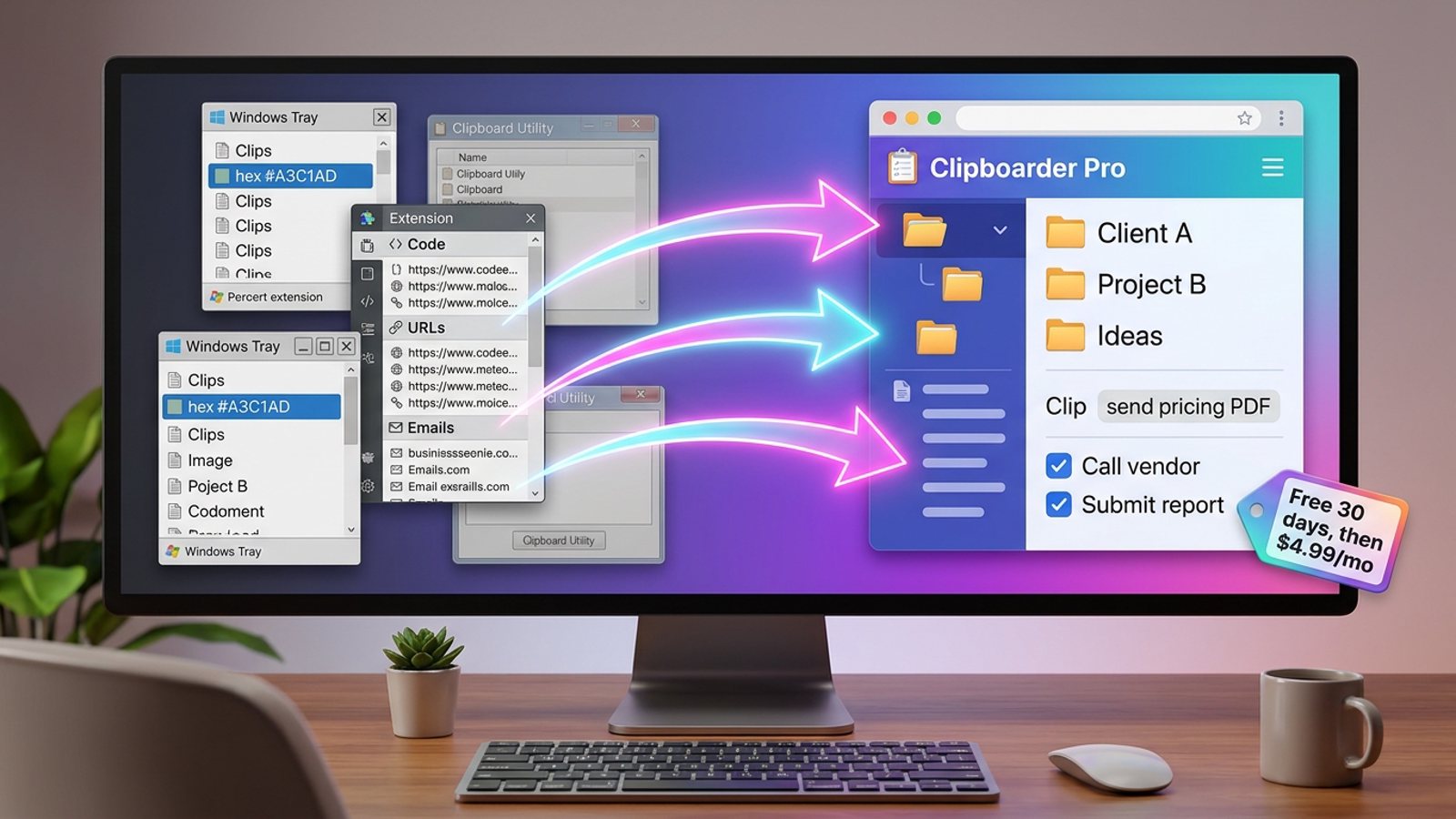
Of the tools we compared, Clipboarder Pro is our pick for the specific job of saving code snippets you'll reuse, because it's the only one here that pairs automatic capture with nested folders, stars and in-line notes in the same Chrome window you're coding in. Clipboarder Pro is made by the team behind this blog.
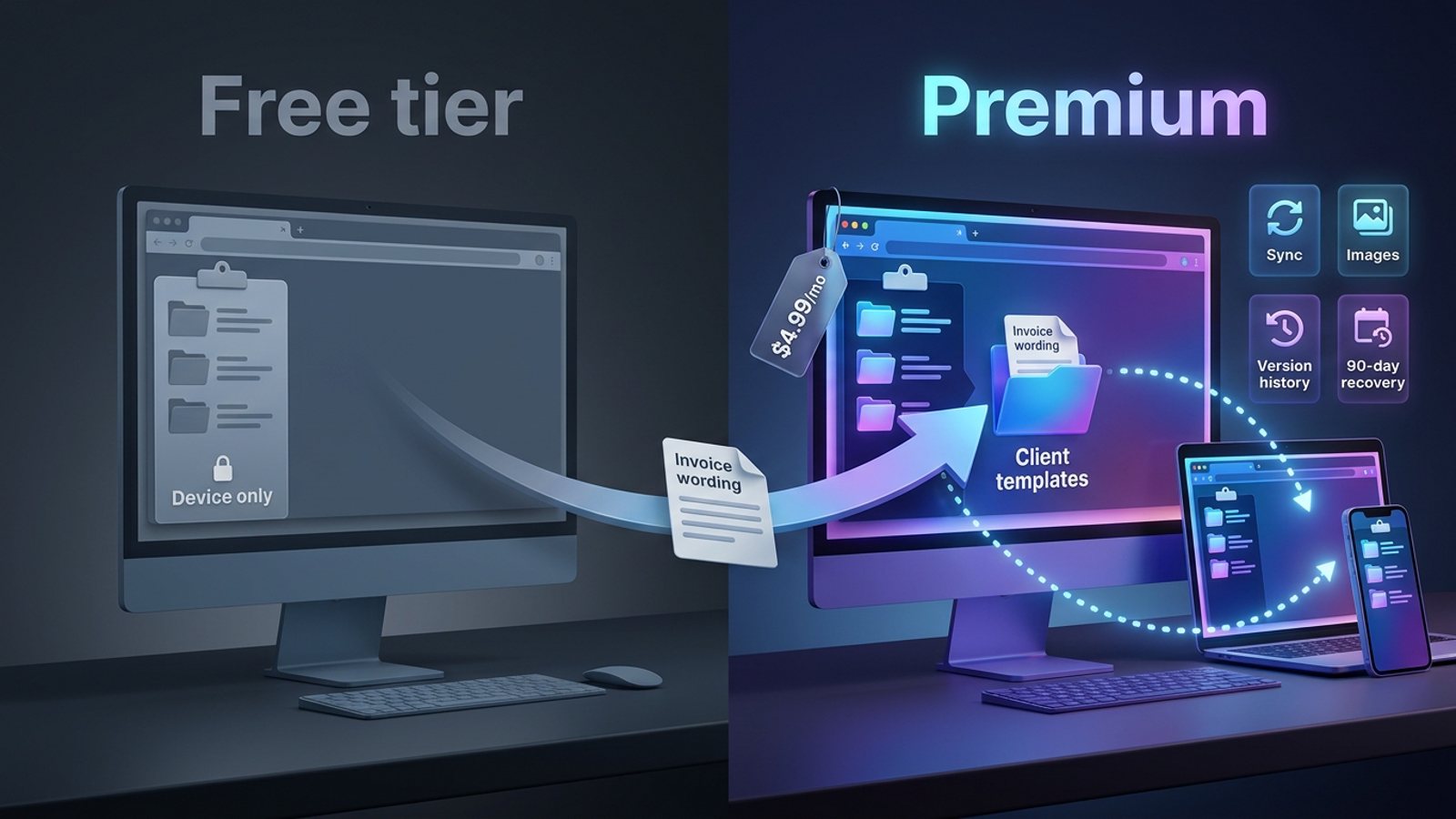
The honest caveats: Clipboarder Pro is a Chrome browser extension only, and everything is stored in your browser on your machine, with no servers. So there's no cross-device sync — if you code across a laptop and a desktop, Copy History + with PRO cloud sync or ClipAmigo's Pro sync is the more direct choice.
Install the ultimate Chrome extension today to start filing snippets into folders instead of scrolling one long history.
What's the best way to organize code snippets, whichever tool you pick?
The technique matters more than the tool. Here's a workflow that works in any of them:
- Copy the snippet, then immediately name it. A snippet called "debounce" is findable in six months; one that starts with
function(is not. - Tag by language or project. Copy History + tags, ClipAmigo's #hashtags, or Clipboarder Pro's color tags all do this.
- Star the ten you actually reuse. Starred items survive a history clear in ClipAmigo, and one-click access matters more than a perfect taxonomy.
- Write one line of why. Where you used it, what broke, which version. Clipboarder Pro lets you write notes in-line next to the clip that inspired them.
- Archive, don't delete. Clipboarder Pro archives items with an automatic retention window of 1–365 days.
Good to know
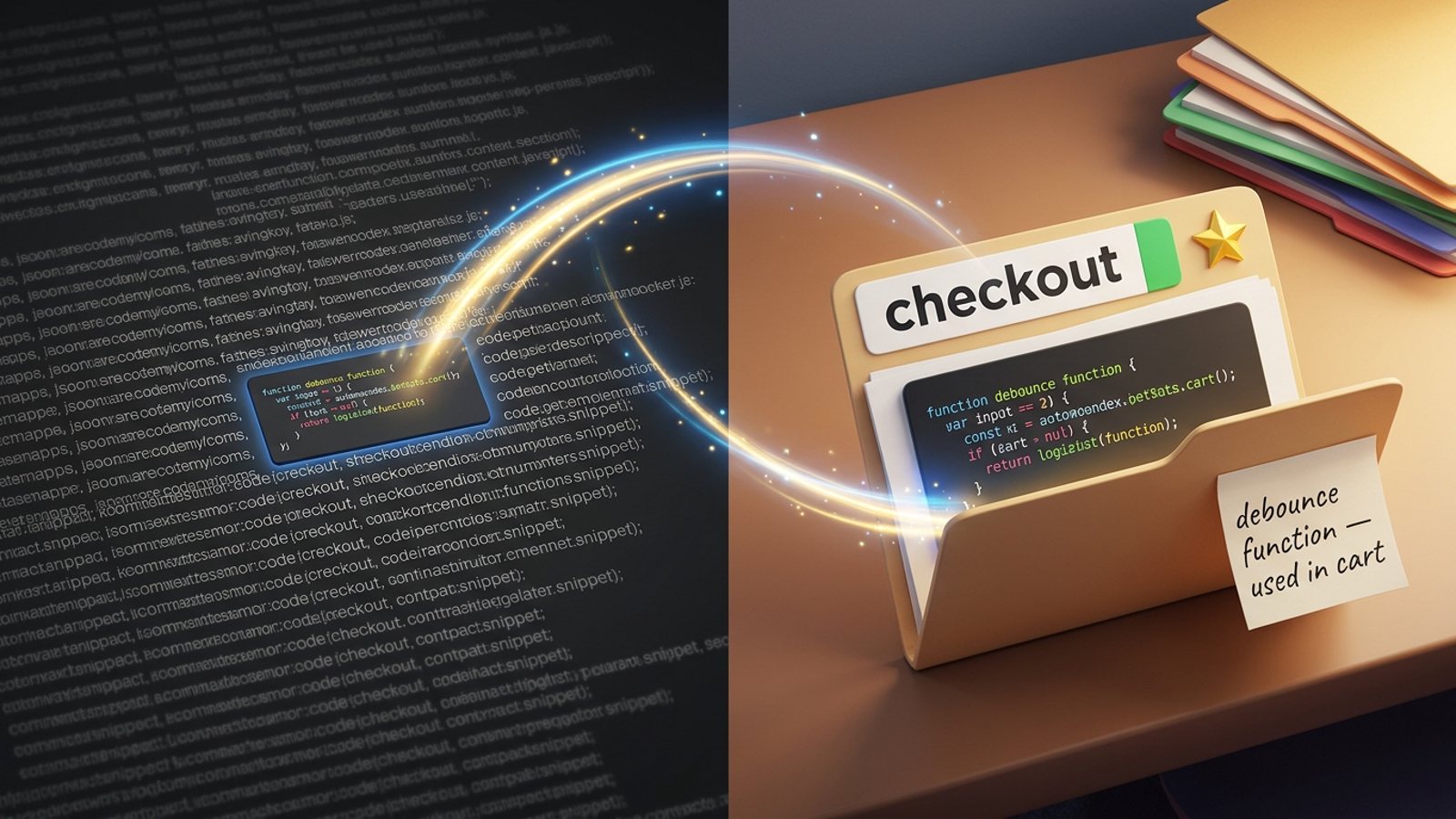
Say you're building a checkout form. You copy a validation regex, a Stripe error message and three color hex codes in one afternoon. With a plain history, all five blur together by Friday. Filed into a "checkout" folder with a note on the regex, they're a reusable kit for the next project.
If you want the capture side handled without thinking about it, read how to save every code snippet you copy without pasting it somewhere. And if you're weighing more options, the top 5 clipboard managers for saving code snippets puts them side by side.
The snippet you can't find costs you more than the ten seconds it would have taken to file it.
Does ClipAmigo work in Chrome?
Yes. A third-party Chrome package listing on Socket (31 May 2026) describes ClipAmigo as a "Professional clipboard manager with unlimited history, smart search, favorites, and cloud sync to clipamigo.com", version 1.6.1. The primary listings captured are Firefox (version 1.6.5, updated 7 June 2026) and Microsoft Edge (9 June 2026).
One thing to weigh: ClipAmigo's Firefox listing shows 6 users on the English listing and 8 on the Portuguese one at the time of capture. That's a very small base for a tool holding your clipboard.
Sources
- Copy History + — Chrome Web Store (Google, updated 2026-11-17)
- コピー履歴 + — Chrome Web Store (Japanese, 2024-11-20)
- ClipAmigo — Firefox Add-ons (en-US, 2026-06-01)
- ClipAmigo — Firefox Add-ons (pt-BR, 2026-06-01)
- ClipAmigo — Microsoft Edge Add-ons (2026-06-09)
- ClipAmigo — Socket Chrome package (2026-05-31)
- Clipboard History repo README — GitHub theluckystrike (2026-02-16)
- MEFMobile — 24 Best Free and Open Source Clipboard Managers (2026-09-22)
- copyq(1) manpage — Ubuntu Manpages (CopyQ 6.0.1-1)
- MakeUseOf — Open-source clipboard manager makes Windows smarter (2025-11-12)
Frequently asked questions
Which is better for saving code snippets, ClipAmigo or Copy History +?
For most Chrome users, Copy History + — it has the larger tracked user base (10,000 users, 4.5 from 85 ratings as of November 2026) and documented CSV/JSON/TXT export. ClipAmigo is the better pick if a code-only filter and free end-to-end encryption matter more to you than scale.
Can I filter my history to show only code?
In ClipAmigo, yes — its search filters by URLs, emails, code or plain text, per its Firefox listing (1 June 2026). Copy History + uses favorites, tags and grouping instead, with no documented code-type filter.
Do either of them store my snippets on a server?
Both say data stays on your device by default. ClipAmigo offers optional zero-knowledge cloud sync (Pro for unlimited), and Copy History + offers encrypted cloud sync on PRO, encrypted on-device with your own key before sending.
Can I export my snippets if I switch tools?
Copy History + can export to CSV, JSON or TXT and import the same formats, including backups from other clipboard managers. ClipAmigo's export isn't documented in the listings we checked.
Which tool should I use if I want folders, notes and to-dos for my snippets?
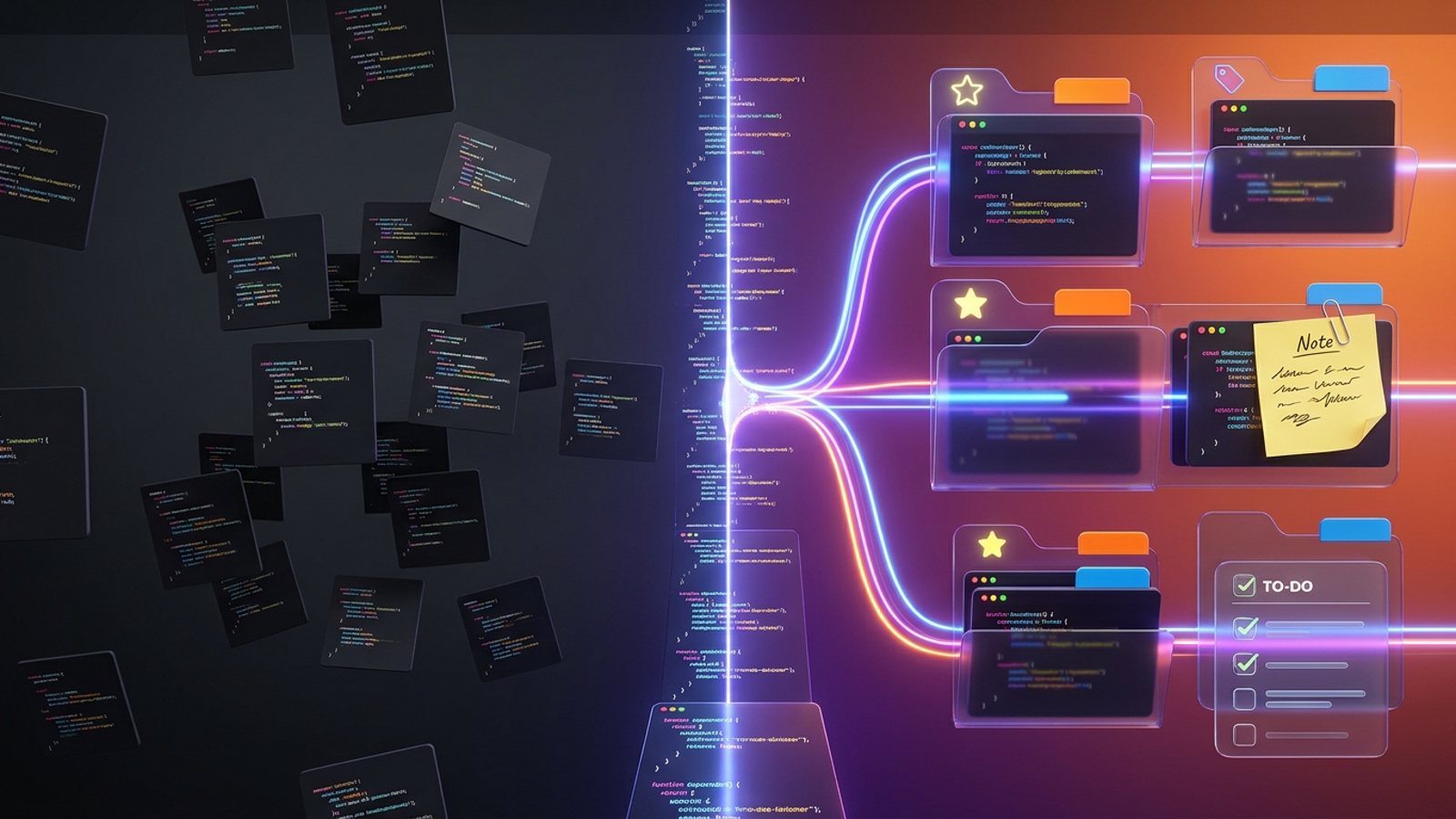
Clipboarder Pro — it files clips into nested folders up to three levels deep, lets you star favorites and write notes next to a clip, and keeps to-do lists in the same place. It's Chrome only and stores everything in your browser, so there's no cross-device sync.