How do I save every code snippet I copy without pasting it somewhere?
Stop losing code snippets to the next Ctrl+C. A Chrome clipboard manager captures every copy automatically, then lets you search, filter and pin snippets so you can paste them back in seconds.
Clipboarder Pro Team
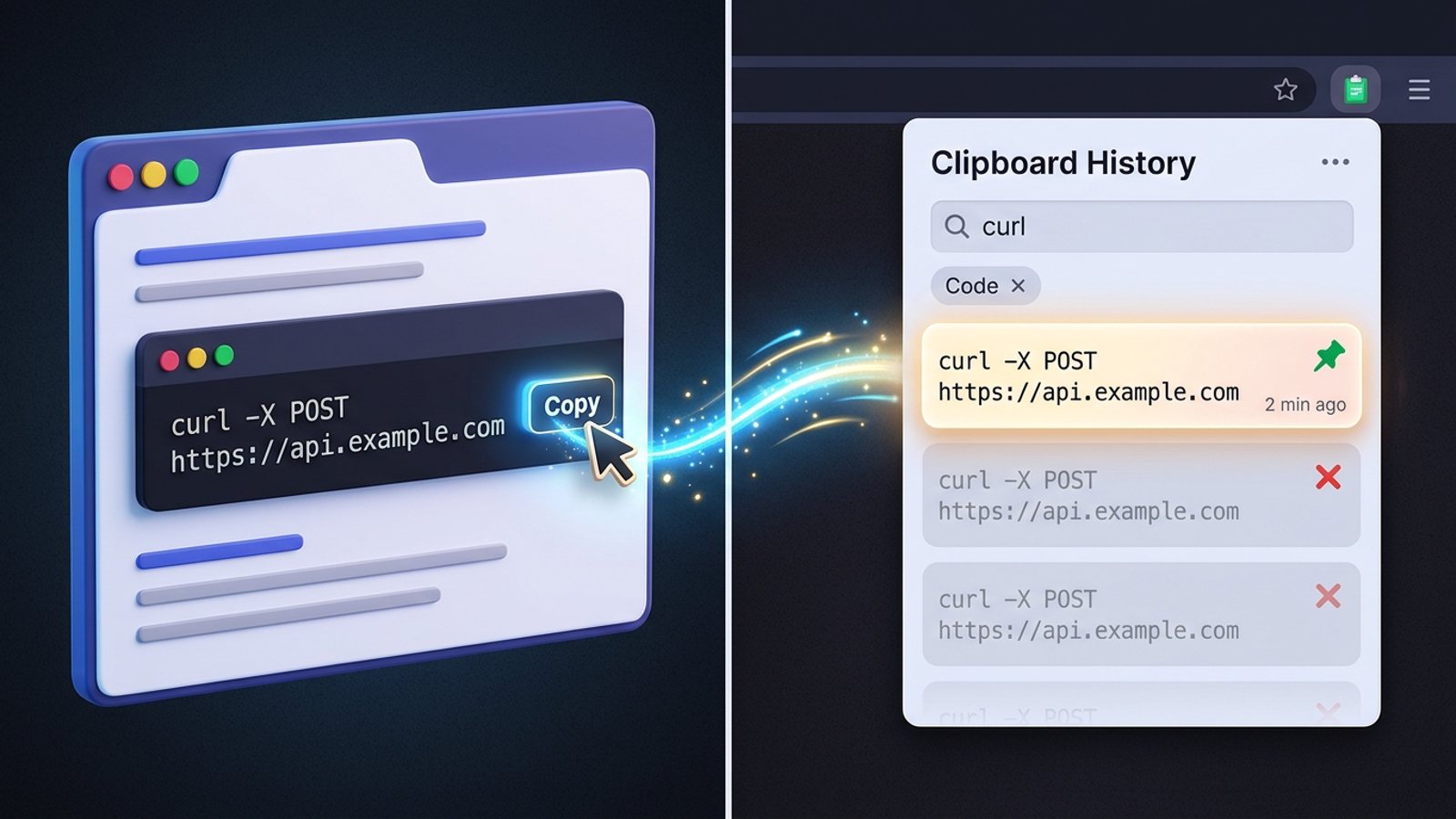
You let a clipboard manager catch every copy automatically. You press Ctrl+C as normal, the tool records the snippet in a searchable history, and you paste it back later from that history. In Chrome that means an extension, because Chrome has no built-in clipboard history and the system clipboard holds only one item at a time.
Key takeaways
Key takeaways
- The clipboard keeps one item. Copy anything new and the previous snippet is gone.
- Automatic capture beats manual saving: you copy as usual and the tool records it.
- Filter by "Code" or search by a word you remember to get the snippet back in seconds.
- Pin the snippets you reuse, and export a backup now and then.
- Clipboarder Pro is a Chrome clipboard manager that does this locally, with folders, tags and notes.
If you have ever copied a regex, a curl command or a three-line config and then watched it vanish under the next Ctrl+C, this is the fix. Keep reading and you will know exactly how to save copied code snippets without ever opening a scratch file.
Install the ultimate Chrome extension today and your next copy is already safe.
Why does the snippet disappear when I copy something new?
Because the clipboard is a single slot, not a list. The Clipboard History project's README (GitHub, 2026) states plainly that the operating system clipboard holds one item at a time and that Chrome offers no built-in clipboard history. So the moment you copy the next thing, the last thing is overwritten.
That is the whole problem in one sentence:
The clipboard is a single slot, and your memory is the only backup — which is why snippets vanish.
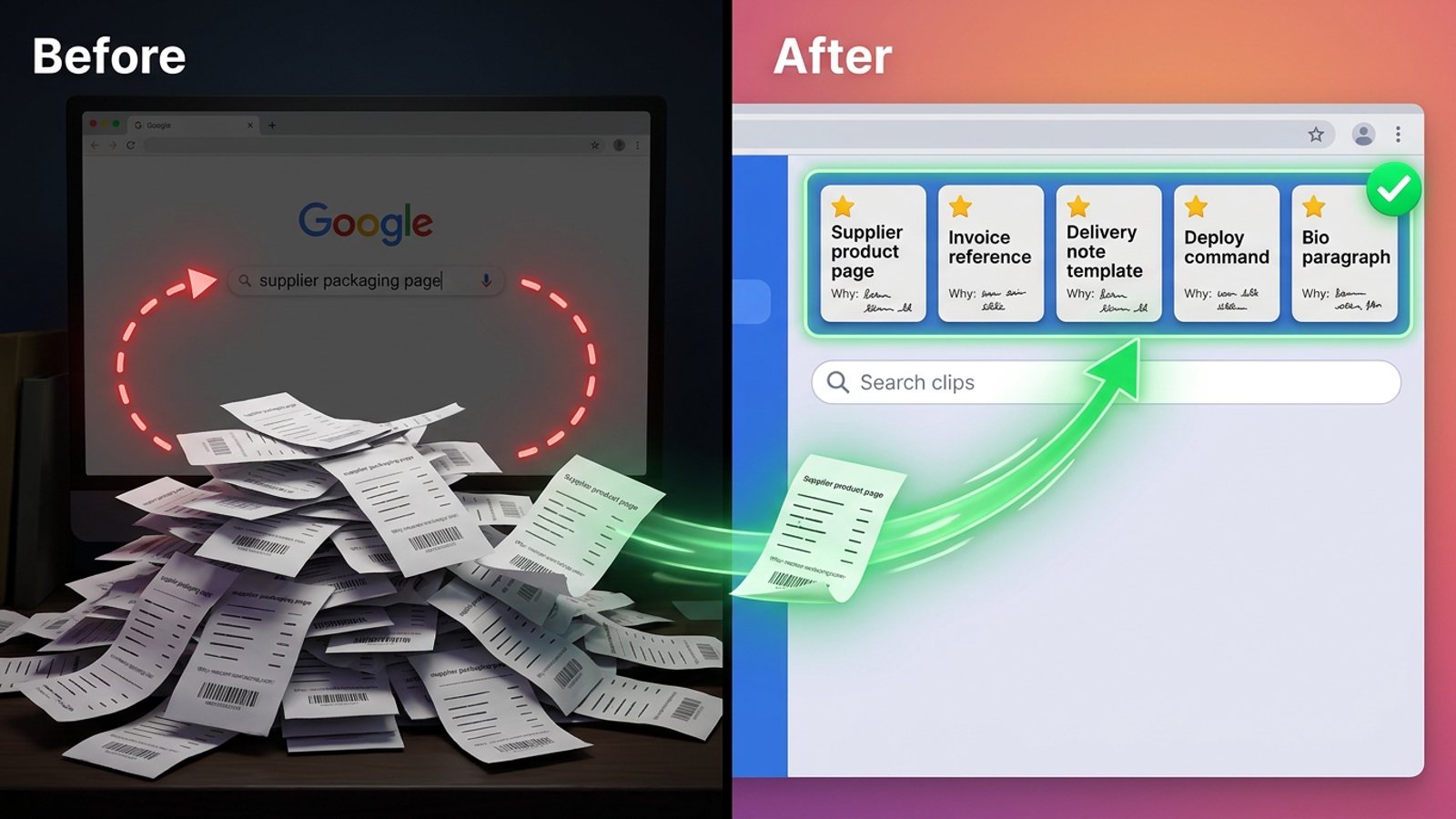
Manual workarounds all share the same flaw: they depend on you remembering to act before the next copy. Paste into a scratch file, a gist or a notes app and you are safe — but only if you do it every single time, in the middle of debugging, with three tabs and a terminal open. Miss once and the snippet is gone.
How does automatic snippet capture actually work?
You copy normally, and a background tool records each copy into a history you can search. That is the model described in the Clipboard History FAQ (GitHub, 2026): copy text as usual, the tool records it, then you open its popup or press a shortcut, type to filter, and click a clip to copy it back.
Here is the technique, tool-agnostic:
- Install a clipboard manager for your browser and pin it to the toolbar.
- Check your shortcut. Many tools use Cmd+Shift+V (Mac) or Ctrl+Shift+V (Windows/Linux) — the Clipboard History FAQ lists both — and that can clash with your editor or terminal, so remap it if needed.
- Copy code as you always do — Ctrl+C, right-click Copy, or a site's Copy button on a code block.
- Filter or search the history for the snippet, then click it to copy it back.
- Pin the keepers so they survive cleanup, and export a backup periodically.
Step 3 is the part people underestimate. Some managers also catch a page's own "Copy" button, so snippets taken from documentation sites and AI chats get recorded too — the Memex listing (Microsoft Edge Add-ons, 2026) describes that behaviour.
Tip
Our recommendation: give the manager its own shortcut that no editor uses, so opening your snippet history becomes as automatic as Ctrl+C.
How do I find an old snippet once it is saved?
Search first, browse second. Type a word you remember — the function name, the error string, the domain — and the list narrows as you type. The Clipboard History README (GitHub, 2026) describes instant search over the history, and its commit notes (2026) describe auto-tagging clips by type: URLs, emails, code snippets, JSON and numbers, with filters for code, text, URLs, starred or pinned items.
Two habits make search almost unnecessary:
- Filter by type. A "Code" filter hides the URLs and stray sentences so you see only snippets.
- Folders and colour tags. Group by project or language, and colour-code by urgency so the one you need stands out.
If you want the longer version of this workflow, our guide on how to search your clipboard history in Chrome for an old snippet walks through it step by step.
How do I save copied code snippets in Chrome with Clipboarder Pro?
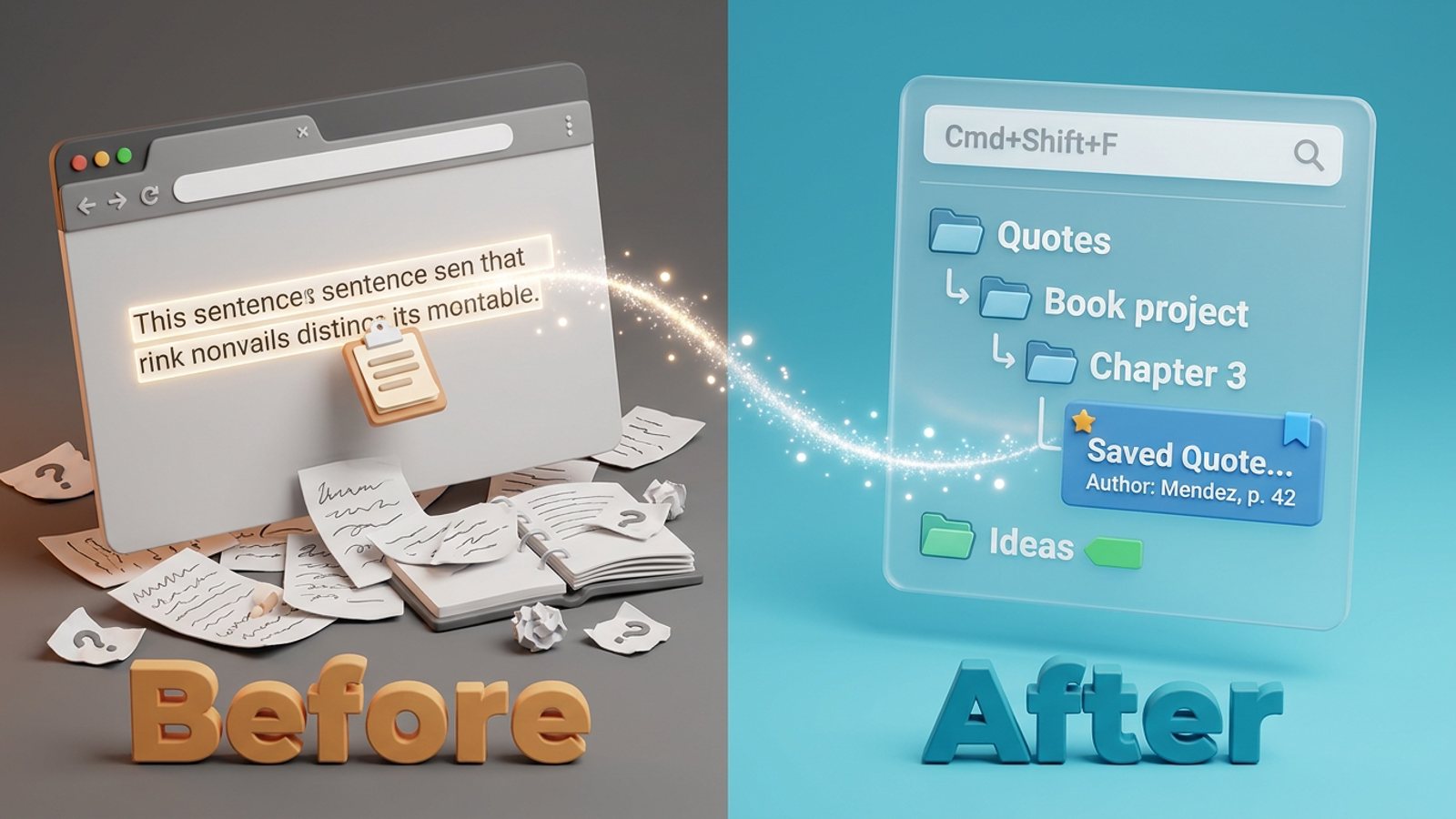
Install the extension, keep copying, and open it when you need something back. Clipboarder Pro automatically saves copied text, URLs and code as you work — no paste step, no scratch file. You then organise clips into nested folders up to three levels deep, colour-code them, star the ones you use most for one-click access, and write notes in-line next to the clip that inspired them.
Finding a snippet later takes one shortcut: search across every clip, note and folder with Cmd+Shift+F. When you need several pieces at once — a few imports, a couple of config lines — you can select multiple clips and copy 5, 10 or 20 items in one shot. Finished with something? Archive it instead of deleting, with a retention window of 1–365 days.
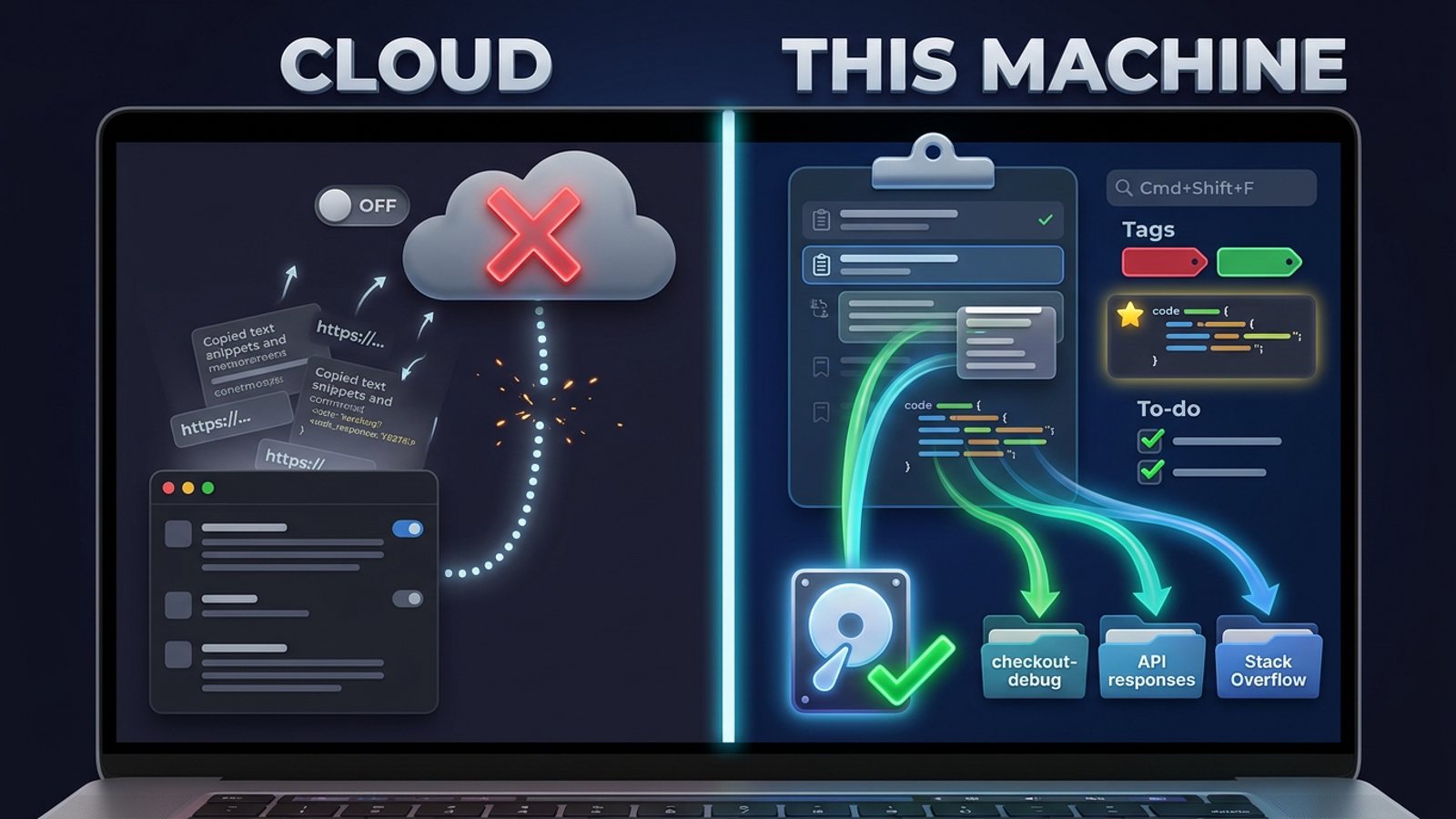
Everything is stored in your browser on your machine. No servers, no tracking — which matters when the thing you copied is a private repo URL or an internal endpoint.
Good to know
Clipboarder Pro is free for 30 days. After that it costs $4.99 per month as of November 2026, and prices can change.
What are the options for saving snippets without pasting them?
Four realistic choices, compared on what they keep, how you find things and what they cost. Clipboarder Pro goes first because it is ours — and because it covers capture, folders, notes and to-dos in one place.
| Option | Best for | Key features | Price | Watch-outs |
|---|---|---|---|---|
| Clipboarder Pro (Our pick) | Devs who want capture plus organisation | Auto-capture, nested folders, colour tags, stars, notes, to-dos, multi-copy | Free 30 days, then $4.99/month | Chrome only; local storage |
| Clipboard History (open source) | A free, no-frills history | Auto-capture, type filters, pinning, search | Free | No folders or notes described |
| Copy History + | Copying from desktop apps too | Saves copies from desktop apps, export | Not stated in our sources | Local-only; uninstall deletes data |
| Snippet Vault | A curated snippet library | Title, language, tags, search, one-click copy, JSON export | Not stated in our sources | Manual saving, not auto-capture |
A word on each. Clipboard History is a strong free starting point: its README (GitHub, 2026) documents up to 10,000 stored items, 50,000 characters per clip, and oldest non-pinned clips being removed when full. Copy History + says it also saves content copied from desktop apps (Chrome Web Store, updated 2026), which suits people who work across browser and editor. Snippet Vault is a deliberate library: you save with a title, language label and tags, then search across titles, tags, languages and code (Chrome Web Store listing) — genuinely useful, but it is manual saving rather than automatic capture.
If you mainly need a hand-curated library of snippets you reuse on purpose, Snippet Vault is the more direct choice. If you want every copy caught without thinking about it, plus folders and notes, that is what Clipboarder Pro is built for.
Clipboarder Pro is made by the team behind this blog.
Watch out
Local-only tools warn that uninstalling the extension or resetting the browser deletes saved content — Copy History +'s listing (2026) says exactly that. Export or back up your history regularly.
Install the ultimate Chrome extension today and stop losing snippets today.
What about secrets, backups and uninstalling?
Secrets. Code work means copying tokens and API keys by accident. Some tools detect tokens, passwords and API keys, mask them, and can auto-delete them, and some let you pause capture per site — ClipHive's listing and Copy History +'s listing (2026) describe this. Our recommendation: pause capture on any page where you handle live credentials.
Backups. Export formats vary. One open-source example offers JSON export (Clipboard History commit notes, 2026) and Copy History +'s listing (2026) mentions CSV, JSON and TXT. Check what yours supports before you need it.
Uninstalling. Local-first tools store data in the browser, so removing the extension or resetting the browser wipes it. Export first.
Privacy. Local-first tools state that data stays on-device with no analytics and no server — the Clipboard History README and DevClip's privacy policy (last updated 2026-02-25) both say so. If your snippets touch client code or internal URLs, that is the property to check.
Sources
- Clipboard History repo README (GitHub, 2026-02-16)
- Clipboard History FAQ (GitHub, 2026-02-16)
- Clipboard History commit notes 2b432c0 (GitHub, 2026-02-16)
- Copy History + listing (Chrome Web Store, updated 2026-11-17)
- DevClip privacy policy (GitHub, last updated 2026-02-25)
- Memex — Clipboard, Notes & Todos (Microsoft Edge Add-ons, 2026-10-14)
- ClipHive listing (Chrome Web Store, date not given)
- Snippet Vault listing (Chrome Web Store, date not given)
Frequently asked questions
Do I need a tool, or can I just use Windows clipboard history?
Windows Win+V is free and needs no install, but per Copy History +'s listing (2026) it keeps the last 25 items and clears after a restart — and it has no folders, notes or code filtering. For occasional use it is fine; for a day of copying snippets it is thin.
Which tool should I use to save every code snippet I copy?
For automatic capture plus organisation in Chrome, Clipboarder Pro is our pick — folders, colour tags, stars, notes and multi-copy in one place, stored locally. If you want a free open-source history and do not need folders, Clipboard History is a good fit. If you prefer to curate a library by hand, Snippet Vault suits that better.
Where do my saved snippets go if I uninstall the extension?
They are deleted. Local-only tools store content in your browser, and Copy History +'s listing (2026) warns that uninstalling or resetting the browser removes saved content. Export a backup first.
Can I copy several snippets at once instead of one by one?
Yes, in some tools. Clipboarder Pro lets you select multiple clips and copy 5, 10 or 20 items in one shot — handy when you are assembling imports or a config block.
Is my code sent anywhere?
Not with local-first tools. The Clipboard History README (2026) and DevClip's privacy policy (2026) both state on-device storage with no analytics and no server. Always check a tool's own privacy statement before trusting it with work code.