How do I stop re-finding the same links and text I copy every week?
Stop re-finding copied links by giving every useful copy a permanent home: a searchable clipboard history plus a starred shelf for the links and snippets you reuse weekly.
Clipboarder Pro Team
Re-searching for something you already found happens because the clipboard holds only your latest copy and browser bookmarks keep the URL but not the reason you saved it. To stop re-finding copied links, give every useful copy a permanent home: a searchable clipboard history, plus a starred shelf for the handful of links and snippets you reuse weekly. Search that list before you Google again.
Key takeaways
Key takeaways
- The system clipboard holds one item, so every new copy overwrites the last one — that's why last week's link is gone.
- Re-finding is normal behaviour: query-log research shows people regularly search for pages they've already seen (ACM, 2007).
- Star or pin your 5–10 most-reused links and text blocks so they sit in a favourites list, not a chronological stream.
- Attach a short "why" note to a saved link so you can search the phrase that brings it back.
- Before you Google it again, search your clipboard history first.
Why do I keep Googling the same thing over and over?
Because search engines are built for finding, not for keeping. Re-finding — going back to content you already located — relies on recognising the page and remembering where you saw it, and Search Engine Land noted back in 2009 that people often can't recall the exact title, only roughly how they found it. You remember the search, not the result, so you run the search again.
Query-log research from 2007 confirmed that people routinely use search engines to re-find pages they've seen before, not just to discover new ones. Yahoo query-log research from 2006 found the same pattern across 114 users over a year: repeat searches cover both new information on old topics and information seen in the past.
The behaviour is old and well documented. What's new is that you can design around it.
Re-finding isn't a memory problem — it's a storage problem, and storage is easier to fix.
Why isn't last week's link still on my clipboard?
Because the clipboard is a single slot. It holds only the most recent item, and copying anything else overwrites the previous copy — a point confirmed in a Google Help thread back in 2019. Your link wasn't lost by accident. It was replaced the moment you copied something else.
Clipboard managers exist to extend that one-item slot into a searchable history, and a vendor blog from Text Blaze (April 2026) notes most add search, pinning and organisation on top. That's the whole game: history plus retrieval.
What about my browser's own history?
Browser history records pages you visited. It doesn't record the text you selected, the code snippet you grabbed, or the half-sentence you copied from a PDF. It also doesn't record why you copied it — and a Peerlist project post from February 2026 describes the developer version of this precisely: you saved something last week, you can't remember the title, you Google it again, and you've now solved the same problem twice.
Browser bookmarks keep the URL permanently, but a URL alone doesn't record why you saved it, and nested folders get slow to dig through — so people fall back to searching. That's the loop you're trying to break.
What's the fastest way to stop re-finding copied links?
Set up a home for copies, star what you reuse, and search before you search. Here's the routine that works:
- Pick a home for your copies. Turn on a clipboard history — Win+V on Windows, System Settings → Spotlight → Results from Clipboard on macOS Tahoe (26), or a Chrome extension if most of your copying happens in the browser.
- Star or pin the 5–10 links and text blocks you reuse weekly. Pinning moves them out of the chronological stream and into a favourites list you can hit in one click.
- Attach a short "why" note when you save a link. Luckynote (March 2026) makes the case well: adding a title and description makes a saved link recognisable and searchable later — searching the phrase you attached brings it back.
- Search your history before you Google. Most clipboard tools filter by text. Ten seconds here beats ten minutes of re-searching.
- Keep passwords out. The Chrome Web Store listing for Clipboard Manager (updated August 2026) explicitly warns users not to store passwords or secrets in browser storage, and Lifehacker's write-up of macOS clipboard history (updated November 2025) notes that sensitive copies land in history — while passwords copied from Apple Passwords or password managers don't appear.
- Do a weekly tidy-up. Review your starred items, retire dead links, and file anything recurring into a folder.
Tip
Our recommendation: cap your starred list at around ten items. A favourites list of thirty is just a second inbox, and you'll start searching it instead of reading it.
Watch out
Never keep passwords, API keys or client secrets in a clipboard history. The Chrome Web Store listing for Clipboard Manager warns against storing secrets in browser storage, and macOS clipboard history captures anything sensitive you copy from unsecured places (Lifehacker via Yahoo Tech, 2025).
How do I make the links I use every week one click away?
Star them. This is the single highest-leverage move in the whole routine, because the links you reuse weekly are a small, stable set — a dashboard, a staging URL, a spec, a client's brand page, a snippet of boilerplate. Those don't need a history; they need a shelf.
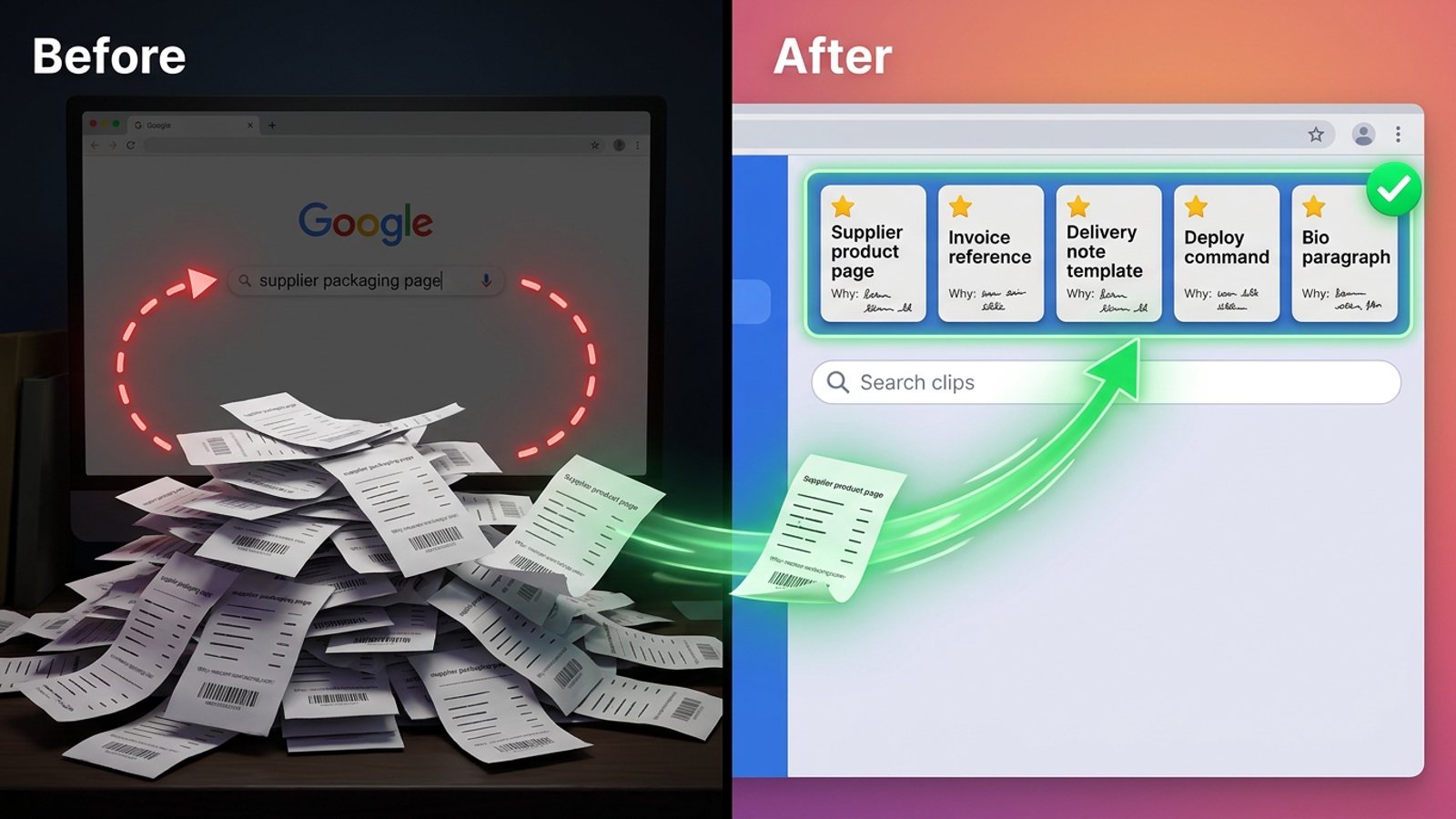
Say you run a small bakery and reorder packaging every Monday. You copy the supplier's product page, the invoice reference and the delivery note template — same three things, every week. Starred, they're one click each. Unstarred, you're re-searching the supplier's site every Monday morning and hoping you pick the right SKU.
The same applies to a developer grabbing the same deploy command, or a writer pasting the same bio paragraph into a dozen pitches. Reuse beats re-search every time.
How does Clipboarder Pro handle this?
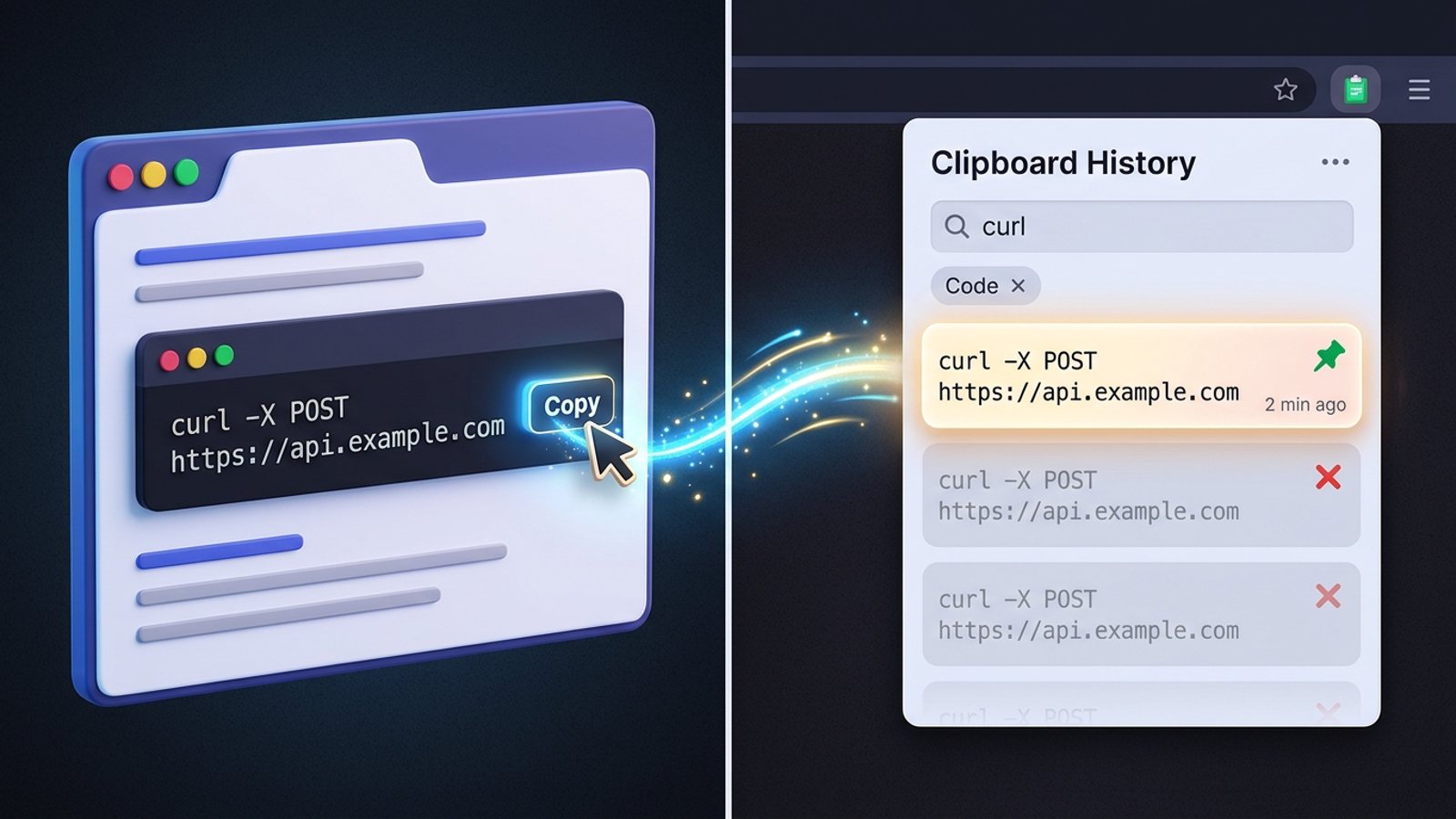
Clipboarder Pro is a Chrome clipboard manager that automatically saves everything you copy — text, images, URLs and code — and gives you the starred shelf and searchable history this routine needs. You don't change how you work; you keep copying as normal and the extension captures it.
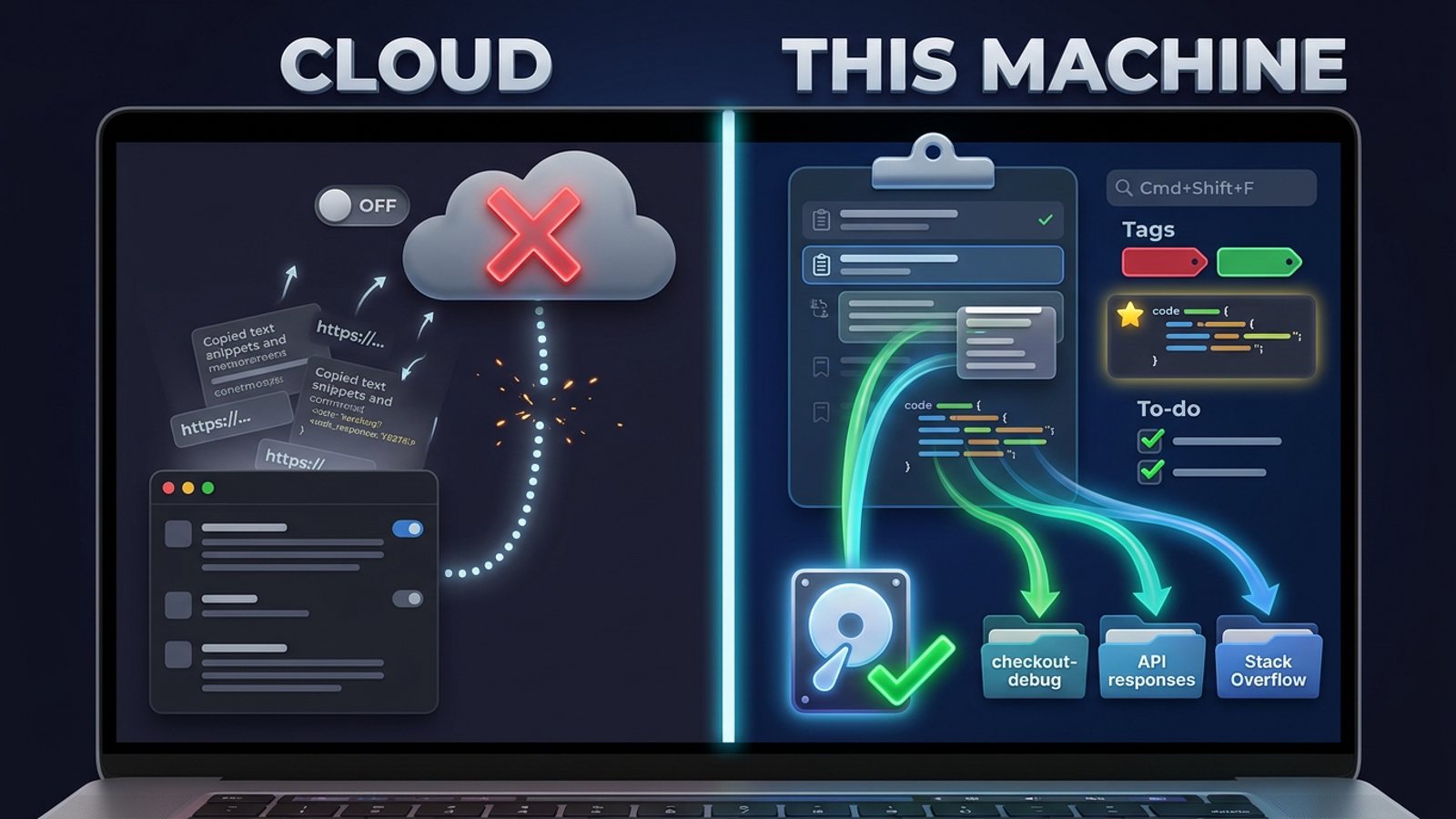
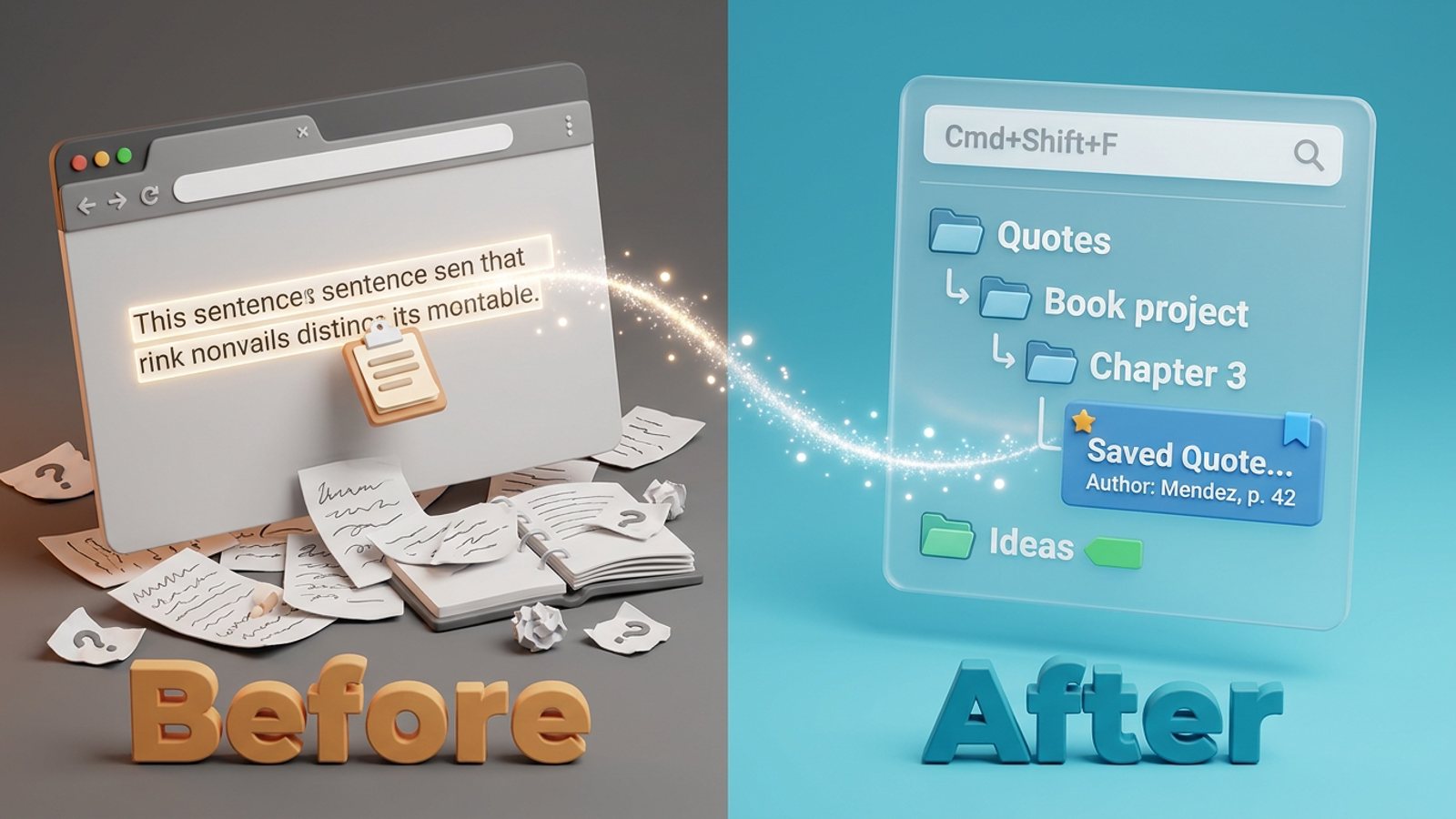
Then you organise: drag items into nested folders up to three levels deep, colour-code by urgency or project, and star the items you use most for one-click access. You can write notes in-line right next to the clip that inspired them — exactly the "why" that bookmarks lose. Search across every clip, note and folder with Cmd+Shift+F, and when you need several things at once, select multiple clips and copy 5, 10 or 20 items in one shot.
Everything is stored in your browser on your machine — zero servers, zero tracking. The honest limit: it's a Chrome extension only, and because everything lives locally there's no cloud sync or server backup.
Pricing: free for 30 days, then $4.99 per month as of November 2026 — prices can change.
Install the ultimate Chrome extension today and give last week's links somewhere to live.
What are the best options for stopping the re-finding loop?
Here's how the realistic options compare for this specific job — reusing links and text you copy every week.
| Option | Best for | Key features | Price/free option | Watch-outs |
|---|---|---|---|---|
| Clipboarder Pro (Our pick) | Browser copying with folders and stars | Auto-capture, nested folders, stars, notes, search | Free 30 days, then $4.99/month | Chrome only; local, no sync |
| Chrome bookmarks | Keeping a URL permanently | Built into Chrome | Free | No "why"; slow folders |
| Windows Clipboard History | Quick recent retrieval | Win+V, unlimited pins | Free, off by default | 25 items; wiped on restart |
| macOS Spotlight history | Mac users, no install | 8h/7d/30d retention | Free with macOS 26 | ~10 clips |
| Google Keep | Quick notes and checklists | Notes, shared checklists | Described as free (third party) | Manual paste and filing |
Clipboarder Pro (Our pick) — of the tools we compared, it's the one that combines automatic capture, starring and folders in the browser where most of this copying happens. Clipboarder Pro is made by the team behind this blog.
Chrome bookmarks are free and built in, and they're the right tool if all you need is a permanent URL synced to your Google account. They store links, not arbitrary copied text, and a URL alone doesn't record why you saved it.
Windows Clipboard History (Win+V) is free and needs no install. It keeps up to 25 entries and clears unpinned items on restart, per Microsoft Q&A (November 2026); pins are unlimited and survive both the cap and restarts (MakeUseOf, December 2025). It's off by default — enable it via Windows+i → System → Clipboard. Chrome Incognito copies aren't captured (IT之家 via 网易, 2025).
macOS Spotlight clipboard history arrives free with macOS Tahoe (26), off by default, enabled in System Settings → Spotlight → "Results from Clipboard", with retention of 8 hours, 7 days or 30 days (Lifehacker via Yahoo Tech, updated November 2025). It opens with Cmd+Space then Cmd+4 and keeps roughly 10 clips (Yahoo Tech, October 2025).
Google Keep is good for quick capture, reference notes and shared checklists (Rotten WiFi, October 2026), though the same source describes it as weak for large knowledge bases and complex projects. Both Keep and Notion require you to paste and file manually — nothing is captured automatically.
If you mainly need a permanent URL shelf and nothing else, Chrome bookmarks are the more direct choice. If you want everything you copy — links, text, code, images — captured and searchable without pasting it anywhere first, a Chrome clipboard manager is the better fit.
Good to know
Rules and menus change. At the time of writing, the Windows and macOS settings paths above match the sources listed at the end — check your own OS version if a menu looks different.
How many items does Win+V keep, and why did my history vanish?
Windows Clipboard History keeps up to 25 entries, and unpinned items are cleared when you restart, according to Microsoft Q&A (November 2026). Pinned items are unlimited and survive both the 25-item cap and restarts (MakeUseOf, December 2025). If your history vanished overnight, that's the restart rule — not a bug. Pin the things you actually reuse.
Should I use bookmarks or a clipboard manager for links?
Use bookmarks for URLs you want to keep forever, and a clipboard manager for everything you copy and might need again. Bookmarks are free and permanent but store links only, with no record of why you saved them and slow nested folders. A clipboard manager captures links and text, code and images, and lets you search across all of it.
The practical answer for most people: both. Star your weekly links in the clipboard tool, and bookmark the handful of pages you genuinely return to for months.
Is it safe to keep everything I copy in a browser extension?
It depends entirely on where the data goes. A Chrome clipboard-history extension can store copies locally without sending text to a website or cloud account, and search them to find a link or snippet without re-copying from the source page (Chrome Web Store listing, updated August 2026). Clipboarder Pro works this way — everything stays in your browser on your machine, with no servers.
The risk to manage is what you copy, not where it's stored. Keep passwords and secrets out of any clipboard history. If you want copied links and notes kept together with their context, that's the next step: see how to keep copied links and notes in one place automatically.
Tip
Our recommendation: run the weekly tidy-up on a Friday afternoon. Review your starred items, delete dead links, and move anything project-specific into a folder. Five minutes, once a week, and Monday starts clean.
Sources
- Optimizing For Re-finding Search Behavior — Search Engine Land, 2009
- Information re-retrieval — ACM Digital Library, 2007
- History repeats itself: repeat queries in Yahoo's logs — ACM Digital Library, 2006
- 10 Best Clipboard Managers — Text Blaze (vendor blog), 2026
- Google Help thread on the clipboard — 2019
- Windows Clipboard History sync Q&A — Microsoft Q&A, 2026
- Clipboard history Windows use cases — MakeUseOf, 2025
- Windows hidden features — Yahoo Tech, 2026
- Finally see Mac's clipboard history — Lifehacker via Yahoo Tech, updated 2025
- Enable clipboard history in macOS Tahoe — Yahoo Tech, 2025
- Chrome Incognito clipboard change — IT之家 via 网易, 2025
- Clipboard Manager extension listing — Chrome Web Store, updated 2026
- Clibben project post — Peerlist, 2026
- Save from the web without losing context — Luckynote, 2026
- Google Keep alternatives — Rotten WiFi, 2026
Frequently asked questions
Why do I keep Googling the same thing over and over?
Because you remember the search, not the result. Search Engine Land (2009) noted that people re-find content using the keywords they originally used, and often can't recall the exact title. A searchable clipboard history breaks that loop by storing the result itself.
What's the quickest way to stop re-finding copied links?
Star the 5–10 links you reuse weekly so they're one click away, and search your clipboard history before you open a search engine. Those two habits cover most of the problem; the rest is a weekly five-minute tidy-up.
Which tool should I use for this?
If most of your copying happens in the browser and you want automatic capture plus folders and stars, Clipboarder Pro is our pick of the tools we compared — free for 30 days, then $4.99 per month as of November 2026. If you only need a permanent URL shelf, Chrome bookmarks are free and sufficient. Windows and Mac users get basic clipboard history built in.
Do copied passwords show up in clipboard history?
Not from password managers — Lifehacker (updated November 2025) notes that passwords copied from Apple Passwords or password managers don't appear in macOS clipboard history. But anything sensitive you copy from an unsecured source does land there, which is why the Chrome Web Store listing for Clipboard Manager warns against storing secrets in browser storage.
How do I save every code snippet I copy without pasting it somewhere?
Keep a clipboard history running and star the snippets you reuse. Copying captures them automatically, and starring puts them one click away. For a deeper walkthrough, read how to save code snippets automatically.