How do I search my clipboard history in Chrome for an old snippet?
Chrome has no built-in clipboard history to search. Here's how to find old snippets by keyword — and the tools that actually make it possible.
Clipboarder Pro Team
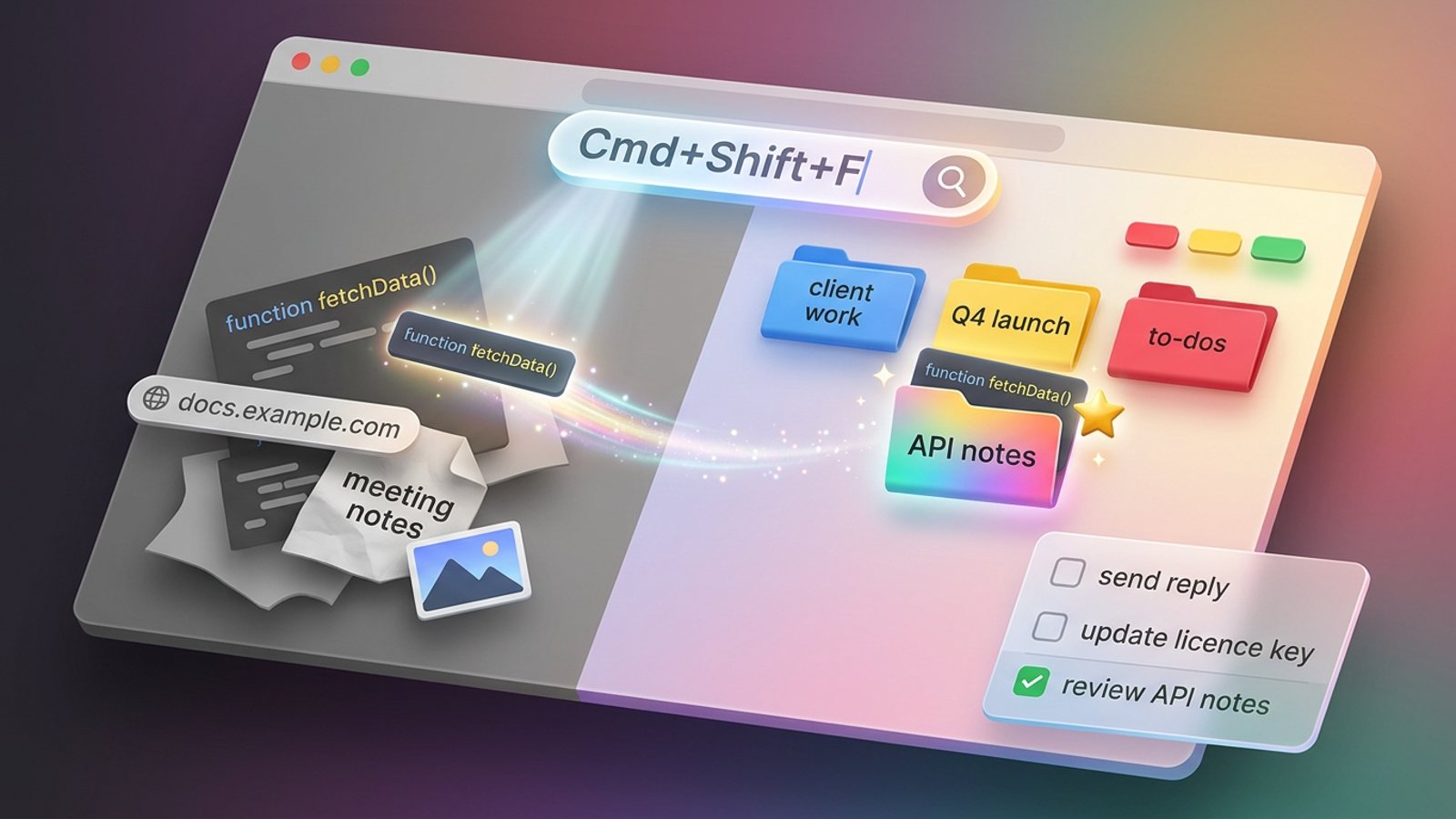
Chrome has no clipboard history, so there is nothing in the browser to search. The only history that exists is your operating system's — on Windows, Win+V shows about 25 recent items with no full-text search — or the history kept by a clipboard manager you install. To find an old snippet by keyword, you need a tool that stores clips and searches their text, notes and folders.
Key takeaways
Key takeaways
- Chrome ships no clipboard history page, menu or shortcut, so there is nothing built in to search.
- Windows clipboard history (Win+V) holds about 25 items and, per a vendor-authored comparison, has no full-text search.
- Keyword search only works in a clipboard manager that saves clips and indexes their content.
- Clipboarder Pro searches every clip, note and folder with Cmd+Shift+F, and starred items are one click away.
- No tool can recover something you copied before you installed it.
Ready to stop hunting? Install the ultimate Chrome extension today and every snippet you copy becomes searchable.
Does Chrome have a clipboard history you can search?
No. Chrome leaves clipboard history to your operating system, and there is no page, menu or shortcut in the browser that lists past copies.
Clipboard Inspector's guide to Chrome's clipboard explains that Chrome exposes the OS clipboard through paste events and the navigator.clipboard API, and leaves history to the operating system or to extensions. A Chrome extension's own README puts it just as plainly: your operating system clipboard holds one item at a time, and Chrome offers no built-in clipboard history.
So if you are picturing a Chrome settings page with your last 200 snippets in it, it doesn't exist. The history has to come from somewhere else — and that "somewhere else" decides whether you can search it.
Good to know
You may have seen the message "Clipboard is not enabled in hosted mode. Please inspect using chrome://inspect." That is a remote-debugging error notice, not a history feature — a Stack Overflow thread from 2017 covers the same message.
Why can't I find something I copied earlier in Chrome?
Because the clipboard holds one item, and the next copy overwrites it. Nothing was ever stored to find.
That is the whole mechanism: you copy a code snippet, then copy a URL, and the snippet is gone. By the end of a working day you may have copied a hundred things and kept none of them.
Watch out
The most common mistake is assuming a browser restart, a Chrome update or an extension you installed later will surface old copies. Third-party tools cannot recover clipboard history from before they were installed — Microsoft's Q&A answer and CleverClip's FAQ both say so.
What can I search in Windows clipboard history?
Win+V shows your recent items, but it is a short list to browse, not a search box to query.
Here is the honest picture of the built-in option:
- How to turn it on: Settings → System → Clipboard, switch clipboard history on, then press Win+V — per Microsoft's Q&A answer.
- How much it holds: up to about 25 recently copied items — text, images and HTML — per HP's 2026 guide.
- Pinning: Win+V → the three dots → Pin, per art-telecom.fr (2025).
- When it disappears: history clears on sign-out or restart, and cross-device sync needs a Microsoft account — same source.
- Search: a vendor-authored comparison table lists full-text search as "No" for Windows Win+V. Treat that as the competitor's claim, not an official Microsoft statement.
- Where the data sits: a managed cache at
%LocalAppData%\Microsoft\Windows\Clipboard, not one plain file, with the live item in RAM — Ultimate Systems Blog, 2025.
Twenty-five items is roughly a coffee break's worth of copying for a developer or researcher. And note Windows 10 reached end of support on 14 October 2025, per HP, so the Win+V experience you get depends on your Windows version.
Tip
Our recommendation: if you are on Windows and only ever re-paste the same three or four things, Win+V plus pinning may genuinely be enough. The moment you need to search by keyword, it isn't.
How do I search clipboard history in Chrome for an old snippet?
Install a clipboard manager that saves clips and offers keyword search, then type a word from the snippet into its search box.
The real technique, whatever tool you pick:
- Check the browser first. Chrome has no history page or shortcut — confirm it and move on rather than hunting for a hidden menu.
- Turn on the OS option if you're on Windows. Settings → System → Clipboard → clipboard history on, then Win+V. Pin what you paste most.
- Install a tool that keeps and searches history if you need more than about 25 items or actual keyword search.
- Type a keyword from the snippet — a function name, a phrase, a domain — rather than scrolling.
- Prefer tools that search context too: source URL, tags and filters beat plain text matching. CleverClip's listing, for example, advertises search by text or source URL, and Clipivo's README documents filters and screenshot OCR.
- Back up or export your history so search survives a reinstall. Copy History + advertises export alongside its search.
Steps 1–3 are the ones people skip, and they are why the search box stays empty.
The search box is only as good as the history behind it — a tool that never saved the snippet cannot find it for you.
How does Clipboarder Pro make an old snippet findable?
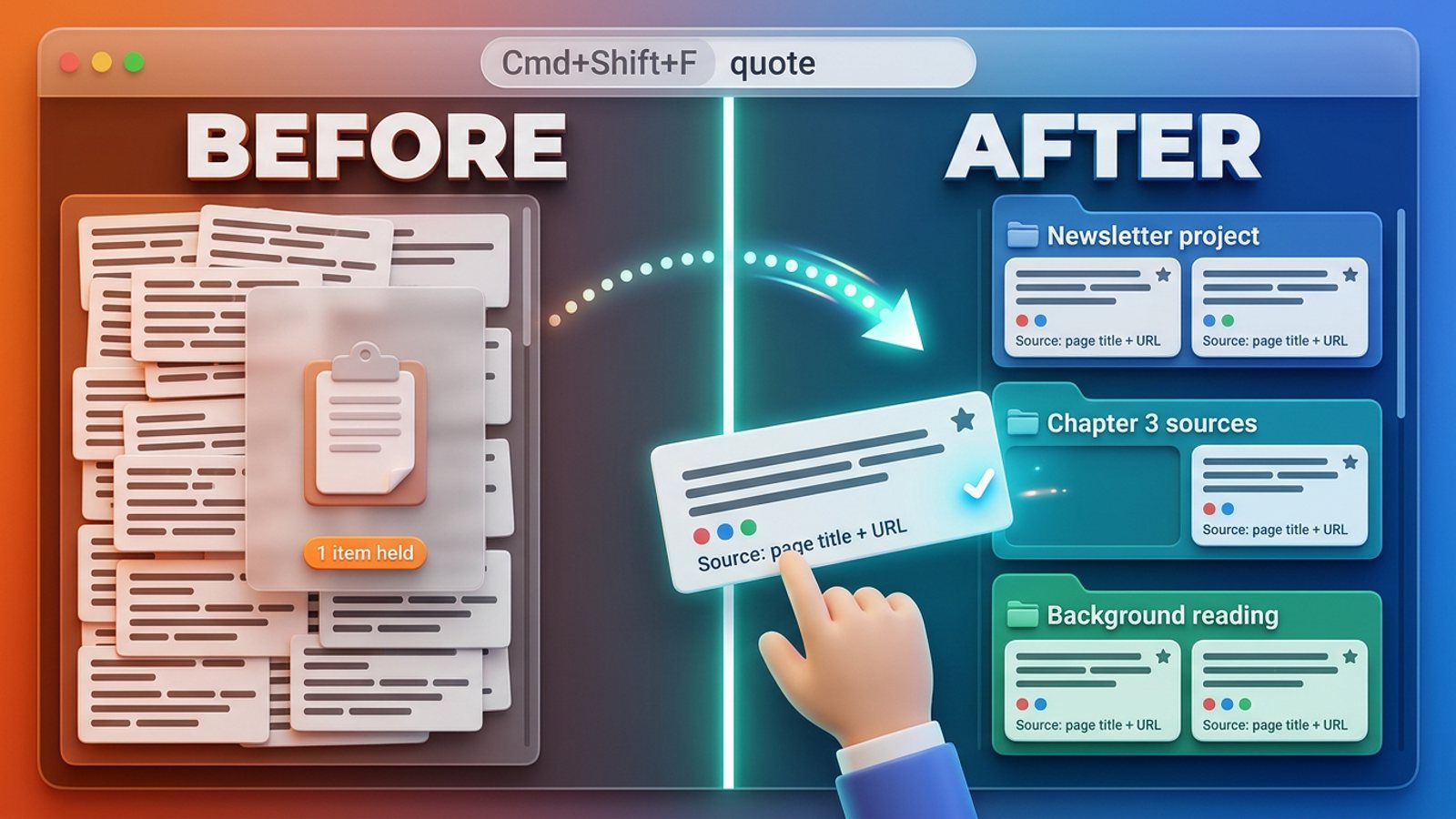
It captures everything you copy automatically, then lets you search across every clip, note and folder with Cmd+Shift+F.
You install it and keep copying as normal. Text, images, URLs and code land in your clipboard history without you doing anything. When you need that snippet from three hours ago, you press Cmd+Shift+F and type a word from it.
Where it goes further than a plain list:
- Nested folders, up to 3 levels deep, with drag and drop — so "client work → Q4 launch → API notes" is a real place, not a guess.
- Color tags and stars to spot priorities at a glance, with starred items one click away.
- In-line notes written right next to the clip that inspired them, so the context is searchable too.
- Multi-select copy — 5, 10 or 20 items in one shot when you're rebuilding a document.
- Archive with a 1–365 day retention window, so old material leaves your way without being deleted.
Everything is stored in your browser on your machine — no servers, no tracking. That is also its honest limit: it is a Chrome extension only, and there is no cloud sync or server backup. If your data has to follow you across devices, a desktop tool is the better fit.
Tip
Our recommendation: star the five snippets you paste every week — your email signature block, a licence key, a standard reply. Search finds the rest; stars save you typing.
Which tool should I use to search old copied text?
It depends on where you work. For searching inside Chrome, Clipboarder Pro is our pick of the tools we compared; for a Mac-only or cross-application desktop workflow, Maccy, CopyQ or Ditto are the more direct choices.
| Option | Best for | Key features | Price / free option | Watch-outs |
|---|---|---|---|---|
| Clipboarder Pro (Our pick) | Searching clips inside Chrome | Cmd+Shift+F search, nested folders, notes, to-dos, stars | Free for 30 days, then $4.99/month | Chrome only; local storage, no cloud sync |
| Windows Clipboard History | Quick re-paste on Windows | Win+V, ~25 items, pinning | Free with Windows 10/11 | No full-text search; clears on restart |
| Maccy | Mac users wanting a light menu-bar tool | Indexed search of text and images | Free per its SourceForge listing | macOS only; no folders or notes listed |
| CopyQ | Cross-platform desktop capture | Unlimited items, full-text search | Not stated in the material | Vendor-authored table says no pin favourites |
| Ditto | Windows users capturing from all apps | Unlimited items, search, pinning, LAN sync | Free for Windows | Windows only |
A few notes on the table. Clipboarder Pro's price is $4.99 per month after the 30-day free trial, as of November 2026, and prices can change. The CopyQ and Ditto rows come from a competing extension's own comparison repo — vendor-authored, so weigh them accordingly; CopyQ's official site and pricing were not part of the material reviewed.
If you mainly need a Mac menu-bar tool with fast search, Maccy is the more direct choice. If you capture from Photoshop or a terminal as much as from Chrome, CopyQ or Ditto cover ground a browser extension can't.
Clipboarder Pro is made by the team behind this blog. Of the tools we compared, it is the one built for the Chrome-first workflow: install the ultimate Chrome extension today and your next copy is already searchable.
What if I need notes and to-dos next to my clips?
Then pick a tool that keeps them in the same searchable place, because a snippet without its context is just text.
Say you run a bakery and you're rebuilding the wholesale price sheet. You copy supplier prices, a competitor's menu, a font name and a line from an email. Six weeks later you search "flour" — and what you actually need is the note you wrote beside it: "ask about the 25kg rate". A tool that searches notes as well as clips gives you that. One that only stores text gives you the word "flour" and nothing else.
Clipboarder Pro keeps notes in-line beside the clip and to-do lists in the same workspace, with check-offs, hiding of completed items and a confetti celebration when you clear the list. Search covers all of it.
If you want to go deeper on that side of the workflow, our guide to a Chrome extension that keeps notes and to-dos with your clips walks through it. And if the problem is really that new copies keep wiping old ones, start with how to stop losing copied text in Chrome.
Sources
- How to see your clipboard history in Chrome (clipboardextension.com, undated)
- Clipboard on Google Chrome: The Complete Guide (Clipboard Inspector, undated)
- How to Use the Clipboard on Windows 10 (Now 11) (HP, 2026-07-21)
- Presse-papiers Windows 10 : comment y accéder (art-telecom.fr, 2025-11-14)
- How to see clipboard history (Microsoft Q&A, 2025-07-06)
- Clipboard Folder Paths on Windows 10 & 11 (Ultimate Systems Blog, 2025-08-11)
- Chrome inspector – remote debugger – Clipboard is not enabled (Stack Overflow, 2017)
- Clipboard History — Free Open Source Chrome Extension README (GitHub, 2026-02-16)
- COMPARISON.md — Clipboard History vs Windows Win+V, macOS, CopyQ, Ditto (GitHub, vendor-authored, 2026-02-16)
- Commit notes: vs. CopyQ / vs. Ditto (GitHub, 2026-02-16)
- Copy History + listing (Chrome Web Store, updated 2026-11-17)
- CleverClip listing (Chrome Web Store, updated 2026-10-18)
- Clipboard Manager & History listing (Chrome Web Store, undated)
- Maccy for Mac (SourceForge, 2026-01-21)
- Clipivo README — search, filters, screenshot OCR (GitHub, 2026-09-28)
Frequently asked questions
Does Chrome have a built-in clipboard history?
No. Chrome has no clipboard history page, menu or shortcut. It passes the OS clipboard through paste events and the navigator.clipboard API, and leaves history to the operating system or an extension.
Can I search Windows clipboard history with a keyword?
Per a vendor-authored comparison table, Windows Win+V has no full-text search, and HP's 2026 guide puts its capacity at about 25 items. It is a browse-and-pin list, not a searchable archive.
Can I recover a snippet I copied before installing a clipboard manager?
No. Tools only start saving from the moment they are installed — both Microsoft's Q&A answer and CleverClip's FAQ state that history from before installation can't be recovered.
Which tool should I use to search clipboard history in Chrome?
For search inside Chrome, Clipboarder Pro is our pick of the tools we compared: Cmd+Shift+F searches every clip, note and folder, with nested folders and stars for the things you reuse. For Mac-only or cross-app desktop work, Maccy, CopyQ or Ditto suit better.
Will my clipboard history survive a restart or a reinstall?
Windows clipboard history clears on sign-out or restart, per art-telecom.fr. Extension histories are deleted on uninstall or browser reset unless backed up — Copy History +, for example, advertises export. Our recommendation: export or archive anything you would hate to retype.