What is the best way to save every source I copy while researching?
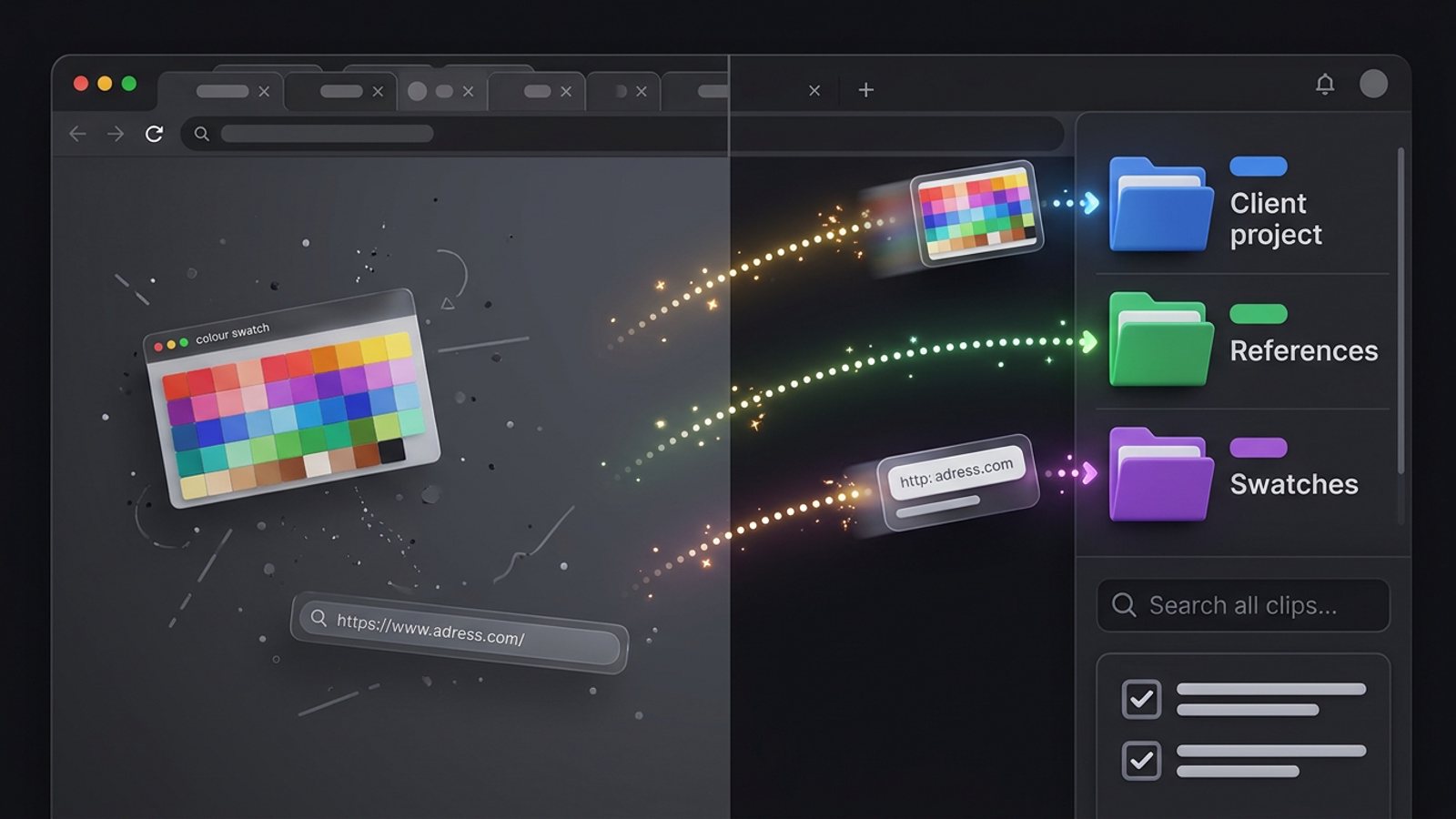
Capture every quote, link and snippet automatically, then file the keepers into project folders with stars and notes — so no source disappears when you close the tab.
Clipboarder Pro Team
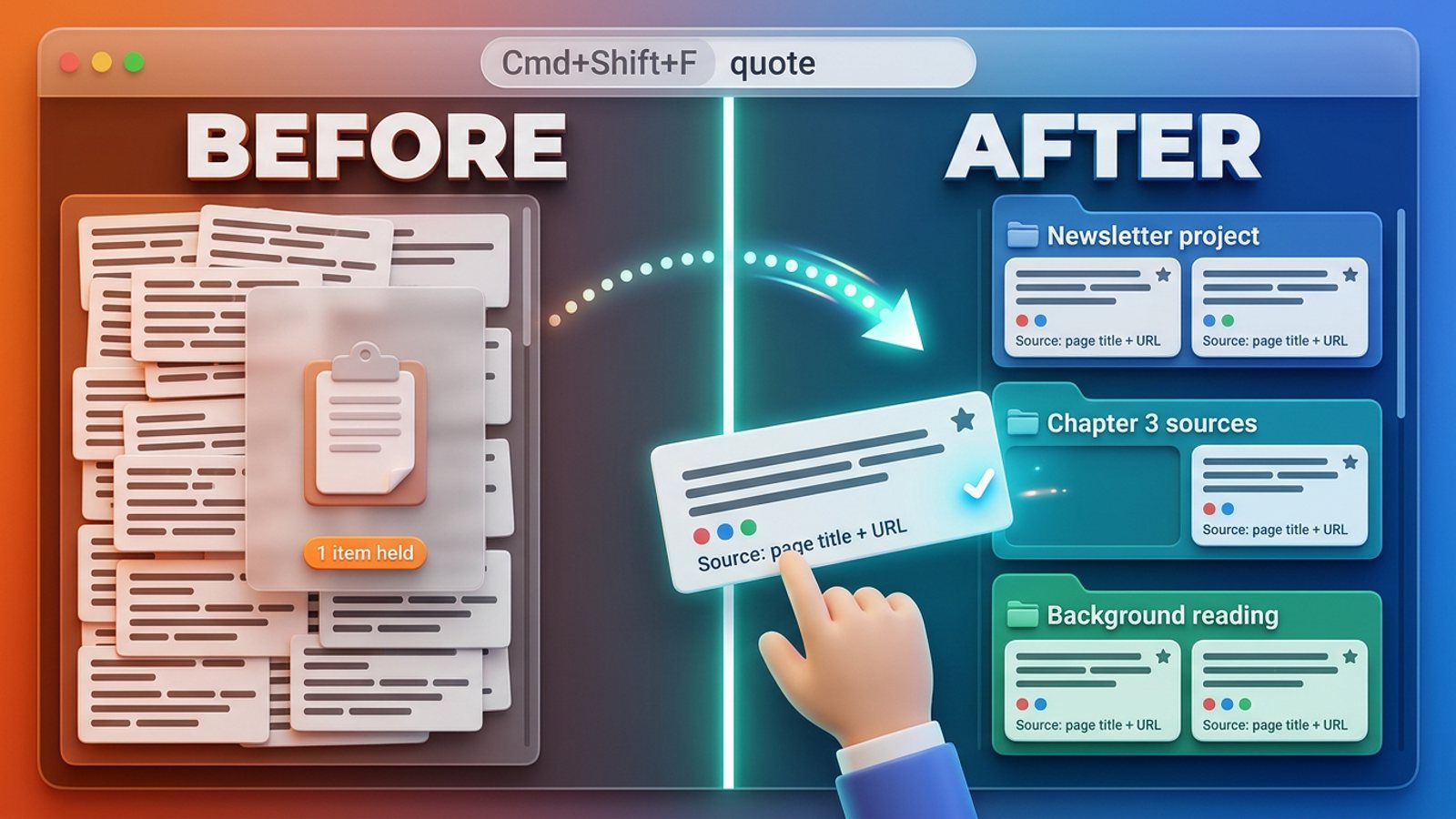
The best way to save copied sources research is a two-part habit: let a clipboard tool capture every copy automatically, then star or file the important ones into project folders. Capture gives you the text back; folders and stars give you the project back. A plain scroll-back history does only the first half, so quotes pile up with no home.
Key takeaways
Key takeaways
- Copy first, sort second: an automatic clipboard history catches every quote, link and snippet the moment you copy it.
- One folder per project, plus stars for the clips you'll cite, beats one long scrolling list.
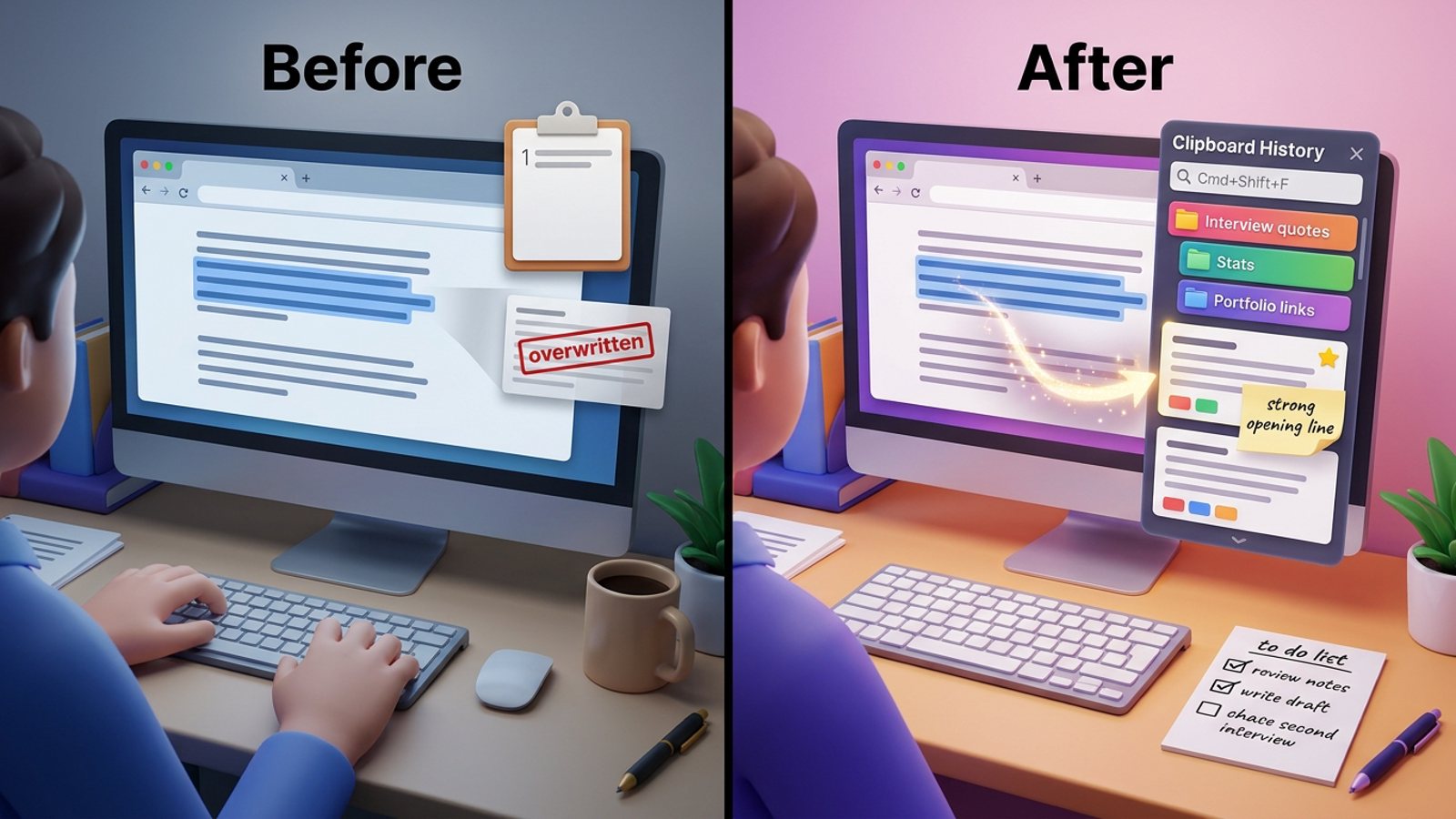
- Chrome has no built-in clipboard history, and the OS clipboard holds one item at a time — so copying again wipes the last quote.
- Zotero is the right tool for formal citations; a clipboard organizer is the right tool for the raw material you collect before you write.
- Clipboarder Pro is a Chrome clipboard manager that saves clips, notes and to-dos together, with folders, color tags and stars.
Install the ultimate Chrome extension today if you want every copy captured from your next research session onward: Clipboarder Pro.
Why do copied sources get lost in the first place?
Because nothing is holding them. Chrome has no built-in clipboard history, and the operating system clipboard holds one item at a time — a copied quote is gone the moment you copy the next thing, as the Clipboard History project's README notes (2026). Windows' own clipboard history (Win+V) is off by default and holds at most 25 items, a limit Microsoft's Q&A answer says cannot be raised by any setting (2026).
So the loss isn't carelessness. It's the default. You copy a sentence, then a link, then a stat, and by the fourth tab the first three have vanished.
Good to know
Chrome history (Ctrl+H) is a different thing entirely — it lists pages you visited, not text you copied, and it shows truncated URLs. It won't bring back a quote.
What is the best way to save every source I copy?
The best method is capture-then-file: an automatic clipboard history records every copy with its page, and you sort the keepers into folders as you go. That's the whole system. It takes two habits and about five seconds per important clip.
Here's the workflow, step by step:
- Set up source-aware capture. Install a clipboard history tool that records the copied text along with the page title and URL, so provenance comes free. CopyTrail, Clipora, Copybook and Context Clipboard all describe saving the source page alongside the text (2026 listings).
- Create one folder per project before you start. Name it after the piece you're writing, not the topic — "Q1 newsletter" beats "misc links".
- Copy as you read. Don't stop to paste anywhere. Let the tool catch it.
- Star or move the clips you'll actually cite. Everything else stays in history as background.
- Write from the folder. Search a phrase, paste the quote, pull the URL from the same item.
Academic guidance backs the same instinct: keep a running digital reference list as you research, pasting the full citation plus a permalink while the source is still in front of you, because sources are hard to find again (eCampusOntario Pressbooks, 2025).
The difference between a researcher who finishes on time and one who doesn't is usually not reading speed — it's whether the quote was still there when they needed it.
How do folders and stars beat a plain clipboard history?
A plain history lets you scroll back. Folders and stars let you decide. That's the gap.
Scroll-back tools are genuinely useful — automatic, zero effort, local. But unless the tool also records the source URL and title, you get text without provenance, and item caps quietly delete the old stuff. The Clipboard History extension, for example, caps storage at 10,000 items and 50,000 characters per clip and auto-removes the oldest non-pinned clips (README, 2026).
The folder-plus-star pattern fixes both problems:
- Folders hold the project. Nested folders let you separate "Chapter 3 sources" from "background reading" without a second app.
- Stars hold the shortlist. The five quotes you'll definitely use sit one click away, above the noise.
- Notes hold the thought. Writing a line next to the clip that inspired it is how a collected quote becomes your argument — the same logic as the double-entry research journal method, where source info and your own notes sit side by side (GSW LibGuides).
Tip
Our recommendation: file a clip the moment you know it's a keeper. Ten seconds now saves ten minutes of hunting later, and unfiled clips are the ones that get lost.
How does Clipboarder Pro handle copied sources?
Clipboarder Pro captures everything you copy — text, images, URLs and code — automatically as you work, then gives you folders, color tags, stars and in-line notes to sort it. It's the folder-plus-star workflow in one Chrome extension.
The research-specific parts:
- Nested folders up to 3 levels deep, with drag and drop — project, chapter, source type.
- Color tags for urgency or project, so a scan of the list shows what's still unread.
- Stars for the clips you'll cite, one click away.
- In-line notes right next to the clip that sparked the idea.
- Search across every clip, note and folder with Cmd+Shift+F.
- Multi-select copy — grab 5, 10 or 20 items in one shot when you're assembling a draft.
- To-do lists with check-offs, so "find the original study" lives next to the quote that needs it.
- Archive with an automatic retention window of 1–365 days, so old projects clear out without deleting anything.
Everything is stored in your browser on your machine — no servers. That's also the honest limit: Clipboarder Pro is a Chrome extension only, and there's no cloud sync or server backup, so your research lives on that one browser.
It's free for 30 days; after that it's $4.99 per month as of November 2026, and prices can change.
What are the best tools for saving copied sources?
Of the tools we compared, Clipboarder Pro is our pick for the collecting-and-sorting stage — the messy middle between "I read something useful" and "I'm writing the draft".
| Option | Best for | Key features | Price / free option | Watch-outs |
|---|---|---|---|---|
| Clipboarder Pro (Our pick) | Capturing and filing copied quotes, links and snippets | Auto-capture, nested folders, stars, color tags, notes, to-dos, search | Free 30 days, then $4.99/month (Nov 2026) | Chrome only; local storage, no cloud sync |
| Zotero | Formal academic citations | One-click citation + PDF capture, Word/Docs integration, group libraries | Free; 300 MB free storage, paid tiers reported | Built for references, not loose snippets |
| Raindrop.io | Collecting and re-finding whole pages | Collections, tags, highlights, cross-platform apps | Free tier unlimited; Pro adds full-text search | Saves bookmarks, not clipboard copies |
| Notion Web Clipper | Clips plus notes in one workspace | Saves page to a Notion database, searchable | Notion free for individuals | Saves the page, not the copied text |
Clipboarder Pro is made by the team behind this blog.
Zotero is free and open source, and Yale's library guide calls it the simplest, most flexible choice for most students and humanities or social-science research (2026). Its browser connector grabs citation metadata and PDFs in one click, and it works with Word, Google Docs and LibreOffice. If your job ends in a bibliography, Zotero is the more direct choice — but it's built for references, not for arbitrary snippets you copy while browsing, and web-page metadata may need manual edits (Agronet/UPRA comparison table, undated).
Raindrop.io has a generous free plan: unlimited bookmarks, collections, highlights and devices, plus 100 MB/month of uploads (Raindrop.io pricing, undated). Pro adds full-text search, web archive, AI assistant and backups, billed monthly or yearly — the Italian pricing page showed Pro yearly at $28 and the App Store listed Pro Yearly at $36.99–$39.99 (2026), so prices differ by store; check the official page at write time. Watch-out: after downgrading, web-archive copies become inaccessible and are permanently deleted after about a month (Raindrop.io Help, 2026). And it saves pages, not the text you copied.
Notion Web Clipper puts a saved page into a Notion database you can search, which suits people already living in Notion. Notion is free for individuals; Plus is $10/seat/month billed yearly, $12 monthly, per a third-party comparison (WebSnips, 2026). It saves the page, not the quote.
Chrome bookmarks are free and built in, with folders, subfolders and side-panel search (WIRED, 2025). They save the URL only — no copied text — and nesting stops at subfolder depth.
Google Docs remains the manual fallback: a running reference list you paste into by hand. It works, but only if you remember, and it never captures anything for you.
Watch out
The most common mistake is collecting without filing. A history with 400 unsorted clips is barely better than no history — the value is in the folder, not the pile.
Does a researcher need a citation manager too?
Only if the work ends in formal citations. Citation managers generate APA, MLA or Chicago references, store articles and PDFs, and plug into Word and Google Docs (SUBR LibGuides, 2026) — none of which a blog post or a client brief needs.
Our recommendation: run both, in order. Collect and file in a clipboard organizer while you read; mirror anything that needs a formal citation into Zotero at the end. For a deeper look at the collection stage, see how to keep copied links and notes in one place.
Good to know
Rules on citation and plagiarism vary by institution and by place. This is general workflow advice, not legal advice — check your course or publisher's guidance.
How do I stop losing sources when I close a tab?
You stop losing them by not depending on the tab. Once a quote is captured with its URL, closing the tab costs you nothing — the text and its source are already filed.
That's the practical test for any tool you choose: copy a sentence, close the tab, then try to find both the sentence and the page it came from. If you can do that in under ten seconds, your system works.
Ready to stop losing citations? Install the ultimate Chrome extension today and every quote you copy lands in a folder you can find again: Clipboarder Pro.
Sources
- Clipboard History Chrome extension README (GitHub, 2026-02-16)
- Clipboard History FAQ (GitHub, 2026-02-16)
- CopyTrail listing (Chrome Web Store, undated)
- Clipora listing (Chrome Web Store, undated)
- Copybook listing (Chrome Web Store, updated 2026-08-02)
- Total Recall Clipboard package analysis (Socket, 2026-09-08)
- Context Clipboard (Sanjay Santhanam, 2026-08-31)
- Clipboard maximum Q&A (Learn Microsoft, 2026-09-11)
- Organizing Your Research (eCampusOntario Pressbooks, 2025-12-31)
- Double-Entry Journal (GSW LibGuides, undated)
- Which Citation Manager Should I Choose? (Yale Library, 2026-05-21)
- Zotero vs Mendeley comparison table (Agronet/UPRA, undated)
- Raindrop.io Subscription help (Raindrop.io, 2026-10-28)
- Raindrop.io pricing, Italian (Raindrop.io, undated)
- Raindrop.io on the App Store (Apple, 2026-02-26)
- Best Research Tools comparison (WebSnips, 2026-04-15)
- Best Apps for Saving Research 2026 (dessence.ai, 2026-05-12)
- Organize your bookmarks in Chrome (WIRED, 2025-03-17)
- About Citation Managers (SUBR LibGuides, 2026-06-15)
Frequently asked questions
Does Chrome keep a clipboard history?
No. Chrome has no built-in clipboard history, and the OS clipboard holds one item at a time. You need an extension or your operating system's clipboard feature.
How do I keep the source URL next to a copied quote?
Use a clipboard tool that stamps each clip with the page title and URL. CopyTrail, Clipora, Copybook, Context Clipboard and Total Recall all describe saving source information alongside the copied text.
Which tool should I use to save copied sources?
For collecting and filing quotes, links and snippets while you research, Clipboarder Pro is our pick of the tools we compared — folders, stars, notes and to-dos in one Chrome extension. If you need formal citations, Zotero is the more direct choice; if you're saving whole pages, Raindrop.io fits better.
What happens to my saved sources if I stop paying for Raindrop Pro?
Raindrop's help pages say web-archive copies become inaccessible after downgrading and are permanently deleted after about a month. Full-text search is also a Pro feature.
Can I search inside the pages I saved, not just their titles?
With Raindrop.io, full-text search is Pro-only. Clipboard tools search the text you copied, not the full page.