How do I automatically save copied images and URLs in Chrome?
Chrome keeps only the last thing you copy. Learn how to save every copied image and URL automatically, then organize them into folders you can search.
Clipboarder Pro Team
Chrome has no built-in clipboard history, so it keeps only the last thing you copy — images and URLs vanish as soon as you copy the next item. To save copied images and urls chrome automatically, add a clipboard manager: a Chrome extension captures every copy as you work, while OS tools like Windows Clipboard History (Win+V) or Mac clipboard apps hold a short, limited list.
Key takeaways
Key takeaways
- Chrome itself saves nothing: the OS clipboard holds one item, so a new copy replaces the last one.
- Windows 11's Win+V keeps up to 25 items but wipes on reboot and has no search, per MakeUseOf (2026).
- macOS 26 Tahoe's Spotlight history shows about 30 days of items but keeps only around 10 clips, per Yahoo Tech and Tom's Guide (2025).
- A Chrome extension captures copied images, URLs, text and code automatically, locally on your machine.
- Folders, colour tags and search are what keep a day of screenshots and links findable later.
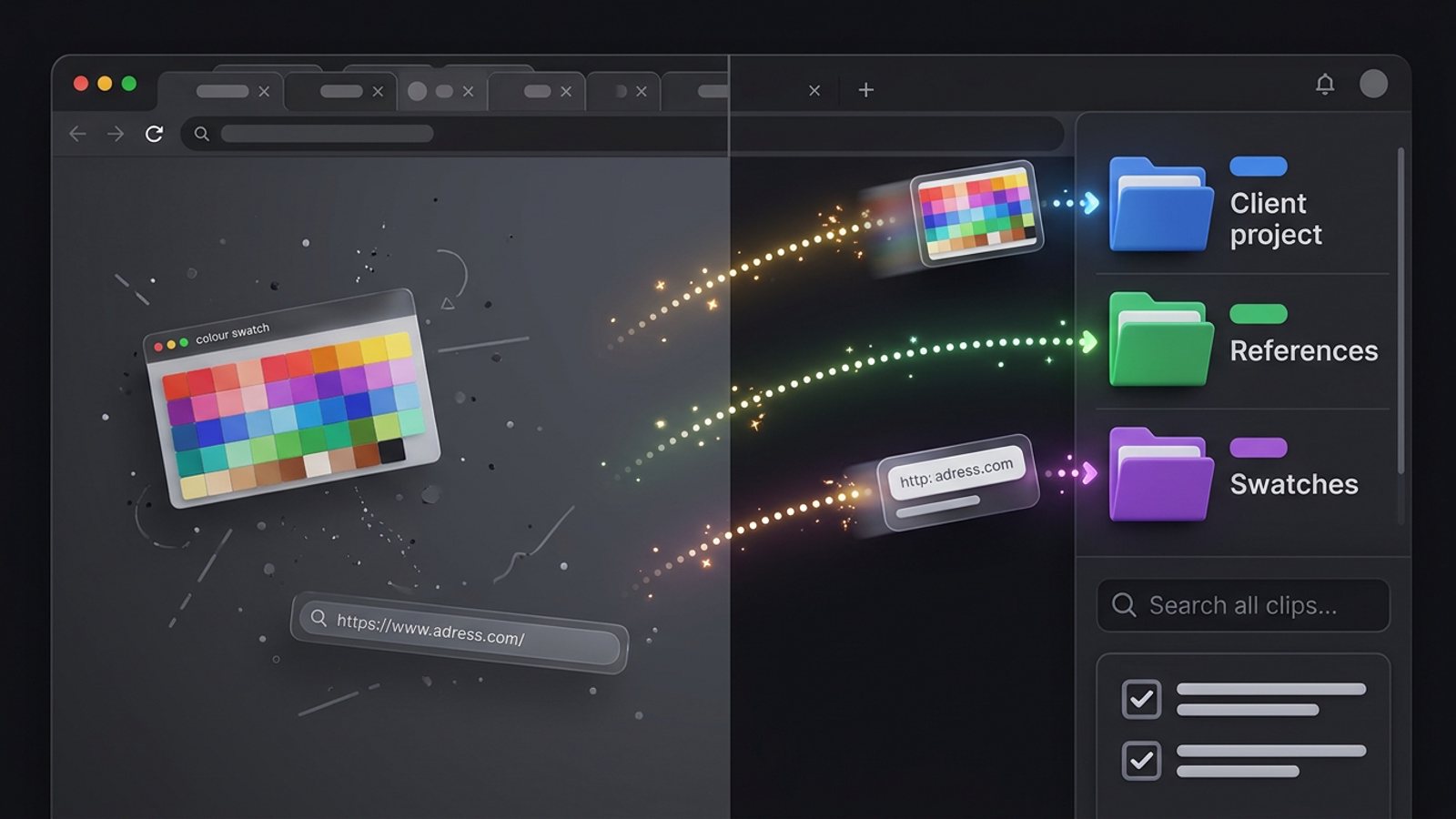
If you copy screenshots, swatches and reference links all day, this is the exact problem you hit: you copy a colour swatch, then a URL, and the swatch is gone. Here's how to fix it so nothing you copy disappears.
Install the ultimate Chrome extension today and every image and link you copy is saved the moment you copy it.
Why doesn't Chrome save what I copy?
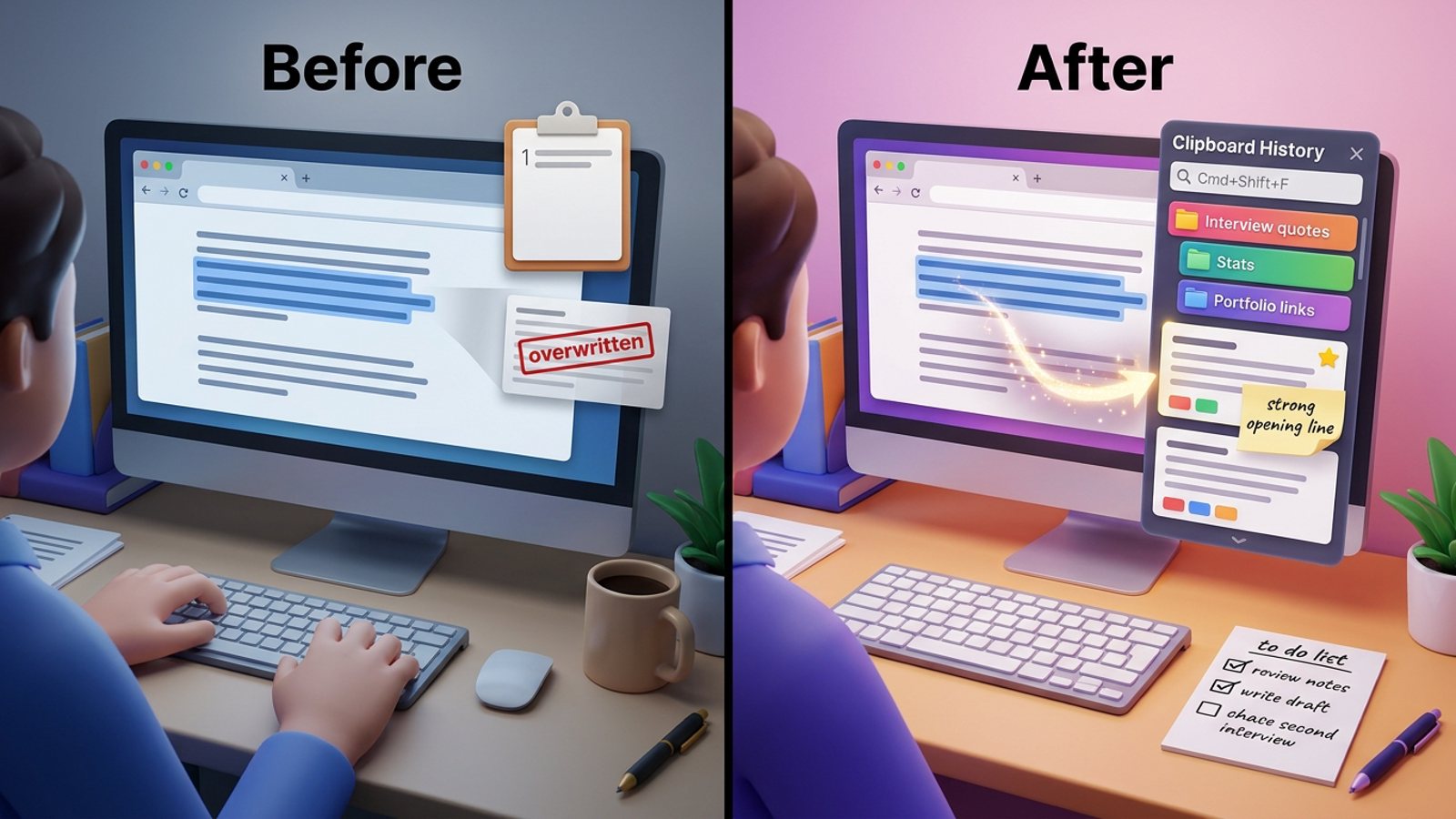
Chrome has no native clipboard history. The operating system's clipboard holds only the most recent item, so copying something new loses the previous one — as the clipboard-history project on GitHub puts it (2026).
That means the browser you work in all day is the one place your copies aren't kept. The fix is either an operating-system tool or a browser extension.
Good to know
Clipboard managers come in two shapes: OS-level tools that watch everything on your computer, and browser extensions that watch what you copy inside Chrome. They solve different halves of the problem.
How do I turn on clipboard history in Windows and macOS?
Both major systems now include a free, built-in history — and it's the fastest first step.
On Windows 11, press Win+V and choose "Turn on", or use Settings > System > Clipboard, per Microsoft's guidance (2026). On macOS 26 Tahoe, clipboard history is built into Spotlight, per MacObserver (2025).
Turn it on now, because the limits below are why most people outgrow it.
What are the limits of the built-in tools?
Windows 11's Clipboard History holds up to 25 items including text, images and screenshots, drops the oldest once full, has no search option, and is wiped on shutdown or reboot, per MakeUseOf (2026). It does support pinning items and "paste as text" without formatting.
On macOS Tahoe, Spotlight shows roughly the past 30 days of copied items (Yahoo Tech, 2025) but keeps only around 10 clips (Tom's Guide, 2025). Before Tahoe, Mac users relied on third-party managers such as Paste or Maccy (MacObserver, 2025).
For a designer copying a dozen swatches and a researcher saving twenty links before lunch, 10 or 25 items is a morning's work — and none of it is organised.
How do I automatically save copied images and URLs in Chrome?
Install a Chrome extension that captures your clipboard automatically, then copy as you normally do. The extension saves each copied image, URL, text block and code snippet into a local history you can search and file.
Here's the real technique, step by step:
- Turn on your OS history first. Press Win+V on Windows 11 (Microsoft, 2026) or use Spotlight history on macOS Tahoe (MacObserver, 2025). It's free and instant.
- Know the ceiling. Windows keeps about 25 items and wipes on reboot; Tahoe keeps about 10 clips. Plan for a tool with more room.
- Install a clipboard extension that auto-saves copied text, links and images locally.
- Read the permission prompt. Chrome will warn that the extension can "Read data you copy and paste" — approve only a source you trust (Safeguard, 2026).
- Copy normally. Your extension captures each item without any extra step.
- File as you go. Drop screenshots and links into folders and tag them, so they stay findable.
- Export a backup periodically, because local-only tools delete saved clips when you uninstall them (Chrome Web Store, 2026).
- Expect gaps on protected pages — extensions can't run on chrome://, chrome-extension:// or Chrome Web Store pages (GitHub commit, 2026).
Tip
Our recommendation: file each screenshot or link into a project folder the moment you copy it. Ten seconds now saves ten minutes of scrolling later.
How do I keep copied screenshots and links organised?
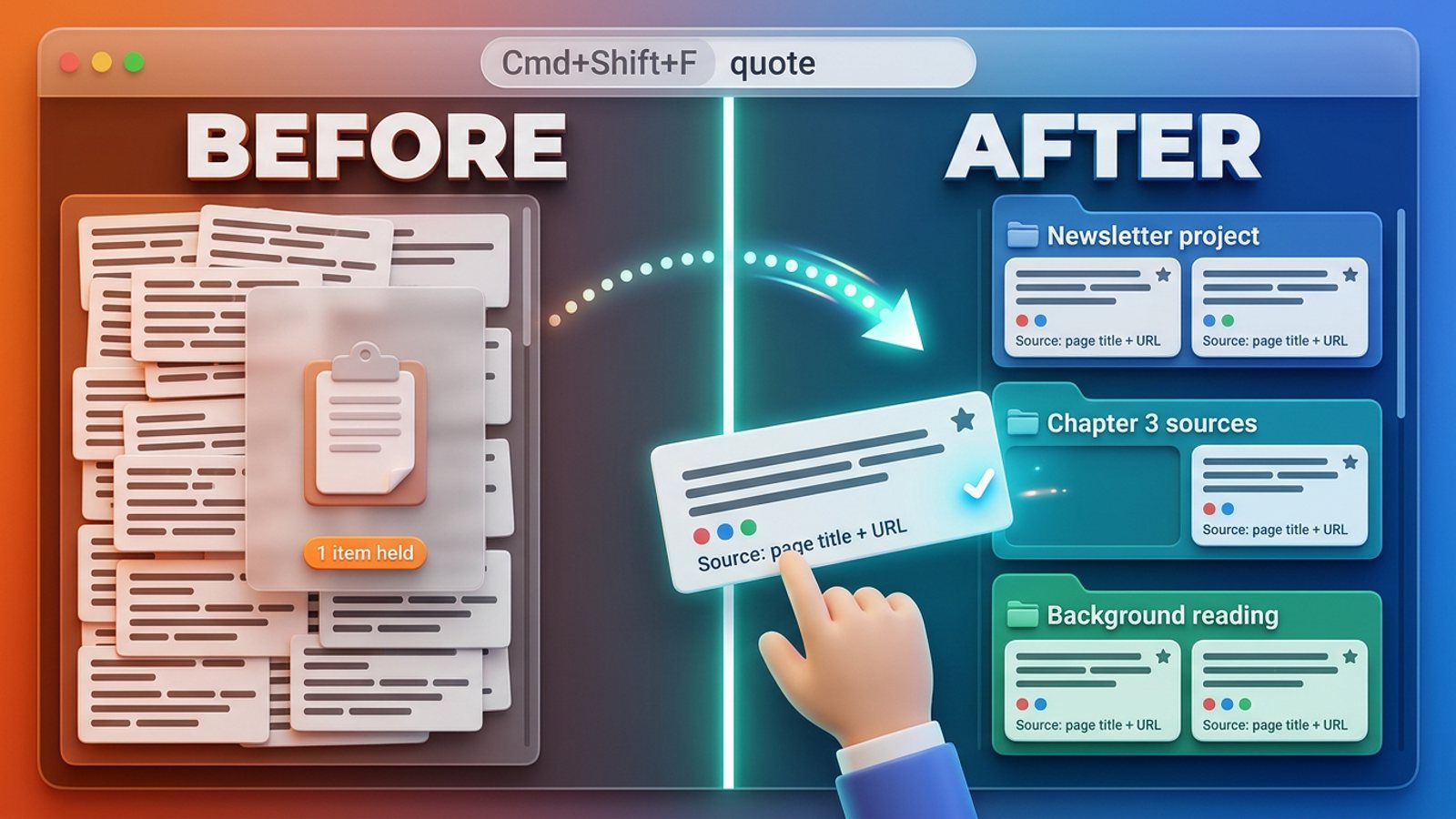
Organise by project, not by date. A folder per client or project, with colour tags for urgency, beats one long chronological list every time.
This is where built-in tools fall short: Windows Clipboard History has no search option (MakeUseOf, 2026), so a screenshot from three days ago is effectively gone. A folder-and-tag structure is what keeps a day's worth of images and URLs findable.
That's the gap Clipboarder Pro fills. It's a Chrome extension that automatically saves copied text, images, URLs and code as you work. You organise clips into nested folders up to three levels deep with drag and drop, colour-code items by urgency, project or mood, and star the ones you use most for one-click access. Everything is stored in your browser on your machine — no servers, no tracking. It's free for 30 days, then $4.99 per month as of November 2026 (prices can change).
Everything you copy is captured the instant you copy it — the only job left is deciding where it lives.
Which tool should I use to save copied images and URLs?
It depends on whether you need Chrome-level capture with organisation, or just a quick recent-items list. Here's how the main options compare, with Clipboarder Pro first because it's ours.
| Option | Best for | Key features | Price | Watch-outs |
|---|---|---|---|---|
| Clipboarder Pro (Our pick) | Chrome users who copy images and links all day | Auto-saves images, URLs, text, code; nested folders; colour tags; stars; search | Free 30 days, then $4.99/mo (Nov 2026) | Chrome only; local storage only |
| Windows Clipboard History | Quick Win+V recall on Windows 11 | 25 items, pinning, paste as text | Free | No search; wiped on reboot |
| macOS Tahoe Spotlight | No-install history on Mac | ~30 days of items | Free | Keeps ~10 clips |
| Paste | Apple users wanting Mac-iPhone-iPad sync | Cross-device sync | $29.99/yr, 7-day trial (third-party, 2026) | Cloud-backed; Apple only |
| Google Keep | Saving pages and images for later | Collections of images, places, pages | Free with Google Account | Not automatic clipboard capture |
Clipboarder Pro is made by the team behind this blog.
Of the tools we compared, Clipboarder Pro is our pick for this job because it's the one built around Chrome capture plus folders, tags and search in a single place. If you mainly need a quick recent-items list on Windows, Win+V is the more direct choice — it's free and already installed. If you need sync across a Mac, iPhone and iPad, Paste is the more direct choice, though its pricing comes from a third-party page dated 2026 and is worth re-checking.
Install the ultimate Chrome extension today to start saving every image and URL automatically.
Watch out
Clipboard extensions can read anything you copy. An investigation reported by Panda Security (2026) found 287 Chrome extensions with 37.4 million installs leaking user data. Prefer tools that store locally, and check the permission warning before you approve.
What about saving links and images for later?
Google Keep's own "Save" feature stores images, places, recipes and web pages into collections — but you must be signed in to a Google Account to find them, and it's a save-for-later tool, not automatic clipboard capture (Google Help, no date given). A third-party clipper, keepClipper, can push selected text, images and URLs into Keep notes (Chrome Web Store, 2025).
For research, the difference matters: Keep is a place you deliberately send things. A clipboard manager catches the things you'd otherwise lose by accident.
If you want to see how a Chrome extension handles images specifically, our guide on whether a Chrome extension can save copied images goes deeper, and how to find a link you copied hours ago covers the search side.
Sources
- Clipboard History repo README (GitHub: theluckystrike, 2026-02-16)
- Commit notes, protected pages (GitHub: theluckystrike, 2026-02-16)
- How to use Windows 11 clipboard history (MakeUseOf, 2026-02-10)
- How do I repair Windows clipboard history (Microsoft Q&A, 2026-10-27)
- How to use clipboard history on macOS Tahoe (MacObserver, 2025-09-15)
- Finally, see your Mac's clipboard history (Yahoo Tech, 2025-11-13)
- How to enable clipboard history in macOS Tahoe (Tom's Guide, 2025-10-07)
- macOS Tahoe solves the clipboard problem (MacObserver, 2025-06-13)
- Chrome extension permission warnings decoded (Safeguard, 2026-10-17)
- Are Chrome extensions spying on you (Panda Security, 2026-02-26)
- Excolet ClipVault (Chrome Web Store, updated 2026-08-18)
- Paste app alternative page (clipboardextension.com, no date given)
- Save links, images & more (Google Help, no date given)
- keepClipper — web clipper for Google Keep (Chrome Web Store, 2025-04-07)
Frequently asked questions
Does Chrome save copied images automatically?
No. Chrome has no native clipboard history, so the OS clipboard keeps only the most recent item and a new copy replaces it. You need an extension or an OS-level tool to keep a history.
Do Windows and Mac save copied images too?
Yes, within limits. Windows 11's Clipboard History holds up to 25 items including images and screenshots, and Mac users get image history through third-party managers or Tahoe's Spotlight history.
Can I search my clipboard history?
Not in Windows Clipboard History, which has no search option. Clipboarder Pro searches across every clip, note and folder with Cmd+Shift+F, which is why search is the feature to check before you commit to a tool.
Why don't copies on some pages get saved?
Extensions can't run on protected Chrome pages — chrome://, chrome-extension:// and the Chrome Web Store — so copies made there aren't captured.
Which tool is best for saving copied images and URLs in Chrome?
Of the tools we compared, Clipboarder Pro is our pick for Chrome users who need automatic capture plus folders, colour tags and search. If you only need a short recent-items list, the free built-in Windows or macOS history may be enough.