Is there a Chrome extension that saves copied images too?
Yes — several Chrome extensions save copied images alongside text and links in a local, searchable history. Here's how to pick one and stop losing screenshots.
Clipboarder Pro Team

Yes. Several Chrome extensions save copied images alongside text and links, keeping them in a local, searchable history you can paste from later. Chrome itself has no clipboard history, so without an extension a copied image disappears the moment you copy anything else. Clipboarder Pro is one of these: it captures copied images next to text and URLs, and stores everything locally on your machine.
Key takeaways
Key takeaways
- Chrome has no built-in clipboard history. An extension is the only way to keep copied images inside the browser.
- Clipboarder Pro saves copied images, text, URLs and code automatically, and organizes them into folders, notes and to-do lists.
- Everything stays in your browser on your machine — zero servers, zero tracking.
- Windows' own Win+V history holds up to 25 items, images included, but clears on restart except pinned items.
- "Copy image address" saves the image link, not the image file. Know which one you actually need.
Chrome keeps one clipboard item at a time. If you're a designer grabbing screenshots, a researcher collecting reference images, or a developer copying diagrams into docs, that single slot is the problem. Here's how to fix it — and how to choose the right chrome extension save copied images tool for the way you work.
Install the ultimate Chrome extension today and stop losing the image you copied five minutes ago.
Does Chrome save copied images automatically?
No. Chrome has no clipboard history at all, according to the Clipboard History project's comparison wiki (2026). The operating system clipboard holds one item at a time, so the moment you copy something new, the previous image is gone.
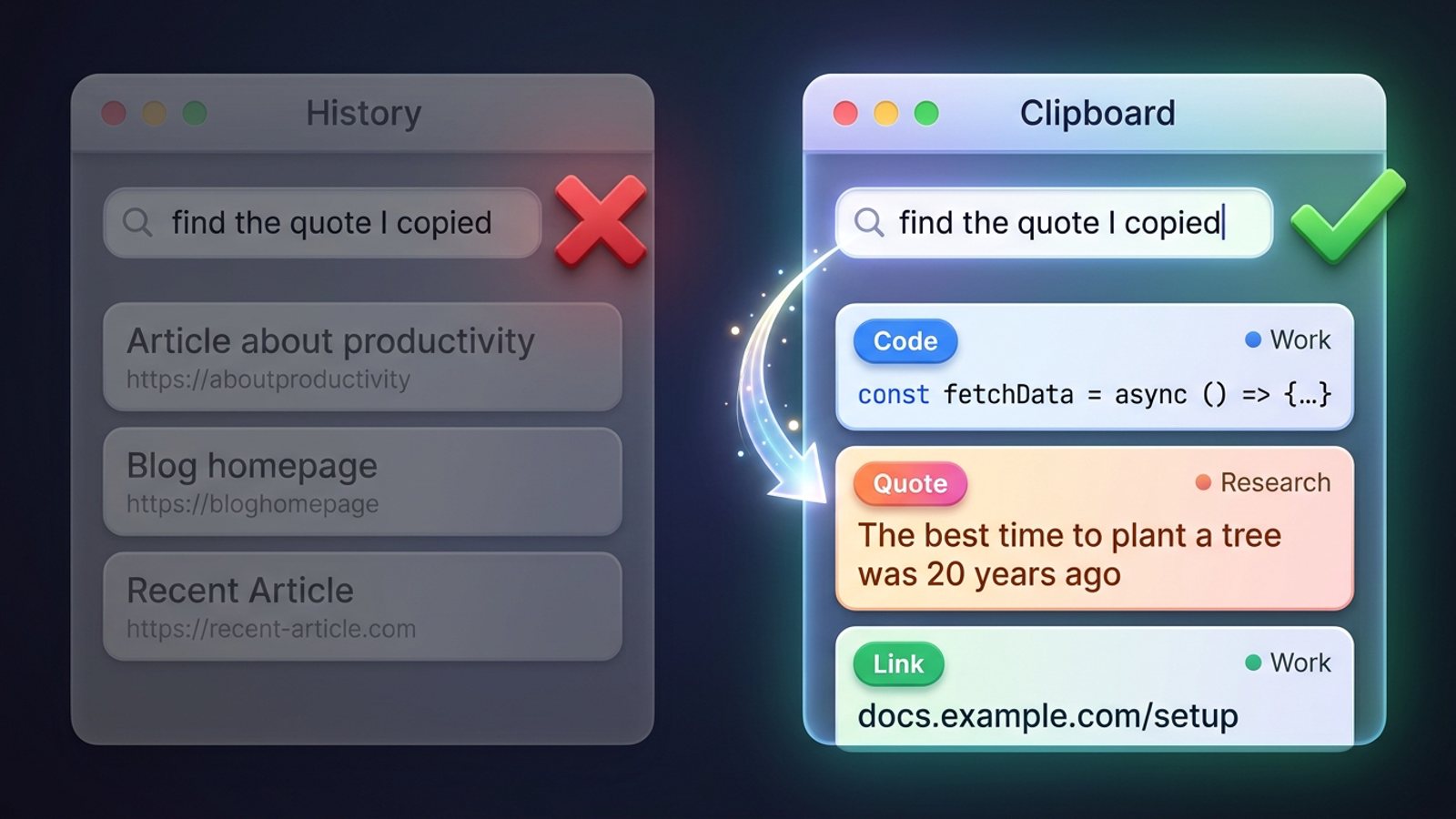
That's the whole reason image-capable clipboard extensions exist. They hook into your normal copy actions and keep a running, searchable list. You copy the way you always do — Ctrl+C on an image, right-click → Copy image, or a screenshot — and the extension catches it.
Good to know
macOS has no built-in clipboard history either. Apple's Universal Clipboard syncs between Apple devices but keeps no history, per the same Clipboard History wiki (2026).
What should a Chrome extension save copied images actually do?
The basics are non-negotiable: it must explicitly list image capture, and it must tell you where your data goes. Everything else is workflow.
Here's what separates a useful image clipboard tool from a frustrating one:
- Image capture, stated plainly. The store description should say it saves images, not just text. Vague listings are a warning sign.
- A way to find the image again. A category filter or search beats scrolling a long list.
- Local storage you can verify. Check the privacy disclosure on the listing before installing.
- Organizing tools. Folders, tags and stars matter once you have hundreds of clips.
- A clear answer on restarts. Local-only tools keep data in the browser, so uninstalling or resetting the browser deletes it.
Our recommendation: check the privacy disclosure on the Chrome Web Store listing before you install anything that watches your clipboard. A clipboard manager sees everything you copy — passwords and client documents included.
How do you save a copied image and find it again later?
Pick an extension that names image capture, copy normally, then filter or search to retrieve it. That's the loop.
In practice, here's the workflow that holds up:
- Install an image-capable extension and confirm image capture is listed in its description.
- Copy images the usual way — Ctrl+C on an image, right-click → Copy image, or a screenshot tool.
- Filter by Images or search when you need the earlier copy.
- Fall back to DevTools if copying the image itself fails (more on that below).
Tip
Copy the image and the page URL together. Six weeks later, the URL is often what tells you why you saved the image in the first place.
How does Clipboarder Pro handle copied images?
Clipboarder Pro automatically saves copied text, images, URLs and code as you work, and keeps them in one place with folders, notes and to-do lists. It's a Chrome clipboard manager built for exactly this problem.
The image workflow looks like this:
- Install the extension and keep copying as you normally do.
- Everything you copy is instantly captured in your clipboard history — images included.
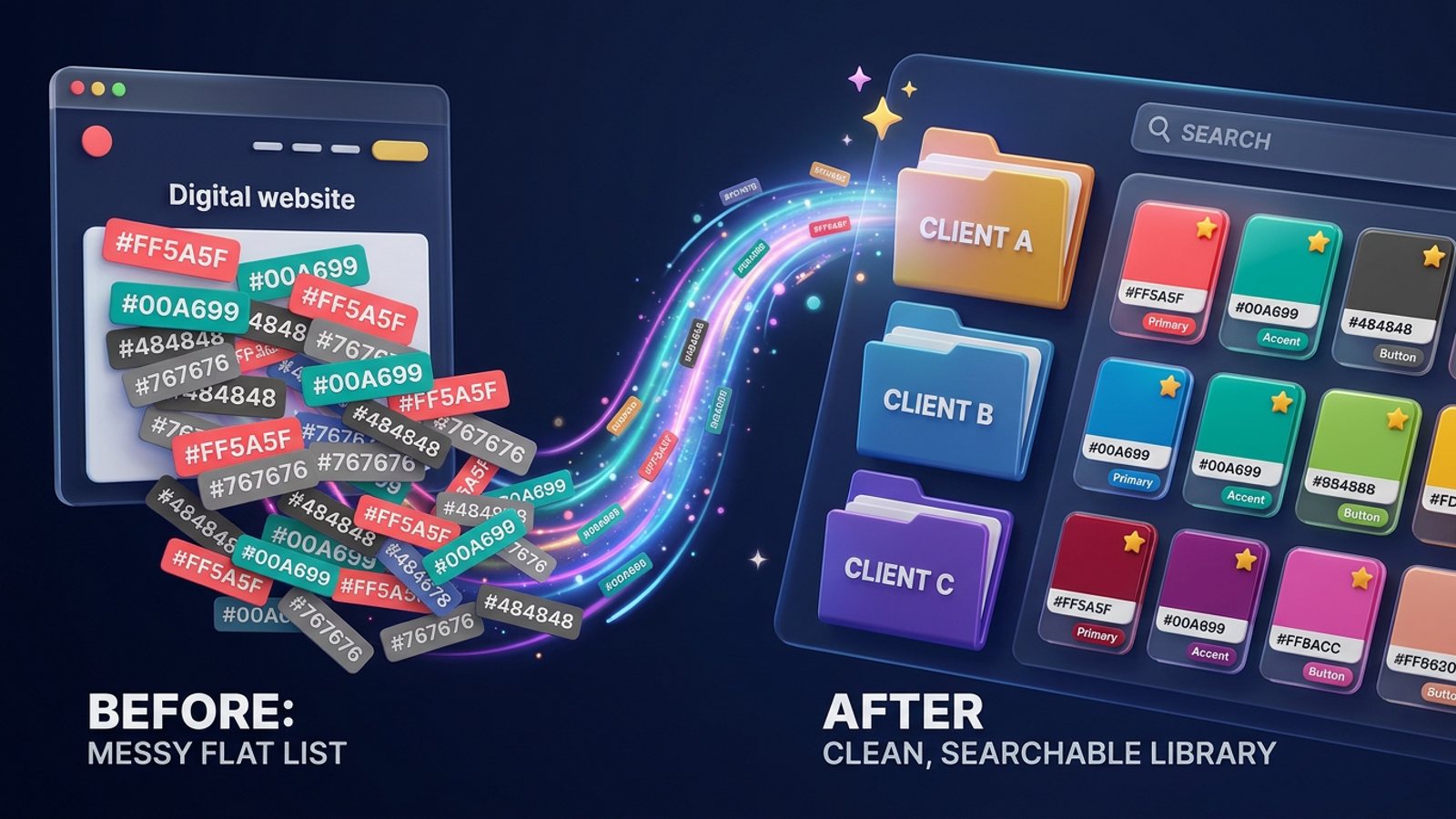
- Drag items into nested folders (up to three levels deep) and add color tags or stars.
- Search across every clip, note and folder with Cmd+Shift+F.
- Check off to-dos and archive what you don't need today.
Say you're designing a landing page and pull twelve competitor screenshots in an afternoon. Drop them all into a "Competitor teardown" folder, color-tag the three that matter, and star the hero-image reference you'll paste back into Figma. Next morning it's all still there, searchable, with a note next to each one about why you saved it.
You can also select multiple clips and copy 5, 10 or 20 items in one shot — handy when you're assembling a mood board or a research doc.
Watch out
Clipboarder Pro is a Chrome extension only, and everything is stored in your browser on your machine — no servers, no cloud backup. If you uninstall the extension or reset Chrome, that history goes with it. Archive items (with a retention window of 1–365 days) rather than deleting them if you're unsure.
Clipboarder Pro is free for 30 days, then $4.99 per month as of November 2026 — prices can change.
The image you copied deserves the same second chance as the text you copied — a search box, not a memory test.
What are the best options for saving copied images in Chrome?
Of the tools we compared, Clipboarder Pro is our pick for people who want images, notes and to-dos in one organized place. The others each win on something specific.
| Option | Best for | Key features | Price / free option | Watch-outs |
|---|---|---|---|---|
| Clipboarder Pro (Our pick) | Images + notes + to-dos in one place | Auto-saves images, text, URLs, code; nested folders; color tags; stars; in-line notes; to-do lists; multi-copy 5/10/20; search with Cmd+Shift+F | Free for 30 days, then $4.99/month (as of Nov 2026) | Chrome only; local storage only |
| Clipboard Manager & History | Pure image retrieval | Local storage; image thumbnails, preview, copy-back, download; duplicate collapsing | Free (pricing not stated) | v1.0.0, updated 19 Sep 2026 — young tool |
| Clipboard X | Screenshot and OCR work | Text, links, PNG images saved locally; area/screen/full-page capture; GIF recording; English OCR | Free (pricing not stated) | Image formats limited to PNG per its listing |
| ClipFlow | Privacy-first minimalists | Local IndexedDB storage; "zero servers, zero telemetry"; image filter tab; captures image blobs and screenshots | Free (no paid plan found) | Very small user base (5 users per its listing) |
| Windows clipboard history (Win+V) | Desktop-wide image copying | Up to 25 items including images; pin items; optional cross-device sync | Free, built into Windows 10/11 | Clears on restart except pinned; no search or folders |
Clipboarder Pro is made by the team behind this blog.
Why Clipboarder Pro comes first here: it's the only option in this comparison that pairs image capture with folders, in-line notes and to-do lists — so the screenshot, the idea it sparked and the task it created all live together. Everything stays on your machine, with zero servers and zero tracking.
Where the others fit better. If you mainly need to preview and download saved images, Clipboard Manager & History is the more direct choice — it has thumbnails, preview, copy-back and download built in. If you want OCR and GIF recording, Clipboard X covers that ground. If minimal local storage is your only requirement, ClipFlow is a lean option, though its listing shows a very small user base.
And if you work across desktop apps, a browser extension won't see those copies. Windows' own Win+V history stores up to 25 items including images, per HP Tech Takes (2026), and can sync across Windows devices with a Microsoft account. It's not enabled by default, and it clears on restart except pinned items.
Ready to keep every image you copy? Install the ultimate Chrome extension today.
Why doesn't my copied image show up in Windows + V?
Windows 11 users report screenshots and copied images not appearing in Win+V after moving from Windows 10, per a Microsoft Q&A thread (2026). Large images also eat more of the 25-item budget, and items can vanish below the cap because of low memory or glitches, per another Microsoft Q&A thread (2025).
If that's your situation, a browser-side extension sidesteps the problem entirely for anything you copy inside Chrome. For desktop-wide copies, enable Win+V once via Settings → System → Clipboard, as HP Tech Takes describes.
Worth knowing: Microsoft ended support for Windows 10 on 14 October 2025, but the clipboard feature works the same in Windows 10 and 11.
Does "Copy image address" save the image?
No — it saves the image's URL, not the file. Cloudinary's blog (2025) is clear on this: the address is useful for HTML, email, a CMS or chat, but it isn't the image itself.
That distinction matters for what you're storing. If you copy the address, you're saving a link that can break. If you copy the image, you're saving pixels. A good clipboard tool handles both — Clipboarder Pro captures images and URLs side by side, so you can keep the picture and the source.
Tip
Our recommendation: save both. Paste the image into your clip folder and write the source URL in a note right next to it.
What if right-click "Save Image As" is greyed out?
Use DevTools. Inspect the <img>, srcset or background-image, or open the Network panel, reload the page and copy the image request URL, as MEFMobile (2026) explains.
Two honest caveats from that same source: the site may only serve resized or compressed variants, so DevTools can't invent pixels that aren't there. And copied image URLs can return 403 or 401 errors, or a login page, when they depend on cookies, referrers or short-lived tokens.
Once you have the URL, copy it — your extension catches it like any other clip, and you can file it next to the image it belongs to.
Sources
- Clipboard History wiki: Alternatives and Comparisons (GitHub, 2026-02-16)
- How to Use the Clipboard on Windows 10 (Now 11) (HP Tech Takes, 2026-07-21)
- Windows 11 Clipboard does not save images (Microsoft Q&A, 2026-06-08)
- Items in clipboard vanished despite not being at the cap (Microsoft Q&A, 2025-07-07)
- How to Copy an Image Address (Cloudinary blog, 2025-07-13)
- How to Download Website Images with Inspect Element (MEFMobile, 2026-09-29)
- Clipboard Manager & History listing (Chrome Web Store, updated 2026-09-19)
- Clipboard X listing (Chrome Web Store)
- Clipboard X package analysis (Socket, 2026-08-29)
- ClipFlow listing (Chrome Web Store)
- ClipFlow package analysis (Socket, 2026-08-23)
Frequently asked questions
Which Chrome extension should I use to save copied images?
Of the tools we compared, Clipboarder Pro is our pick if you want images organized alongside notes and to-do lists, because it captures images, text, URLs and code automatically and stores everything locally. If you only need image preview and download, Clipboard Manager & History is the more direct choice.
Do copied images survive a browser restart?
With a local-only extension like Clipboarder Pro, yes — the history lives in your browser on your machine until you uninstall the extension or reset the browser. Windows' own Win+V history is different: it clears on restart except pinned items, per HP Tech Takes (2026).
Does Clipboarder Pro back up my images to the cloud?
No. Everything is stored in your browser on your machine, with zero servers and zero tracking. That's a privacy benefit, but it also means there's no cloud backup — archive items you want to keep rather than relying on a server copy.
Can I save a screenshot without saving it as a file first?
Yes — take the screenshot to your clipboard and the extension captures it like any other copied image. Our recommendation: color-tag screenshots by project as you go, so a month of research doesn't turn into one long scroll.
Is there a free option for saving copied images in Chrome?
Several of the extensions in this comparison are free, including Clipboard Manager & History and ClipFlow. Clipboarder Pro is free for 30 days, then $4.99 per month as of November 2026 — prices can change.