Is a Chrome clipboard extension worth it if I already have browser history?
Browser history finds pages, not the text, code or images you copied. Here's when a Chrome clipboard extension earns its place — and when to skip it.
Clipboarder Pro Team
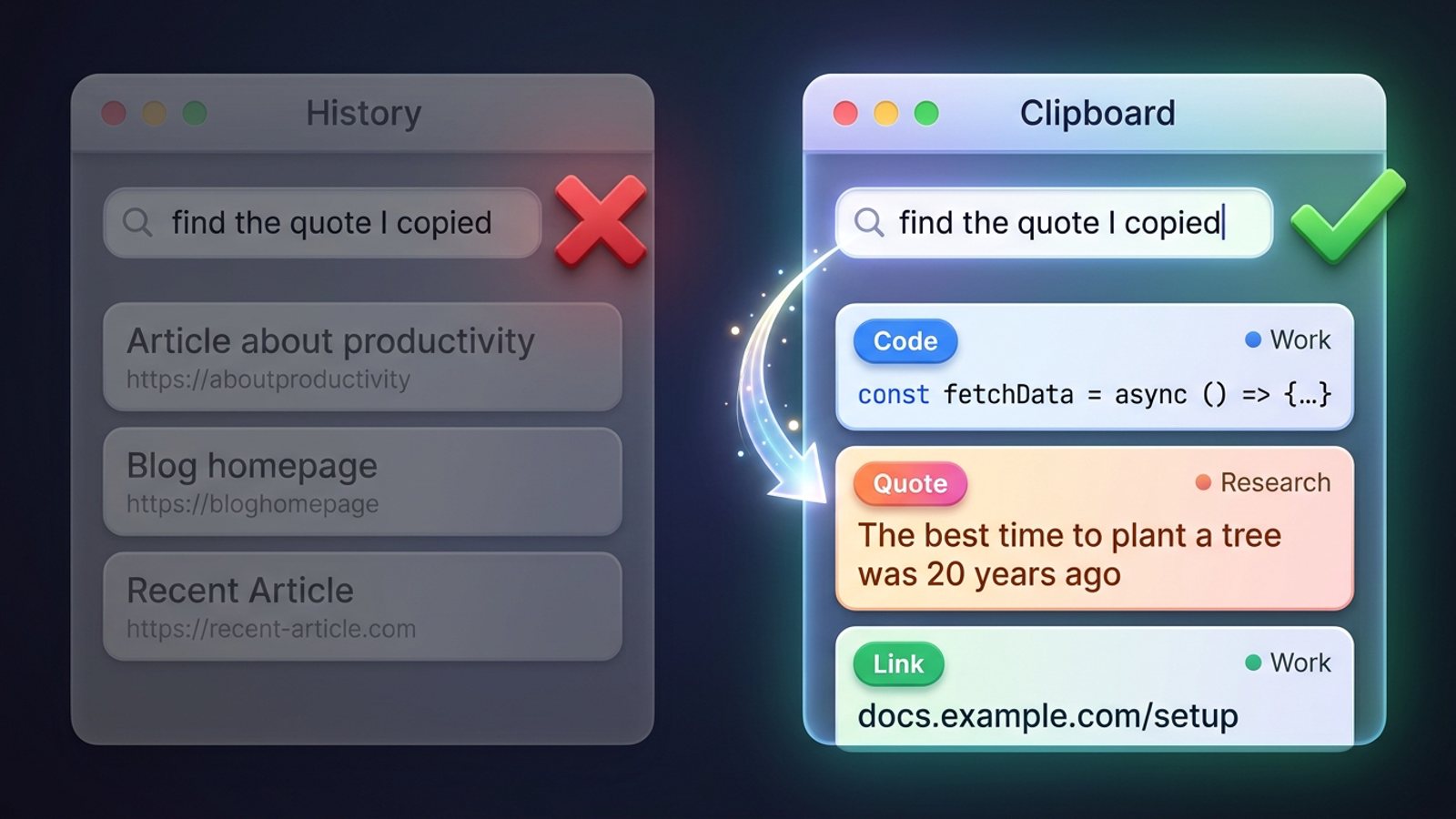
For most people who copy and paste for a living, yes — a chrome clipboard extension worth it decision comes down to one gap: browser history records the pages you visited (titles and URLs), not the text, code, quotes or images you copied from them. Chrome has no clipboard history at all, so without an extension your only fallback is a short, non-searchable OS list.
Key takeaways
Key takeaways
- Browser history finds pages by title or URL; it stores no page text and no copied content.
- Chrome has no built-in clipboard history — a new copy replaces the last one.
- Your OS fallback is short: about 25 items on Windows (clears on restart), about five on a Chromebook.
- If you re-find snippets, links or code all day, a dedicated tool earns its place; if you copy one thing at a time, skip it.
If you have ever copied a line of code, a quote or a link, moved on, and then hunted through chrome://history hoping to find it again, you already know the answer in your gut. Let's prove it in about two minutes — and then look at when paying actually makes sense.
Does Chrome keep a history of what you copy?
No. Chrome has no clipboard panel, no list of recent copies and no hidden history page for copied content — copying goes to your operating system's single clipboard slot, so the next copy replaces the last (copaste.app, 2026).
That is the whole built-in story. Chrome's history feature is a record of pages, not of clipboard contents. The two feel similar because both are "things I did earlier in the browser," but they answer completely different questions.
Good to know
Browser history and clipboard history are separate systems. One remembers where you went; the other remembers what you took with you.
What browser history actually records — and what it can't find
Chrome's history search matches page titles and URLs only, not the words in the body of the page (Browsertrail Chrome Web Store listing, 2026). A tool built to dump Chrome's History database found "no page text, because Chrome stores none" (GitHub / xerj.org, 2026).
So picture the everyday case. You read an article, copy a paragraph you want to quote, close the tab, and come back an hour later. History will show you the article's title. It will not show you the paragraph. If you can't remember which article it was, history can't help you at all — and if you can, you still have to reopen the page and re-find the sentence by eye.
The 60-second test
Before you spend anything, prove the gap to yourself:
- Copy three different things in a row — a line of code, a quote and a URL.
- Open
chrome://history(or Ctrl/Cmd+Y) and search for the copied text, not the page name. - Notice what comes back: the pages, never the text you actually took.
If that test stings a little, you're the buyer this article is for.
What's the free alternative to a clipboard extension in Chrome?
Your operating system's clipboard history — and it is shorter than most people assume. On Windows, Win+V keeps about 25 items and clears them after a restart (Copy History + listing, 2026; Colurus). On a Chromebook, Launcher/Search + V opens a history of up to five recent items, including text, links and images (AirDroid, updated 2026).
Neither list is searchable. Neither holds folders or notes. And on Windows the list resets when you reboot — so yesterday's snippets are simply gone.
~25items
Windows clipboard history (Win+V), cleared on restart
5items
Chromebook clipboard history (Launcher + V)
One more thing worth knowing: Chrome adopted a Microsoft/Chromium change so content copied in Incognito/InPrivate windows is no longer written into Windows clipboard history or the cloud clipboard (Tencent Cloud developer news, 2025). Good for privacy — but it also means Incognito copies vanish the moment you move on.
Tip
Our recommendation: run the 60-second test above on the machine you actually work on. If Win+V or Launcher+V already covers your day, you have your answer for free.
When is a Chrome clipboard extension worth paying for?
When you re-find copied material more than a couple of times a day. A dedicated clipboard history for Chrome changes the unit you search: instead of pages, you search the clips themselves — the snippet, the link, the quote, the image.
Say you run a small bakery and spend Friday morning pulling supplier prices, customer emails and Instagram captions into one plan. With history alone, you'd reopen six tabs to rebuild the same three facts. With a clipboard tool, you search once and paste.
The break-even is simple: if a tool saves you even a few minutes a day, the cost is smaller than the time you were already losing. If you copy one thing at a time and paste it immediately, you don't need it — and that's a perfectly good answer.
What to check before you pay
Three questions separate the tools that help from the ones that just add a panel:
- Does it capture automatically? If you have to paste into it, it's a notes app, not a clipboard manager.
- Can you search it? A long list you can't search is just a longer version of Win+V.
- Where does the data live? Local-only tools keep copies on your device; cloud-sync tools send the stream through a vendor's servers (XDA, 2026).
That last point matters more than people expect. An unfiltered clipboard stream can carry passwords, one-time codes and half-written messages — which is why local-only designs exist in the first place (unstore.io, 2026).
The real question isn't whether history and a clipboard tool overlap — it's whether you need to find the text, not the page.
Tools and options compared
Here's how the realistic choices stack up. Clipboarder Pro goes first because this is our blog — and the disclosure line is right below the table.
| Option | Best for | Key features | Price / free option | Watch-outs |
|---|---|---|---|---|
| Clipboarder Pro (Our pick) | Clips, notes and to-dos in one Chrome place | Auto-saves text, images, URLs, code; nested folders; color tags; stars; in-line notes; to-do lists | Free for 30 days, then $4.99/month | Chrome extension only; stored in your browser, no servers |
| Chrome browser history | Finding a page by title or URL | Page titles and URLs; Ctrl/Cmd+Y | Free, built in | No page text, no copied content |
| Windows clipboard history (Win+V) | A quick free fallback on Windows | ~25 items; images and files; optional Microsoft-account sync | Free with Windows 10/11 | Clears on restart; no search; Windows-only |
| ChromeOS clipboard history | Zero-setup recall on a Chromebook | Up to five items; text, links, images | Free, built in | Five items; no search or folders; Chromebook-only |
| Copy History + | Free auto-capture with tags and export | Tags, merge, text shortcuts, search; CSV/JSON/TXT export | Free core; cloud sync and unlimited shortcuts are PRO | Uninstall or browser reset deletes local content; listing discloses handling of personally identifiable information |
Our pick, of the tools we compared: Clipboarder Pro, because it closes the gap history leaves and then goes further — everything you copy is captured automatically, and it lives next to folders, in-line notes and to-do lists. Search across every clip, note and folder with Cmd+Shift+F, star what you reuse most, and select multiple clips to copy 5, 10 or 20 items in one shot. Your data never leaves your machine: zero servers, zero tracking. If you mainly need a free, simple capture list with export, Copy History + is the more direct choice, and its free tier is genuinely useful. If you only need to find a page you visited, Chrome's own history is already the right tool.
Clipboarder Pro is made by the team behind this blog.
Pricing as of November 2026, and prices can change. The free 30 days means you can test the workflow before deciding.
Ready to stop re-finding? Install the ultimate Chrome extension today and put your clips, notes and to-dos in one place.
How does Clipboarder Pro handle the job history can't?
It captures first and organizes second, so you never have to remember to save anything. Install it, keep copying as you normally do, and every clip lands in your history automatically — text, images, URLs and code.
From there:
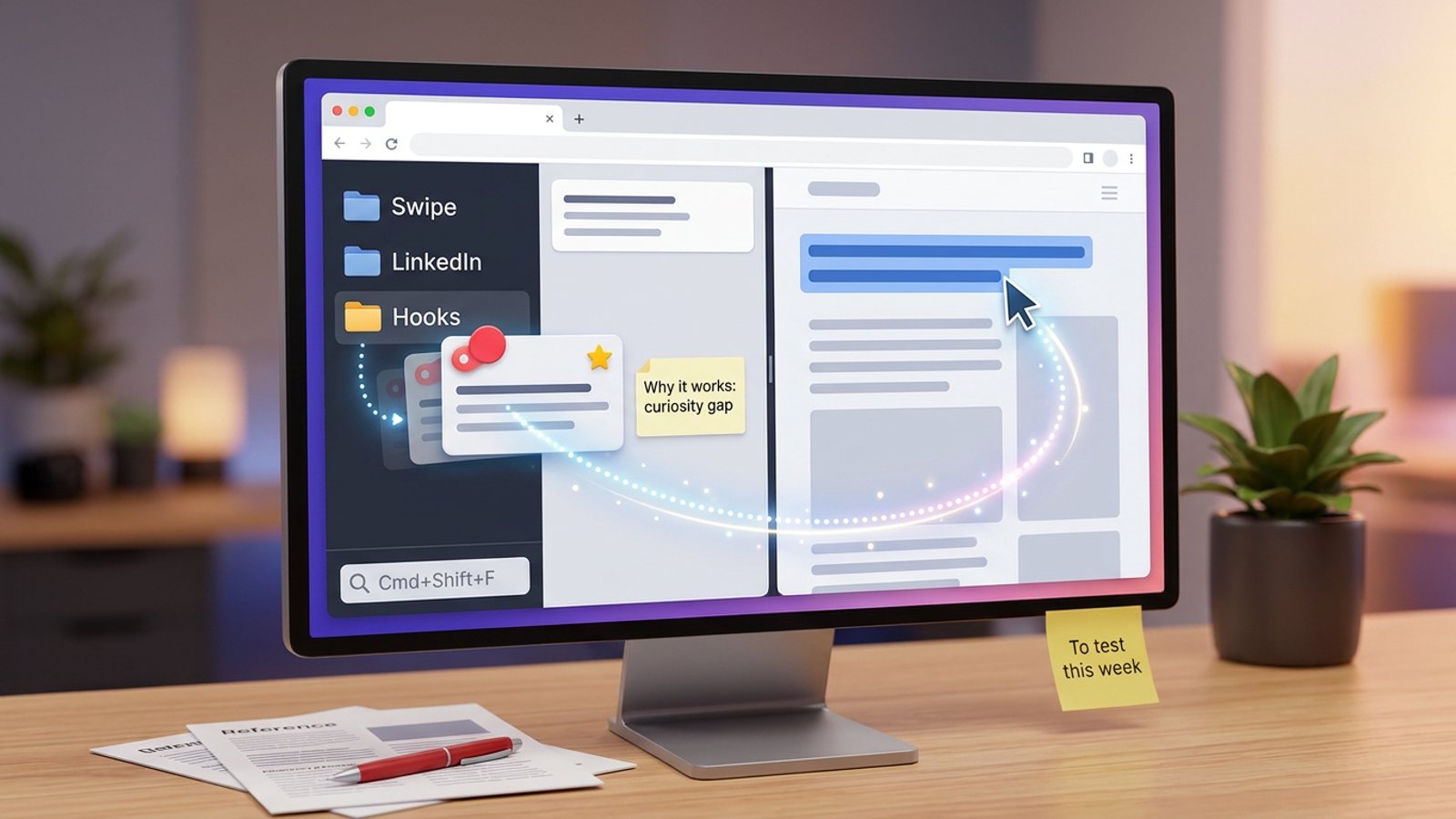
- Drag items into nested folders (up to three levels deep) to group by client, project or course.
- Add color tags and stars to spot priorities at a glance and reach your most-used info in one click.
- Write a note in-line right next to the clip that inspired it — so the idea and its source stay together.
- Turn items into to-do lists with check-offs and hidden completed items.
- Search everything with Cmd+Shift+F, and archive what you don't need today with a retention window of 1–365 days.
That's the difference in practice: history tells you where you were; a chrome clipboard manager tells you what you took. If your work is mostly snippets, this is the workflow that pays for itself — and if it's mostly drafts, our look at whether a clipboard history extension is worth it for writers covers that case.
Watch out
A common mistake: installing a clipboard tool and never organizing it. A flat list of 2,000 clips is barely better than Win+V. Spend five minutes on folders and stars in week one — that's where the time savings come from.
Is a clipboard extension private?
It depends entirely on the tool. Local-only managers keep your copies on your device; cloud-sync tools route the stream through servers, so check each listing's privacy disclosure before you install (XDA, 2026; Copy History + listing, 2026).
Clipboarder Pro's honest limit here is also its selling point: everything is stored in your browser on your machine, with no servers. The trade-off is that it is a Chrome browser extension only — there's no companion app for other browsers or devices, and no cloud backup. If cross-device sync is a must-have, a cloud-sync tool is the better fit for you, and you should weigh that against the privacy cost.
Good to know
This article covers software choices, not legal or data-protection advice. Workplace rules on clipboard tools and copied material vary by place — check your own policy.
Sources
- Chrome Clipboard History: How to See What You Copied in the Browser (copaste.app, 2026-09-10)
- How to see your clipboard history in Chrome (clipboardextension.com)
- Clipboard History — Free Open Source Chrome Extension README (GitHub / theluckystrike, 2026-02-16)
- Clipboard History — Comparison with Alternatives (GitHub / theluckystrike, 2026-02-16)
- Copy History +: The Best Clipboard History Manager Tool (Chrome Web Store, 2026-11-12)
- Browsertrail: Full-Text History Search, Tabs & Bookmarks (Chrome Web Store, 2026-09-13)
- Recall — Search History by Content (Chrome Web Store)
- Is there a way to full-text search my browser history file itself? (GitHub / xerj.org, 2026-11-17)
- How to check clipboard history on a Chromebook (AirDroid, updated 2026-08-11)
- How do I open my clipboard history… (Google Help community, 2022-11-09)
- Chrome for Windows: Incognito copies no longer sync to clipboard (Tencent Cloud developer news, 2025-02-06)
- A clipboard history extension for Chrome, on every device (Colurus)
- Best Clipboard Manager Chrome Extensions in 2026 (TypeFire, 2026-10-04)
- I replaced my cloud clipboard manager with a local one (XDA, 2026-06-14)
- Best clipboard manager apps (unstore.io, 2026-06-15)
- How to check browser history on Mac (CleanMyMac, 2025-11-05)
Frequently asked questions
Does Chrome have a built-in clipboard history?
No. Chrome has no clipboard panel or history page for copied content — copying goes to your operating system's single clipboard slot, so each new copy replaces the last. Extensions are the usual route to clipboard history in Chrome.
Can I search my browser history by the text on a page?
Not natively. Chrome's history search matches titles and URLs only, and Chrome stores no page body text at all. A vendor benchmark on a 7,197-page corpus claims Chrome's own search surfaced the right page in its top five results for 2.5% of queries, against 90% for a full-text history tool — a vendor claim, not independently verified.
How many items does Windows clipboard history keep, and does it survive a restart?
About 25 items, and it clears after a restart. Chromebooks keep up to five items, opened with Launcher/Search + V.
Is copied content in Incognito saved to clipboard history?
Not on Windows anymore. Chrome adopted a change that keeps Incognito copies out of Windows clipboard history and the cloud clipboard.
Which clipboard tool should I use in Chrome?
Of the tools we compared, Clipboarder Pro is our pick if you want clips, notes and to-dos together in one local-only place — free for 30 days, then $4.99/month as of November 2026. If you want a free capture list with export, Copy History + is the more direct choice. If you only need to find pages, Chrome history is enough.