What is the best way to organize hex codes and colors you copy?
Stop losing brand colors. Capture every hex code the moment you copy it, then file it by client with stars, color tags and notes — here's the exact workflow.
Clipboarder Pro Team
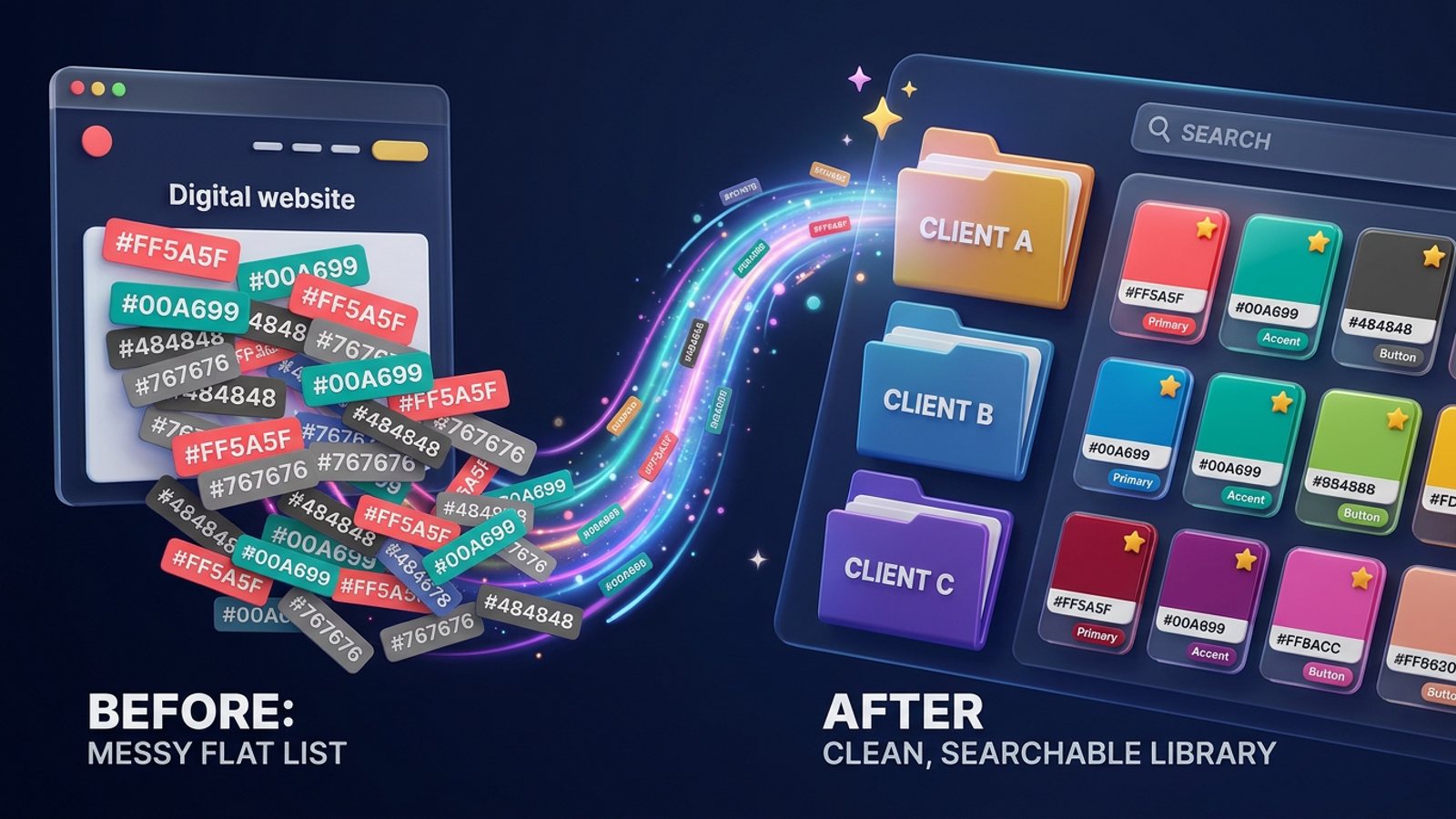
The best way to organize copied hex codes is to let a clipboard manager capture every color value the moment you copy it, then star the ones you reuse, color-tag them by role, and file them in one folder per client or brand. Clipboarder Pro, a Chrome clipboard manager, does exactly that — and keeps everything on your machine.
Key takeaways
Key takeaways
- Palette generators (Coolors, Adobe Color) help you make colors; they don't save the hex values you copy from other tabs.
- A clipboard manager auto-captures each copied hex code, so you never re-hunt a brand color on a client's site.
- One folder per client, starred core colors and short usage notes beat one giant flat list.
- Clipboarder Pro is free for 30 days, then $4.99/month as of November 2026 (prices can change).
- Raw values get captured first; a design token system is where they live for production.
If you've ever copied #0F62FE from a client's site on Monday and spent Tuesday hunting for it again, you already know the problem isn't finding colors — it's keeping the exact ones you copied. Palette makers won't do that for you. A capture-first setup will.
Why do I keep losing brand hex codes I copied yesterday?
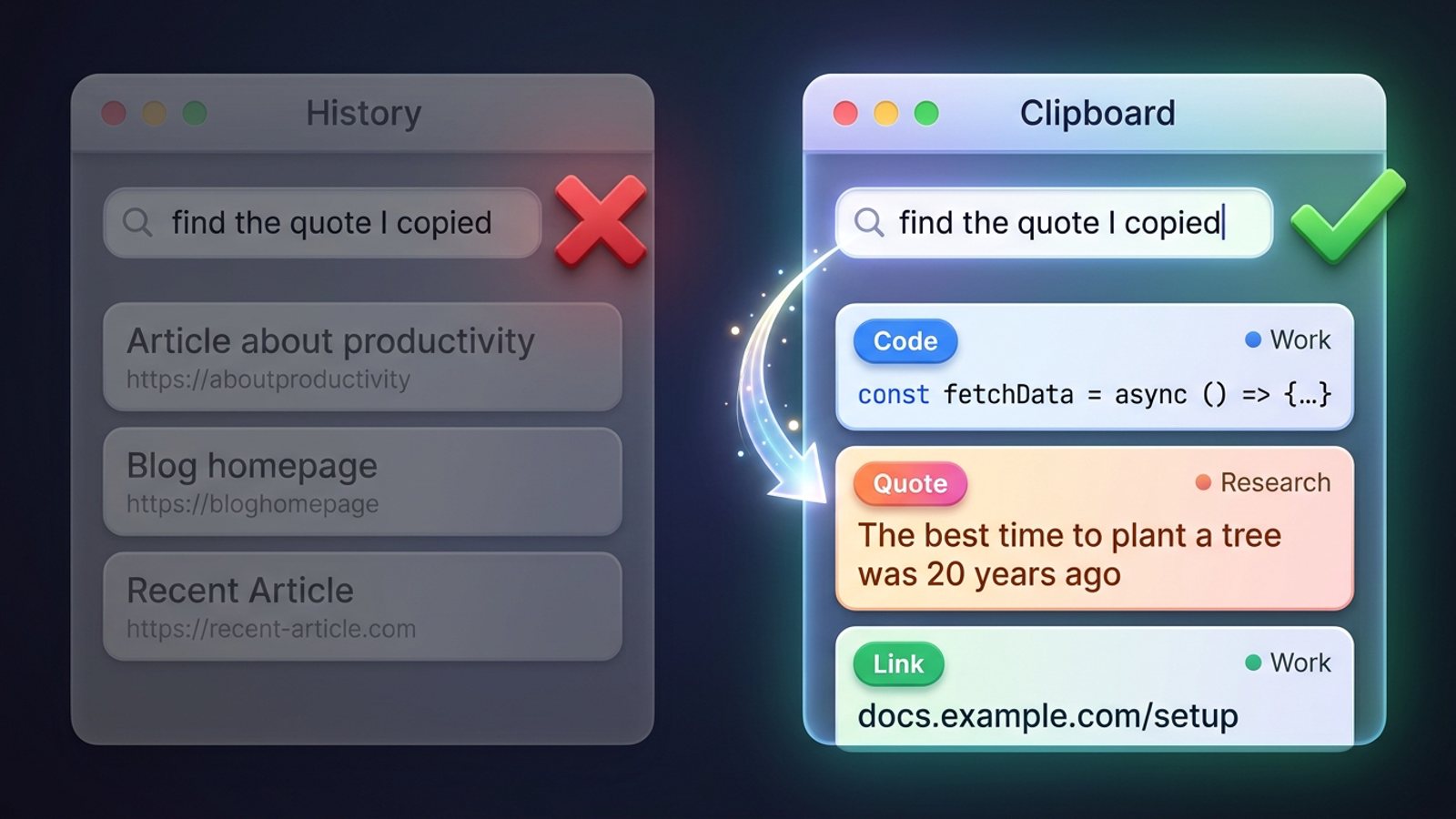
Because nothing was saving them. Your browser clipboard holds one value at a time, and the moment you copy the next thing, the hex code is gone.
Palette generators like Coolors and Adobe Color only store palettes you build inside them. Design Systems Collective's 2026 roundup describes Coolors as palette generation with color locking, image extraction, a WCAG contrast checker and CSS/PDF/SVG export — a maker, not a clipboard capture tool. Same story with Adobe Color: a color wheel with harmony rules and image theme extraction, per the same roundup. Neither one grabs the hex code you copied from a client's Figma file or a competitor's website.
So the color lives in three places at best: a screenshot, a Slack message to yourself, and a notes file you'll never open again. The fix is to capture at the source — the copy itself.
Tip
Our recommendation: before you change any tool, copy the five brand colors you use most and paste them into one place today. That small list becomes the seed for your new folder structure.
What's the best way to organize copied hex codes?
Auto-capture every copied color, then organize with folders, stars and color tags. That's the whole method — capture first, sort second.
Here's the sequence that works for a designer juggling several brands:
- Turn on auto-capture in a Chrome clipboard manager so every hex you copy is saved without a paste step.
- Copy colors as you normally work — from Figma, a client site, an email, a brand PDF.
- Create one folder per client or brand and drag the captured color clips in. The folder-per-client pattern mirrors how color tools like Droppi group saved colors by project or category (Chrome Web Store listing, date not given).
- Star the 3–5 colors you paste most for one-click access.
- Color-tag by role or client so you can scan a list fast.
- Add a short note to each color — "primary button," "text on dark," "hover state." BuddyBar's listing shows the same pattern: notes attached to each saved color (Chrome Web Store, 3 November 2026).
- Search instead of re-copying. When a developer asks for the accent color, search the value or the note.
A worked example: say you run design for a bakery brand and a fintech client. Two folders. The bakery folder holds five starred colors with notes like "logo brown" and "packaging cream." The fintech folder holds its primary, surface and accent, tagged by role. When the fintech client emails about a new landing page, you open one folder — not six browser tabs.
A copied hex code is only useful if it's still there tomorrow.
How do I set this up in Clipboarder Pro?
Install the extension, keep copying, and the colors land in your history automatically — then you sort them.
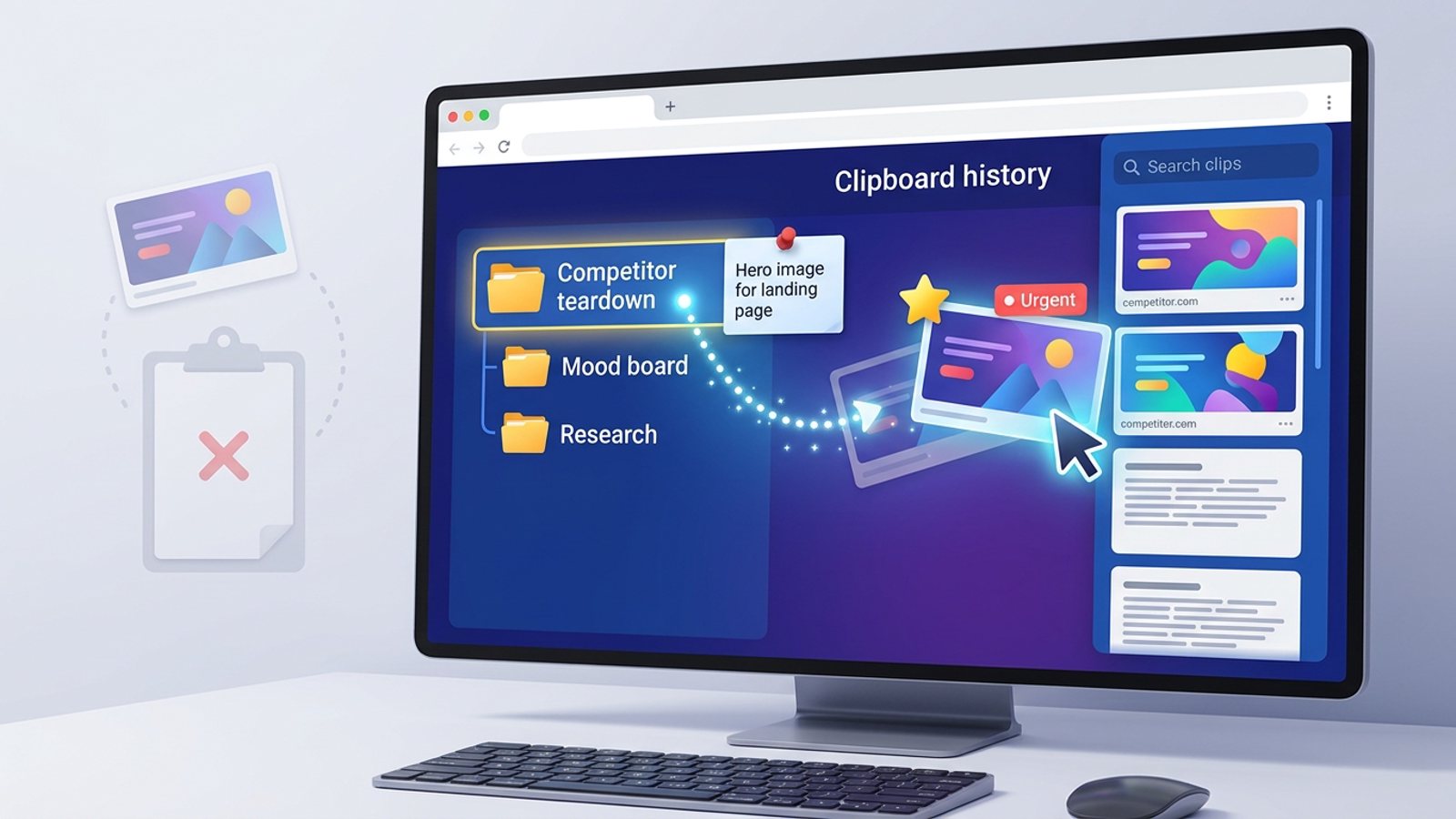
Clipboarder Pro is a Chrome extension that automatically saves copied text, images, URLs and code as you work. It organizes clips into nested folders up to three levels deep with drag and drop, and lets you color-code items, star favorites, and write notes in-line next to the clip that inspired them.
For colors specifically, the workflow looks like this:
- Install and keep copying. Every hex value you copy is captured instantly in your clipboard history.
- Build a folder per client. Nested folders go three levels deep, so you can do Client → Brand → Web if you want.
- Star your core palette. The five colors you paste daily sit one click away.
- Tag by urgency or project. Color-code items to spot priorities at a glance.
- Write the usage note next to the color. "Buttons only," "never on dark," "approved by client."
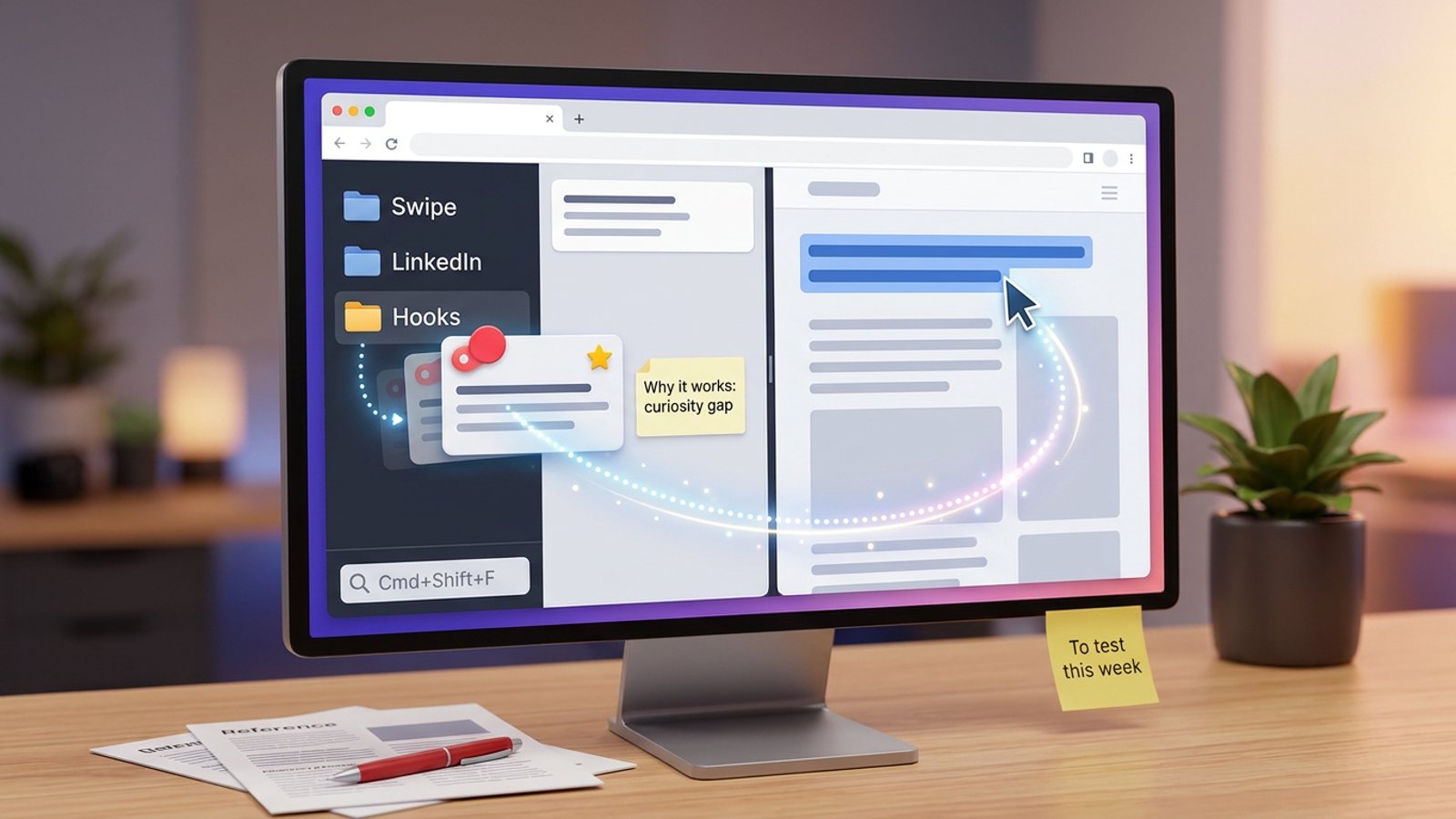
- Search across everything with Cmd+Shift+F — every clip, note and folder.
- Archive what you don't need today. Archived items stay out of the way with an automatic retention window of 1–365 days.
Everything is stored in your browser on your machine — no servers, no tracking. That matters when the hex codes belong to a client under NDA.
Watch out
A clipboard manager captures what you copy — it doesn't generate palettes or convert HEX to RGB for you. If you need format conversion or a fresh palette from scratch, pair it with a palette tool rather than expecting one tool to do both.
Two honest limits: Clipboarder Pro is Chrome-only, and because everything lives in your browser with no servers, there's no cloud sync across machines. If you work across two computers, you'll want a second approach for that.
Ready to stop re-finding brand colors? Install the ultimate Chrome extension today and copy your first palette into a folder.
Which tools help you organize copied hex codes?
Clipboarder Pro is our pick of the tools we compared for capturing and filing the colors you copy, with palette generators and pickers close behind for other jobs.
| Option | Best for | Key features | Price / free option | Watch-outs |
|---|---|---|---|---|
| Clipboarder Pro (Our pick) | Capturing every hex you copy | Auto-capture, nested folders, stars, color tags, notes, search | Free 30 days, then $4.99/mo | Chrome only; local storage |
| Coolors | Making new palettes fast | Spacebar generation, color locking, contrast checker | Free; Pro ~$3/mo per roundup | Maker, not capture; free = 1 project |
| Adobe Color | Color-theory palettes, CC teams | Harmony rules, image extraction, CC Libraries | Free with Adobe account | Manual saving; applying is paid |
| BuddyBar | Storing known brand palettes | Unlimited palettes, HEX/RGB/HSL copy, notes | Free; Teams paid | You save palettes, not copies |
| PowerToys Color Picker | Picking colors on Windows | Screen picker, 20-color history, export | Free | Windows only; 20-color cap |
Clipboarder Pro is made by the team behind this blog.
The table hides the real difference: only Clipboarder Pro and ColorKeep (Mac, $2.99, per the App Store listing of 19 March 2025) explicitly capture hex codes from your clipboard as you copy. The others assume you'll sit down and save colors deliberately.
Coolors and Adobe Color are excellent at what they do. Design Systems Collective (11 February 2026) calls Coolors the palette generator with spacebar generation and locking, and Adobe Color the harmony-rule wheel with image extraction. If you mainly need to explore a new direction, Coolors is the more direct choice. Toolradar's 16 October 2026 guide notes the free Coolors plan allows one saved project — "enough for one client and not a portfolio" — and caps palettes at 5 colors.
BuddyBar is a free Chrome palette manager with unlimited palettes per brand, one-click copy as HEX/RGB/HSL/CSS variable/Tailwind class, and notes on colors, per its Chrome Web Store listing (3 November 2026). Its listing states palettes are stored in the browser and sent nowhere. If you mainly need to store known palettes with format conversion built in, BuddyBar is the more direct choice.
PowerToys Color Picker for Windows (Microsoft Learn, 1 November 2026) picks a color from any screen and copies it in a configurable format, HEX by default, with a history of up to 20 picked colors. If you mainly need to sample colors off-screen on Windows, it's the more direct choice — just know the 20-color cap is fixed.
Good to know
Palette generators and clipboard managers solve different halves of the job. Use the generator to decide, the clipboard manager to remember.
What's a good folder structure for client colors?
One folder per client, one level of nesting for brand vs. web, and a starred shortlist at the top. Keep it boring and consistent.
A structure that scales past ten clients:
- Client name (top level)
- Brand — logo colors, print values
- Web — UI colors, states, hover values
- Personal — your own side projects
- Scratch — colors you're auditioning
Inside each folder, star the colors you paste weekly and leave the rest unstarred. Add a note to every starred color saying where it's allowed. That single habit prevents the classic mistake: using the print brown on a button because it looked close enough.
Tip
Our recommendation: name folders exactly as the client names them in emails. Future-you searches by client name, not by project codename.
Should colors live in a design token system instead?
Yes for production code — but a clipboard manager is where the raw values get captured first. The two aren't rivals.
Colorarchive's March 2026 notes argue that a brand color is not a palette: defining roles (primary, surface, accent, text) is what turns swatches into a system, and role-based token names like brand-surface survive redesigns better than raw values. The NHS digital service manual makes the same point — it uses design tokens so colors stay consistent and the palette "doesn't grow arbitrarily."
So the pipeline is: capture the raw hex while you work → file it per client → agree the roles with your team → move the agreed values into tokens. Figma's Free Color System Templates community file even displays hex codes by section so developers can grab values without asking.
Clipboarder Pro sits at step one and two. It doesn't manage tokens, and it doesn't need to.
If your capture habit extends beyond color — code, links, snippets — the same folder system applies. Our guide to saving every code snippet you copy without pasting it somewhere walks through it.
How do I find a color I copied weeks ago?
Search for the value or the note — not the client's website. If you tagged it, the tag narrows it further.
In Clipboarder Pro, Cmd+Shift+F searches across every clip, note and folder. Type #0F62FE if you remember the value, or "button" if you remember the note. Starred items are one click away without searching at all.
This is the payoff of capture-first organization: the color you copied three weeks ago is still there, with the note you wrote next to it. No re-opening the client's site, no asking the developer, no screenshot archaeology.
Watch out
Don't rely on memory for hex values. #FAFAFA and #F5F5F5 look identical in a list and completely different on a large surface. Let the tool remember, and let the note explain.
Stop losing the colors you copy. Install the ultimate Chrome extension today and give every brand its own folder.
Sources
- BuddyBar (Chrome Web Store, 2026-11-03)
- Color Picker utility (Microsoft Learn, 2026-11-01)
- Droppi (Chrome Web Store, date not given)
- ColorKeep (Apple App Store, 2025-03-19)
- Color Tools and Icon Libraries That Actually Work (Design Systems Collective, 2026-02-11)
- Best Free Color Palette Generators in 2026: Limits Compared (Toolradar, 2026-10-16)
- Building a brand color system that actually holds up at scale (Colorarchive, 2026-03-15)
- Colour — design tokens (NHS digital service manual, date not given)
- Free Color System Templates (Figma Community, date not given)
Frequently asked questions
Can a palette generator save the colors I copy from other tabs?
No. Tools like Coolors and Adobe Color save palettes you build inside them — they're makers, not clipboard capture. You need a clipboard manager running to catch what you copy elsewhere.
How many colors will a color picker remember?
It depends on the tool. PowerToys Color Picker caps history at 20 picked colors (Microsoft Learn, 1 November 2026). A clipboard manager with folders and search scales with your filing, not a fixed list.
Which tool should I use to organize copied hex codes?
For capturing and filing the colors you copy, Clipboarder Pro is our pick of the tools we compared — auto-capture, folders, stars, color tags and notes in one Chrome extension. If you mainly need palette generation, Coolors is the more direct choice; for Windows screen picking, PowerToys.
Is my color data private?
It varies by tool. Clipboarder Pro stores everything in your browser with no servers. BuddyBar's listing states palettes stay in the browser and are sent nowhere unless you join a team. Check each tool's privacy statement before saving client work.
Do I still need a design token system if I use a clipboard manager?
Yes, for production. Tokens keep colors consistent across a codebase, as the NHS design system explains. A clipboard manager captures and organizes the raw values before they become tokens.