What is the best way to save copied links for blog research?
A clipboard history tool catches every URL the moment you copy it, then lets you file and search it later. Here's how to stop losing research links for good.
Clipboarder Pro Team

If you want to save copied links for research, the best way is a clipboard history tool that records every URL the moment you copy it, then lets you file and search it later. Chrome keeps no copy history, so a link you copied hours ago is already gone unless something was watching your clipboard.
Key takeaways
Key takeaways
- Chrome bookmarks only save pages you deliberately bookmark — they never see a link you merely copied.
- Chrome itself has no clipboard history; the OS clipboard holds one item at a time (Clipboard History README, 2026).
- Windows clipboard history is off by default and holds a maximum of 25 items, excluding pinned ones (Microsoft Learn Q&A, 2026).
- A clipboard-history extension catches every copied URL automatically; a bookmark manager is best for pages you choose to keep.
- Our pick, Clipboarder Pro, is a Chrome clipboard manager that saves, folders and searches your copies — free for 30 days.
If you're mid-research and just lost a source, start by installing a tool that captures copies as they happen: install the ultimate Chrome extension today and every link you copy lands in a searchable history.
Why do copied links keep disappearing before you use them?
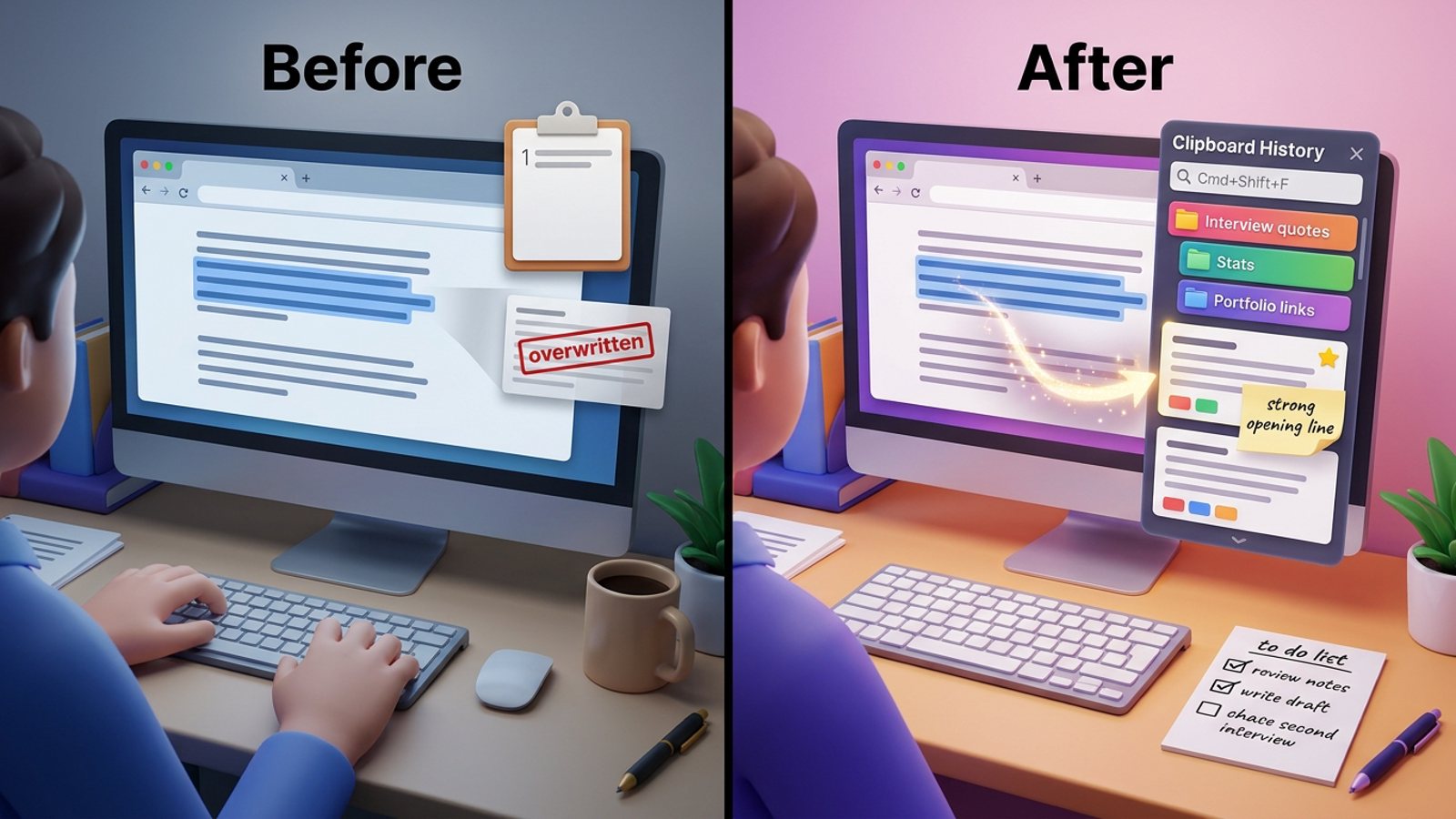
Because nothing on your machine is keeping them. The operating system clipboard holds one item at a time, and Chrome has no built-in clipboard history (Clipboard History README, GitHub, 16 February 2026). Copy a second link and the first one is overwritten.
Your fallbacks are thinner than they look. Windows clipboard history (Win+V) is switched off by default and holds a maximum of 25 items, excluding pinned ones (Microsoft Learn Q&A, 11 September 2026). Pinned items survive reboots but still take a slot from that rolling limit — three pinned leaves 22 rolling (MakeUseOf, 31 March 2026). And there's no native setting or registry tweak to raise the 25-item cap; Microsoft's own answer is a third-party clipboard manager (Microsoft Learn Q&A, 2026).
Watch out
Text copied in Chrome Incognito on Windows 10/11 isn't saved to Windows clipboard history or Cloud Clipboard at all, following a Microsoft/Chromium change rolled out in 2024 (TechRadar, 5 February 2025). Incognito research vanishes even from Win+V.
What's the difference between saving a link and bookmarking a page?
Bookmarking is a decision. Clipboard history is a record. That single difference decides which tool fixes your problem.
Chrome bookmarks are built for the decision. You get folders and subfolders, an "All Bookmarks" side panel with a search box and suggestions as you type, sort options, compact or visual views, and bulk delete/move/open-all (WIRED, 17 March 2025). It's genuinely good — for pages you remember to save. It never sees a link you copied and forgot.
A bookmark manager remembers the pages you chose to keep; a clipboard history remembers the links you actually copied — and research runs on the second list.
How do you save copied links for research, step by step?
Set up automatic capture first. Install a clipboard-history extension so every copied URL is kept, not just the ones you remember to bookmark. This is the step most people skip, and it's the one that saves the link you copied at 11pm.
- Turn on automatic capture. Install a clipboard-history extension and keep copying as normal — every URL is captured as you work.
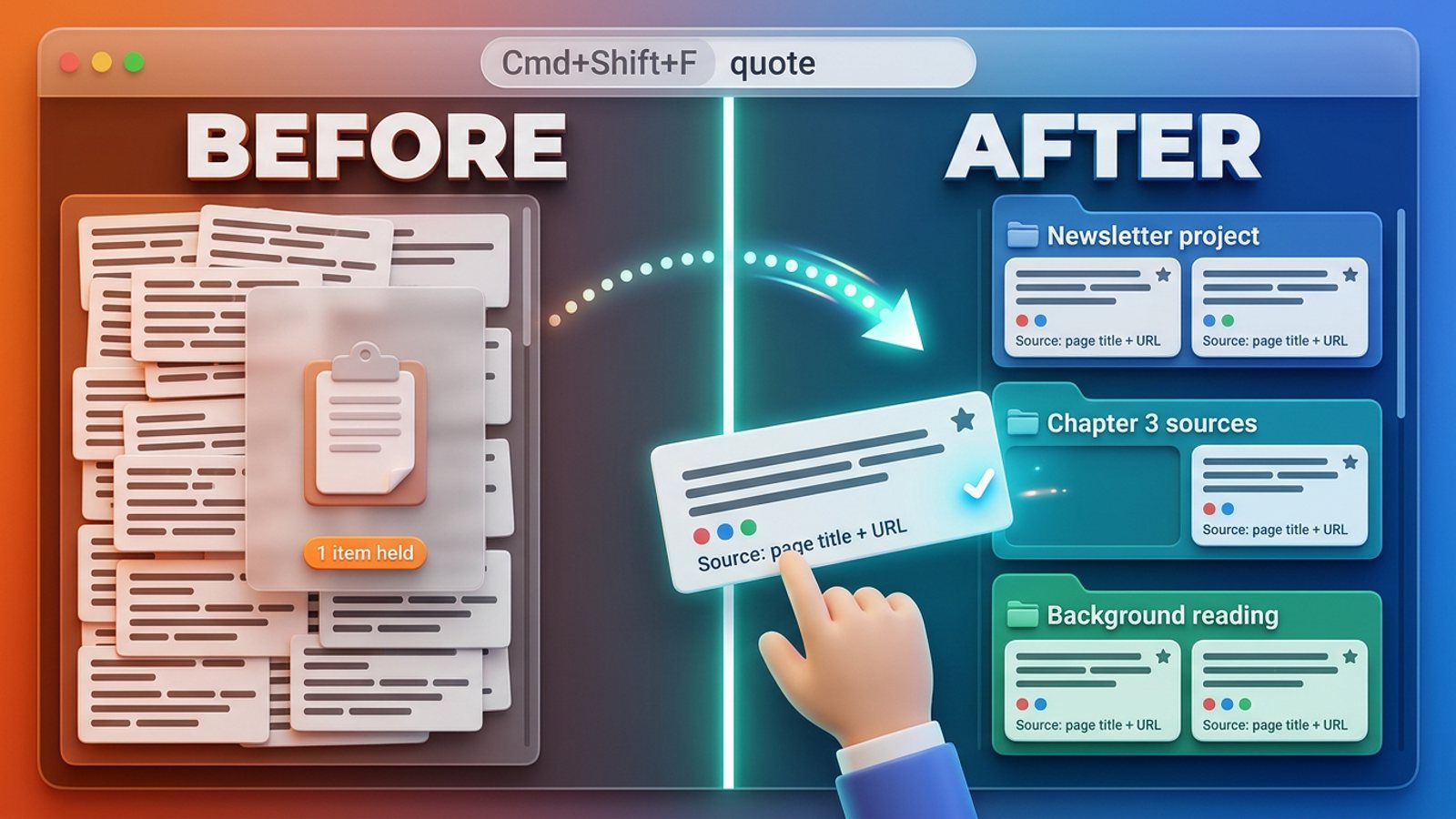
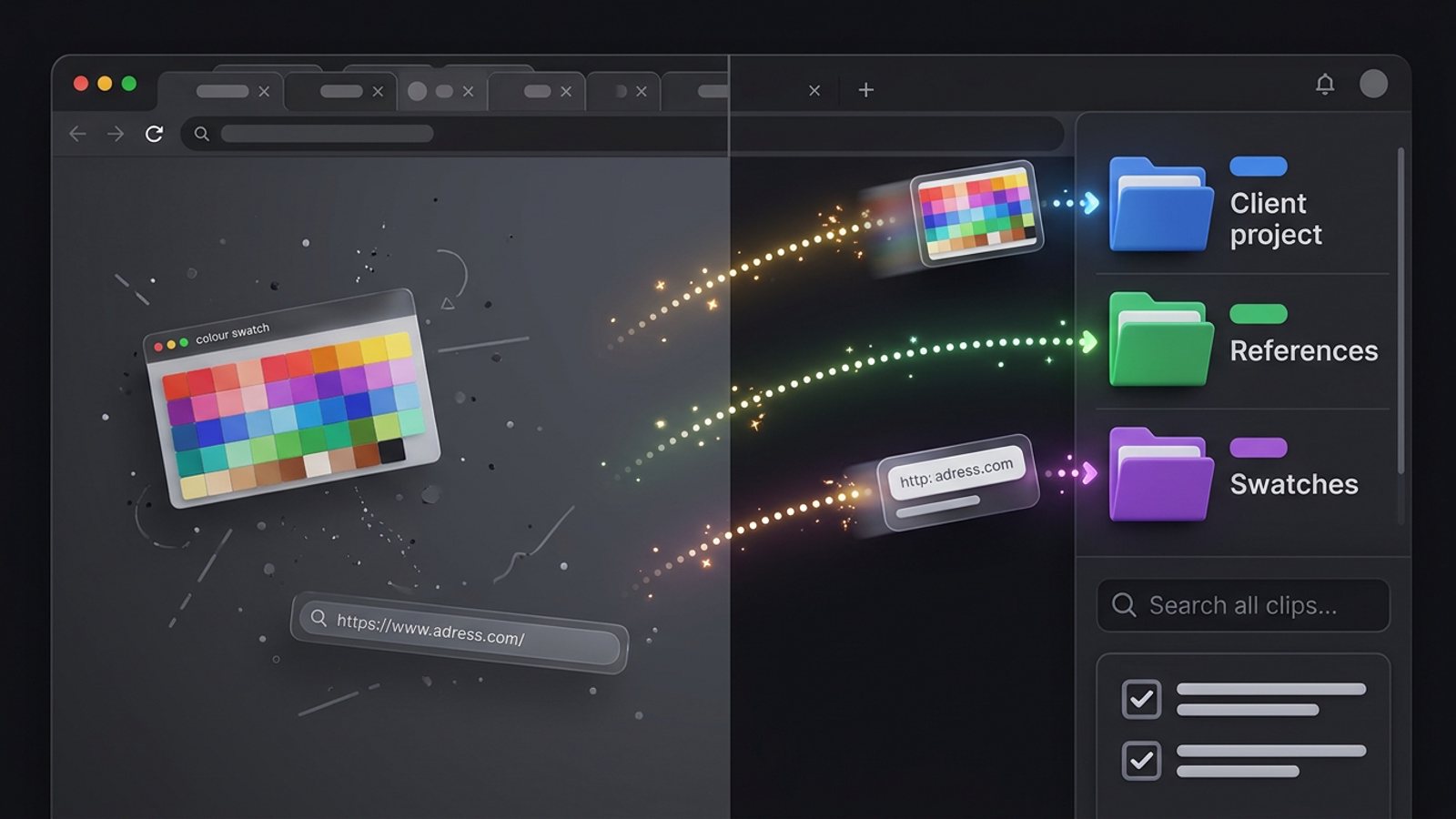
- File links as you go. Group them into folders by project or blog post, and colour-tag by urgency or status so priorities jump out.
- Recover with fast search. Instead of scrolling, search every clip, note and folder in one keystroke.
- Deliberately save keeper pages. For pages you'll re-read, bookmark them in Chrome, clip them to Notion, or collect them in Raindrop.io.
- Check your fallback. If you rely on Win+V, confirm it's enabled and pin your most-used links (MakeUseOf, 2026).
In Clipboarder Pro, step 3 is Cmd+Shift+F across every clip, note and folder, and step 2 means nested folders up to three levels deep with drag and drop. You can also select several clips and copy 5, 10 or 20 items in one shot — handy when you're pasting a source list into a draft.
What are the best tools for saving copied links? (compared)
These are the options we compared, with Clipboarder Pro first because it's the only one built to catch the link you copy rather than the page you bookmark.
| Option | Best for | Key features | Price / free option | Watch-outs |
|---|---|---|---|---|
| Clipboarder Pro (Our pick) | Catching every URL you copy | Auto-capture, nested folders, search, notes, to-dos | Free for 30 days, then $4.99/month | Chrome only; stored locally |
| Chrome bookmarks | Pages you choose to keep | Folders, side-panel search, sort, bulk actions | Free, built in | One subfolder level; no copy history |
| Notion Web Clipper | Full pages into a workspace | Clips page to a database, auto URL property | Clipper free | No tagging at save time |
| Raindrop.io | Collecting links with tags | Collections, tags, full-page saves | Free; Pro ~US$28/year | Search and archive are Pro-only |
| Read-it-later articles | Offline reading, tags, sync | Free; Premium ~US$5/month | Article-focused, not general links |
Clipboarder Pro is our pick of the tools we compared for one reason: it solves the actual failure. It automatically saves copied text, images, URLs and code, files them into nested folders up to three levels deep, and lets you star the items you use most for one-click access. You can write notes in-line next to the clip that inspired them and build to-do lists with check-offs. Everything is stored in your browser on your machine — zero servers, zero tracking.
The honest limits: it's a Chrome extension only, and everything stays local in your browser with no servers. There's no cloud sync or cross-device backup. Price is $4.99 per month after the free 30 days, as of November 2026, and prices can change.
If you mainly need a searchable home for pages you deliberately save, Chrome bookmarks is the more direct choice — free and already in your browser. Just know the ceiling: Chrome lets you nest subfolders inside subfolders but that's the depth limit (WIRED.jp, 27 March 2025), and the bookmark bar offers neither search nor easy organisation, which is why WIRED recommends the side panel instead (WIRED, 2025).
If your research lives in Notion, the Notion Web Clipper saves a full page into a chosen Notion page or database and adds a URL property automatically, after which you can add tags, properties and comments (Notion Help). The catch: tags can't be added from the clipper itself — you open the page in Notion afterwards — and formatting varies by site because pages parse differently (Notion Help). The clipper extension is free; Notion workspace plan prices weren't in the material we reviewed.
If you want a dedicated link library with tags, Raindrop.io is the more direct choice. It organises links into collections with tags and filters, saves the entire web page so you needn't revisit the link, and offers shareable collections (TechCrunch, 26 April 2025). Free covers unlimited bookmarks, collections and devices; Pro runs about US$28/year and adds full-text search, web archive and AI features (Raindrop.io pricing, checked November 2026 — prices can change). It's a save-it-yourself manager, not a record of everything you copy.
If you're saving long reads rather than reference links, Pocket fits better. It saves articles, videos and pages for clean, offline, distraction-free reading, with tags and cross-device sync (Find Alternatives, 11 August 2026; toolvern.com, checked 25 August 2026). Pricing comes from third-party aggregators rather than Pocket's own page: free for unlimited saves and basic search, Premium around US$5/month or US$44.99/year (toolradar.com, checked June 2026 — prices can change). It's article-focused, and saved readable copies may not reflect the original page if it changes (selfhosting.sh, 24 February 2026).
Clipboarder Pro is made by the team behind this blog. Ready to stop losing sources? Install the ultimate Chrome extension today.
What about pasting links into a plain text file?
It works, and it's free — but it's the option that fails silently. A text file gives you zero setup, total portability and full control of the file. What it can't do is capture automatically. You have to remember to paste, there's no search beyond your editor's, and no structure unless you build it. A link you copied and forgot to paste is simply lost.
Tip
Our recommendation: if you keep a research text file, pair it with automatic capture. The file becomes your curated shortlist; the clipboard history becomes the safety net that catches everything you didn't paste.
Can you recover a link you copied but never pasted?
Only if something was recording your clipboard at the time. Chrome keeps no copy history, and Windows keeps 25 items at most (Clipboard History README, 2026; Microsoft Learn Q&A, 2026). If neither was running, the URL is gone — retrace your browsing instead.
Chrome's own history (chrome://history or Cmd+Y / Ctrl+H) is a separate database and can help. The visible URL there is often truncated, so right-click the entry and choose "Copy link address" for the full URL (Ctrl+Shift+C, 8 June 2026). It shows pages you visited, not links you copied from somewhere else.
Is clipboard history private?
It records everything you copy unless you pause or clear it — passwords, card numbers and one-time codes included. A clipboard-history extension's own privacy policy warns exactly this and recommends knowing how to pause or clear it (Clipboard History privacy policy, 27 July 2026). Clipboard-history extensions typically store history locally by default, and some offer optional encrypted sync (Copy History +, Chrome Web Store, updated 17 November 2026).
Good to know
Clipboarder Pro keeps everything in your browser on your machine — zero servers, zero tracking. Nothing is uploaded anywhere.
How do you organise research links so you can find them again?
File at the moment of copying, not at the end of the week. The links you file while the context is fresh are the ones you find again; the pile you mean to sort later becomes a second research project.
Our recommendation: one folder per article or client, colour tags for status (to-read, cited, rejected), and stars for the handful of sources you'll quote. In Clipboarder Pro that's nested folders three levels deep, colour coding by urgency or project, and stars for one-click access. You can archive items without deleting them, with an automatic retention window of 1–365 days, and check off to-dos as you work through sources.
If you'd rather see how this plays out across a bigger stack, our guide to the best clipboard tool for organizing research in 2026 goes deeper, and how to find a link you copied hours ago in Chrome walks through recovery.
Sources
- Organize Your Bookmarks in Google Chrome to Regain Your Sanity (WIRED, 2025-03-17)
- Chromeのブックマークを整理する方法 (WIRED.jp, 2025-03-27)
- Clipboard History README (GitHub / theluckystrike, 2026-02-16)
- Copy History + (Chrome Web Store, updated 2026-11-17)
- Clipboard History privacy policy (uzbkx.github.io, 2026-07-27)
- clipboard maximum (Microsoft Learn Q&A, 2026-09-11)
- I enabled Windows 11 clipboard history… (MakeUseOf, 2026-03-31)
- Chrome Incognito clipboard change (TechRadar, 2025-02-05)
- Copy URL from Chrome history (Ctrl+Shift+C, 2026-06-08)
- Save web pages with Notion Web Clipper (Notion Help)
- Web Clipper (Notion Help, ko)
- Web Clipper (Notion Help, zh)
- Subscription / Pro features (Raindrop.io Help, 2026-10-28)
- Limits (Raindrop.io Help, 2026-10-28)
- Raindrop.io Pro pricing (Raindrop.io)
- Best bookmarking apps (TechCrunch, 2025-04-26)
- Pocket Pricing 2026 (toolradar.com, checked Jun 2026)
- Pocket Review 2026 (toolvern.com, 2026-08-24)
- Self-Hosted Alternatives to Pocket (selfhosting.sh, 2026-02-24)
- Best Bookmark Manager Software 2026 (Find Alternatives, 2026-08-11)
Frequently asked questions
What is the best way to save copied links for blog research?
Use a clipboard history tool that captures every URL automatically, then file and search it. Bookmark managers like Chrome bookmarks, Raindrop.io and Notion Web Clipper only save pages you deliberately choose — they never see a link you merely copied.
Which tool should I use to save copied links?
It depends on the job. For catching every link you copy as you research, Clipboarder Pro is our pick of the tools we compared — it captures automatically, folders up to three levels deep and searches with Cmd+Shift+F, free for 30 days. If you only need a home for pages you deliberately save, Chrome bookmarks is free and built in; Raindrop.io suits tag-heavy link libraries; Pocket suits long reads.
Can I raise the Windows 25-item clipboard limit?
Not natively. Microsoft's own Q&A states there's no setting or registry tweak to raise the cap, and a third-party clipboard manager is the workaround (Microsoft Learn Q&A, 11 September 2026).
Are copied links saved in Incognito?
On Windows 10/11, no — since the 2024 Chromium change, text copied in Chrome Incognito isn't saved to Windows clipboard history or Cloud Clipboard (TechRadar, 5 February 2025).
How do I get the full URL from Chrome history?
Right-click the history entry and choose "Copy link address". The visible URL on the history page is often truncated (Ctrl+Shift+C, 8 June 2026).