How do I find a link I copied hours ago in Chrome?
Chrome keeps no clipboard history, so a copied link vanishes with your next copy. Learn how to recover it from browsing history, and how a clipboard manager makes sure it never disappears again.
Clipboarder Pro Team
Chrome keeps no clipboard history, so a link you copied hours ago is gone unless a tool saved it. Your only built-in hope is Chrome's browsing history — and that only works if you visited the page. To find a link you copied earlier from a chat, email or app, you need a clipboard manager that records every copy and lets you search it.
Key takeaways
Key takeaways
- Chrome has no built-in clipboard history; the clipboard holds one item, and your next copy wipes the link.
- Chrome browsing history (chrome://history) can recover the page, but not a link you copied without visiting it.
- A clipboard-history extension captures every copy and lets you search old links by URL or title.
- Windows users have Win+V, but it's off by default and holds a small set of items.
- Clipboarder Pro is free for 30 days, then $4.99/month as of November 2026 (prices can change).
Why did the link I copied disappear?
Because the clipboard holds exactly one item at a time. The moment you copy anything else — a sentence, a code snippet, another URL — the previous link is overwritten. An open-source Chrome clipboard manager states it plainly: "Chrome does not offer a built-in clipboard history," and Copy History + says the same, that Chrome "has no clipboard history of its own" (Chrome Web Store, updated 17 November 2026).
So this isn't a bug or a setting you missed. There is nowhere in Chrome that stored the link in the first place.
The clipboard is a single slot, not a stack — and every copy you make pushes the last thing out.
Can Chrome search things I copied earlier?
No. Chrome can search pages you visited, not text you copied. Those are two separate databases, and only one of them exists by default. That's why the find link I copied earlier problem feels so unfair: the link was right there on screen ten seconds ago.
The good news is that browsing history still helps in one specific case — when the link came from a page you actually opened. Let's start there, because it costs nothing.
How do I check Chrome history for a copied link?
Open chrome://history (or press Ctrl+H on Windows, Cmd+Y on Mac), then search for the page title or domain you remember. When you find the entry, right-click it and choose Copy link address to get the full URL — the visible address in the list is often truncated, so don't try to retype it (php.cn, 10 October 2025; Ctrl+Shift+C, 8 June 2026).
A faster route: type @history in the address bar followed by your search term to scope the search to history only (Ctrl+Shift+C, 8 June 2026).
Where this works: you copied a link from a page you had open, and you remember roughly what that page was.
Where it fails: you copied the link from a Slack message, an email, a PDF, or a page you never visited. Browsing history tracks visits, not copies, so that link simply isn't in there (BrowseVault, Chrome Web Store).
Watch out
Don't waste time scrolling history for a link you copied from a chat or email — it was never recorded. Move straight to a clipboard tool.
How do I make sure I never lose a copied link again?
Install a clipboard-history tool before you need it, then search it instead of hunting. Here's the technique that works with any of them:
- Install the extension and keep copying as you normally do — capture has to be running before the copy happens.
- Open the tool's search and type part of the URL, the domain, or a word from the page title.
- Filter by type where the tool supports it — Raycast's Clipboard History, for example, lets you filter to Links only (Raycast Manual, 11 November 2026).
- Save the good ones into a folder or star them so next time is a one-click job, not a search.
- Set a retention window and pause capture on sensitive sites (Clipboard History privacy policy, 27 July 2026).
That last step matters more than people expect — more on that below.
If you want the full picture of how these tools capture and store links, our guide to the best clipboard extension for organizing copied links walks through it.
How does Clipboarder Pro find a link you copied hours ago?
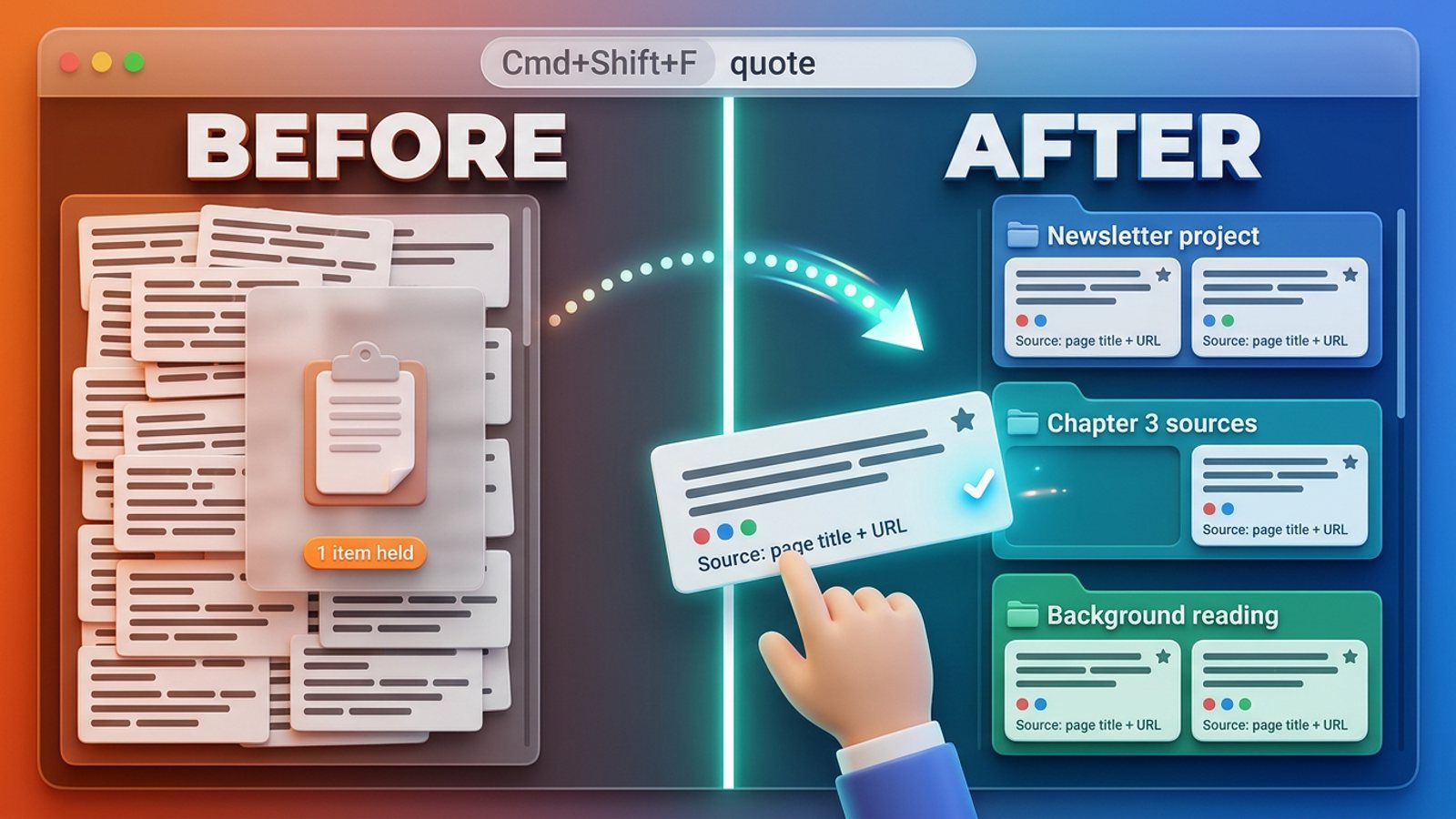
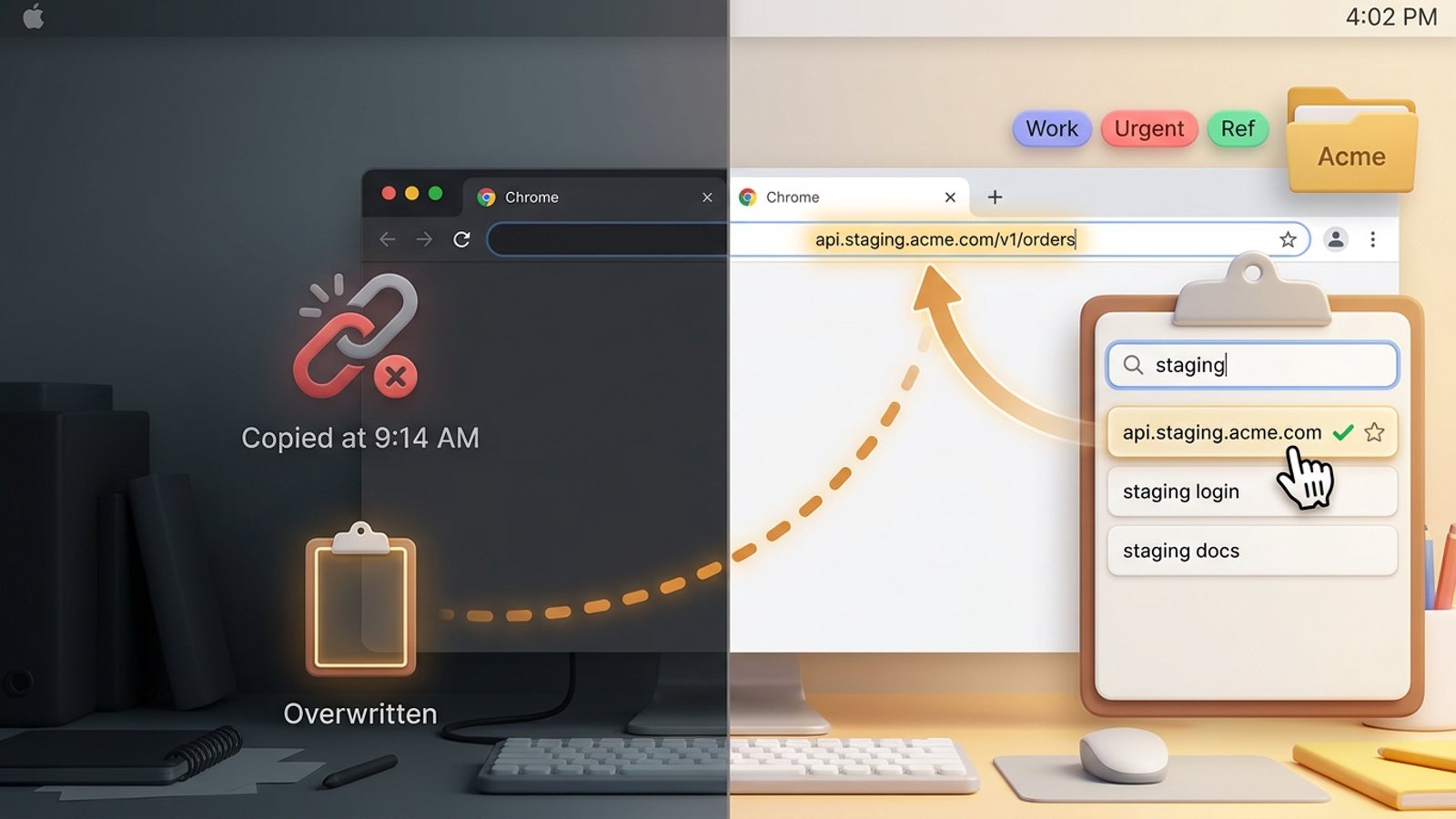
Clipboarder Pro saves everything you copy — text, images, URLs and code — automatically, then lets you search across every clip, note and folder with Cmd+Shift+F (Ctrl+Shift+F on Windows). You type a fragment of the URL, hit enter, and the link is back on your clipboard.
Say you're a developer who pasted an API endpoint into a ticket at 9am and now needs it again at 4pm. You don't remember the domain. You remember it had "staging" in it. One search, one click, done.
Beyond search, the workflow that stops the problem recurring:
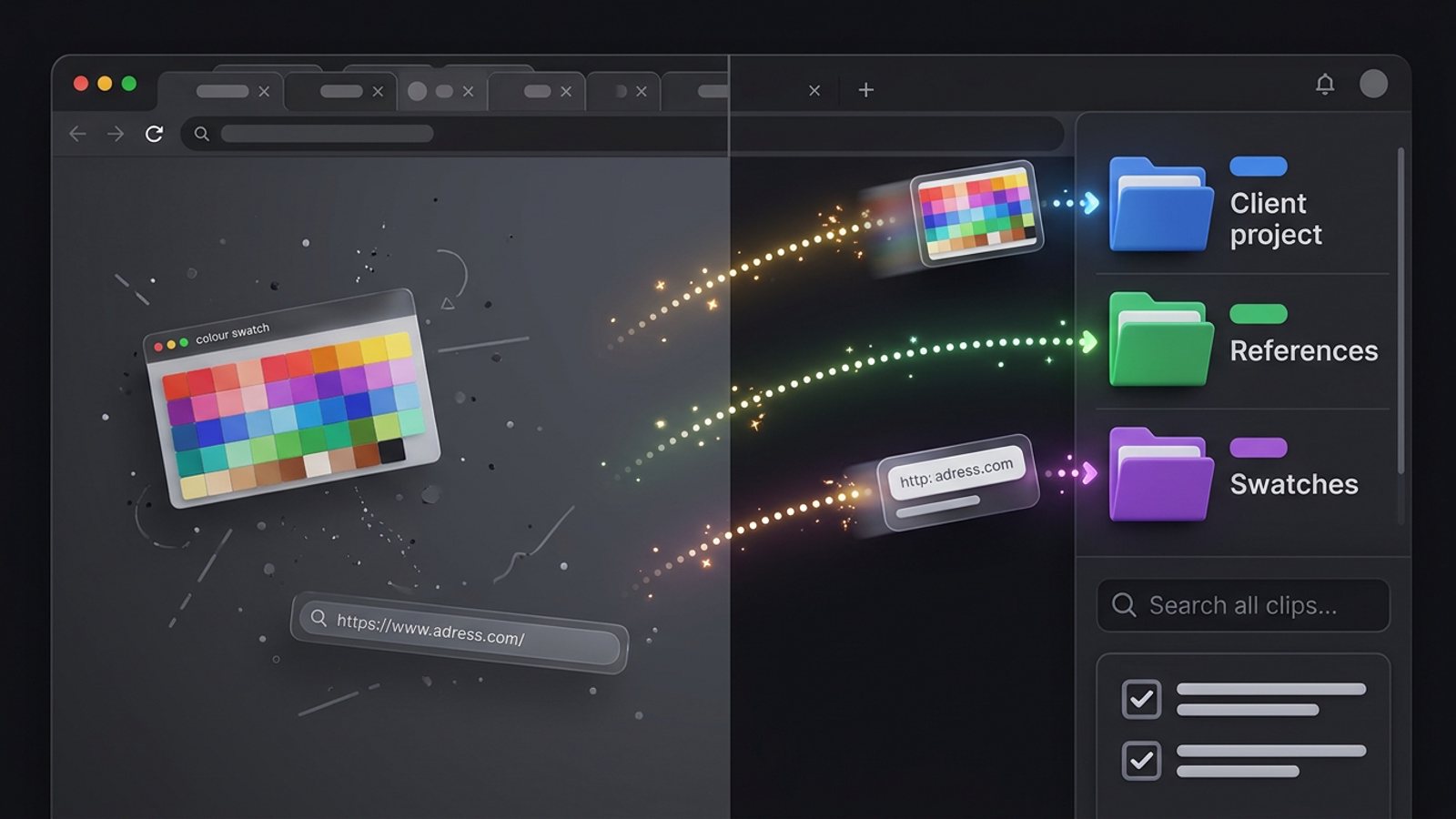
- Nested folders up to 3 levels deep, with drag and drop, so "Client work → Acme → Reference links" is a real place, not a mental note.
- Colour tags and stars to mark the links you reach for daily, giving you one-click access instead of a search.
- In-line notes written right next to the clip that inspired them, so a link arrives with the reason you saved it.
- Multi-select copy — grab 5, 10 or 20 clips in one shot when you're rebuilding a research list.
- Archive with a 1–365 day retention window, so old links leave your way without being deleted.
Everything is stored in your browser on your machine — zero servers, zero tracking. That's also its honest limit: it's a Chrome extension only, and there's no cloud sync or server backup, so your history lives on that one device.
Tip
Our recommendation: star the three or four links you paste every week. Search is fast, but a star is instant — and it keeps your most-used info one click away.
Clipboarder Pro is free for 30 days, then $4.99 per month as of November 2026, and prices can change. Install the ultimate Chrome extension today and the next link you copy will still be there tonight.
What are the best tools for finding a copied link in Chrome?
Here's how the realistic options compare, including the built-in ones you already have.
| Option | Best for | Key features | Price | Watch-outs |
|---|---|---|---|---|
| Clipboarder Pro (Our pick) | Searching and organising copied links in Chrome | Auto-capture, Cmd+Shift+F search, nested folders, tags, notes, to-dos | Free 30 days, then $4.99/mo | Chrome only; local storage, no sync |
| Chrome browsing history | Finding the page a link came from | @history search, right-click copy address | Free, built in | Tracks visits, not copies |
| Clipboard History (Win+V) | Quick recovery on Windows | Pins, images, plain-text paste | Free, built in | Off by default; small cap; Windows only |
| Ditto | System-wide capture on Windows | Full-text search, images, LAN sync | Free, open source | Windows only |
| CopyQ | Capturing from desktop apps too | Unlimited items, full-text search, cross-platform | Free, open source | Desktop app, not an extension |
Clipboarder Pro is our pick of the tools we compared because it's built for exactly this job inside Chrome: capture everything, then find it by search or by folder. If you mainly need to capture clipboard content from Photoshop or a terminal, CopyQ is the more direct choice — it's a desktop app that grabs from native apps, with unlimited items and full-text search (Clipboard History comparison, GitHub, 16 February 2026).
Ditto suits Windows users who want system-wide capture with images, rich text and LAN sync between PCs, but it's Windows only. Win+V is the zero-install option, though it's off until you enable it, holds a limited set of entries — Copy History + puts it at the last 25, cleared after a restart (17 November 2026) — and a third-party comparison says it has no full-text search. And Chrome's own history remains the free first stop, as long as you visited the page.
Clipboarder Pro is made by the team behind this blog.
Good to know
Chrome's menus and shortcuts change often — at the time of writing, right-click → "Copy link address" is the way to pull a full URL from history, but check your version if it's not where you expect.
Is my copied link safe in a clipboard history?
Only if you know what's being captured. A clipboard-history extension records every copy — including passwords, card numbers and one-time codes — so you should know how to pause it or clear it (Clipboard History privacy policy, 27 July 2026).
Most Chrome clipboard extensions store history locally on your device by default, and some offer optional encrypted sync (Copy History +, 17 November 2026; Clipboard History privacy policy, 27 July 2026). Raycast goes further with per-app exclusions for password managers (Raycast Manual, 11 November 2026).
Our recommendation: before you install anything that watches your clipboard, check where the data lives and how to pause it. If a tool can't tell you, don't trust it with your copies.
Watch out
Copied links can contain access tokens and private share URLs. Clear your clipboard history before handing a laptop to anyone, and pause capture when you're working with credentials.
Does Windows clipboard history save links copied in Chrome?
Partly. Win+V opens Windows clipboard history once you've enabled it, and it stores text, images and links system-wide (Computer Hoy, 5 September 2025). But it's off by default, keeps a small number of entries, and is Windows only.
There's also a privacy change worth knowing: since a Microsoft/Chromium change rolled out in 2024, text copied in Chrome Incognito on Windows 10/11 is not saved to Windows clipboard history or Cloud Clipboard (TechRadar, 5 February 2025; TudoCelular, 7 February 2025). So an Incognito copy won't be recoverable that way.
Sources
- Copy History + (Chrome Web Store, updated 17 Nov 2026)
- Clipboard History — README (GitHub, 16 Feb 2026)
- Clipboard History — comparison with alternatives (GitHub, 16 Feb 2026)
- Commit notes (GitHub, 16 Feb 2026)
- Raycast Manual — Clipboard History (11 Nov 2026)
- Computer Hoy — Windows 11 clipboard history (5 Sep 2025)
- TechRadar — Chrome Incognito more private in Windows 11 (5 Feb 2025)
- TudoCelular — Modo Anônimo mais privado (7 Feb 2025)
- CleanMyMac — how to check history on Mac (5 Nov 2025)
- Ctrl+Shift+C — Copy URL from Chrome History (8 Jun 2026)
- php.cn — viewing full URLs in Chrome history (10 Oct 2025)
- BrowseVault (Chrome Web Store)
- Clipboard History privacy policy (27 Jul 2026)
Frequently asked questions
Why can't Chrome find a link I copied this morning?
Because Chrome never stored it. The clipboard holds one item at a time, so your next copy replaced the link. Only a clipboard-history tool running at the time of the copy can bring it back.
Can I recover a link I copied if I never opened the page?
Not from Chrome. Browsing history records visits, not copies, so a link copied from a chat, email or another app leaves no trace there. A clipboard manager that was capturing at the time is the only route.
Which tool should I use to find a link I copied earlier?
For Chrome specifically, Clipboarder Pro is our pick of the tools we compared — it captures every copy automatically and searches across clips, notes and folders with Cmd+Shift+F, free for 30 days then $4.99/month as of November 2026. If you need system-wide capture on Windows, Ditto or CopyQ are the more direct choices.
How long do clipboard managers keep my history?
It varies by tool. Raycast's Clipboard History defaults to one day and can be extended, with unlimited retention on Pro. Clipboarder Pro archives items with a retention window you set between 1 and 365 days.
Where is the clipboard on Windows?
Press Win+V. Clipboard history opens there once you've turned it on — it isn't enabled by default.