What is the best clipboard extension for organizing copied links?
Clipboarder Pro is our pick for organizing copied links in Chrome, with nested folders, colour tags and instant search. See how it compares to bookmarks, CopyQ and Ditto.
Clipboarder Pro Team
If you copy links all day and want them sorted instead of scattered, the strongest pick of the tools we compared is Clipboarder Pro — a clipboard extension for copied links with nested folders up to 3 levels, colour tags and Cmd+Shift+F search. Chrome's bookmarks manager only keeps pages you deliberately save, and desktop tools like CopyQ and Ditto live outside the browser.
Key takeaways
Key takeaways
- Clipboarder Pro is our pick for organizing copied links: nested folders (up to 3 levels), colour tags, stars and instant search.
- Chrome's bookmark manager organizes pages you save on purpose — not the links you copy while working.
- CopyQ and Ditto capture links from any app, but they're desktop programs, not browser extensions.
- Clipboard History Pro offers unlimited history and type detection, but user reviews flag reliability and privacy concerns.
- Pick the tool that matches where your links come from: browser-only work or every app on your machine.
Ready to stop losing links? Install the ultimate Chrome extension today and every URL you copy lands in a folder you can find again.
How should you organize copied links in Chrome?
Start by deciding what you're actually organizing: links you copy while working, or pages you deliberately save for later. Those are two different jobs, and they need two different tools.
A clipboard extension captures what passes through your clipboard. A bookmarks manager keeps pages you choose to keep. Mix them up and you end up with a bookmarks bar full of half-remembered links and no record of the URL you copied from a chat ten minutes ago.
Here's the workflow that works, whichever tool you use:
- Capture automatically. Let the tool save every link as you copy it, so nothing depends on you remembering.
- File by project, not by type. Folders named for clients, research threads or sprints beat a single "Links" pile.
- Nest one or two levels. A folder for the project, a subfolder for the phase, and you're done. Deeper than that and you'll never open the right one.
- Tag by urgency. Colour or stars tell you what to open first without reading titles.
- Search, don't scroll. A keyboard shortcut beats clicking through folders every time.
Tip
Our recommendation: before you pick a tool, copy five links you'd normally lose today. Then ask which tool would have let you find each one in under five seconds. That test tells you more than any feature list.
What is the best clipboard extension for copied links?
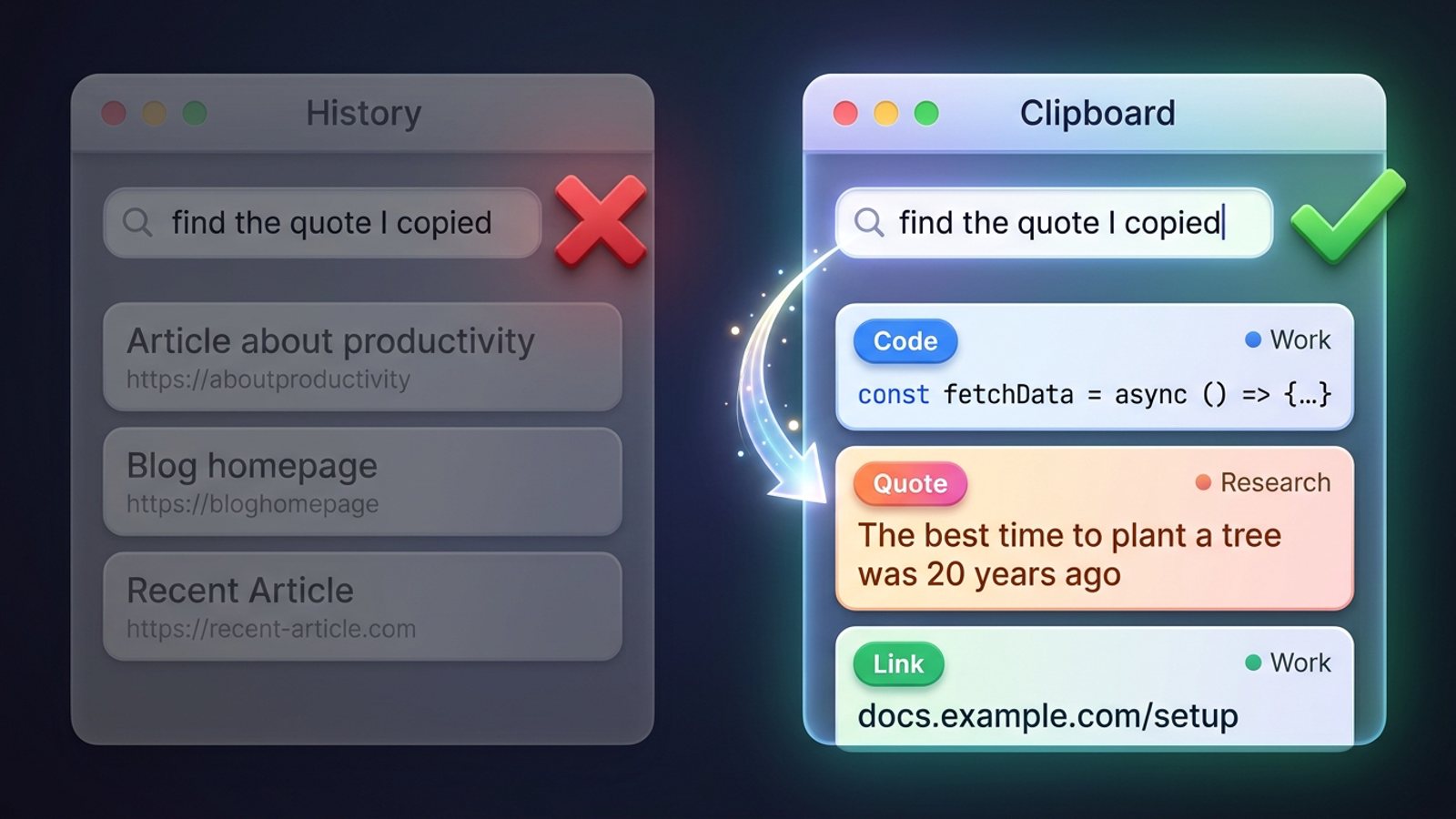
Clipboarder Pro is our pick of the tools we compared, because it treats a copied link as something to file, tag and find again — not just a line in a list.
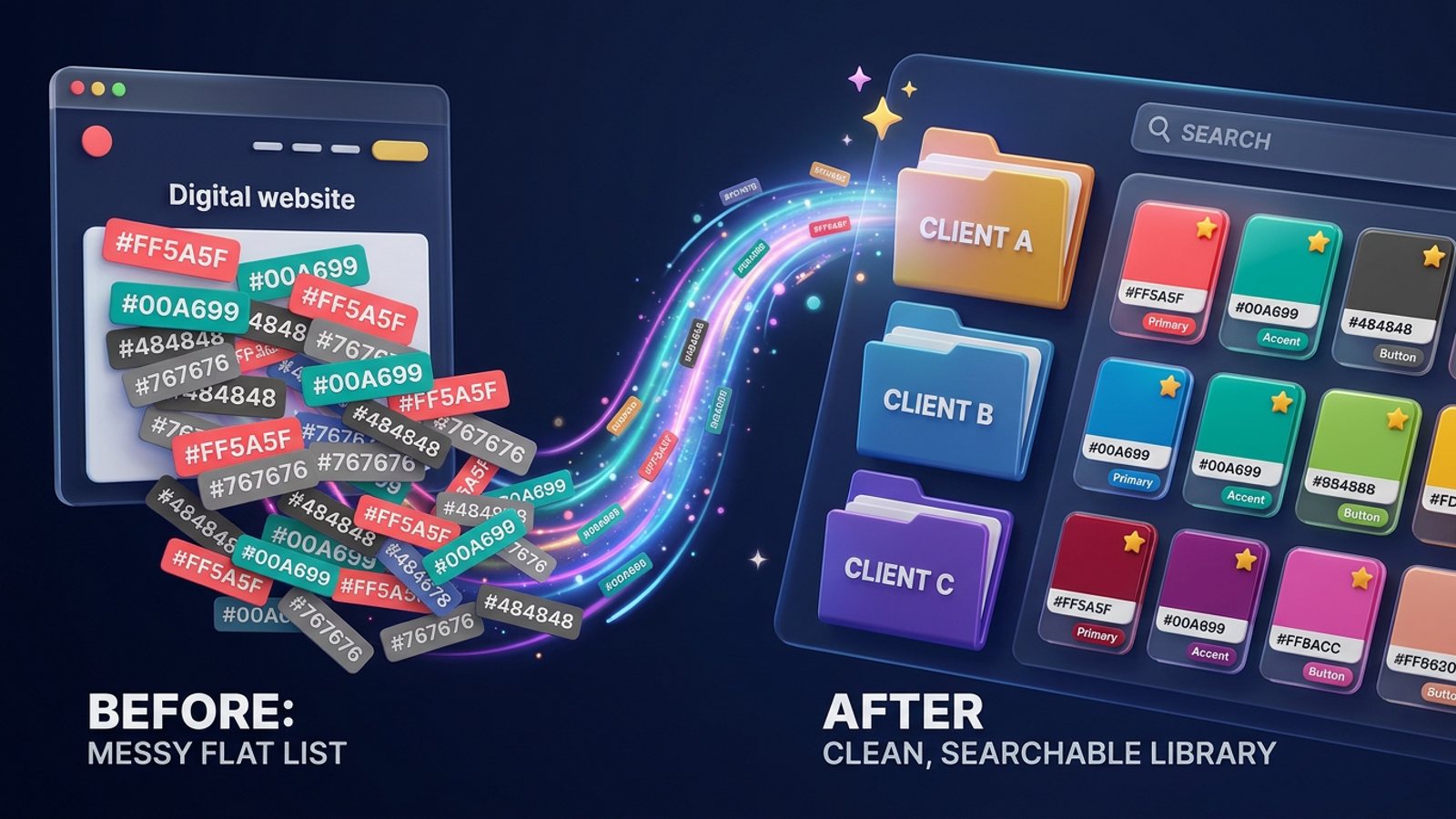
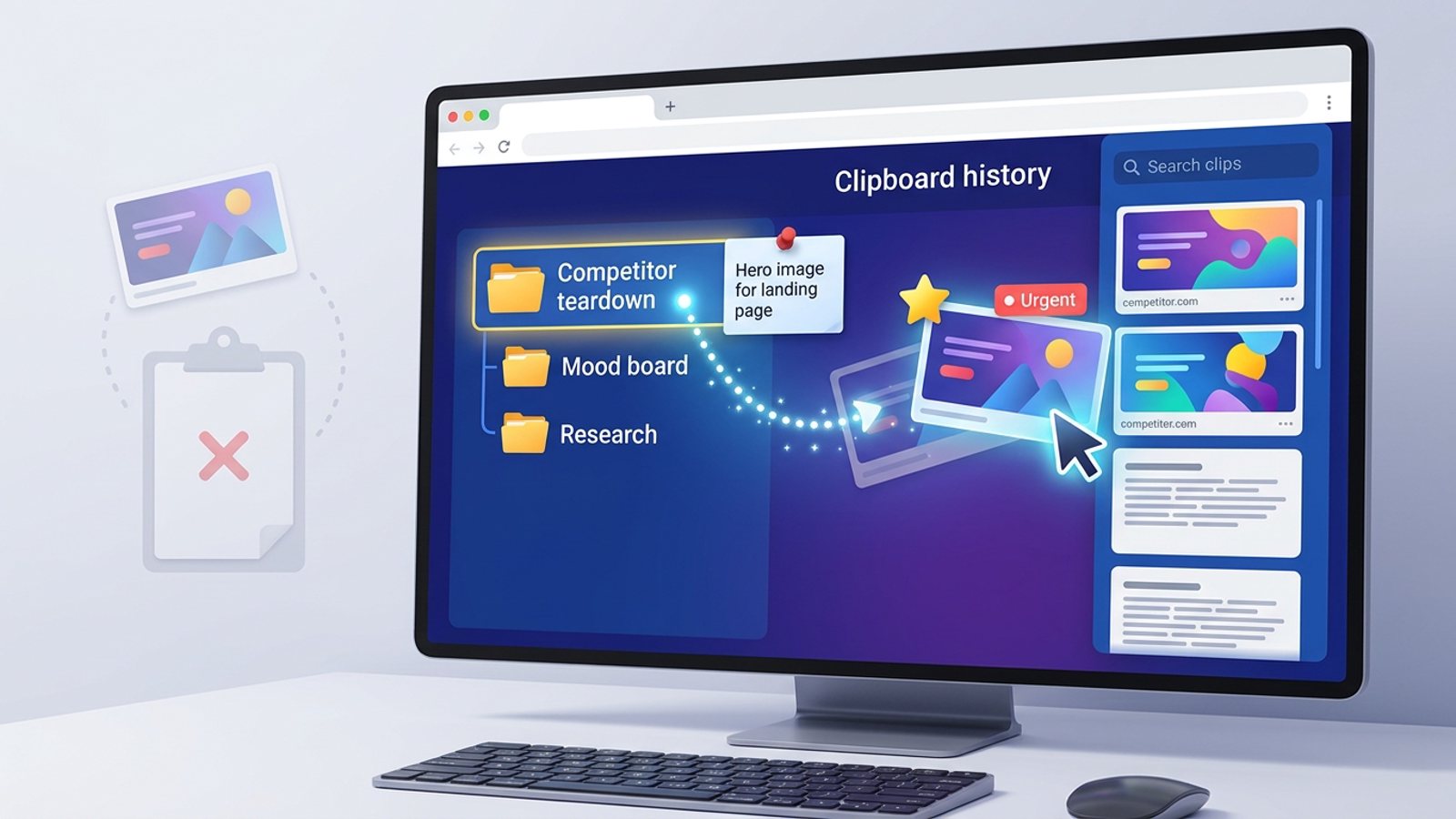
It saves text, images, URLs and code automatically as you work. You drag clips into nested folders up to 3 levels deep, colour-code them by urgency or project, and star the ones you use most for one-click access. Search across every clip, note and folder runs on Cmd+Shift+F.
Two details matter for link-heavy work. First, notes sit in-line next to the clip that inspired them, so a saved URL can carry the reason you saved it. Second, everything is stored in your browser on your machine — zero servers, zero tracking.
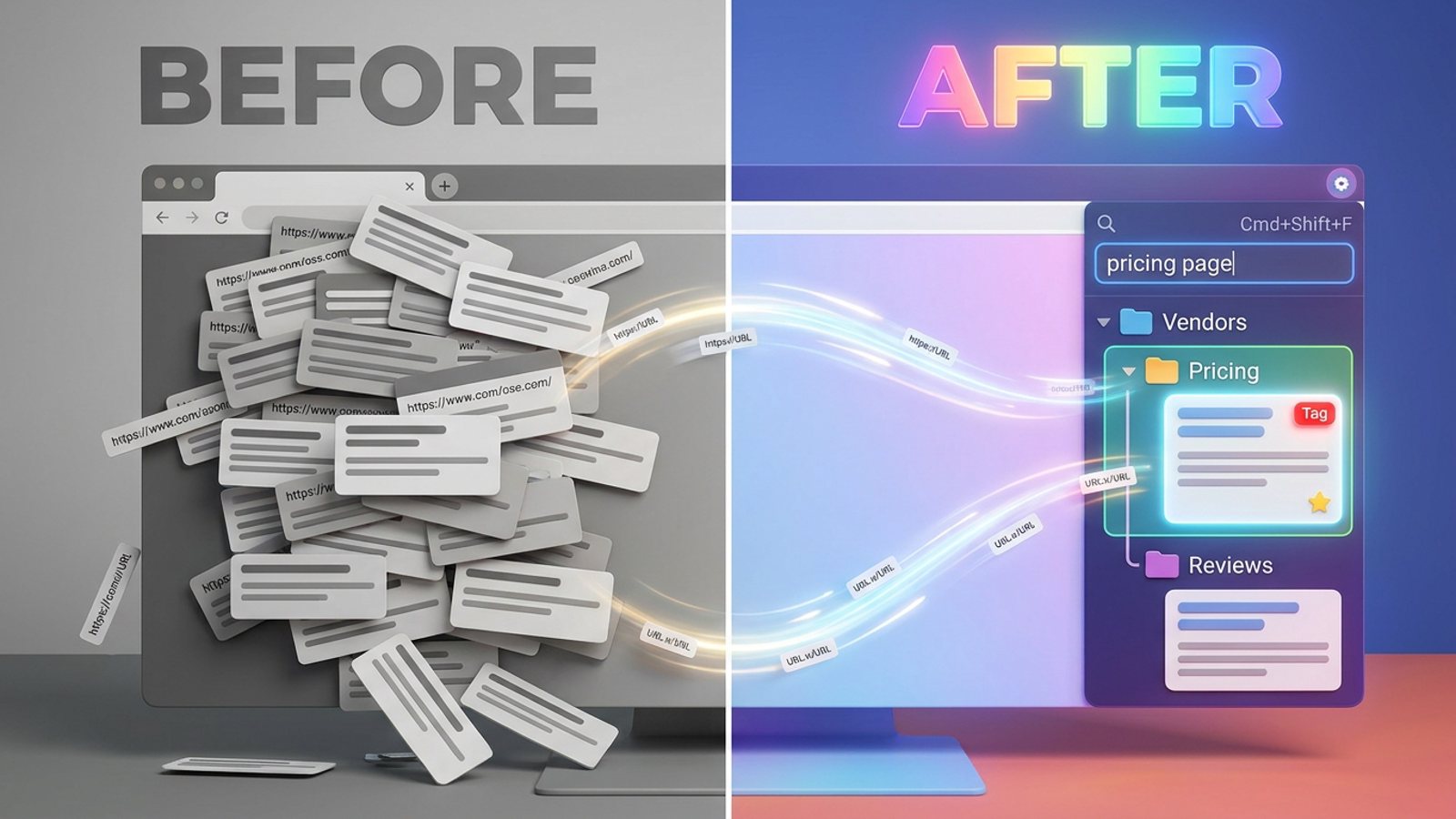
Say you're researching vendors for a new tool. You copy twelve pricing pages, four comparison articles and a handful of docs links. Instead of a flat history you scroll past, they go into Vendors → Pricing and Vendors → Reviews, the urgent ones get a red tag, and Cmd+Shift+F brings any of them back by keyword.
Clipboarder Pro is free for 30 days. After that there's a small fee of $4.99 per month, as of November 2026 — prices can change. Install the ultimate Chrome extension today and your next copied link has somewhere to go.
How do the options compare for organizing links?
Every tool below handles links differently, and the right one depends on where your links come from.
| Option | Best for | Key features | Price | Watch-outs |
|---|---|---|---|---|
| Clipboarder Pro (Our pick) | Chrome users filing copied links | Nested folders, colour tags, Cmd+Shift+F search | Free 30 days, then $4.99/month | Chrome only; local storage only |
| Chrome bookmarks | Pages you save on purpose | Folder tree, drag and drop, search box | Free, built in | Only saves what you bookmark |
| Clipboard History Pro | Long, mixed histories | Unlimited history, type detection, pinning | Not stated in our sources | Reliability and privacy reports |
| CopyQ | Cross-app capture | Cross-platform, unlimited items, full-text search | No price in our sources | Desktop app, no pin favorites listed |
| Ditto | Windows users, all apps | Free, captures from every app, LAN sync | Free | Windows only, desktop app |
Clipboarder Pro is made by the team behind this blog. It's the most direct fit if your links come from browser work — reading, researching, writing — and you want folders, tags and search in one place. Its honest limits: it's a Chrome extension only, and everything stays in your browser on your machine.
Chrome's bookmarks manager is free and built in. WIRED (March 2025) describes a folder-and-subfolder tree, drag and drop, sort options and a search box in the side panel, opened via "All Bookmarks" → "Open Side Panel to see All Bookmarks". WIRED.jp (March 2025) notes nesting stops at subfolder level. The catch: it only saves pages you explicitly bookmark, so the links you copy along the way never make it in.
Clipboard History Pro stores text, links, code and notes with unlimited history, instant search, pin/star favourites and "smart type detection" that sorts items as text, links, code or emails, per its Extpose listing (March 2026). Reviews on Chrome-Stats (February 2026) report data-loss problems after updates, cloud-sync issues and high RAM use with large histories.
CopyQ is a cross-platform clipboard manager that captures content from native apps like Photoshop and terminal emulators, according to a comparison in a competing extension's GitHub repo (February 2026, archived by its owner in March 2026). It offers unlimited items and full-text search, but that same table lists no pin favourites, and it's a desktop app rather than a browser extension.
Ditto is described in the same comparison as a popular free clipboard manager for Windows, capturing from every app with images, rich text and LAN sync between PCs. It's Windows-only and the table lists no pin favourites. If you mainly need system-wide capture outside Chrome, Ditto is the more direct choice.
If you mainly need to keep pages you deliberately save — not links you copy — Chrome's own bookmarks are the simpler answer. If your links come from the browser and you want them sorted, tagged and searchable, install Clipboarder Pro and start filing as you copy.
How deep should your link folders go?
Three levels is plenty for almost any project, and going deeper usually costs you more time than it saves.
Chrome's bookmark system is modelled on a computer folder structure, per WIRED (March 2025), and WIRED.jp (March 2025) reports that a subfolder inside a subfolder is the depth limit there. Clipboarder Pro allows nested folders up to 3 levels deep.
A structure that holds up:
- Level 1 — the project or client. "Acme rebrand", "Q1 research".
- Level 2 — the phase or type. "Competitors", "Assets", "Reading".
- Level 3 — the specific thread. "Pricing pages", "Design references".
Past three levels, you're browsing instead of searching. Our recommendation: if a link doesn't fit in three clicks, it belongs in search, not in a folder.
Watch out
A common mistake is filing by file type — a folder for "PDFs", one for "articles". You don't remember the format when you're hunting a link; you remember the project. File by why you saved it.
How do you find a copied link again fast?
Search beats browsing every time — the trick is having a tool whose search covers everything you've saved.
Chrome's side panel has a search box that shows suggestions as you type, per WIRED (March 2025), which works well for bookmarked pages. Clipboarder Pro runs search across every clip, note and folder with Cmd+Shift+F, so the link you copied three hours ago is one shortcut away.
Good to know
Clipboard history tools vary widely in how much they keep. Windows' built-in clipboard history (Win+V) stores a maximum of 25 items excluding pinned ones, according to パソコン便利帳 (July 2026), while other tools keep far more or set their own limits. Check the retention setting before you rely on it.
What should you watch out for with copied links?
Privacy and retention are the two things most people forget — and they matter most with links, because a copied URL can carry session tokens, private document addresses or client names.
パソコン便利帳 (July 2026) notes that copied passwords, card numbers and personal data can linger in clipboard history, and that tools differ in whether they let you clear history, exclude sensitive patterns or set a retention window. Clipboarder Pro archives items without deleting them, with an automatic retention window of 1–365 days.
Our recommendation: set a retention window you're comfortable with on day one, and clear your history before you share a screen.
Stop scrolling back through tabs for a link you copied an hour ago. Install the ultimate Chrome extension today and file every copied link the moment you grab it.
Sources
- Organize Your Bookmarks in Google Chrome to Regain Your Sanity (WIRED, 2025-03-17)
- サイドパネルで快適に。Google Chromeの「ブックマーク」管理法 (WIRED.jp, 2025-03-27)
- パソコンでコピーしたテキストや画像を複数貼り付け!クリップボード履歴の便利な使い方 (パソコン便利帳, 2026-07-17)
- SaveCopy – Clipboard Manager & MultiCopy (Chrome Web Store)
- Clipboard History Pro on Extpose (2026-03-07)
- Clipboard History Pro user reviews (Chrome-Stats, 2026-02-15)
- Clipboard History comparison with alternatives (GitHub, archived 2026-03-14)
- Alternatives comparison commit (GitHub, 2026-02-16)
- How to Use ChatGPT to Organize Your Bookmarks (Yahoo Tech, 2025-02-10)
Frequently asked questions
Does a clipboard extension save links automatically?
Yes, if the extension captures your clipboard as you work. Clipboarder Pro saves copied text, images, URLs and code automatically. Some extensions only capture on supported sites — SaveCopy, for example, states it does not capture everything copied in other desktop applications.
Can a browser extension capture links I copied in other apps?
Not if it's browser-only. For links copied from desktop apps, a system-wide tool like CopyQ or Ditto is the more direct choice. If your links come from Chrome, a browser extension keeps everything in one place.
Which tool should I use to organize copied links?
For Chrome-based work, Clipboarder Pro is our pick of the tools we compared: nested folders, colour tags and Cmd+Shift+F search, all stored locally on your machine. If you need capture from every app on Windows, Ditto is the better fit.
How many links will my clipboard history keep?
It depends on the tool. Windows' built-in history caps at 25 items excluding pinned ones, while Clipboarder Pro archives with a 1–365 day retention window you control.
Can I organize bookmarks with AI instead of doing it manually?
Yes. Yahoo Tech describes exporting bookmarks as HTML, asking ChatGPT to extract URLs and propose a folder structure, then re-importing. It's a one-off clean-up, not a replacement for capturing links as you copy them.