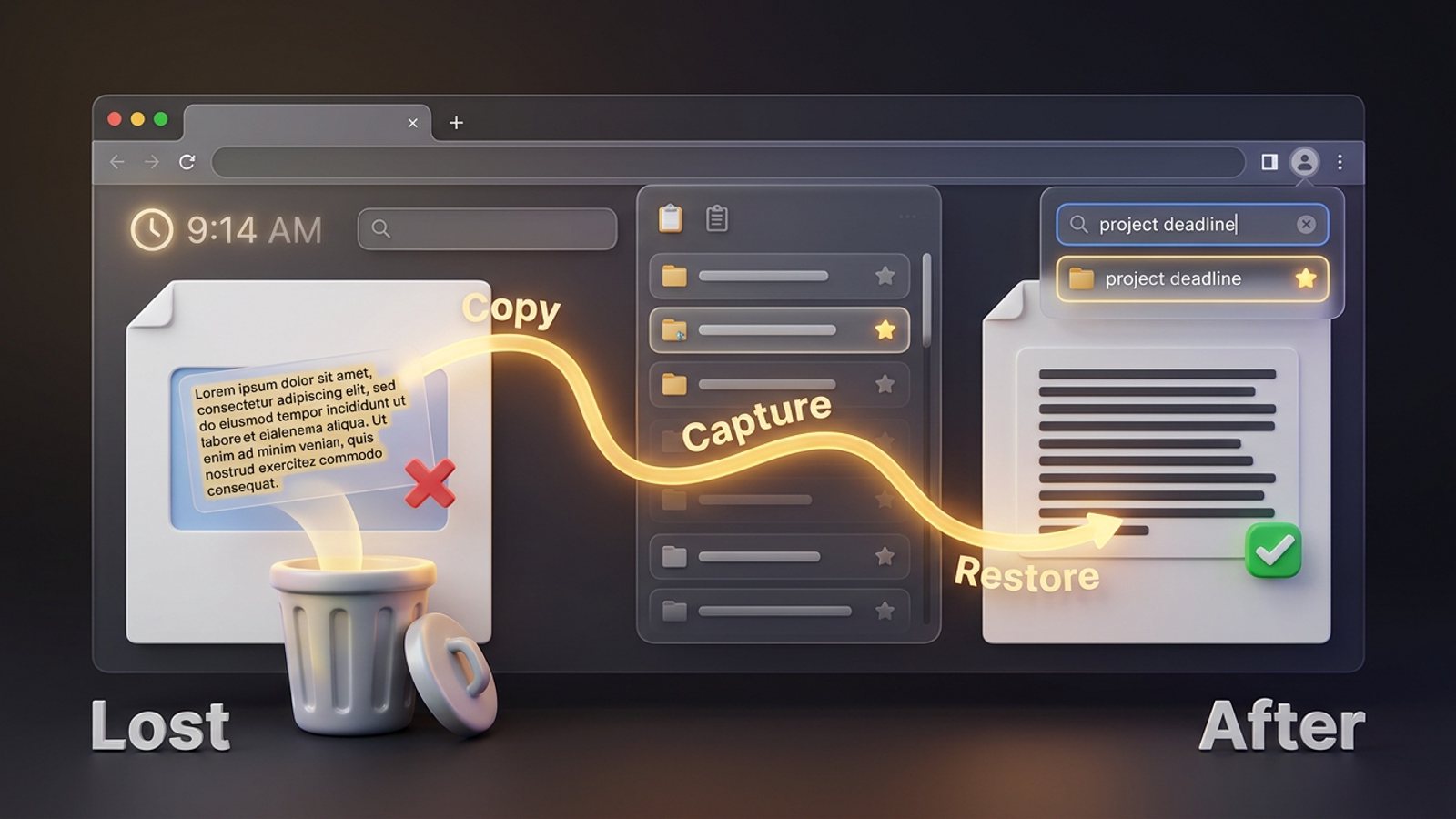
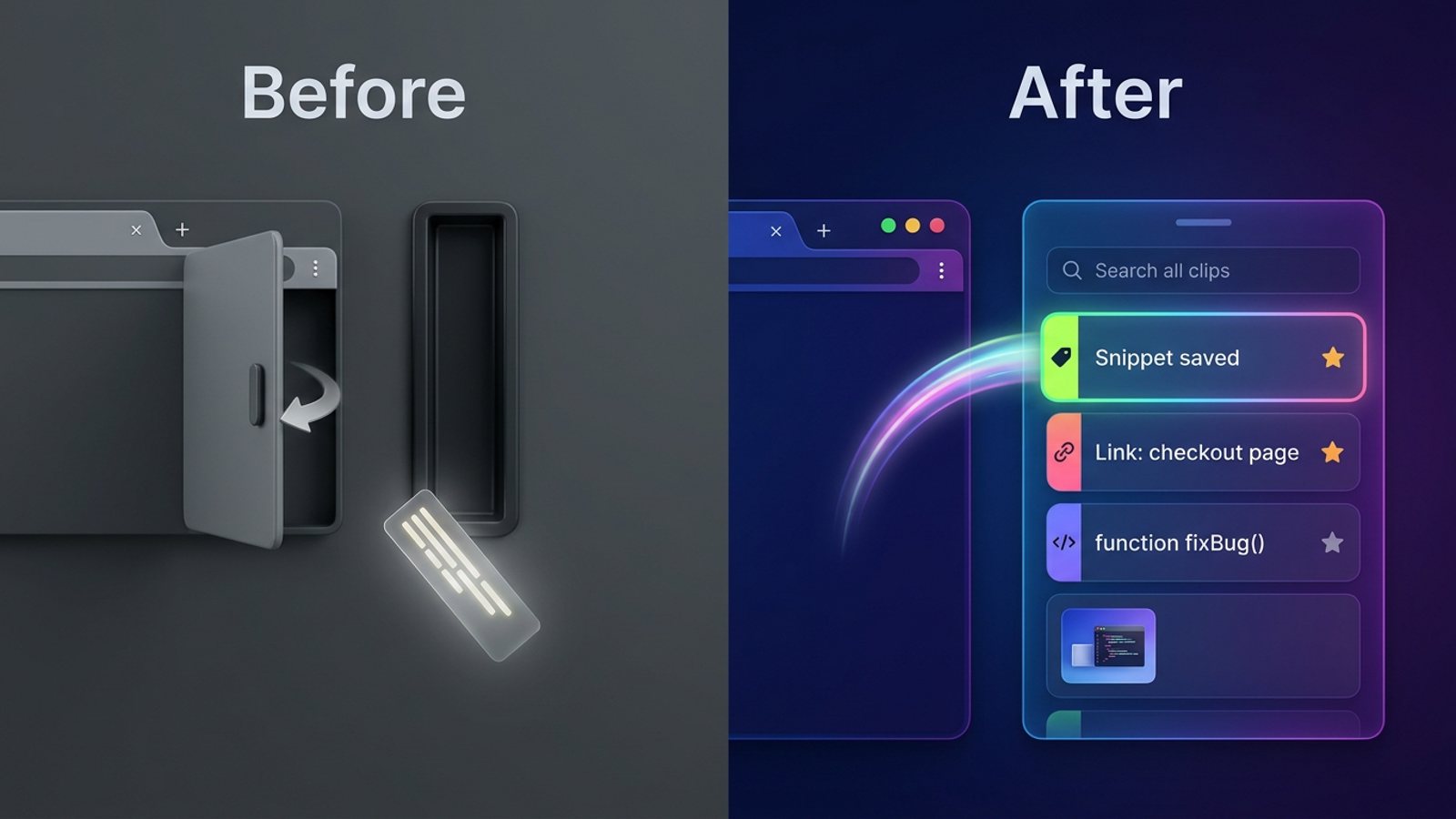
How do I stop losing copied text when I copy something new in Chrome?
Chrome has no clipboard history of its own — every new copy wipes the last. Here's how to turn on built-in history and keep every clip searchable.
Clipboarder Pro Team
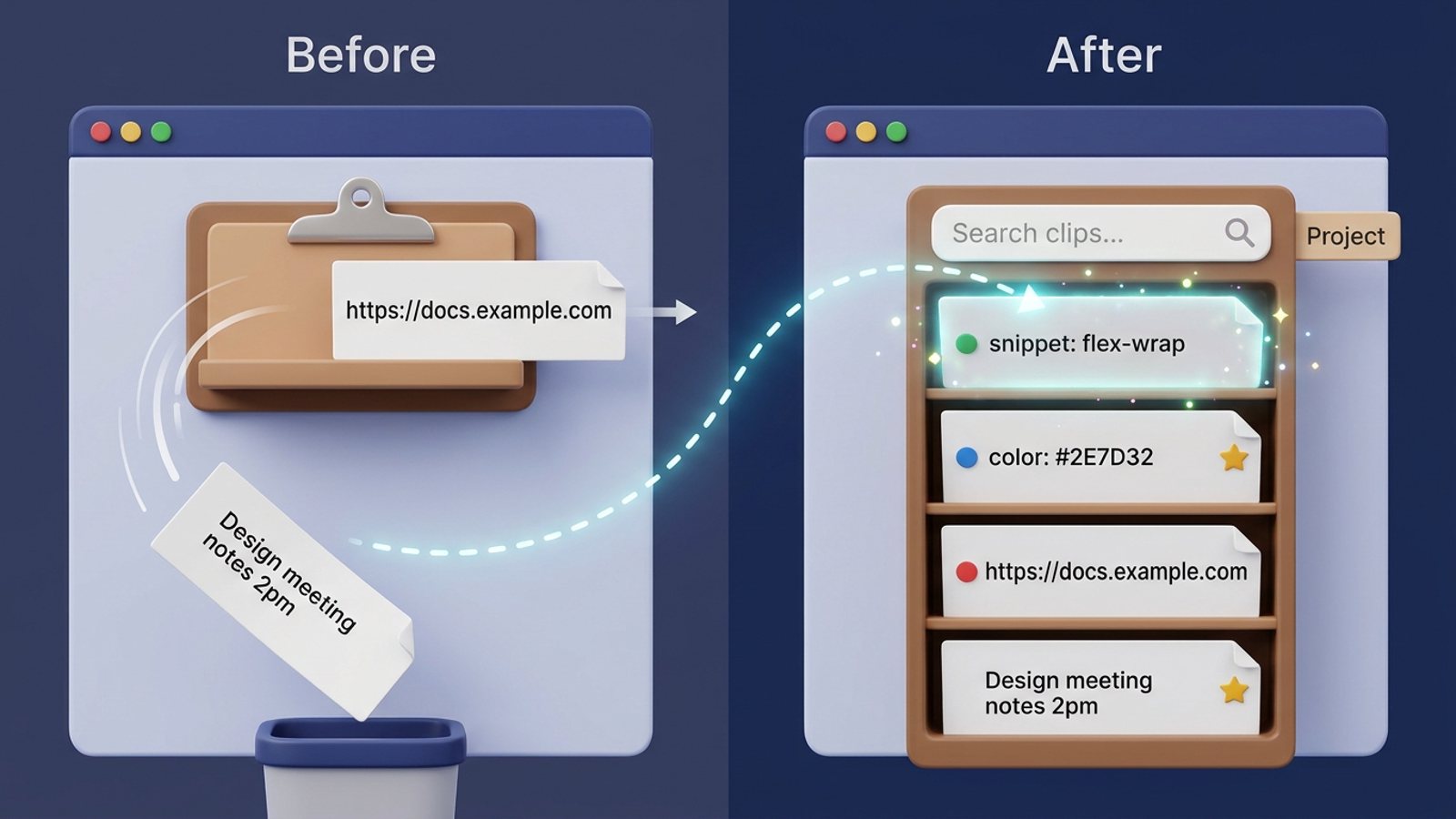
Chrome has no clipboard history of its own: every new copy replaces the last one, so the previous item is gone. A clipboard history for chrome tool keeps a running list of everything you copy on web pages so you can bring any of it back — and Windows (Win+V) and macOS Tahoe also offer built-in history.
Key takeaways
Key takeaways
- By default the clipboard holds exactly one item, so copying something new wipes the previous one.
- Windows Clipboard History (Win+V) keeps about 25 unpinned items and is off until you switch it on.
- macOS Tahoe 26+ adds Spotlight clipboard history (Cmd+4), but it holds only around 10 clips.
- A Chrome clipboard extension captures what you copy on web pages and keeps it searchable — the fastest fix for browser work.
- Check an extension's permissions and storage policy before you install it.
If you're ready to stop losing copies, install the ultimate Chrome extension today and every clip you take lands in one searchable place.
Why does my copied text disappear when I copy something else?
Because the clipboard holds one item by default, and a new copy overwrites it. Yahoo Tech (2026) puts it plainly: Windows' clipboard holds exactly one item, and copying something new wipes the previous item. On older macOS the same thing happens — MacObserver (2025) notes that copying overwrites the previous item and there was no built-in history viewer for years.
Chrome sits on top of that system clipboard. When you copy a link, a code snippet or a paragraph from a page, it goes into that single slot. Copy anything else and the first thing is gone.
The clipboard isn't broken — it's just a one-item shelf, and every new copy sweeps the old one off.
Does Chrome keep a clipboard history of its own?
The sources here describe no built-in Chrome clipboard history. The fixes they cover are operating-system features or extensions. On Windows 10/11, Chrome even keeps Incognito copies out of the system clipboard history — Microsoft contributed that change to Chromium and Google shipped it, per IT之家 (2025) and Tencent Cloud Developer (2026).
So the answer depends on your OS and how much you need to keep.
How do I turn on clipboard history on Windows?
Open Settings with Windows+i, go to System → Clipboard, and switch on Clipboard history, then press Win+V to open it. That's the route Yahoo Tech (2026) describes, and it costs nothing.
Microsoft Q&A (2026) says the history stores up to 25 entries, with older unpinned items removed automatically and history cleared on restart except for pinned items. MakeUseOf (2025) adds that pins are unlimited and survive restarts.
A few limits worth knowing:
- 4 MB per item, and only Text, HTML and Bitmap formats — Microsoft Q&A (2026).
- No search in the built-in panel, per a vendor comparison table (2026) — treat that as a vendor claim.
- Enterprise policy or MDM can disable it, per Microsoft Q&A (2026).
Tip
Pin the snippets you reuse — a signature block, a support reply, a shell command. Pins survive both the 25-item cap and a restart.
What's the Mac equivalent of Win+V?
On macOS Tahoe (26) and later, Spotlight has clipboard history: turn it on in System Settings → Spotlight → "Results from Clipboard", then open it with Cmd+Space followed by Cmd+4. Lifehacker via Yahoo Tech (2025) explains each item has a copy button to re-copy it, and the retention setting offers 8 hours, 7 days or 30 days.
Two things to plan around. Yahoo Tech (2025) reports Spotlight keeps only around 10 clips, and the feature is Tahoe 26+ only. On older macOS you're back to a single item, per MacObserver (2025).
Good to know
macOS 26.1 added extra privacy options for Spotlight's clipboard history under System Settings → Spotlight, per 9to5Mac (2025).
How do I keep more than 25 copies, and search them?
Add a clipboard history tool: a Chrome extension for browser-focused work, or Ditto or CopyQ for system-wide capture. That's the split the vendor comparison table (2026) draws — Win+V capped around 25 items with no search, while CopyQ and Ditto are listed with unlimited items and full-text search.
Here's the practical sequence:
- Check what your OS already offers. Windows: Windows+i → System → Clipboard → turn on Clipboard history, then Win+V. Mac on Tahoe: System Settings → Spotlight → "Results from Clipboard".
- Decide where your copying happens. Mostly on web pages? A browser extension is the direct fit. Across desktop apps too? A system-wide tool.
- Pin what you reuse so it survives the cap and restarts.
- Decide what sensitive text you copy before enabling any history — passwords, card numbers, client data.
- Check permissions and the privacy policy of any extension before installing.
What should I check before installing a clipboard extension?
Look for local-only storage and question broad site permissions. Chrome extension security reviewers flag broad host permissions and the scripting permission as risk factors for clipboard extensions, because they allow access to all sites — Koidex's report (2025) on one small extension makes that point.
On the storage side, browser clipboard extensions typically keep everything locally via chrome.storage.local and transmit nothing — that's what Clipify's policy (last updated 2026-06-25) and ClipNext's policy (April 2026) each state for themselves.
The Lifehacker piece via Yahoo Tech (2025) adds a warning worth carrying over to any history tool: anything sensitive you copy from unsecured places lands in the history, while copies from Apple Passwords or password managers don't appear.
Watch out
Turning on clipboard history means everything you copy is stored somewhere. Decide first what you never want captured — and where it's stored.
Our recommendation: read the permissions list before the feature list. A tool that captures every site you visit needs a reason to.
How Clipboarder Pro handles it
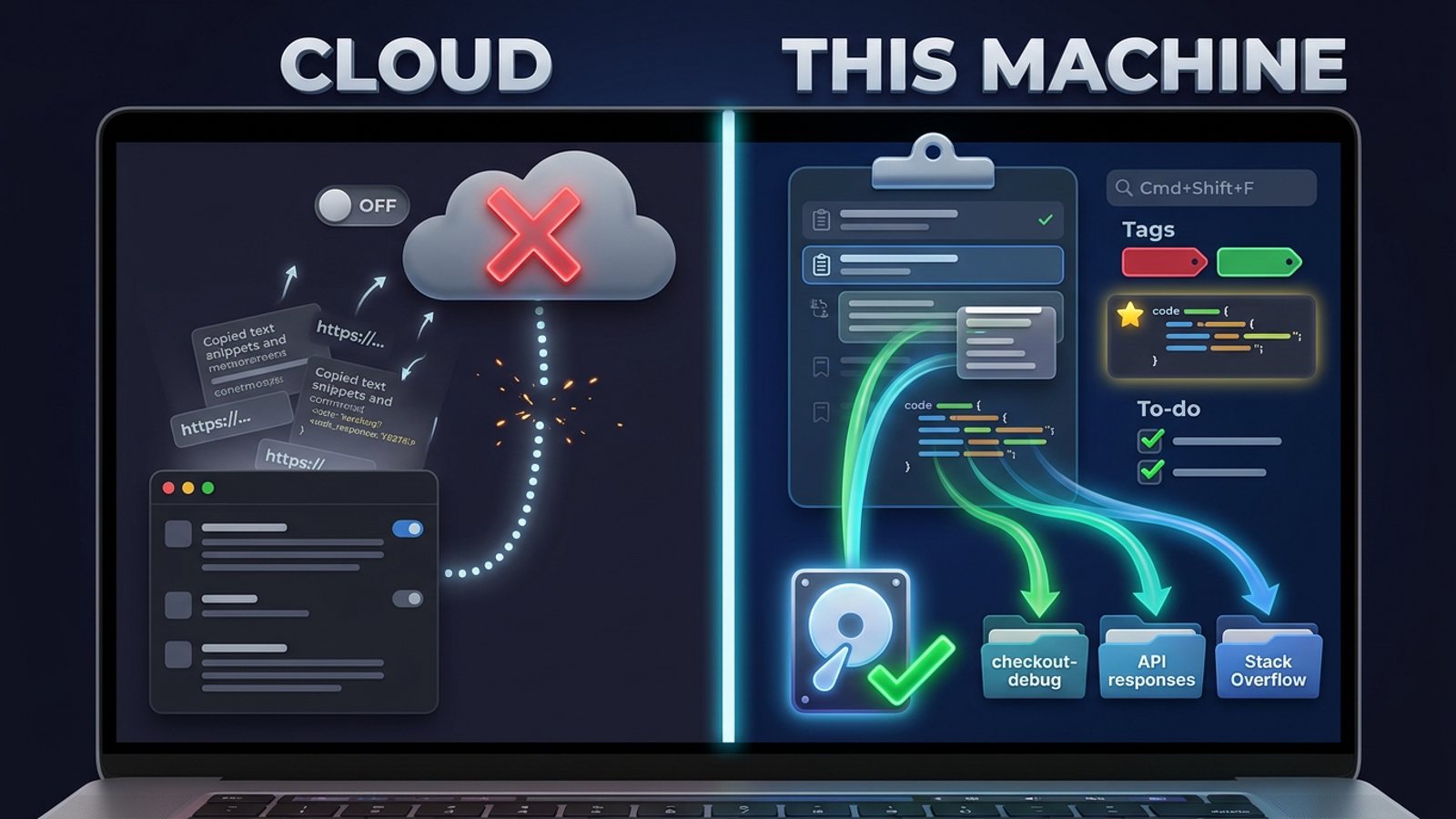
Clipboarder Pro is a Chrome extension that automatically saves everything you copy — text, images, URLs and code — so a new copy never wipes the last one. Everything is stored in your browser on your machine, with no servers.
You can drag clips into nested folders up to three levels deep, color-code them by urgency or project, and star the items you use most for one-click access. Search runs across every clip, note and folder with Cmd+Shift+F. You can also write notes in-line next to the clip that inspired them, and build to-do lists with check-offs.
It's free for 30 days; after that it's $4.99 per month as of November 2026, and prices can change. It's Chrome only — if you need history across every desktop app, a system-wide tool is the better fit.
Clipboard history for Chrome: the options compared
| Option | Best for | Key features | Price | Watch-outs |
|---|---|---|---|---|
| Clipboarder Pro (Our pick) | Browser work: links, code, text | Auto-save, nested folders, stars, notes, to-dos | Free 30 days, then $4.99/month | Chrome only; local storage |
| Windows Clipboard History | Quick recall on one Windows PC | Win+V, ~25 items, unlimited pins | Free with Windows | No search; 4 MB per item |
| Spotlight clipboard history | Mac users on Tahoe 26+ | Cmd+4, 8h/7d/30d retention | Free with macOS | Around 10 clips; Tahoe only |
| Ditto | Windows power users | Unlimited items, search, groups, LAN sync | Free/open source per coverage | Windows only; heavier install |
| CopyQ | Cross-platform, system-wide | Unlimited items, full-text search | Not stated in sources | Fewer pin features listed |
Clipboarder Pro is made by the team behind this blog. It goes first here because of the tools we compared, it's the one built for the browser tab you're actually copying from — and it keeps clips, notes and to-dos in one place.
If you mainly need history across every desktop app on Windows, Ditto is the more direct choice: Yahoo Tech (2026) describes unlimited saved items (default cap 500), persistence across reboots, search, groups, sticky items, LAN sync and support for images and rich text. It's Windows-only and a heavier install aimed at power users.
CopyQ suits cross-platform users who want system-wide capture — the vendor comparison lists it as cross-platform with unlimited items and full-text search, though that table comes from a competing extension's own repo, so treat it as a vendor claim. If you mostly need the last few copies on one Windows PC, Win+V is free and already there.
Want your clips, notes and to-dos in one browser place? Install the ultimate Chrome extension today.
Sources
- Windows has 5 hidden features that will improve how you use your PC (Yahoo Tech, 2026-05-30)
- Windows Clipboard Synchronization Fails Between Devices (Microsoft Q&A, 2026-11-02)
- My clipboard history is now my most powerful productivity tool (MakeUseOf, 2025-12-01)
- macOS Tahoe Solves the Clipboard Problem Mac Users Have Had for Years (MacObserver, 2025-06-13)
- You Can Finally See Your Mac's Clipboard History in Spotlight (Lifehacker via Yahoo Tech, 2025-11-14)
- How to enable clipboard history in macOS Tahoe (Yahoo Tech, 2025-10-07)
- macOS Tahoe 26.1 adds new tools for Spotlight's clipboard feature (9to5Mac, 2025-11-03)
- I ditched the Windows clipboard for an open-source tool (Yahoo Tech, 2026-01-27)
- Clipboard History — Comparison with Alternatives (GitHub, vendor repo, 2026-02-16)
- Documentation commit (GitHub, vendor repo, 2026-02-16)
- Clipify Privacy Policy (GitHub, updated 2026-06-25)
- ClipNext Privacy Policy (GitHub, April 2026)
- Clipboard Manager Light security report (Koidex, 2025-12-06)
- Win10/Win11 版 Chrome 浏览器升级隐私保护 (IT之家 via 网易, 2025-02-07)
- Chrome浏览器隐身模式:复制内容不再保存剪贴板历史 (Tencent Cloud Developer, 2026-02-06)
Frequently asked questions
Why did my copied text disappear when I copied something else?
Because the OS clipboard holds one item by default, and a new copy overwrites it. Nothing was saved anywhere, so there's nothing to recover.
Does Chrome have its own clipboard history?
The sources here describe no built-in Chrome clipboard history. The options covered are operating-system history (Win+V, Spotlight) and clipboard extensions.
How many items does Win+V keep?
About 25 unpinned entries, per Microsoft Q&A (2026), with history cleared on restart except for pinned items. Pins are unlimited and survive restarts.
Do Incognito copies go into clipboard history?
Not on Windows Chrome — Incognito copies are kept out of the system clipboard history, per IT之家 (2025). That change came from Microsoft's contribution to Chromium and shipped in Chrome.
Which tool should I use to stop losing copied text?
If most of your copying happens on web pages, use a Chrome extension like Clipboarder Pro, which saves every clip with folders, stars and search. If you need history across all desktop apps, Ditto (Windows) or CopyQ (cross-platform) is the more direct choice; for a handful of items, Win+V or Spotlight is enough.