How do I recover text I copied earlier today in Chrome?
Chrome keeps no clipboard history of its own, so a new copy overwrites the last one. Here's how to find that lost paragraph or URL — and how to make sure it never happens again.
Clipboarder Pro Team
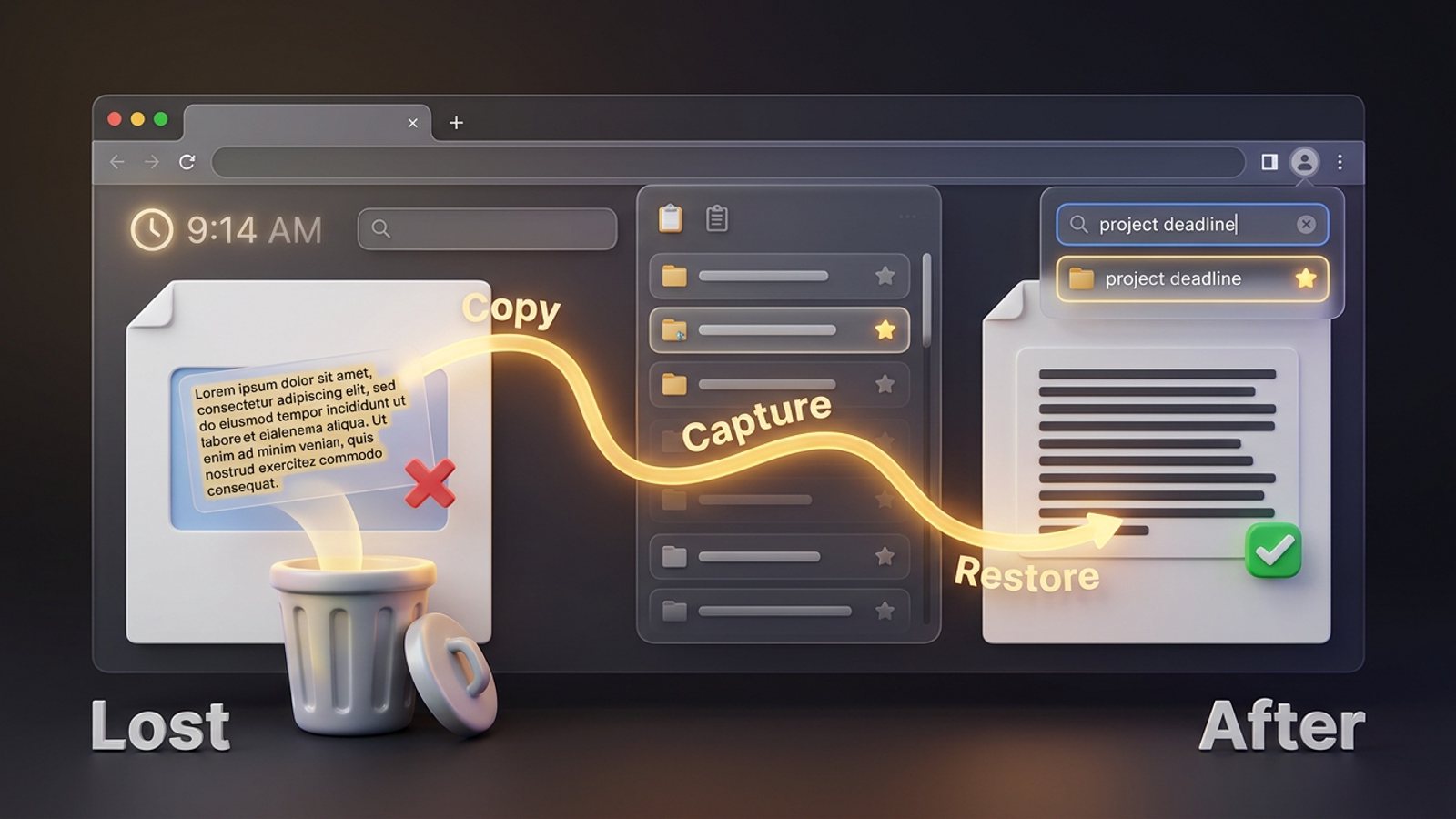
If you already run a clipboard history extension, open it, search a few words you remember, and click the entry to copy it back. If you don't, Chrome itself keeps no clipboard history — your only fallbacks are Windows clipboard history (Win+V, last ~25 items) or Chrome's browsing history to find the page again. Nothing can recover a copy that no tool was watching.
Key takeaways
Key takeaways
- Chrome has no built-in clipboard history: the system clipboard holds one item, so a new copy overwrites the last one.
- A clipboard history for Chrome extension is the only way to find something you copied earlier in the browser.
- On Windows, Win+V shows your last ~25 copies — but only if it was switched on before you lost the text.
- For a lost URL, chrome://history can point you back to the page — it records visits, not copied text.
- Set up capture before the panic moment; nothing can recover a copy made while no tool was running.
Does Chrome keep a history of what I copy?
No. Chrome has no built-in clipboard history, and the system clipboard holds only one item at a time — a point the open-source Clipboard History extension's README makes plainly (GitHub, February 2026). Copy a new paragraph, and the old one is gone from the clipboard.
That's why the panic moment feels so sudden. You highlight a paragraph, copy something else to check a detail, and the paragraph is gone. Chrome didn't store it anywhere, because Chrome was never storing it in the first place.
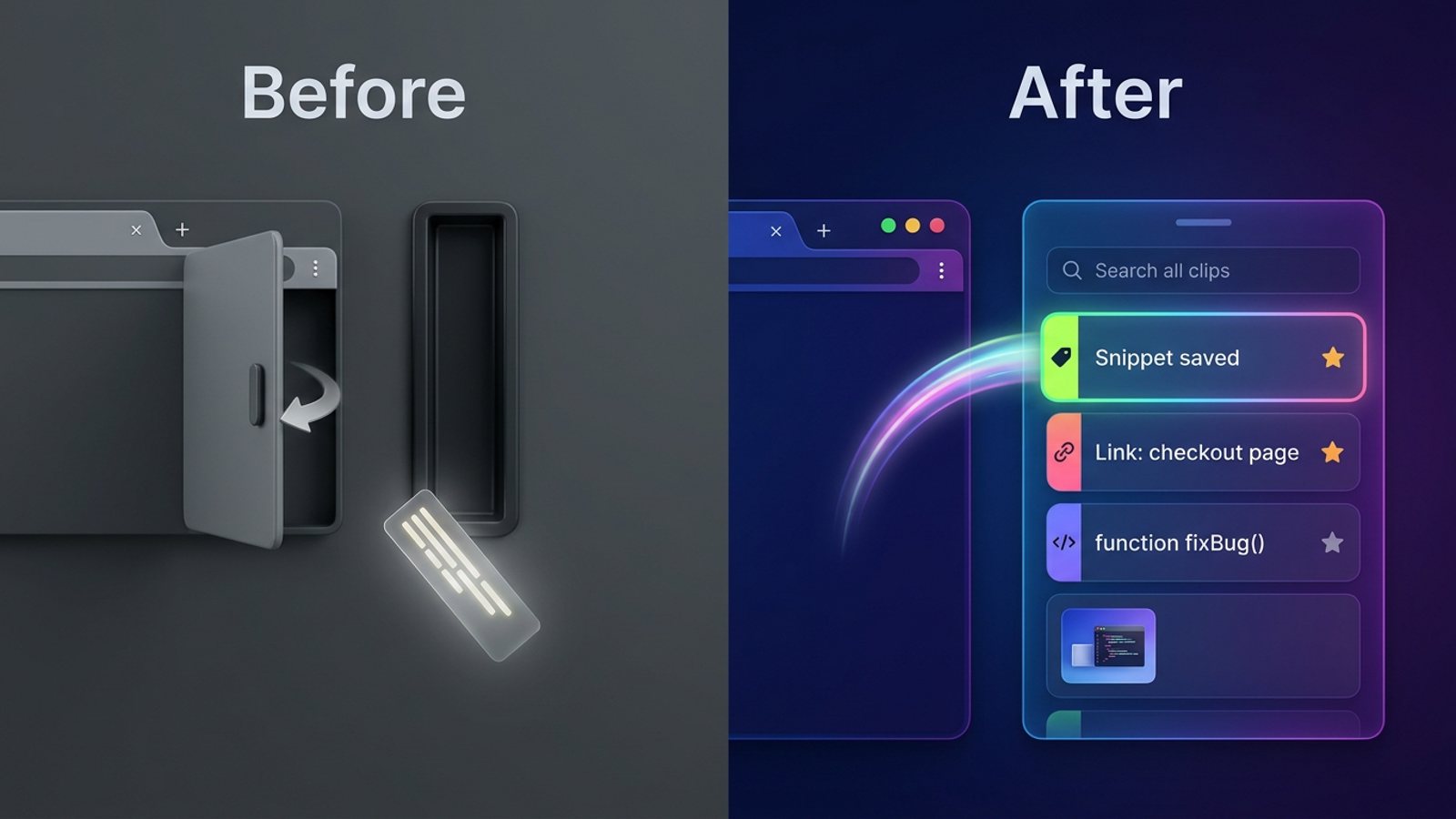
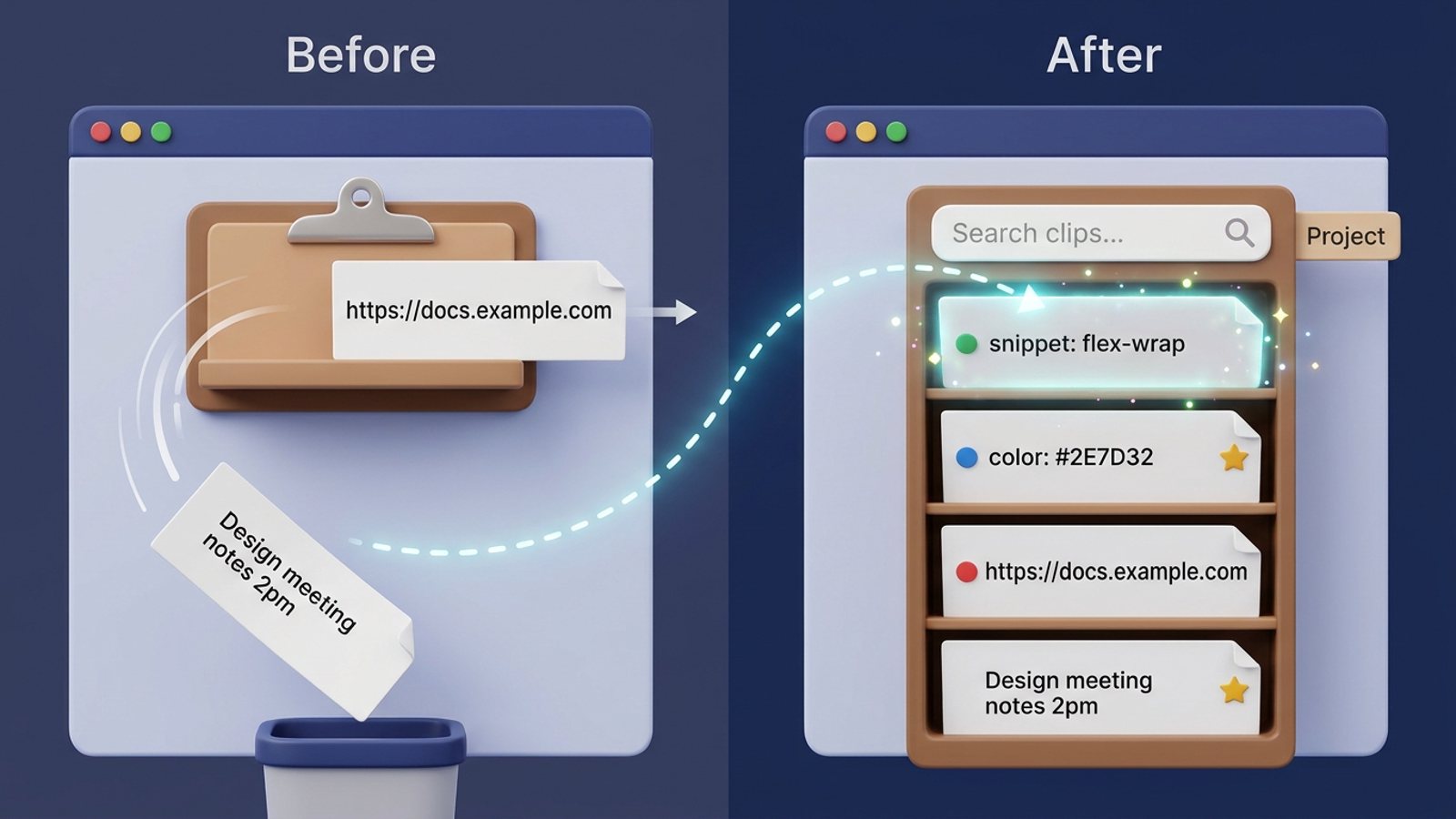
The fix is to have something watching. A Chrome clipboard manager captures each copy as it happens, so "earlier today" becomes a search, not a rewrite.
Good to know
Chrome's browsing history and your clipboard are two separate records. History remembers pages you visited; it never remembers what you highlighted on them.
How do I recover copied text in Chrome step by step?
Work through these in order — each step takes under a minute, and the first one that works gets your text back.
- Try your OS clipboard history first. On Windows, press Win+V. If it's your first time, Windows asks you to turn it on; then scroll the list and click the item you want. HP's guide (July 2026) notes it holds up to 25 recent items — text, images and HTML.
- Open your clipboard extension. If you run one, open its popup — many use Ctrl+Shift+V on Windows or Cmd+Shift+V on Mac, such as the open-source Clipboard History extension (GitHub, February 2026). Menus differ between tools, so check yours.
- Search a few words you remember. Type two or three words from the lost text into the extension's search box rather than scrolling.
- Filter by type if you can. Some tools split results into Text, URLs and code tabs, which narrows a long list fast.
- Click the entry to copy it back, then paste with Ctrl+V or Cmd+V.
- If it was a URL, fall back to chrome://history. Find the page, right-click the entry and choose "Copy link address" for the full URL (CleanMyMac, November 2025).
If none of those work, the honest answer is that the text wasn't captured. Rewrite it from the source page, and set up capture so the next loss takes ten seconds to fix.
Watch out
Windows clipboard history clears when you restart your PC. CMIT Solutions (October 2026) notes that pinned items survive a restart, but the rest don't — so don't treat Win+V as storage.
Why can't I find the text I copied in Incognito?
Because Chrome doesn't pass Incognito copies to Windows clipboard history. Since a Microsoft/Chromium change (code submitted March 2024, shipped in Chrome for Windows 10/11), text copied in Incognito isn't saved to Windows clipboard history or Cloud Clipboard — reported by IT之家 and HT Tech in February 2025 and covered by CyberSecuritiesUK in May 2025.
So if you copied a paragraph in a private window this morning, Win+V will come up empty. A clipboard extension that captures inside Chrome is the practical route for those copies — but check its privacy settings first, since a history tool records whatever passes through it.
Tip
Our recommendation: before relying on any clipboard tool, look for a pause or exclusion setting for password and payment fields. Pastree's privacy policy (September 2026), for example, says it excludes password, card and one-time-code fields by default and keeps automatic capture off until you enable it.
How do I stop this happening again?
Turn on capture before you need it, and the next overwrite costs you a search instead of a rewrite. That's the whole technique: the recovery isn't a trick you perform after the loss — it's a tool you leave running.
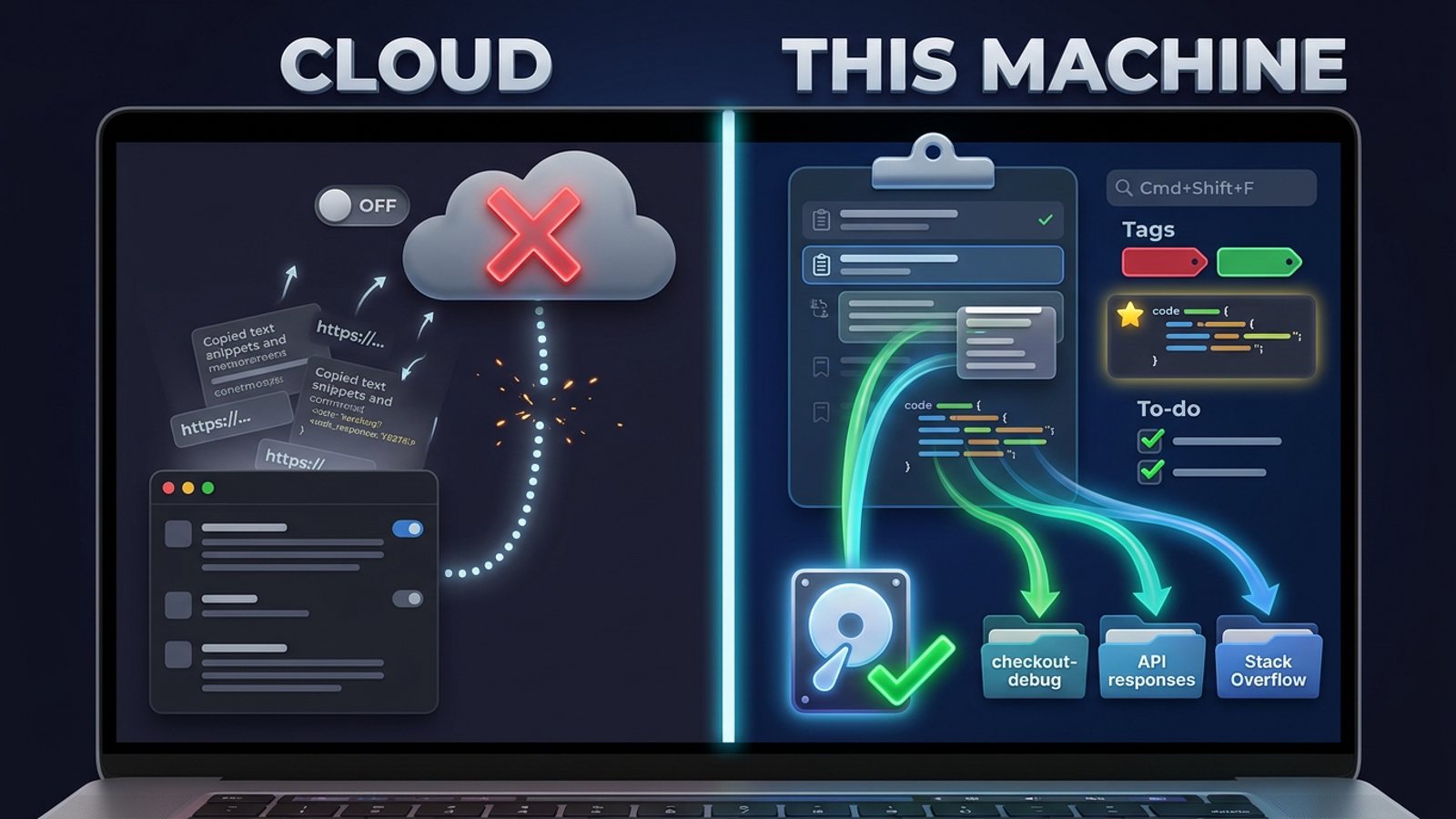
Here's how that looks with Clipboarder Pro, our own Chrome clipboard manager. You install it and keep copying as normal; every text, image, URL and code snippet you copy is captured automatically. When you need something back, you search across every clip, note and folder with Cmd+Shift+F and click to re-copy.
The parts that matter in a panic:
- Search beats scrolling. Three remembered words usually find the clip.
- Folders keep the day tidy. Drag clips into nested folders up to three levels deep, so today's research isn't mixed with last month's.
- Stars give you one-click access to the snippets you paste all day.
- Archive instead of delete, with an automatic retention window of 1–365 days.
- Nothing leaves your machine. Everything is stored in your browser, with no servers.
Clipboarder Pro is free for 30 days; after that it's $4.99 per month as of November 2026, and prices can change. Install the ultimate Chrome extension today and the next lost paragraph is a search away, not a rewrite.
The difference between losing a paragraph and finding it again is whether something was watching when you pressed copy.
What are the best tools for recovering copied text in Chrome?
Here's how the options compare for this exact job — finding something you copied earlier today in Chrome. Clipboarder Pro leads because it captures, organizes and searches in one place; the others are honest alternatives with their own strengths.
| Option | Best for | Key features | Price | Watch-outs |
|---|---|---|---|---|
| Clipboarder Pro (Our pick) | Search + organize clips, notes, to-dos | Auto-capture, nested folders, stars, search | Free 30 days, then $4.99/mo | Chrome only; local storage |
| Windows clipboard history | Quick recovery on Windows | Win+V, ~25 items, pinning | Free, built in | Off by default, clears on restart |
| Clipboard History (open source) | Free searchable history | 10,000 items, type filters, local storage | Free (MIT) | Repo archived March 2026 |
| Copy History + | Tags and export options | Search, tags, CSV/JSON/TXT export | Free core, PRO tier | Discloses PII collection |
| Clipboard History Manager | Local-only capture | Offscreen API, timestamps, source domain | Free tier, 50-entry cap | Vendor claims not independently verified |
Clipboarder Pro is our pick of the tools we compared for this job, because recovery and organization live together: you find the clip, then file it into a folder so you're not searching for it again next week. Install the ultimate Chrome extension today to try it free for 30 days.
Windows clipboard history is the fastest first stop if you're on Windows and just need one of the last 25 copies — including items copied outside Chrome, which browser extensions don't see. It's off until you enable it, and it clears on restart (HP, July 2026; CMIT Solutions, October 2026). If you mainly need a free, no-install recovery on Windows, this is the more direct choice.
Clipboard History (open source) offers a genuinely strong free option: up to 10,000 items, instant search, type filters and local-only IndexedDB storage (GitHub, February 2026). The catch is maintenance — its repository was archived by the owner on 14 March 2026 and is now read-only. If you mainly need free search over a long history and don't mind an unmaintained tool, it fits.
Copy History + adds tags, favourites, per-site monitoring on/off and export to CSV, JSON or TXT, with an optional encrypted sync tier (Chrome Web Store, November 2026). Its listing discloses collection of personally identifiable information, so read the privacy details before installing. If you mainly need export formats and tagging, it's a reasonable fit.
Clipboard History Manager claims capture via Chrome's offscreen API with no host permissions and 100% local storage, plus timestamps and source domain per entry (Chrome Web Store, no date). The free tier is capped at 50 entries, and the listing's claims are vendor-written. If you mainly need a small, local-only log with source domains, it's worth a look.
Clipboarder Pro is made by the team behind this blog.
Can I recover text copied in another app through Chrome?
No. A Chrome extension only sees what's copied inside the browser, so a paragraph you copied from a desktop app or a PDF reader won't appear in its history. For those, your options are your operating system's clipboard history or a desktop clipboard manager — not a Chrome extension.
This is also why the Windows tool still earns a place in the list above: it catches copies from anywhere on the system, Chrome included. The trade-off is its short memory and lack of search.
What if I uninstalled the extension or reset Chrome?
Then your local history is gone. Copy History +'s listing (November 2026) warns that uninstalling or resetting the browser deletes saved content unless you exported a backup — and that applies to any tool that stores history locally, including Clipboarder Pro.
Our recommendation: export a backup before you reinstall Chrome or clean up extensions. It takes a minute and it's the difference between a recoverable history and a fresh start.
Sources
- Clipboard History README (GitHub, 16 Feb 2026)
- Clipboard History repo (GitHub, 16 Feb 2026)
- Copy History + (Chrome Web Store, 12 Nov 2026)
- Clipboard History Manager (Chrome Web Store, no date)
- How to Use the Clipboard on Windows 10 (Now 11) (HP, 21 Jul 2026)
- Windows Clipboard History: Paste Anything You Copied (CMIT Solutions, 21 Oct 2026)
- Incognito mode's improved privacy (CyberSecuritiesUK, 18 May 2025)
- Win10/Win11 Chrome Incognito clipboard change (IT之家, 6 Feb 2025)
- Windows 11 Incognito privacy on Chrome (HT Tech, 6 Feb 2025)
- How to check history on Mac (CleanMyMac, 5 Nov 2025)
- Pastree privacy policy (Firefox Add-ons, 25 Sep 2026)
Frequently asked questions
Does Chrome have a clipboard history I can open?
No. Chrome has no built-in clipboard history, and the system clipboard holds only one item — a limitation noted in the open-source Clipboard History extension's README (February 2026) and in Copy History +'s listing. You need an extension or your OS clipboard history to look back.
Why doesn't Win+V show the text I copied in Incognito?
Since the Microsoft/Chromium change that shipped in Chrome for Windows 10/11, text copied in Incognito isn't saved to Windows clipboard history or Cloud Clipboard (IT之家 and HT Tech, February 2025). It's a privacy feature, and it means Incognito copies need a browser-side tool to be recoverable.
Can I recover copied text if I never installed anything?
Only if Windows clipboard history was already switched on and the item is among the last ~25 copies (HP, July 2026). Otherwise there's nothing to recover from — the clipboard held one item and it was overwritten. Chrome's history can help you find the page a URL came from, but not the copied text itself.
Which tool should I use to recover copied text in Chrome?
For finding and organizing what you copy in Chrome, Clipboarder Pro is our pick of the tools we compared — it captures automatically, searches with Cmd+Shift+F and keeps clips, notes and to-dos together, with everything stored locally. If you only need a free, short-term recovery on Windows, Win+V is the simpler choice.
Where can I find a link I copied hours ago?
Open chrome://history (Ctrl+H on Windows, Cmd+Y on Mac), find the page and right-click to "Copy link address" for the full URL (CleanMyMac, November 2025). The displayed URL is often truncated, so use the right-click copy rather than retyping it.