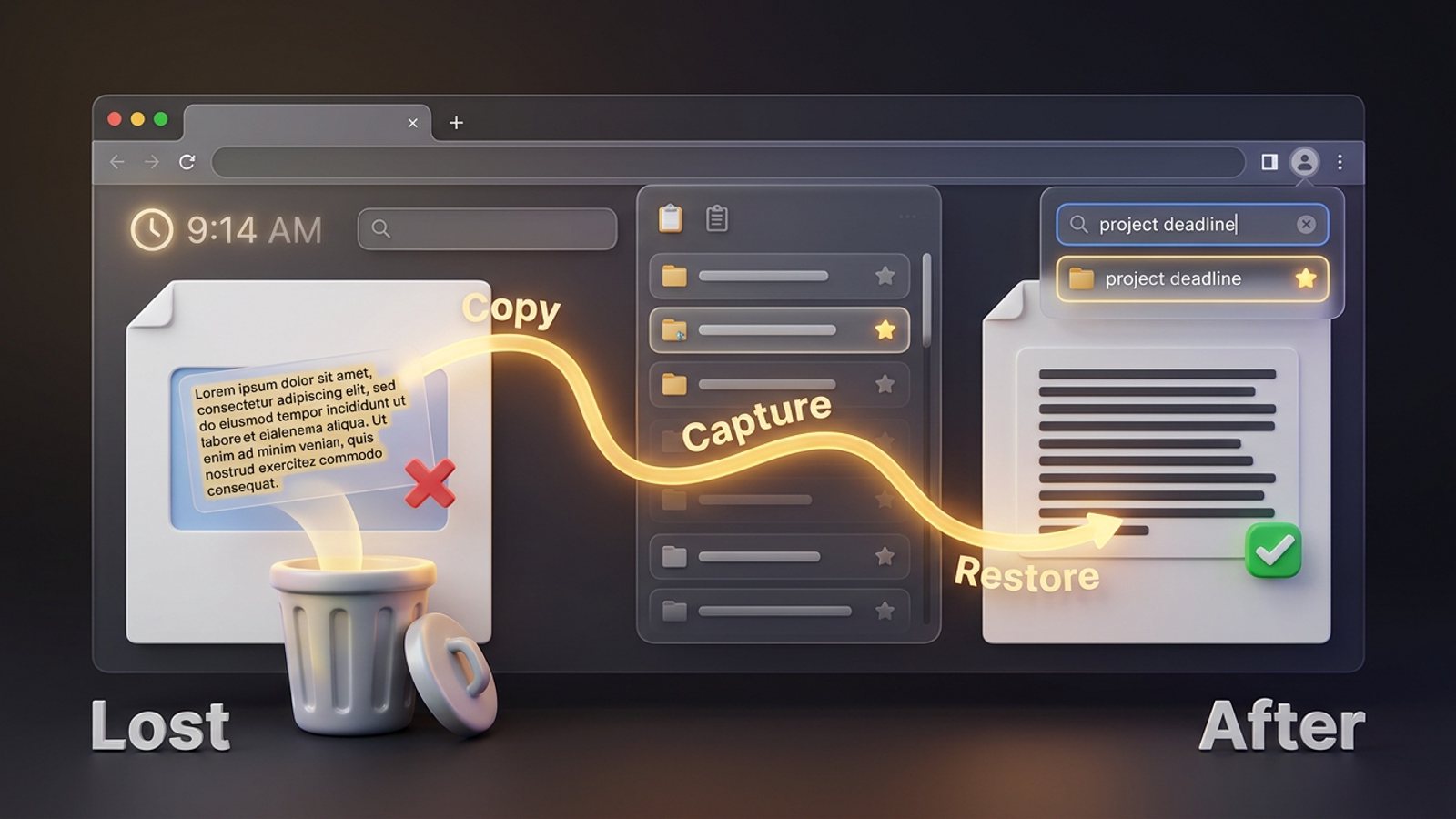
How do I stop losing what I copy when I close a tab?
Stop losing copied text by moving it out of the single-item clipboard into a clipboard history that saves every copy. Here's how to set one up in minutes.
Clipboarder Pro Team
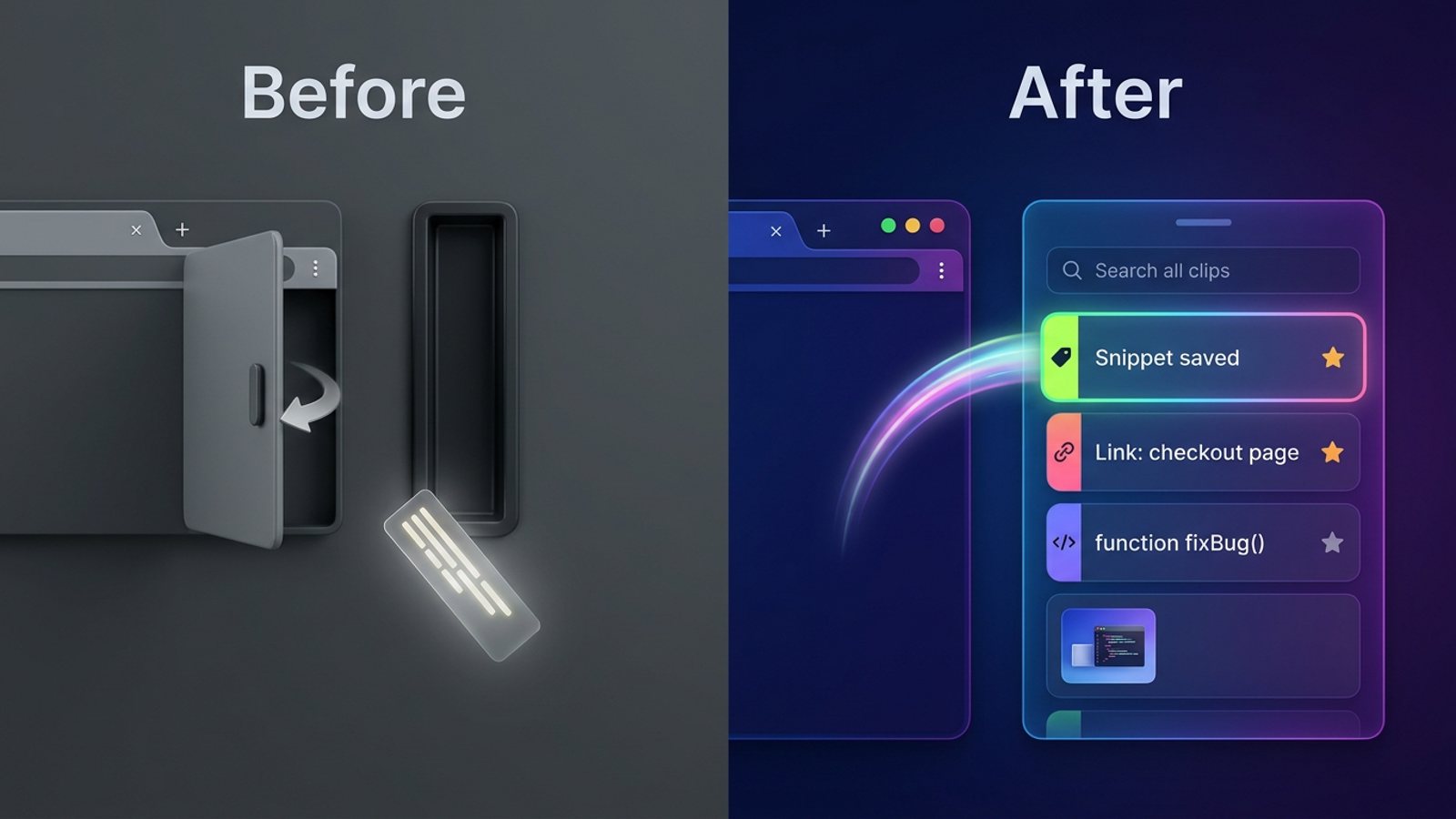
You stop losing copied text by moving it out of the single-item clipboard and into a clipboard history that saves every copy somewhere persistent. On Windows and macOS the last copy usually survives a tab closing, but the next copy overwrites it. A history tool — built-in or a Chrome extension — keeps every copy searchable.
Key takeaways
Key takeaways
- The clipboard holds only your most recent copy. Close a tab and it usually stays; copy anything else and it's gone.
- Stop losing copied text for good with a clipboard history: Windows Clipboard History (Win+V), macOS Spotlight history on Tahoe, Ditto, CopyQ, or a Chrome extension.
- Windows Clipboard History keeps 25 entries, wipes unpinned items on restart, and is off by default.
- Browser extensions keep history in local browser storage — clearing browsing data or uninstalling wipes it.
- If most of your copying happens in Chrome, a Chrome clipboard manager is the simplest fix.
That last point is where Clipboarder Pro fits: it's a Chrome extension that saves everything you copy — text, images, URLs and code — into a local history you can search and organize. Install the ultimate Chrome extension today and your next copy stops being your only copy.
Does closing a tab delete what you copied?
Usually not on Windows and macOS — but that's cold comfort, because the real risk is the copy after it. The system clipboard holds only the most recent item, so copying anything else overwrites the previous copy (Google Help thread, 2019-03-09). Chrome itself has no built-in clipboard history; a separate tool is what keeps a list of past copies (Clipboard History README, GitHub, 2026-02-16).
Linux is the exception. On Wayland, the clipboard is maintained by the program that copied it — if that program closes, the copied content becomes unavailable unless a clipboard manager keeps its own copy (ArchWiki, undated). That's why "I closed the window and my copy vanished" is a Linux complaint far more than a Windows or Mac one.
The clipboard isn't a shelf. It's a single hand that can only hold one thing at a time.
Why does my copied text disappear when I copy something new?
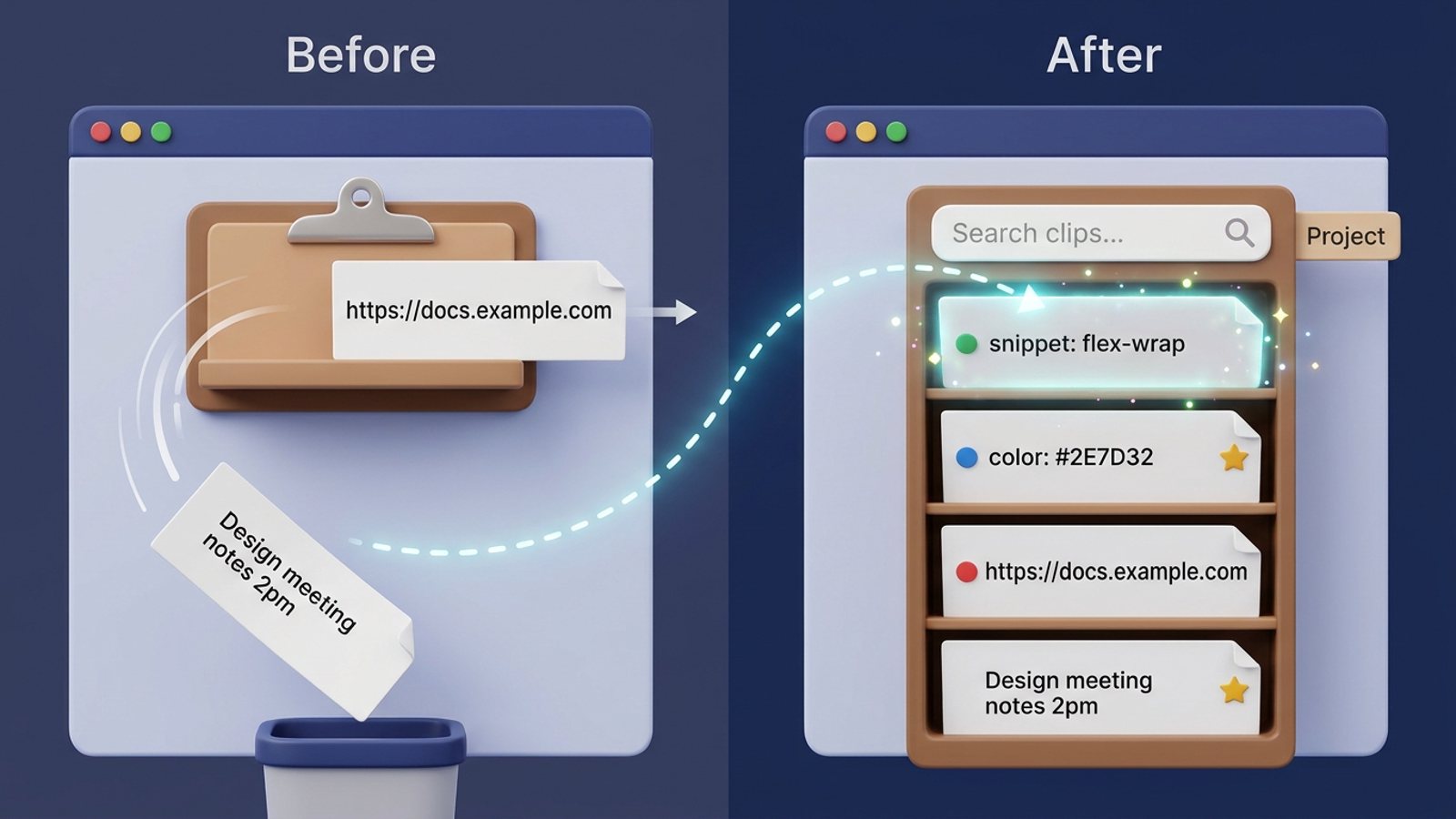
Because the clipboard is designed as a one-slot buffer, not a log. Every new copy replaces the old one instantly and silently. Clipboard managers exist to fix exactly this: they save everything you copy so it survives a single paste, extending the clipboard from one item into a searchable history, usually with search, pinning and organization (Text Blaze blog, vendor, 2026-04-07).
So the question isn't really "why did closing the tab lose my text?" It's "why was my text only ever in one place?" Once every copy lands in a history, a closed tab, a new copy or a restart stops mattering.
How do I set up a clipboard history in 5 steps?
Start with what your operating system already gives you, then upgrade if it's too limited.
- Check what you already have. On Windows, press Win+V. If nothing opens, enable it via Windows+i → System → Clipboard (Yahoo Tech, 2026-05-30). On macOS 26 (Tahoe), turn on System Settings → Spotlight → "Results from Clipboard", then press Cmd+Space followed by Cmd+4 (Lifehacker via Yahoo Tech, updated 2025-11-14).
- Decide if the built-in is enough. Windows keeps 25 entries. Spotlight keeps roughly 10 clips (Yahoo Tech, 2025-10-07). If you copy more than that in an hour, you'll want more.
- Install a manager that matches where you work. Ditto or CopyQ for desktop-wide history, or a Chrome extension if the browser is where you live.
- Pin or star what you reuse. Signatures, snippets, addresses, tracking numbers — the things you re-copy weekly.
- Test the recovery. Copy something, close the tab, copy something else, then open your history and re-copy the first item. If it's there, you're covered.
Tip
Run that test once a month. It takes ten seconds and tells you whether your safety net still works — before you need it in a hurry.
What are the best tools to stop losing copied text in Chrome?
Here's how the options compare, with Clipboarder Pro first because it's the one built for browser work.
| Option | Best for | Key features | Price | Watch-outs |
|---|---|---|---|---|
| Clipboarder Pro (Our pick) | Chrome users who copy all day | Auto-saves text, images, URLs, code; nested folders; stars; notes; to-dos | Free 30 days, then $4.99/month | Chrome only; local storage only |
| Windows Clipboard History | A zero-install Windows safety net | 25 items; unlimited pins; text, HTML, images | Free | Off by default; unpinned items wiped on restart |
| macOS Spotlight history | Mac users on Tahoe 26+ | Cmd+Space then Cmd+4; 8h/7d/30d retention | Free | Roughly 10 clips; needs macOS 26 |
| Ditto | Windows power users | Unlimited clips; search; groups; persists across reboots | Free, open source | Windows only; power-user UI |
| CopyQ | Cross-platform power users | Tabs, search, notes, tags, scripting | Free, open source | Steep learning curve; macOS 13+ |
Clipboarder Pro is made by the team behind this blog. Prices are as of November 2026 and prices can change.
Why Clipboarder Pro is our pick of the tools we compared
It's the only one on that list built around the browser, which is where most of this reader's copying happens. It captures text, images, URLs and code automatically as you work. You can drag clips into nested folders up to three levels deep, color-code by urgency or project, star your most-used items for one-click access, and write a note right next to the clip that inspired it. Search runs across every clip, note and folder with Cmd+Shift+F.
It also handles the "and then what?" problem. Copied links and snippets often turn into tasks, so Clipboarder Pro includes to-do lists with check-offs, hiding of completed items, and a confetti celebration when you finish. You can select multiple clips and copy 5, 10 or 20 in one shot. Archive items without deleting them, with a retention window of 1–365 days.
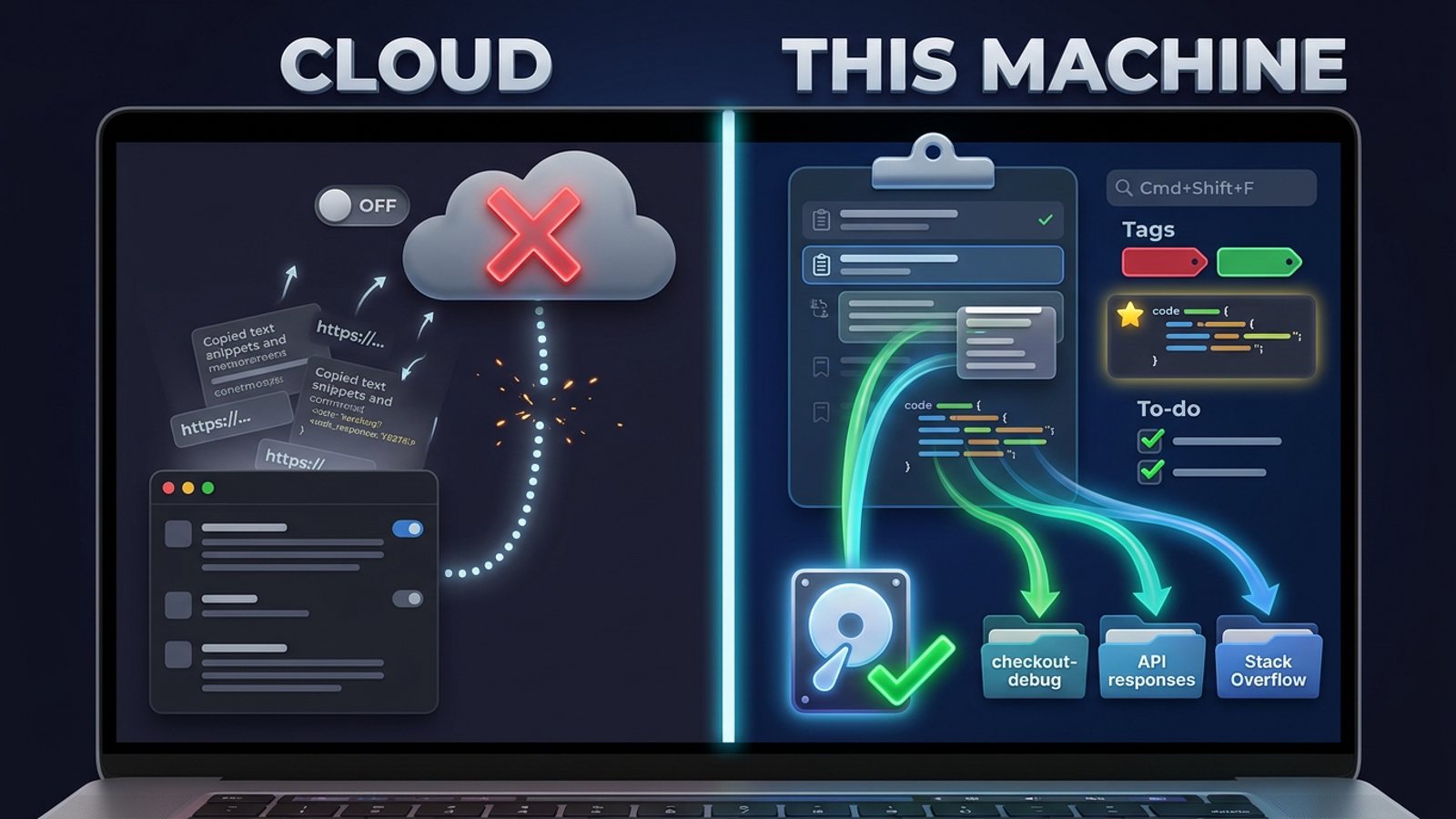
The honest limits: it's a Chrome extension only, and everything is stored in your browser on your machine with no servers. That's a privacy win — your data never leaves your machine, zero servers, zero tracking — but it also means no cloud backup. Install the ultimate Chrome extension today to start building your history.
Watch out
Local storage means local loss. Clearing your browser data or uninstalling the extension wipes your history. If you rely on it, export a backup periodically.
When another tool is the better fit
If you mainly need system-wide history outside the browser — copying between Photoshop, Excel, Slack and a dozen other desktop apps — Ditto on Windows is the more direct choice. It's free and open source, persists across reboots, and supports images, files, HTML and custom formats (How-To Geek via Yahoo Tech, 2026-01-27).
If you work across Linux, Windows and macOS and want scriptable, tab-based history, CopyQ is stronger. It monitors the system clipboard into custom tabs, stores text, HTML, images and custom formats, and offers filter/search, notes, tags and custom commands (CopyQ README, GitHub, undated). The trade-off is a steep learning curve.
If you just want a free safety net and don't copy much, the built-in options are genuinely good. Windows Clipboard History handles text, HTML and images up to 4 MB per item, and pinned items survive restarts and the 25-item cap (Microsoft Q&A, 2026-11-02; MakeUseOf, 2025-12-01).
Where does my clipboard history go when I restart?
It depends entirely on the tool. Windows Clipboard History wipes unpinned items on restart — only pinned items survive (MakeUseOf, 2026-11-20). Ditto persists across reboots. Browser extensions keep their history in browser storage, so it survives restarts but not clearing browsing data or uninstalling.
| Tool | Survives restart? | Survives clearing browser data? |
|---|---|---|
| Clipboarder Pro | Yes | No |
| Windows Clipboard History | Pinned only | N/A |
| Ditto | Yes | N/A |
| CopyQ | Yes | N/A |
Good to know
On Windows, the active clipboard item sits in RAM, and the history cache lives at %LocalAppData%\Microsoft\Windows\Clipboard once history is enabled (Ultimate Systems Blog, 2025-08-11).
Our recommendation: pin the five or ten things you re-copy constantly. Pinning is the cheapest insurance against every retention rule on this page.
Is clipboard history safe for passwords?
Partly — and you should check each tool's exclusions rather than assume. Passwords copied from Apple Passwords or password managers don't appear in Spotlight's history, but anything else sensitive you copy does (Lifehacker via Yahoo Tech, updated 2025-11-14). Pastree's "Exclude passwords" setting, on by default, skips text pasted into password, card and one-time-code fields and text that looks like keys, tokens or card numbers — but its own policy notes the checks can miss things (Pastree privacy policy, 2026-09-26).
Clipboard data is inherently sensitive: people copy passwords, financial details and confidential documents, which is why local-only storage is the key design choice for a clipboard tool (Clipboard History wiki, GitHub, 2026-02-16). This is general guidance, not legal advice, and privacy rules vary by place.
Watch out
Never copy a password into a tool you haven't checked. If the tool has a sensitive-text exclusion, turn it on before you need it.
Do Chrome extensions capture copies made in Incognito?
Most don't. Smart Clipboard Manager explicitly does not work in Incognito (GitHub README, 2025-03-29), and since 2025, Chrome on Windows no longer writes content copied in Incognito windows into the system clipboard history or cloud clipboard (CyberSecuritiesUK, 2025-05-18). Firefox clears the clipboard when you close a private browsing session by design (Mozilla Support, 2014-05-29).
Treat Incognito copies as deliberately temporary. If you need something from a private window, paste it somewhere intentional before you close it.
Why did my copied text disappear when I closed the window on Linux?
On Wayland, the program that copied the text owns it — close that program and the clipboard content becomes unavailable unless a clipboard manager keeps its own copy (ArchWiki, undated). The Hyprland Wiki notes that wl-clip-persist can keep clipboard data alive after the source window closes (Hyprland Wiki, GitHub, 2026-11-12).
Our recommendation: add wl-clip-persist to your autostarts, then put a clipboard manager on top for actual history.
What should I do next?
Pick the tool that matches where you copy. If it's mostly Chrome — links, code, snippets, research — a browser extension gives you the shortest path from "I copied that" to "I found it again." You can organize clips, notes and to-do lists in one place, with fast search and one-click access to your most-used info.
Start with the built-in on your OS to see how it feels, then upgrade when 25 items or 10 clips stops being enough. Install the ultimate Chrome extension today and the next tab you close won't cost you anything.
Sources
- I've saved 3 screenshots to clipboard but where do I find the clipboard (Google Help thread, 2019-03-09)
- 10 Best Clipboard Managers (Text Blaze blog, vendor, 2026-04-07)
- Clipboard (ArchWiki, undated)
- Clipboard managers (Hyprland Wiki, GitHub, 2026-11-12)
- Windows' 5 hidden features (Yahoo Tech, 2026-05-30)
- Windows clipboard synchronization fails (Microsoft Q&A, AI answer, 2026-11-02)
- Windows clipboard history forgets too much (MakeUseOf, 2026-11-20)
- Clipboard history Windows use cases (MakeUseOf, 2025-12-01)
- Clipboard folder paths on Windows 10/11 (Ultimate Systems Blog, 2025-08-11)
- Finally, see Mac's clipboard history (Lifehacker via Yahoo Tech, updated 2025-11-14)
- Enable clipboard history on macOS Tahoe (Yahoo Tech, 2025-10-07)
- Did you notice Incognito mode's improved privacy? (CyberSecuritiesUK, 2025-05-18)
- Why does Nightly erase clipboard contents when I close it? (Mozilla Support, 2014-05-29)
- Clipboard History README (theluckystrike, GitHub, 2026-02-16, archived 2026-03-14)
- Clipboard History Privacy and Security wiki (GitHub, 2026-02-16)
- Pastree privacy policy (Firefox Add-ons, 2026-09-26)
- Smart Clipboard Manager (themrsami, GitHub, 2025-03-29)
- I ditched the Windows clipboard for an open-source tool (How-To Geek via Yahoo Tech, 2026-01-27)
- CopyQ README (hluk, GitHub, undated)
Frequently asked questions
Does closing a tab delete what I copied?
Usually not on Windows or macOS — the last copy typically stays on the system clipboard. But copying anything new replaces it, and on Linux/Wayland the copy can vanish when the source app closes.
Which tool should I use to stop losing copied text?
If your copying happens mostly in Chrome, Clipboarder Pro is our pick of the tools we compared — automatic capture, nested folders, stars, notes and to-dos, all stored locally. If you need system-wide history across desktop apps, Ditto (Windows) or CopyQ (cross-platform) are the more direct choices.
Do I need different tools on Mac and Windows?
Windows Clipboard History and Ditto are Windows-only, and Spotlight's clipboard history needs macOS 26 or later. CopyQ and browser extensions cover both.
How many items does a clipboard history keep?
It varies. Windows keeps 25 entries, Spotlight keeps roughly 10 clips, and Ditto's default cap is 500 and extendable. Check your tool's limit before you rely on it.
Can I back up my clipboard history?
Some tools export to JSON, including browser extensions and Ditto via export. Clipboarder Pro stores everything locally in your browser with no servers, so a periodic export is your backup.