Is there a Chrome extension that keeps notes and to-dos with my clips?
Yes — a few Chrome extensions combine clipboard history with notes and checklists in one workspace. Clipboarder Pro keeps the note beside the clip and turns notes into to-dos.
Clipboarder Pro Team
Yes. A few Chrome extensions combine clipboard history with notes and checklists in one browser workspace. Clipboarder Pro is the clearest example: notes sit right next to the clip that inspired them, notes can become checklists, and items go to an archive instead of being deleted. Chrome's own history keeps no notes or to-dos at all.
Key takeaways
Key takeaways
- A handful of Chrome extensions bundle clipboard history, notes and checklists in one place — Clipboarder Pro is the first pick of the tools we compared.
- Notes live beside the clip, so you never have to paste into a second app to remember why you saved something.
- Notes can be converted to checklists, and finished items are archived rather than deleted.
- Everything is stored in your browser on your machine — no servers, no tracking.
- Free for 30 days, then $4.99 per month as of November 2026 (prices can change).
If you're hunting for a clipboard manager with to-do list built in, you're really trying to stop juggling three apps for one job. Want the short version? Install the ultimate Chrome extension today and your clips, notes and tasks finally sit in the same window.
What does a Chrome extension that keeps notes and to-dos with clips actually do?
It captures what you copy, lets you write next to it, and gives you a checklist in the same workspace. That's the whole idea: one home for the link you grabbed, the thought it sparked and the task it created.
Most people today run a clipboard tool in one tab, a notes app in another and a task app in a third. Every hand-off is a paste, and every paste is a chance to lose the thread. A combined extension removes the hand-off.
Here's what to look for before you commit:
- Automatic capture — it saves copied text, URLs, code and images without you pressing anything.
- In-line notes — you can write beside a clip, not in a separate document.
- Checklists — a note can turn into something you tick off.
- Search across everything — clips, notes and folders in one query.
- An archive — old items step aside without vanishing.
Clipboarder Pro covers all five. The rest of this article shows how, then compares it honestly with the alternatives.
How does Clipboarder Pro keep clips, notes and to-dos together?
It puts the note next to the clip, turns notes into checklists, and archives what you're done with. Nothing is pasted anywhere by hand.
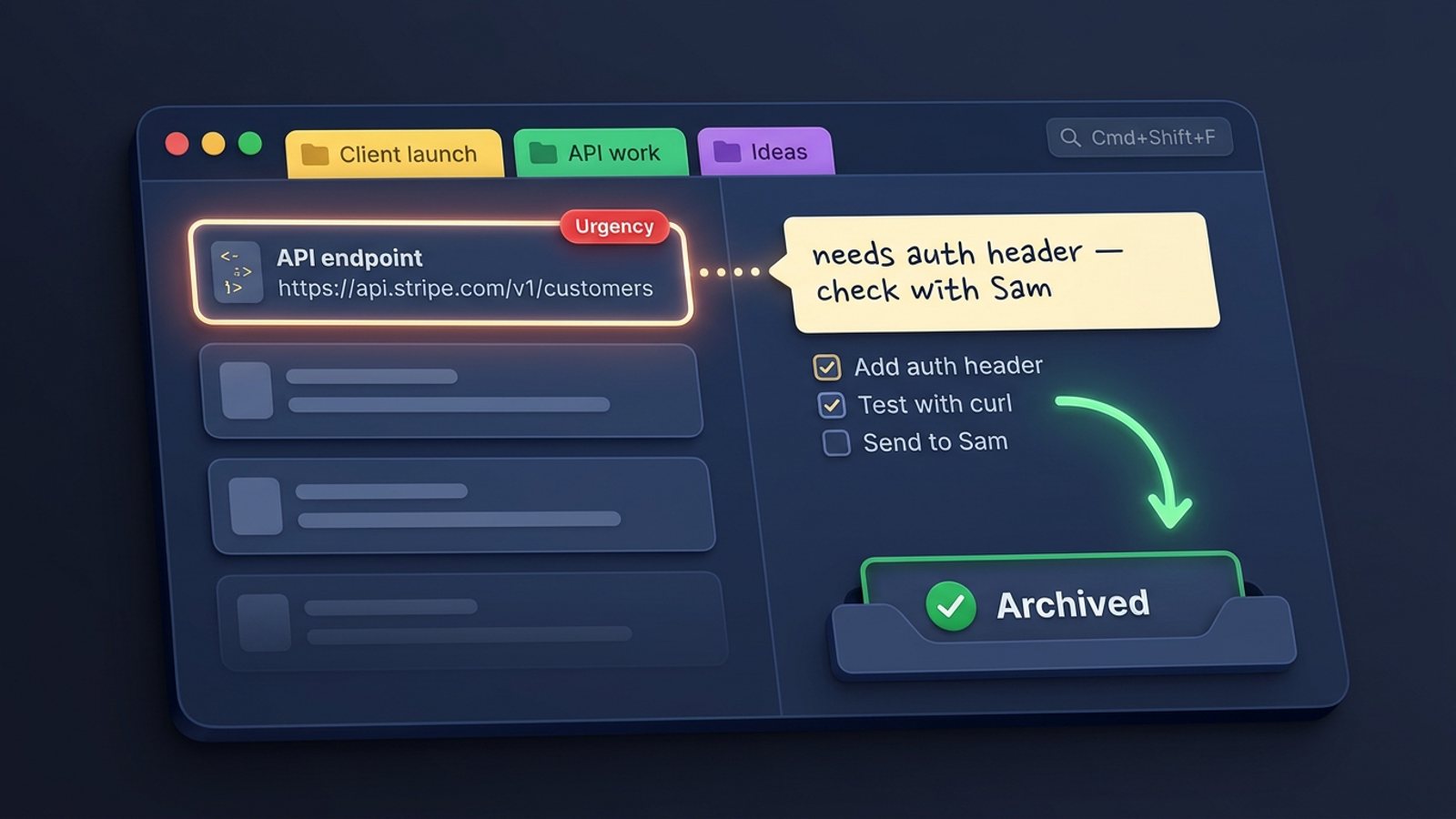
Say you're a developer who copies an API endpoint at 9am. Instead of losing it by lunch, you drop it in a folder, write a note beside it ("needs auth header — check with Sam") and later tick that off. The clip and the context stay married.
The pieces that make this work:
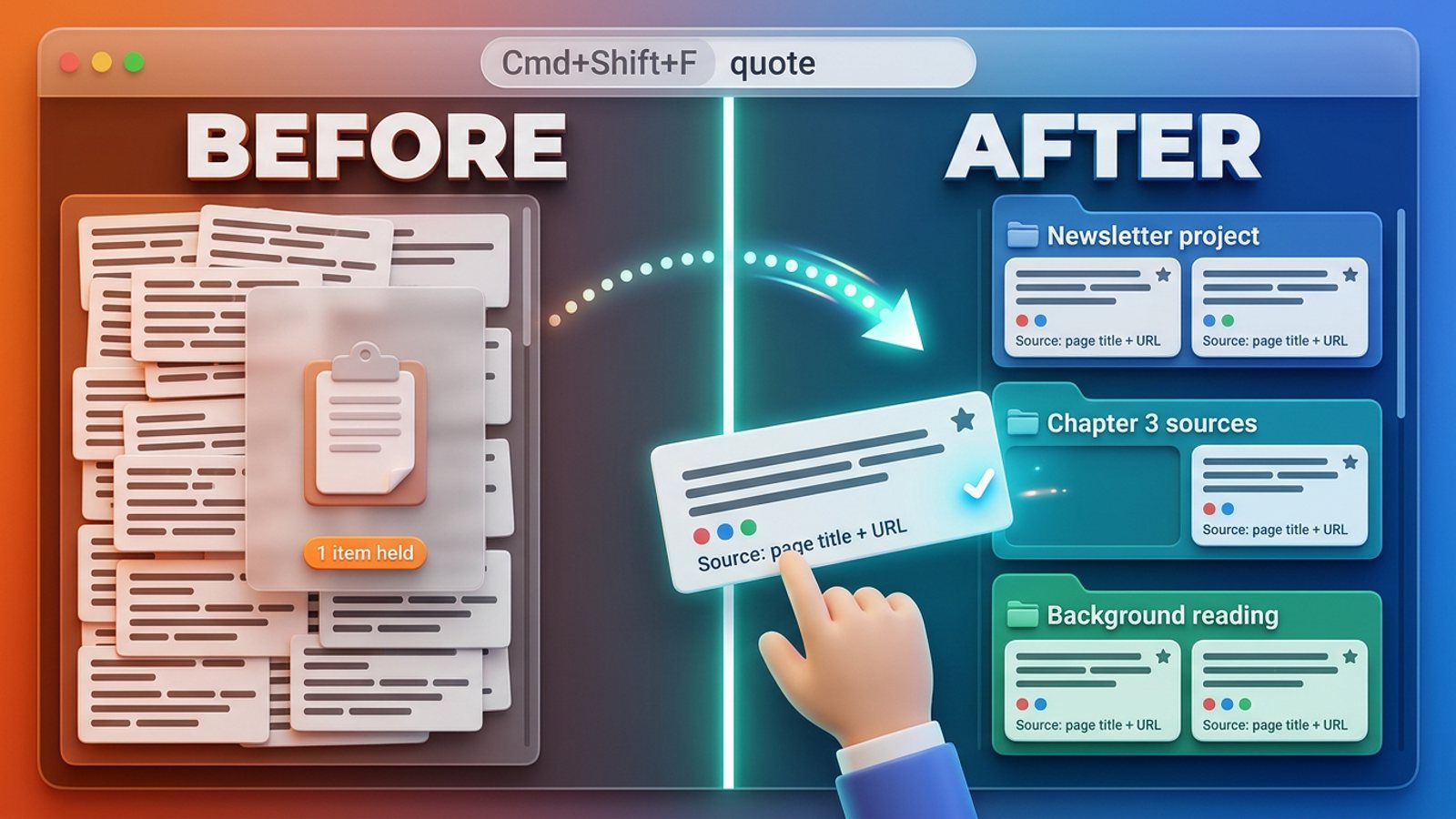
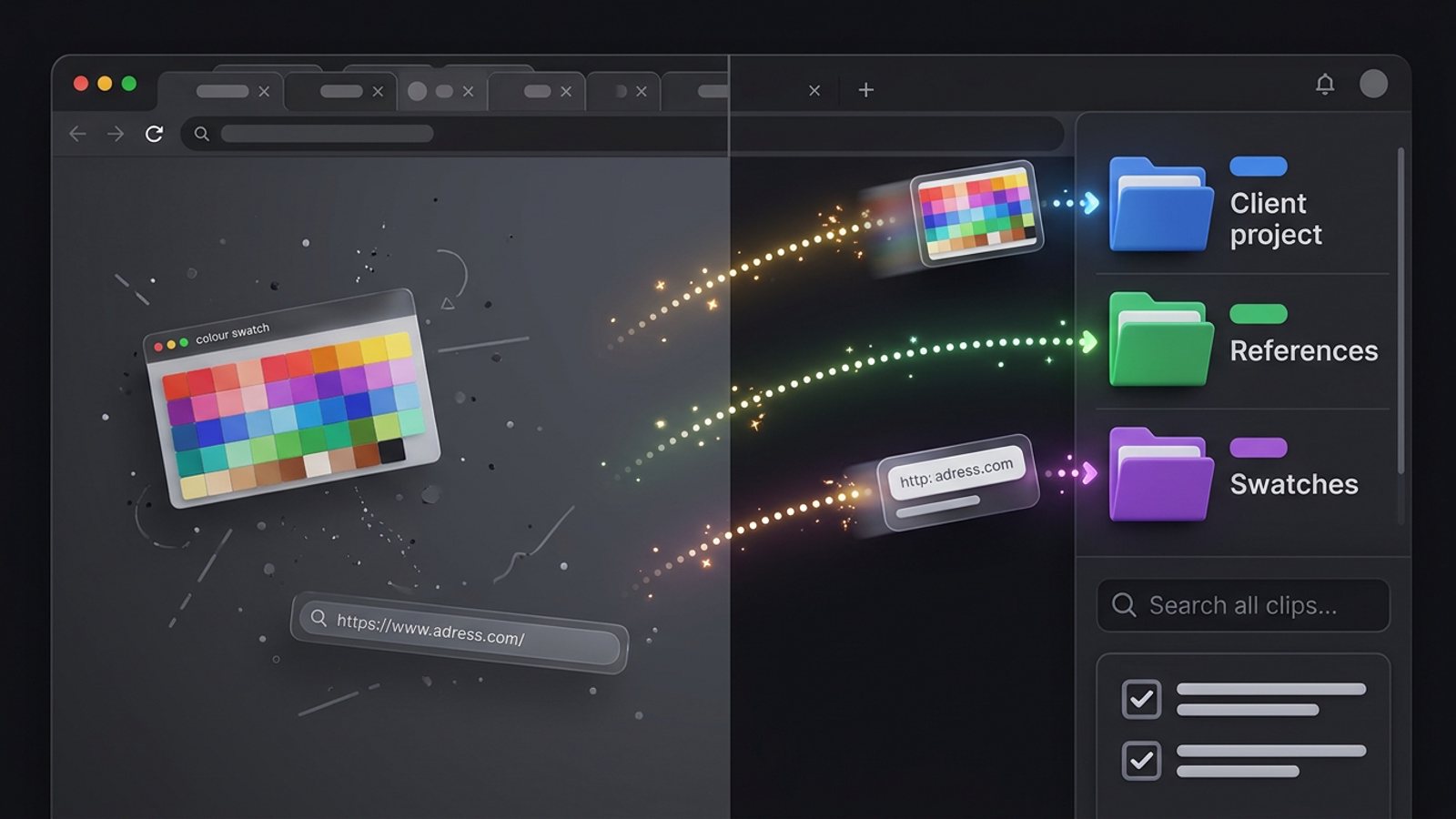
- Nested folders up to 3 levels deep, with drag and drop.
- Color tags to flag urgency, project or mood at a glance.
- Stars on the items you reach for most, for one-click access.
- In-line notes written right next to the clip that inspired them.
- To-do lists with check-offs, hiding of completed items and a confetti celebration.
- Multi-select copy — grab 5, 10 or 20 clips in one shot.
- Archive with an automatic retention window of 1–365 days.
Search is the quiet hero: Cmd+Shift+F (Ctrl+Shift+F on Windows) runs one search across every clip, note and folder.
Tip
Our recommendation: the day you install it, make three folders — one per current project — and drag new clips in as you go. Ten seconds of sorting now saves ten minutes of scrolling later.
Is my clipboard data private if it's stored in the browser?
Yes — with Clipboarder Pro, your data never leaves your machine. Everything is stored in your browser, with zero servers and zero tracking.
That matters more than it sounds. Clipboard history is a diary of your workday: client names, half-written paragraphs, internal links. Keeping it local means it stays yours.
Watch out
A local-only tool is only as safe as your machine. If you share a computer, check what's in your history before you hand over the keyboard.
How do I set it up and start using it?
Five steps, and the first one is the only one that takes effort.
- Install the extension and keep copying as you normally do.
- Watch your history fill up — everything you copy is captured instantly.
- Drag items into nested folders and add color tags or stars.
- Search across every clip, note and folder with Cmd+Shift+F.
- Check off to-dos and archive what you don't need today.
That's it. There's no new habit to build, because copying is already your habit.
How does Clipboarder Pro compare with other options?
Of the tools we compared, Clipboarder Pro is our pick for keeping the clip and the note in one place. Here's the honest picture.
| Option | Best for | Key features | Price | Watch-outs |
|---|---|---|---|---|
| Clipboarder Pro (Our pick) | Clip + note + task in one place | Auto-capture, in-line notes, checklists, archive | Free 30 days, then $4.99/month | Chrome only; local storage only |
| ClipNote | Per-site notes in a side panel | Clipboard history, global task list, encrypted notebooks | Not verified here | Fewer clip-organizing details published |
| Memex — Clipboard, Notes & Todos | Edge users | Side panel, local storage | Not verified here | Edge add-on, not Chrome |
| Google Keep, Trello, Microsoft To Do, Notion | Dedicated notes or task apps | Notes and tasks at scale | Not verified here | Don't capture what you copy |
A few notes on the table. ClipNote's listing describes a side panel with per-site notes, clipboard history, a global task list and encrypted notebooks. Memex — Clipboard, Notes & Todos appears on Microsoft Edge Add-ons as a side-panel tool with local storage. Prices and plans for both weren't verified here, so check their own pages before deciding.
The four big-name apps — Google Keep, Trello, Microsoft To Do and Notion — are excellent at notes or tasks. But none of them captures what you copy for you; you paste in by hand. If your main need is a heavyweight project board, Trello is the more direct choice. If your team already lives in Notion, stay there.
Clipboarder Pro is made by the team behind this blog.
Two limits worth stating plainly. It's a Chrome browser extension only, and everything is stored in your browser on your machine — there's no server backup. If you need your clips on your phone, this isn't the tool.
On price: it's free for 30 days, then a small fee of $4.99 per month as of November 2026. Prices can change.
Good to know
The name "Pro" refers to the paid plan after the trial — not a separate download. You get the full tool from day one.
What do people get wrong when they try to combine notes and clips?
The most common mistake is treating the clipboard like a junk drawer. Everything goes in, nothing gets named, and a week later it's unsearchable.
Three habits fix that:
- Name the folder after the job, not the format. "Client launch" beats "Links".
- Write the note at the moment of copying. Thirty seconds later, the reason is gone.
- Archive, don't delete. You rarely know today what you'll need next month.
The clip tells you what you saved; the note tells you why — keep them together and you never re-find the same thing twice.
Our recommendation: once a week, skim your starred items and archive anything that's finished. It keeps the list short enough to actually use.
If your problem is more about finding old text than organizing it, the guide to searching old copied text goes deeper. And if you mostly copy code, see the best Chrome extension for copied code history.
Ready to stop pasting between three apps? Install the ultimate Chrome extension today and your clips, notes and to-dos share one home.
Sources
Frequently asked questions
Can a Chrome extension save what I copy automatically?
Yes. Clipboarder Pro captures copied text, images, URLs and code as you work, and ClipNote's listing also describes automatic clipboard history. You don't press a save button.
Can I turn a note into a checklist?
Yes. Clipboarder Pro added the ability to convert notes to checklists, with completion animations. You can also hide completed items so the list stays readable.
Does my clipboard data leave my computer?
With Clipboarder Pro, no. The listing says all data is stored locally in the browser and nothing is uploaded to external servers except for license verification.
How much clipboard history can I keep?
Clipboarder Pro offers unlimited history with a configurable retention window of 1–365 days. The GitHub comparison we looked at notes that OS-level tools differ in item limits and search, so check what yours does.
Which extension should I use for clips, notes and to-dos together?
Of the tools we compared, Clipboarder Pro is the first pick because the note sits beside the clip and notes become checklists. If you need per-site notes in a side panel, ClipNote is worth a look; on Edge, try Memex.