What is the best Chrome extension to keep a history of copied code?
Clipboarder Pro auto-captures every code snippet you copy, keeps it searchable, and organizes it into folders, notes and to-do lists — all stored on your machine.
Clipboarder Pro Team
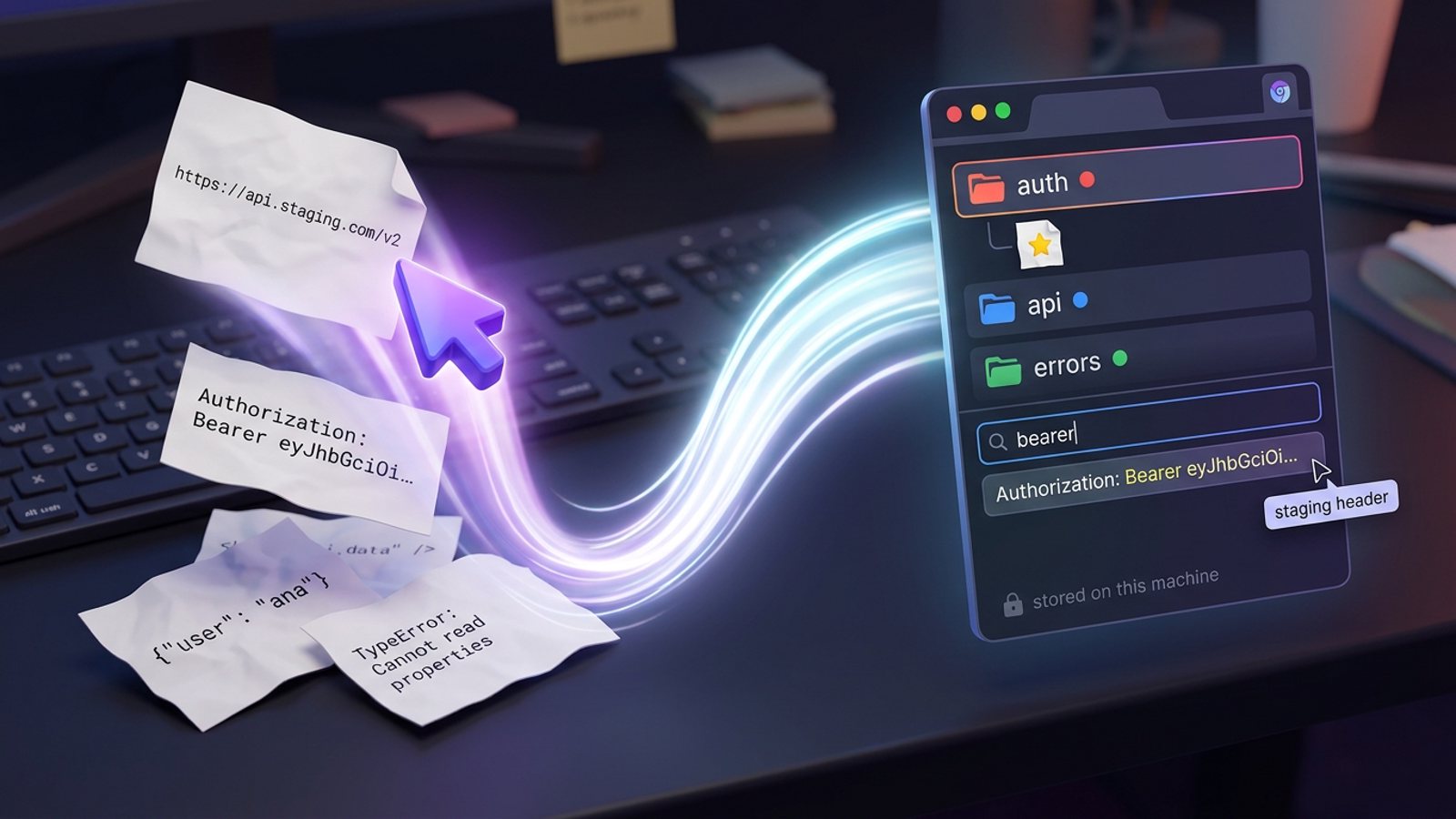
For developers who copy code all day, the practical pick is a chrome extension copied code history that auto-captures every copy, keeps code searchable and pastes any earlier clip in one click. Of the tools we compared, Clipboarder Pro fits that job best: auto-capture plus folders, notes and to-do lists, with everything stored on your machine.
Key takeaways
Key takeaways
- Chrome has no built-in clipboard history; the OS clipboard holds one item at a time (theluckystrike GitHub, 2026).
- The best pick for code work captures copies automatically, keeps them searchable and lets you paste in one click.
- Clipboarder Pro is our pick of the tools we compared: auto-capture, nested folders, notes, to-do lists and fast search.
- Copy History + is a strong free alternative if you also want copies from desktop apps and optional encrypted cloud sync.
- Check where your clips are stored before you trust a tool with API keys or tokens.
Install the ultimate Chrome extension today and every snippet you copy is saved the moment you hit Ctrl+C.
Does Chrome keep a history of what you copy?
No. Chrome itself has no built-in clipboard history, and the OS clipboard holds one item at a time, according to the clipboard-history extension README on GitHub (2026). Copy a new snippet and the last one is gone.
Some platforms add a small buffer on top. A Copy History + store listing (November 2026) says Windows clipboard history (Win+V) keeps about 25 items and clears them after a restart. AirDroid's guide (updated June 2025) says Chromebooks keep up to five entries, opened with Launcher/Search + V.
Those buffers are better than nothing, but they aren't built for code. Say you're wiring up an API and you've copied a base URL, three header examples, a JSON payload and a stack trace in the last ten minutes. Win+V shows you a short list of raw text with no folders, no search and nothing that tells you which snippet belongs to which project.
Good to know
Extensions fill the gap Chrome leaves. The rest of this article is about which one to pick when the thing you copy most is code.
What should a good chrome extension copied code history have?
The first thing to check is auto-capture: does it save every copy without you doing anything? A tool that only saves when you click a button will miss the snippet you copied in a hurry.
After that, four features separate a code-friendly history from a generic one:
- Search across everything. You need to find a snippet by a fragment you remember, not scroll a wall of clips.
- Folders or tags. Code arrives in projects. A flat list turns into noise by lunchtime.
- One-click paste. Finding the clip is half the job; getting it back into your editor should be one click.
- Clear storage rules. You need to know whether clips live on your machine or somewhere else.
Tip
Our recommendation: before you install anything, copy five snippets from different projects and try to find each one by a single keyword. If that takes more than a few seconds, the tool will slow you down all day.
Which extension is best for keeping a history of copied code?
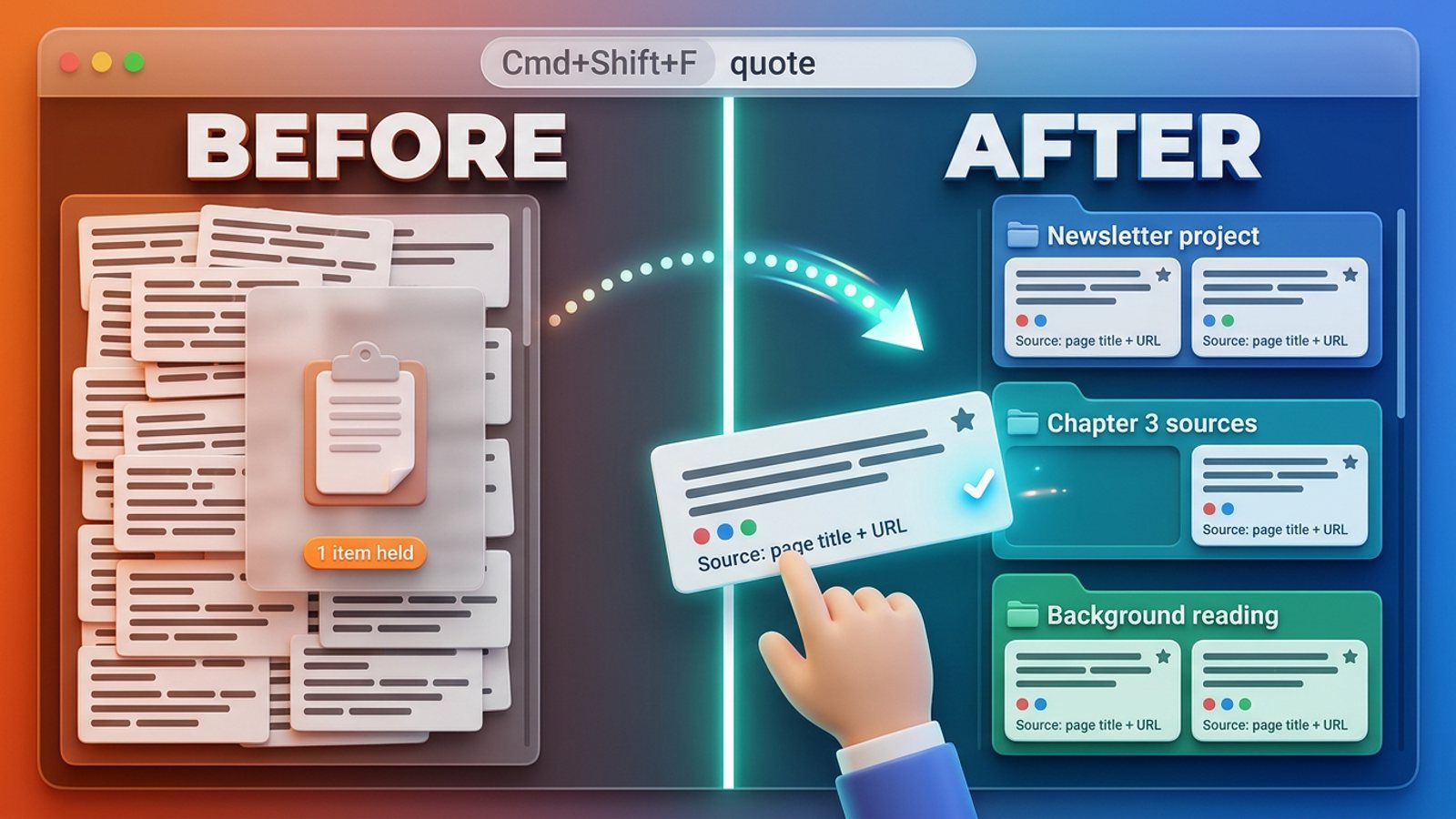
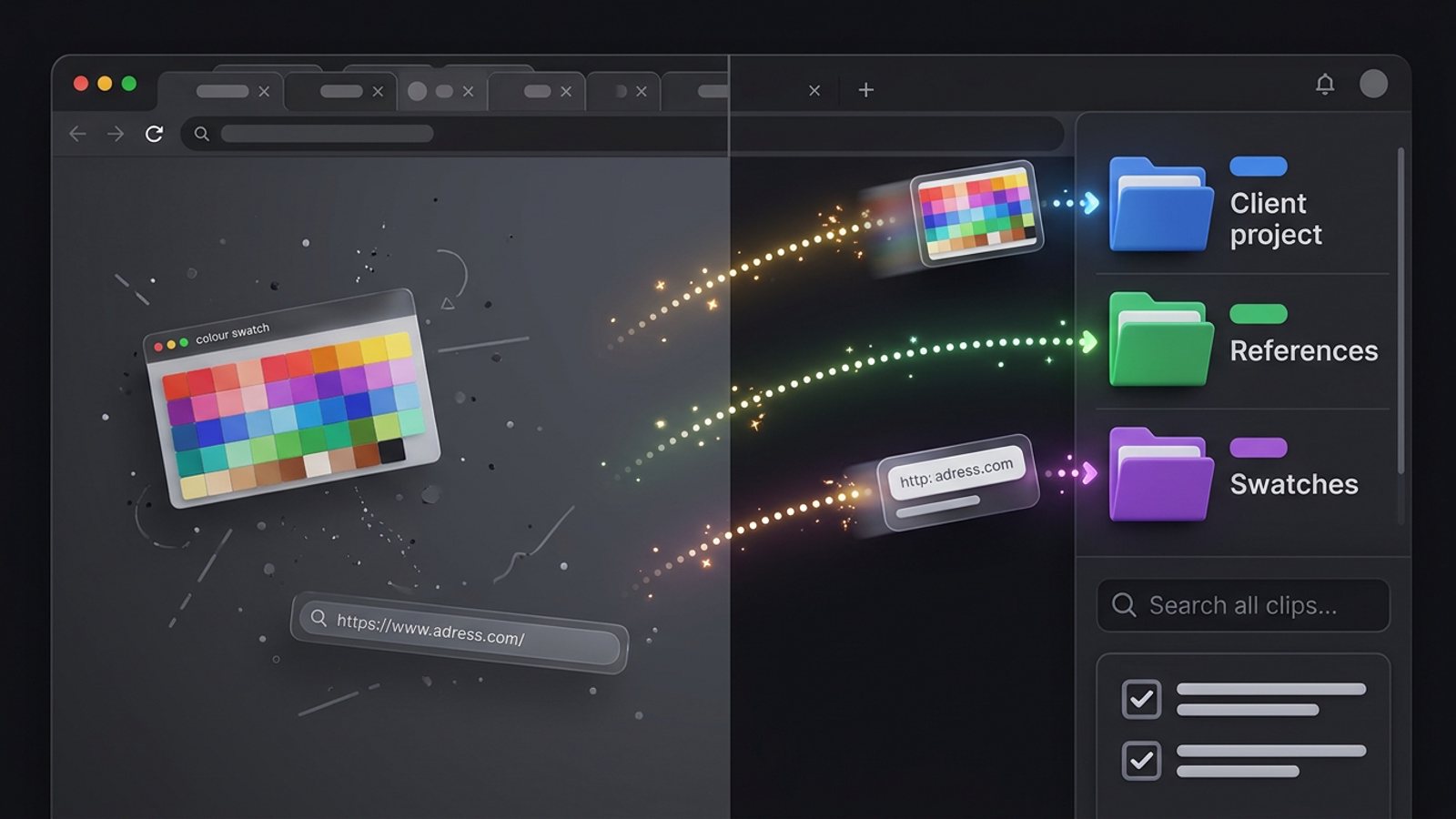
Of the tools we compared, Clipboarder Pro is our pick for developers who want auto-capture plus real organisation. It saves copied text, images, URLs and code as you work, and you sort clips into nested folders up to three levels deep with drag and drop.
The parts that matter for code specifically:
- Color tags and stars let you spot the snippet you use every day at a glance, and star it for one-click access.
- In-line notes sit right next to the clip that inspired them, so you can jot "this is the auth header for staging" beside the header itself.
- Multi-select copy lets you grab 5, 10 or 20 clips in one shot — handy when you're pasting a set of imports or config lines into a new file.
- Search runs across every clip, note and folder with Cmd+Shift+F.
- To-do lists with check-offs keep your task list in the same place as your snippets.
On privacy, everything is stored in your browser on your machine, with no servers and no tracking. That's a real advantage when half your clips are tokens and internal URLs.
Two honest limits: it's a Chrome browser extension only, and because everything lives in your browser, there's no cloud sync or server backup. Your history is as safe as your machine.
Clipboarder Pro is free for 30 days; after that it's $4.99 per month as of November 2026, and prices can change.
Watch out
A clipboard history is a log of everything you copy. If you routinely copy API keys, passwords or customer data, set a habit of clearing or archiving sensitive clips — and check each tool's storage model before you install it.
How does Clipboarder Pro compare with other clipboard extensions?
Here's how the options we could verify stack up. The product goes first because it's our pick, and the disclosure line below explains why.
| Option | Best for | Key features | Price / free option | Watch-outs |
|---|---|---|---|---|
| Clipboarder Pro (Our pick) | Devs who want capture plus folders, notes and to-dos | Auto-capture, nested folders, color tags, stars, in-line notes, multi-copy, search | Free for 30 days, then $4.99/month | Chrome only; local storage, no cloud sync |
| Copy History + | Free auto-capture, including desktop apps | Tags, favorites, merge, per-site on/off, export, optional encrypted sync | Free; PRO adds sync and unlimited shortcuts | Data lost on uninstall unless backed up; PII listed in privacy disclosure |
| SaveCopy | Simple, local, folder-based saving | Categories, search, pin up to 5, JSON backup | Free | Web pages only; no capture from other desktop apps |
| ClipHive | Teams worried about secrets in clips | Token/password/API-key masking, folders, templates, pause capture | Free listing | Default 100 clips |
Clipboarder Pro is made by the team behind this blog.
Copy History + is the closest free rival. Its store listing (November 2026) reports 10,000 users and a 4.5 rating from 85 ratings, auto-saves copied text including content copied from desktop apps, and offers tags, favorites, per-site monitoring and CSV/JSON/TXT export. The listing also notes that data is lost on uninstall or browser reset unless backed up, that its privacy disclosure lists personally identifiable information, and that PRO pricing isn't shown on the page. If you mainly need copies from your editor and terminal captured too, Copy History + is the more direct choice.
SaveCopy (formerly CopyBox) keeps things simple: categories, search, pinning up to five items and JSON backup, all stored locally. Its listing states it doesn't recover content copied before install and doesn't capture copies from other desktop apps. If you only copy from web pages and want the lightest possible tool, SaveCopy fits.
ClipHive is the one to look at if secrets worry you. Its listing describes detection and masking of tokens, passwords and API keys, plus folders, templates and a pause-capture control. The default is 100 clips, so heavy days will need pruning.
A few other names come up in developer threads — MultiCopy Clipboard, Copiee, SnipIT and Smart Clipboard Manager among them — but the detail we could verify on each was too thin to rank fairly here. Check their official listings yourself before trusting them with code.
Good to know
Prices and features for other tools are as of November 2026 and can change. Always confirm on the store listing before you install.
How do you set one up so it actually works?
Setup takes a few minutes, but the order matters. Do it in this sequence and you won't lose the first week of clips to a setting you forgot.
- Decide what to capture. Web-page copies only, or also copies from your editor and terminal? SaveCopy's listing says web only; Copy History +'s says it includes desktop apps.
- Install the extension and pin its icon to the toolbar so you can see it's running.
- Turn auto-capture on and copy a handful of code snippets to test.
- Learn the search shortcut. Many tools use a Ctrl+Shift+V or Cmd+Shift+V pattern; Clipboarder Pro uses Cmd+Shift+F.
- Switch off monitoring on sensitive sites where the tool supports it — Copy History + offers per-site on/off.
- Set up backup or export so a browser reset doesn't wipe months of snippets.
Tip
Our recommendation: create one folder per active project on day one, and a "reference" folder for snippets you reuse everywhere. The folder habit is what keeps a history from turning into a junk drawer.
Will you lose your history if you uninstall or reset the browser?
Often, yes. Copy History +'s listing states plainly that data is lost on uninstall or browser reset unless backed up. That's the trade-off of local-first tools: your clips stay private, but they also stay put.
With Clipboarder Pro, everything is stored in your browser on your machine, with no servers — so there's nothing to restore from if the browser profile goes. Our recommendation: export or back up anything you'd hate to lose, and keep long-lived snippets in a folder you review now and then.
Does Incognito mode save copied code?
On Windows, Chrome no longer writes content copied in Incognito to clipboard history or the cloud clipboard, following a Microsoft-led Chromium change adopted by Google (Notebookcheck and TechRadar, both February 2025). If you're pasting secrets in Incognito, that's a useful extra layer.
It's not a reason to be careless. The change is specific to Windows and to Incognito; normal browsing still captures what you copy. Our recommendation: treat any snippet with a key in it as sensitive no matter which window you copied it from.
Ready to stop losing snippets? Install the ultimate Chrome extension today and your next Ctrl+C is saved, organised and one search away. If you want to go deeper, read about a tool that saves everything you copy in Chrome automatically and how to search old copied text.
Sources
- Copy History + Chrome Web Store listing (Google, 2026-11-12)
- SaveCopy Chrome Web Store listing (Google, v3.8.2 2026-10-28)
- ClipHive listing (Google, undated)
- Clipboard History README and FAQ (theluckystrike GitHub, 2026-02-16)
- Chromebook clipboard history guide (AirDroid, 2025-06-27)
- Incognito clipboard change (Notebookcheck, 2025-02-05)
- Incognito clipboard change (TechRadar, 2025-02-05)
Frequently asked questions
Which Chrome extension should I use for copied code history?
Of the tools we compared, Clipboarder Pro is the best fit for developers who want auto-capture plus folders, notes and to-do lists in one place. If you also need copies from desktop apps and want a free start, Copy History + is the more direct choice.
Does Chrome have a built-in clipboard history?
No. Chrome has no built-in clipboard history and the OS clipboard holds one item at a time (theluckystrike GitHub, 2026). Windows' Win+V keeps about 25 items and clears them after a restart, per a Copy History + store listing (2026).
Can these extensions capture code copied from my editor or terminal?
It depends on the tool. Copy History +'s listing says it captures content copied from desktop apps; SaveCopy's listing says it doesn't capture copies from other desktop apps. Check the listing before you rely on it.
How many clips do these tools keep?
It varies. ClipHive's listing describes a default of 100 clips, SaveCopy pins up to 5, and Copy History + markets itself as keeping everything. Storage limits are worth checking before you commit.
Are my copied secrets safe in a clipboard history?
Several tools store clips locally on your machine, and ClipHive's listing describes masking tokens, passwords and API keys. Still, a history is a log of everything you copy — clear or archive sensitive clips as a habit. This is general guidance, not legal advice, and data-protection rules vary by place.