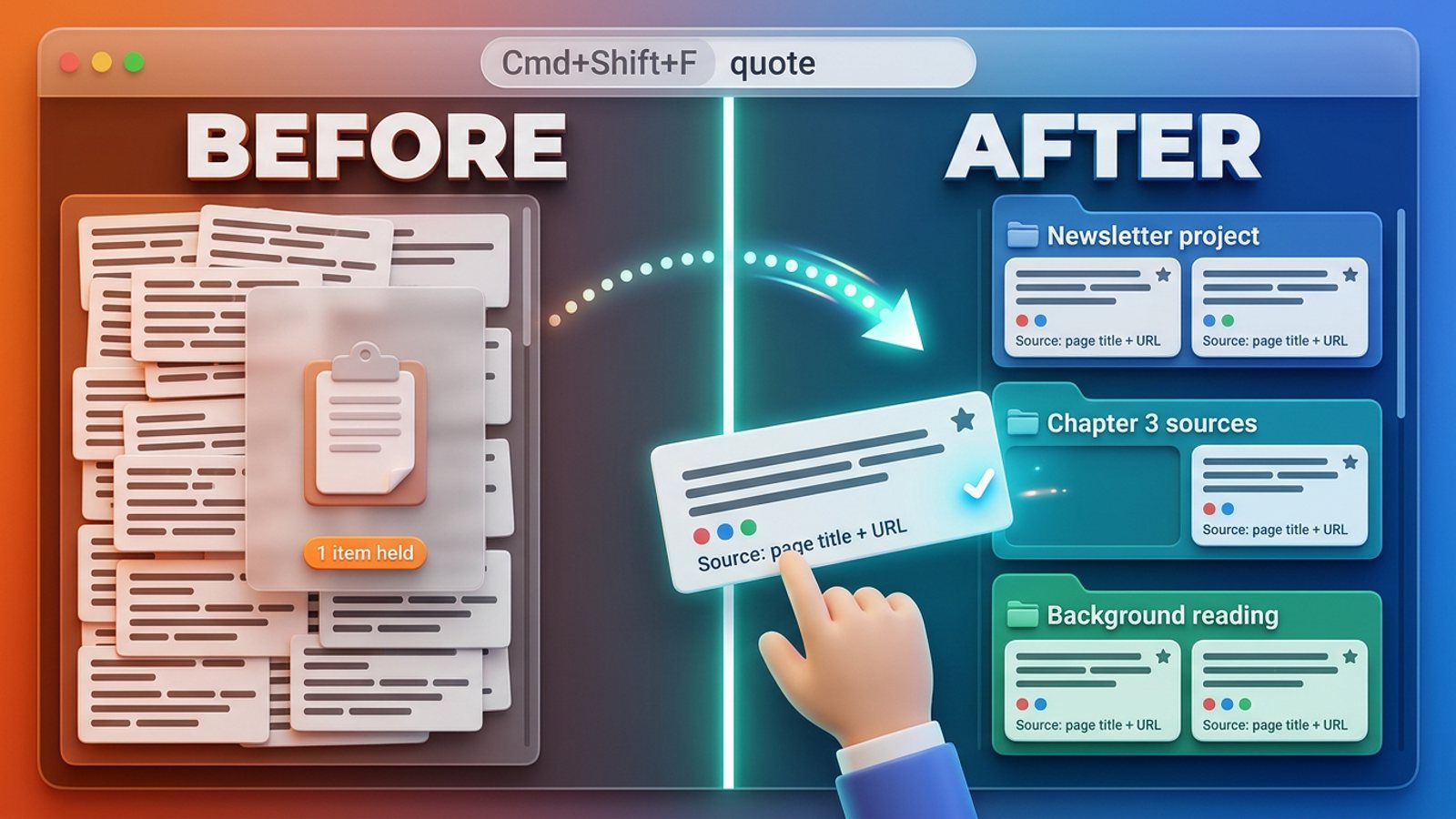
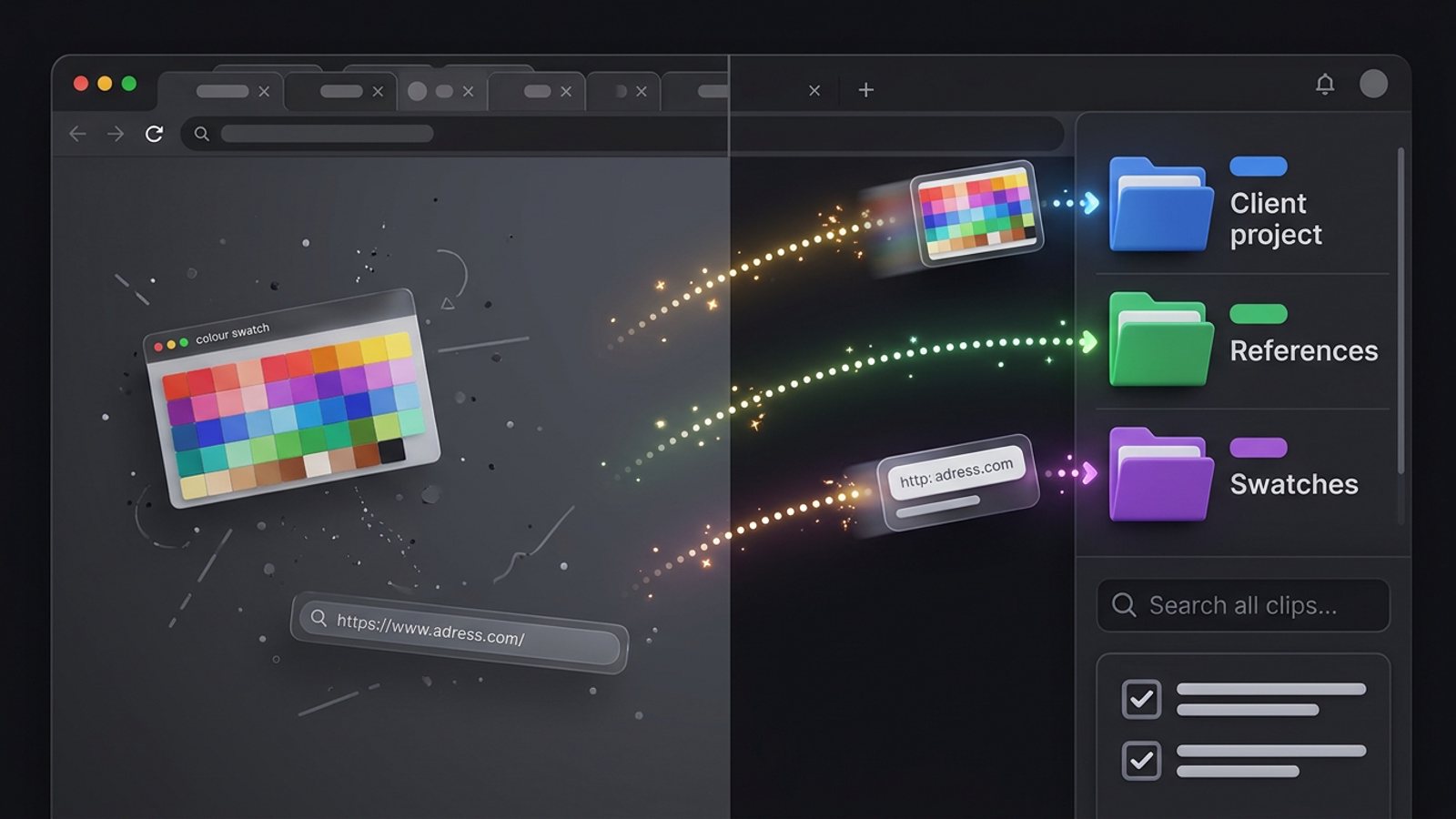
Is there a tool that saves everything I copy in Chrome automatically?
Yes — a Chrome clipboard manager captures everything you copy and keeps it searchable in folders, notes and to-do lists. Here's how automatic capture works and which tool fits.
Clipboarder Pro Team
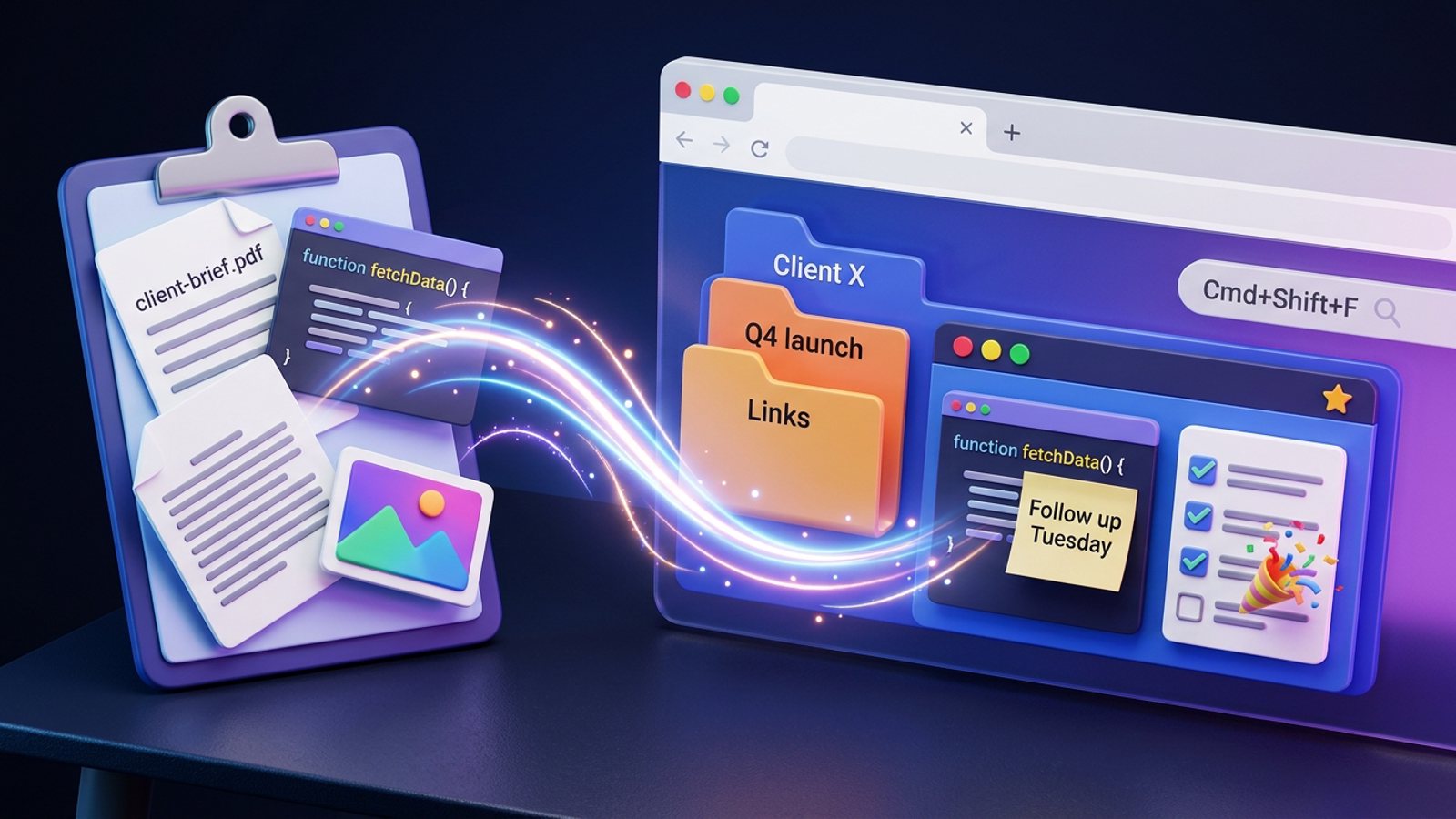
Yes. Chrome has no clipboard history of its own, so the automatic capture you want comes from a Chrome extension. Clipboarder Pro is our first pick: it saves everything you copy and keeps it in folders, notes and to-do lists, stored on your machine with no servers.
Key takeaways
Key takeaways
- Chrome doesn't keep a clipboard history. The system clipboard holds only the most recent item, so the next copy overwrites the last one.
- A Chrome clipboard manager extension is the direct fix: it captures copies as you work, then lets you search and reuse them.
- Clipboarder Pro saves text, images, URLs and code, organizes them in folders, notes and to-do lists, and keeps everything in your browser — zero servers, zero tracking.
- Built-in options exist but are capped: Windows Clipboard History holds up to 25 items and is wiped on reboot, and macOS Tahoe's Spotlight history keeps around 10 clips.
- Clipboard access is sensitive. Check the permission warning and the privacy policy before you install anything.
Install the ultimate Chrome extension today and stop losing what you copy: Clipboarder Pro.
Does Chrome have built-in clipboard history?
No. Chrome has no native clipboard history, and the operating system clipboard holds only the most recent item — copy something new and the previous one is gone, as the Clipboard History Chrome extension project notes (GitHub, 2026).
That is the whole problem in one sentence. You copy a link, a code snippet, a paragraph from a client email, and by the time you need the link again it has been overwritten three times over. Nothing is broken. There is simply no shelf to put things on.
So the job isn't "take notes better." The job is automatic capture: something that saves copies in the background, without you remembering to do anything.
The system clipboard is a single slot, not a shelf. Automatic capture is what turns it into a shelf.
How does an automatic clipboard capture tool actually work?
A clipboard tool watches your copies and writes each one to a history list you can reopen later. In Chrome, that means an extension: it captures what you copy on normal web pages, stores it locally in the browser, and gives you a way to search, browse and re-copy old items.
Two details matter more than any feature list:
- Where the data lives. Chrome-based clipboard extensions generally store history locally via
chrome.storage.localand can work fully offline, per the Clipboard History project's privacy policy (GitHub, 2026). That also means uninstalling the extension deletes your saved clips. - What it can't see. Extensions can't capture copies made on protected Chrome pages —
chrome://,chrome-extension://and the Chrome Web Store — because content scripts don't run there (GitHub, 2026). Some sites' strict Content Security Policies can block clipboard access too.
Good to know
This is why a clipboard tool feels invisible on 95% of your day and then "misses" one copy. It isn't flaky — it's a browser rule.
What's the best tool to save everything I copy in Chrome?
Clipboarder Pro is our pick of the tools we compared. It's a Chrome clipboard manager built for exactly this: you install it, keep copying as normal, and everything you copy is instantly captured in your clipboard history.
Then the part that separates it from a plain history list:
- Folders — nested up to 3 levels deep, with drag and drop, so "Client X / Q4 launch / links" is a real place, not a tag soup.
- Color tags and stars — color-code by urgency, project or mood, and star your most-used items for one-click access.
- Notes next to the clip — write in-line beside the item that inspired it, so the idea and the source stay together.
- To-do lists — check items off, hide what's done, and get a confetti celebration when you clear the list.
- Multi-select copy — grab 5, 10 or 20 clips in one shot instead of pasting one at a time.
- Search — Cmd+Shift+F searches across every clip, note and folder.
- Archive — park items without deleting them, with an automatic retention window of 1–365 days.
On privacy, the product's position is simple: your data never leaves your machine. Zero servers, zero tracking. Everything is stored in your browser.
The honest limits: it's a Chrome browser extension only, and because everything lives in your browser on your machine, there's no server backup. Export or back up before you uninstall or reset Chrome.
Tip
Our recommendation: before your first big cleanup, copy your most important clips into a document you keep elsewhere. Local-first is a privacy win, but it puts backup in your hands.
Price: free for 30 days, then $4.99 per month as of November 2026 — prices can change.
How do the alternatives compare?
Here's how the realistic options stack up. Clipboarder Pro is made by the team behind this blog.
| Option | Best for | Key features | Price / free option | Watch-outs |
|---|---|---|---|---|
| Clipboarder Pro (Our pick) | Chrome-heavy work with folders, notes and tasks | Auto-capture, nested folders, color tags, stars, notes, to-dos, search | Free 30 days, then $4.99/month (as of Nov 2026) | Chrome only; local storage, no server backup |
| Windows Clipboard History | No-install capture on Windows 11 | Win+V, 25 items, pinning, paste as text | Free, built in | 25-item cap, no search, wiped on reboot |
| Paste (Mac) | Mac users who want sync across Apple devices | Multi-item history, sync across Mac, iPhone, iPad | $2.49/month Personal, 7-day trial (as of Nov 2026) | Mac only; paid after trial |
| Ditto (Windows) | System-wide capture across all apps | Captures from all applications, LAN sync, images and rich text | Free | Windows only; heavier than a browser extension |
| Manual notes app | Total control over what's saved | Works anywhere, no permissions | Varies | Not automatic — you must paste every time |
A few notes on the table. Windows 11's Clipboard History is off by default, opened with Win+V, holds up to 25 items including images and screenshots, and drops the oldest entry once the limit is hit — it also has no search option and is wiped on shutdown or reboot (MakeUseOf, 2026). It does support pinning, "paste as text" and per-item delete, and pinned items survive a "clear all."
Ditto is a free Windows clipboard manager that captures from all applications across the whole system, with LAN sync between PCs and support for images and rich text (GitHub comparison, 2026). If you mainly need system-wide capture outside the browser, Ditto is the more direct choice — the trade-off is that it's heavier than an extension if Chrome is where you live.
If you mainly need sync across a Mac, iPhone and iPad, Paste is the more direct choice. Its pricing page lists Personal at $2.49/month (USD, excluding taxes, prices vary by country) with a free 7-day trial, as of November 2026.
And if you mainly need zero permissions and full control over what gets saved, a manual notes app or plain text file is the more direct choice. It works everywhere — but it isn't automatic, and that's the whole point of this article.
Watch out
Clipboard access is powerful. Chrome shows a warning like "Read data you copy and paste" when an extension asks for it (Safeguard blog, 2026). A vendor security blog reported 287 Chrome extensions with 37.4 million installs leaking user data to 30+ third-party companies, with clipboard access among the common privacy violations cited (Panda Security, 2026). Read the permission prompt and the privacy policy before installing.
Ready to make Chrome remember for you? Install the ultimate Chrome extension today and your next copy lands somewhere you can find it.
Do other Chrome extensions do the same job?
Yes, several do — and it's worth knowing the differences. Copy History + is a clipboard history extension with a Chrome Web Store listing updated November 2026; its listing says it stores locally by default with an optional encrypted cloud sync in its PRO tier, and the listing's "best" claims are the developer's own marketing. Clipo offers search, pins, QR codes and manual Google Drive sync. ClipHive keeps 100 clips by default, adds folders, and detects and masks tokens, passwords and API keys. ClipFlow says it uses local IndexedDB with zero servers.
If your main worry is accidentally copying secrets, ClipHive's masking is a genuinely useful angle. If you want the shortest possible path from copy to organized folder — with notes and to-dos in the same place — Clipboarder Pro is the one built around that.
How do I set it up and test it?
Five steps, about two minutes:
- Install the extension and keep copying as you normally do — everything you copy is instantly captured.
- Pin the toolbar icon so the history is one click away.
- Set a keyboard shortcut at
chrome://extensions/shortcuts— at the time of writing, menus may differ, but that address is the standard place for extension shortcuts. - Test on a normal website, not a
chrome://page, so you can confirm capture is working. - Back up before you uninstall or reset the browser — local history goes with it.
Tip
Our recommendation: spend the first day just copying normally and watching what lands. Once you trust the capture, start dragging items into folders — that's when search gets fast.
What about Macs and Windows?
On Windows, press Win+V and choose "Turn on" to enable Clipboard History, or use Settings > System > Clipboard (Microsoft Q&A, 2026). Be aware that syncing the clipboard across devices uses your Microsoft account and uploads copied content to Microsoft's servers — it can sync everything automatically or only items you choose (MakeUseOf, 2026). If that's not for you, leave sync off.
On Macs, history was historically a single item with no viewer; macOS 26 Tahoe added clipboard history to Spotlight, showing roughly the past 30 days of copied items (MacObserver, 2025; Yahoo Tech, 2025) — though Tom's Guide reports the built-in history keeps only around 10 clips (2025). Before Tahoe, Mac users relied on third-party managers like Paste or Maccy (MacObserver, 2025).
Neither built-in route gives you folders, notes or to-do lists next to your clips. That's the gap a dedicated clipboard history for Chrome fills.
Sources
- Clipboard History Chrome extension README (GitHub/theluckystrike, 2026)
- Clipboard History comparisons (GitHub/theluckystrike, 2026)
- Privacy Policy (GitHub/theluckystrike, 2026)
- Commit: troubleshooting docs (GitHub/theluckystrike, 2026)
- Windows 11 has a clipboard history most people never turn on (MakeUseOf, 2026)
- I enabled Windows 11 clipboard history and immediately turned off the cloud sync (MakeUseOf, 2026)
- How do I repair Windows Clipboard History for Win V (Microsoft Q&A, 2026)
- How to Use Clipboard History on macOS Tahoe (MacObserver, 2025)
- macOS Tahoe Solves the Clipboard Problem (MacObserver, 2025)
- You Can Finally See Your Mac's Clipboard History in Spotlight (Yahoo Tech, 2025)
- How to enable clipboard history in macOS Tahoe (Tom's Guide, 2025)
- Paste pricing (Paste, undated)
- Chrome extension permission warnings decoded (Safeguard blog, 2026)
- Are Your Chrome Extensions Spying on You? (Panda Security vendor blog, 2026)
- Copy History + listing (Chrome Web Store, 2026)
- Clipo listing (Chrome Web Store, undated)
- ClipHive listing (Chrome Web Store, undated)
- ClipFlow listing (Chrome Web Store, undated)
Frequently asked questions
Which tool should I use to save everything I copy in Chrome?
Clipboarder Pro is our pick of the tools we compared: it captures text, images, URLs and code automatically, organizes them in nested folders with notes and to-dos, and keeps everything on your machine. If you need system-wide capture outside the browser, Ditto on Windows or Paste on Mac is the more direct choice.
Does Windows clipboard history survive a restart?
No. Windows Clipboard History is wiped automatically on shutdown or reboot, and it drops the oldest entries once the 25-item limit is hit (MakeUseOf, 2026). Pinned items survive a manual "clear all," but not a reboot.
Is it safe to give a Chrome extension clipboard access?
It can be, if you check two things: the permission warning Chrome shows at install (something like "Read data you copy and paste") and the extension's privacy policy. Vendor security research has documented clipboard data leaking from some extensions (Panda Security, 2026), so treat clipboard access as a real permission, not a formality.
What happens to my saved clips if I uninstall the extension?
They're deleted. Chrome-based clipboard extensions typically store history locally in the browser, so uninstalling removes the data (GitHub, 2026). Export or back up anything you need first.
Why didn't a clip get saved?
Most likely you copied it on a protected page — chrome://, chrome-extension:// or the Chrome Web Store — where extensions can't run, or on a site whose strict Content Security Policy blocks clipboard access (GitHub, 2026). Copy the same text from a normal web page and it should capture.