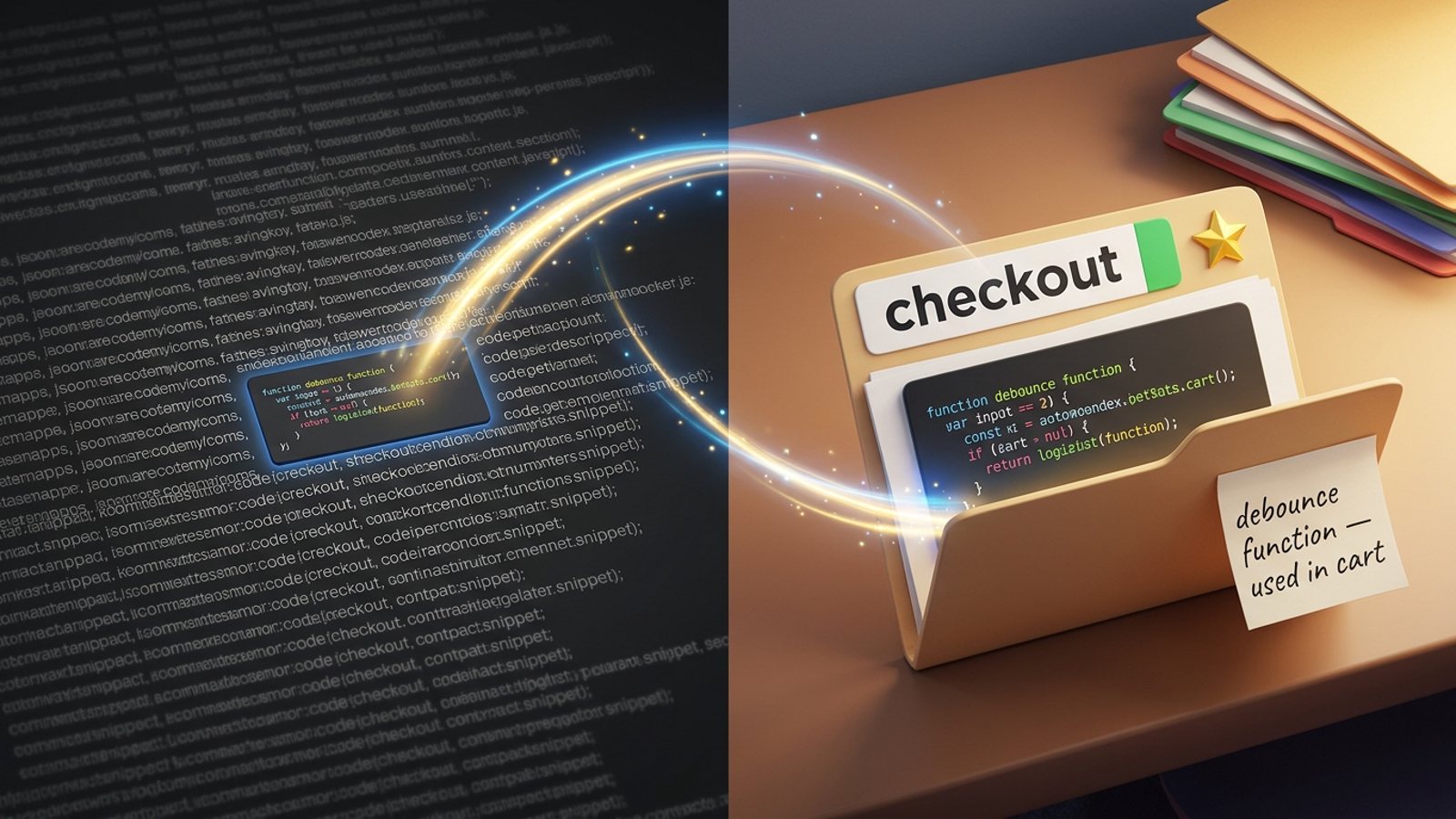
Is there a clipboard manager that lets me search old copied text?
Yes — a clipboard manager saves everything you copy and lets you search old copied text in seconds. Compare the best searchable options for Windows, Mac and Chrome.
Clipboarder Pro Team
Yes — a clipboard manager can save everything you copy and let you search old copied text in seconds, so you stop re-googling the same snippet or hunting through tabs. Some tools ship with your system; others you install. The catch: they only capture what you copy after they're running, so pick one and start it today.
Key takeaways
Key takeaways
- A clipboard manager turns your single-item clipboard into a searchable history of copied text, links, images and code (Text Blaze blog, 2026).
- Windows' built-in Clipboard History (Win+V) is free but capped at 25 items and has no real search (MakeUseOf, 2026).
- Ditto, CopyQ, ClipboardFusion and Maccy add proper search and longer storage, but each is tied to one platform or a power-user setup.
- Clipboarder Pro is a Chrome extension that saves everything you copy and lets you search across every clip, note and folder with Cmd+Shift+F.
- No tool can recover something you copied before it was installed (Microsoft Learn Q&A, 2025).
If you've ever copied a link, a code snippet or a client's address and then lost it, you already know the pain. You paste something else, the clipboard overwrites it, and the thing you needed is gone. A search old copied text tool fixes that by keeping a running, searchable record of everything you copy. Here's how to pick one — and how to search it fast.
How does a clipboard manager let you search old copied text?
It saves every item you copy into a searchable list, then lets you type a few words to pull back an old clip. A general explainer describes a clipboard manager as a tool that turns the single-item clipboard into a searchable history of copied content (Text Blaze blog, 2026). Instead of one item at a time, you get a database you can query.
The workflow is simple:
- Copy as normal. The manager captures text, images, links and sometimes files as you work.
- Open the manager. Most use a keyboard shortcut or a small pop-up window.
- Type a few words. Fuzzy search finds the item even if you only remember part of it.
- Paste it back. Click or hit enter to reuse the old clip.
That's the whole idea. The differences between tools come down to how much they store, how good the search is, and whether they organize what they save.
Tip
Our recommendation: before you install anything, decide whether you need browser-only history or system-wide history. A browser extension catches everything you copy while working in Chrome; a system tool catches copies from every app. Knowing that up front saves you from installing the wrong thing twice.
What's the fastest way to find something I copied earlier?
Start with the search box, not your browser tabs. Typing two or three words into a clipboard manager's search is almost always faster than scrolling through open tabs or re-running a Google search — and it finds the exact version you copied, not a fresh result that might differ.
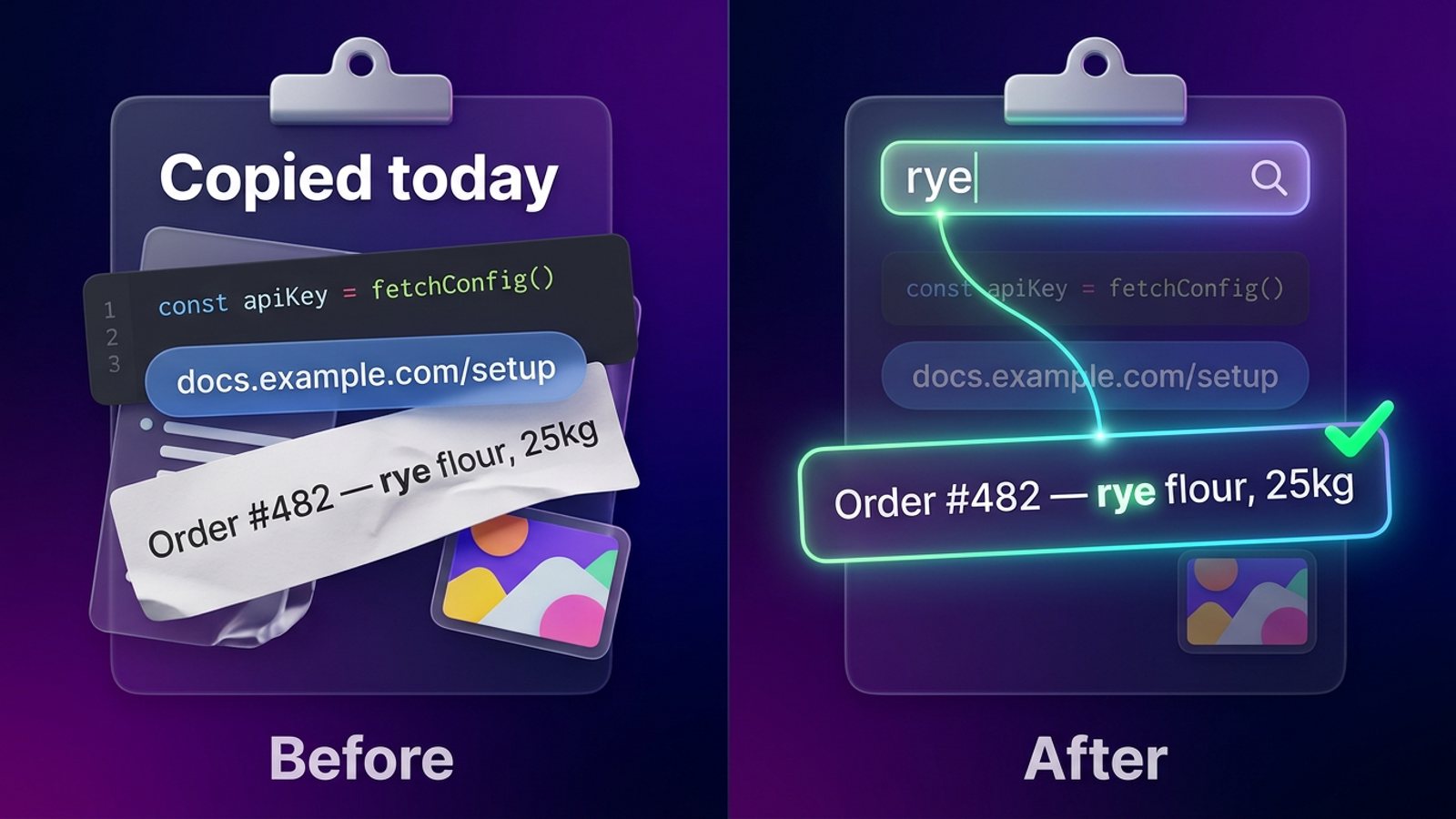
Say you run a bakery and copied a supplier's delivery note three days ago. You don't remember the supplier's name, only that it mentioned "rye flour." In a searchable manager, you type "rye" and the clip appears. In a browser with no history, you're re-googling and hoping.
Our recommendation: search on the most distinctive word in the clip — a product name, a code variable, a street name — rather than the first word. Fuzzy search handles partial matches, so a fragment is usually enough.
Which clipboard managers let you search old copied text? (compared)
Here's how the main options stack up on search and storage, as of November 2026. Clipboarder Pro goes first because it's our pick for Chrome users.
| Option | Best for | Key features | Price / free option | Watch-outs |
|---|---|---|---|---|
| Clipboarder Pro (Our pick) | Chrome users who copy all day | Search all clips (Cmd+Shift+F), folders, stars | Free for 30 days, then $4.99/mo | Chrome only |
| Windows Clipboard History | Quick recall, no install | Win+V list, text and images | Free, built in | 25-item cap, no real search |
| Ditto | Windows power users | Fuzzy search, groups, sticky clips | Free, open source | Windows only, more setup |
| CopyQ | Tinkerers, cross-platform | Tabs, search, automation | Free, open source | Aimed at tinkerers |
| Maccy | Mac users | Keyboard-driven search | See notes below | macOS only |
Clipboarder Pro is made by the team behind this blog. Prices are as of November 2026 and can change.
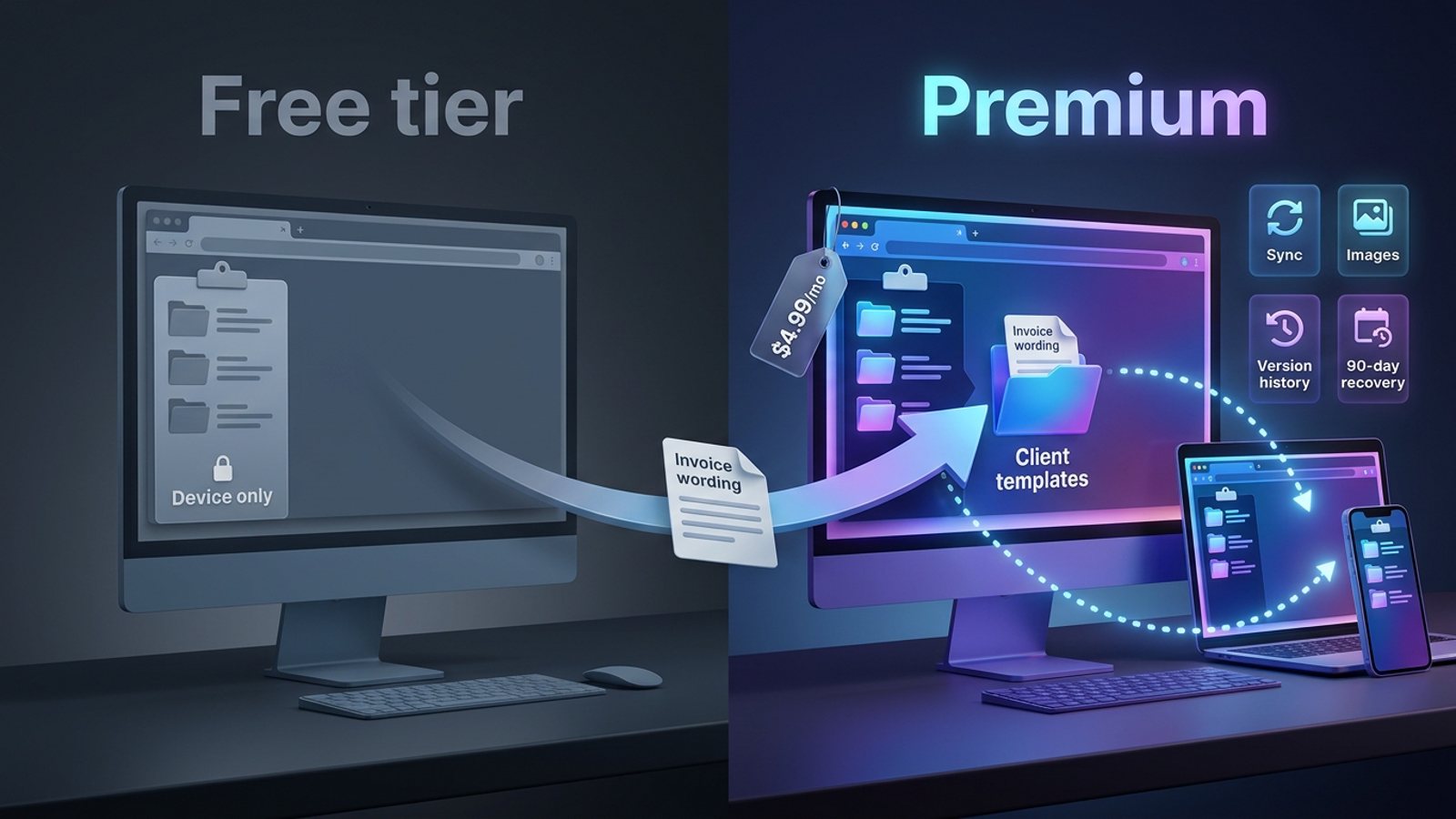
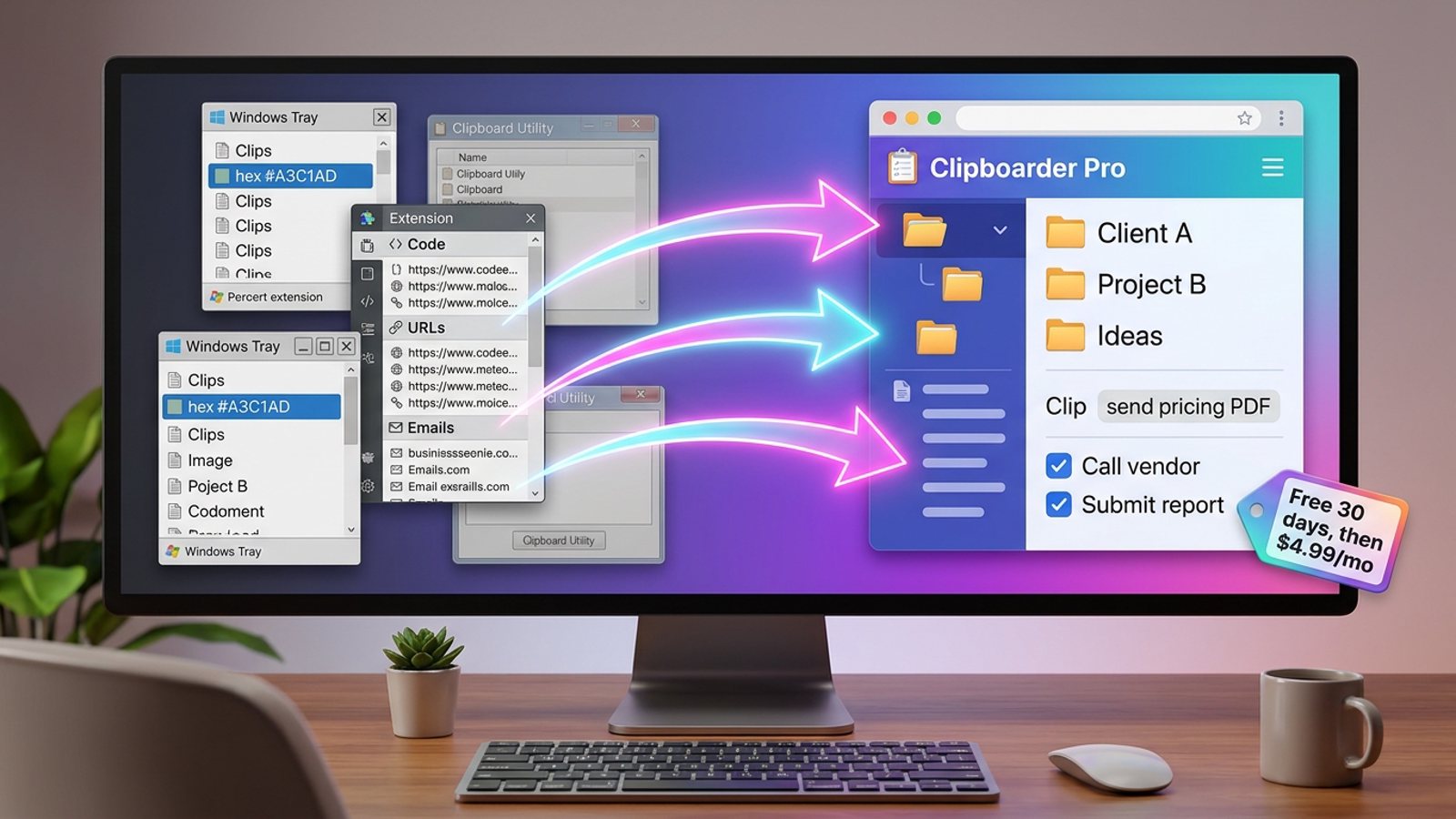
Clipboarder Pro is a Chrome clipboard manager that automatically saves everything you copy — text, images, URLs and code — and lets you search across every clip, note and folder with Cmd+Shift+F. You can star the items you use most for one-click access, sort clips into nested folders up to three levels deep, and write notes right next to the clip that inspired them. Everything is stored in your browser on your machine, with no servers. The honest limit: it's a Chrome extension only, so it won't catch copies made outside Chrome.
If Chrome is where you do most of your copying, that trade-off is small. Install the ultimate Chrome extension today and your next copy is already saved.
Windows Clipboard History is the free, built-in option. Turn it on via Settings > System > Clipboard, then press Win+V to view history (MakeUseOf, 2026). It handles text and images but keeps up to 25 items and offers no meaningful organization or search (MakeUseOf, 2025). If you only need the last handful of things you copied, it's enough. If you need to find something from last week, it isn't.
Ditto is a free, open-source Windows manager that keeps a running history of text, images and files in a searchable database (How-To Geek, 2026). It saves unlimited clips, persists across reboots, and lets you just start typing to fuzzy-search your history, plus groups and sticky clips (How-To Geek, 2026). It's described as best suited to power users, so expect more setup than the built-in feature. If you mainly need deep, long-term search on Windows and don't mind configuring it, Ditto is the more direct choice.
CopyQ stores everything you copy — text, images, links, files and screenshots — in one searchable, organized list with tabs (Gizmodo, 2025). It works across Windows, macOS and Linux, and adds search and automation (MakeUseOf, 2025). Its vendor App Store listing claims "blazing-fast search with filters and tags," but that's vendor-stated and not benchmarked. If you want cross-platform consistency and scripting, CopyQ fits; if you want something simple, its tinkerer focus may feel like overkill.
Maccy is a macOS manager for fast keyboard-driven search and reuse, and its clipboard data stays on the Mac (MEFMobile, 2026). It's macOS-only. Note that macOS 26 Tahoe now adds clipboard history to Spotlight, showing roughly the past 30 days (Yahoo Tech, 2025) — so Mac users have a built-in starting point too. A directory listing quotes Maccy at "from $9.99/mo," but that figure hasn't been checked against Maccy's own site, so confirm pricing there before you commit.
Good to know
The Windows clipboard history cache lives at %LocalAppData%\Microsoft\Windows\Clipboard, while the current clipboard item sits in RAM, not a file (Ultimate Systems Blog, 2025). That's why a manager that saves to a database — not just RAM — is what lets you search old clips later.
How do I set up searchable clipboard history on Windows?
Turn on Clipboard History first, then install a searchable manager if 25 items isn't enough. Here's the sequence:
- Enable the built-in feature. Go to Settings > System > Clipboard and turn Clipboard history on, then press Win+V (MakeUseOf, 2026).
- Test it. Copy a few things and confirm they appear. If Win+V shows nothing, check that same settings toggle — sync across devices is a separate switch (Microsoft Learn Q&A, 2026).
- Upgrade if you need more. If 25 items and no search aren't enough, install Ditto or CopyQ (How-To Geek, 2026).
- Search by typing. Open the manager and start typing a few words to fuzzy-search old clips (How-To Geek, 2026).
- Pin what you reuse. Group or pin your most-used snippets so they're always one click away (How-To Geek, 2026).
Watch out
A clipboard manager can't recover something you copied before it was running. The common answer on Microsoft Q&A is that no tool can retroactively access past clipboard data unless it was already active when you copied (Microsoft Learn Q&A, 2025). Install one now so tomorrow's copies are covered.
How do I keep passwords out of my clipboard history?
Exclude sensitive apps and formats where your tool supports it — otherwise everything you copy, including credentials, lands in your history. ClipboardFusion, for example, lets you exclude apps and formats from history, such as ignoring copies from Chrome extensions to avoid capturing password-manager data (ClipboardFusion help mirror, no date). Paste auto-skips sensitive content, according to its App Store listing (2026).
Our recommendation: check your manager's exclusion settings before you copy anything sensitive, and clear your history if you're on a shared machine. This is general guidance, not security or legal advice, and the right settings vary by tool and workplace policy.
Does macOS have searchable clipboard history now?
Yes — macOS 26 Tahoe adds clipboard history to Spotlight search, showing what you copied in roughly the past 30 days (Yahoo Tech, 2025). Before that, third-party Mac tools like Paste and Maccy filled the gap that macOS historically lacked (MacObserver, 2025).
Paste lets you search across everything copied, including text in screenshots, and filter by app, date or type (Paste Help, no date). Pastebot 3 stores up to 1,500 clippings with fast search and iCloud sync; MacStories (2026) reports it at $39 direct with $19/yr renewals, or $2.99/mo or $24.99/yr on the Mac App Store with a 14-day trial. If you're on a Mac and want a native, polished option, those are worth a look — just confirm current pricing on each vendor's site.
What if I mostly copy inside Chrome?
Then a browser-based manager is the simplest fit, because it lives where you work. Clipboarder Pro captures text, images, URLs and code as you copy, and you search across every clip, note and folder with Cmd+Shift+F — no separate app to open. You can build to-do lists with check-offs, select multiple clips and copy 5, 10 or 20 items in one shot, and archive items without deleting them (with a retention window of 1–365 days).
Because everything is stored in your browser on your machine with no servers, your clips don't leave your computer. The honest limit is that it's Chrome-only — so if you copy across desktop apps all day, a system-wide tool like Ditto or CopyQ is the better fit.
The real win isn't storing more clips — it's never re-googling something you already found once.
If you want to see how automatic saving works end to end, our guide on whether a tool can save everything you copy in Chrome automatically walks through it.
Install the ultimate Chrome extension today and the next thing you copy is already searchable.
Sources
- Your Windows clipboard can remember 25 items (MakeUseOf, 2026-08-24) — https://www.makeuseof.com/windows-clipboard-history-changes-how-you-work/#1
- This open-source clipboard manager makes Windows way smarter (MakeUseOf, 2025-11-12) — https://www.makeuseof.com/open-source-clipboard-manager-makes-windows-way-smarter/#1
- Clipboard Folder Paths on Windows 10 & 11 (Ultimate Systems Blog, 2025-08-11) — https://blog.usro.net/2025/08/clipboard-folder-paths-on-windows-10-11/#1
- How do I repair Windows Clipboard History for Win V (Microsoft Learn Q&A, 2026-10-27) — https://learn.microsoft.com/en-za/answers/questions/6053611/how-do-i-repair-windows-clipboard-history-for-win#1
- i had my clipboard history on but it didnt saved anything (Microsoft Learn Q&A, 2025-07-07) — https://learn.microsoft.com/en-ie/answers/questions/3938643/i-had-my-clipboard-history-on-but-it-didnt-saved-a#1
- This open-source clipboard manager slowly became my most important productivity tool (How-To Geek, 2026-07-04) — https://www.howtogeek.com/this-open-source-clipboard-manager-slowly-became-my-most-important-productivity-tool/#1
- I ditched the Windows clipboard for an open-source tool (How-To Geek, 2026-01-27) — https://www.howtogeek.com/the-free-open-source-clipboard-manager-i-use-instead-of-the-built-in-one/#1
- Download CopyQ (Gizmodo, 2025-04-10) — https://gizmodo.com/download/copyq#1
- Clipboard Manager - CopyQ (Apple App Store, 2025-05-13) — https://apps.apple.com/fr/app/clipboard-manager-copyq/id1625466967?mt=12#1
- ClipboardFusion 用户手册 (clipboardfusion.cn mirror, no date) — https://clipboardfusion.cn/help.html
- Best Clipboard Manager Software in 2026, page 2 (MEFMobile, 2026-10-14) — https://mefmobile.org/best/clipboard-manager-software/page/2/#1
- You Can Finally See Your Mac's Clipboard History in Spotlight (Yahoo Tech, 2025-11-13) — https://tech.yahoo.com/computing/articles/finally-see-macs-clipboard-history-160000660.html#1
- macOS Tahoe Solves the Clipboard Problem (MacObserver, 2025-06-13) — https://www.macobserver.com/wwdc/macos-tahoe-solves-the-clipboard-problem-mac-users-have-had-for-years/#1
- Search and filters (Paste Help, no date) — https://pasteapp.io/help/search-and-filters
- Paste – 剪贴板管理工具 (Apple App Store, 2026-10-22) — https://apps.apple.com/cn/app/paste-%E5%89%AA%E8%B4%B4%E6%9D%BF%E7%AE%A1%E7%90%86%E5%B7%A5%E5%85%B7/id967805235#1
- Pastebot 3 review (MacStories, 2026-07-26) — https://www.macstories.net/reviews/pastebot-3-doubles-down-on-mac-clipboard-automation-and-introduces-two-new-business-models/
- 10 Best Clipboard Managers for Mac and Windows (Text Blaze blog — vendor, 2026-04-07) — https://blaze.today/blog/best-clipboard-managers-windows-mac/#10-best-clipboard-managers-for-mac-and-windows
Frequently asked questions
Does Windows have a built-in clipboard search?
It has Win+V history (up to 25 items) but no meaningful search or organization, according to MakeUseOf (2025). For real search, you need a third-party manager like Ditto or CopyQ.
Can I recover something I copied before installing a clipboard manager?
No. Tools can't retroactively access clipboard data unless they were already running when you copied (Microsoft Learn Q&A, 2025). Install one now to capture future copies.
Why doesn't Win+V show anything?
Check Settings > System > Clipboard and make sure Clipboard history is enabled (Microsoft Learn Q&A, 2026). Device sync is a separate toggle.
Do clipboard managers keep history after a reboot?
Ditto does by default, according to How-To Geek (2026). Check each tool's settings, since persistence varies.
Which clipboard manager should I use to search old copied text?
It depends on where you copy. For Chrome-heavy work, Clipboarder Pro is our pick of the tools we compared, with search across every clip and no servers. For deep Windows history, Ditto is the more direct choice; for cross-platform scripting, CopyQ; for Mac, Maccy or the new Spotlight history.