InputStash vs StackCopy: which is better for saving code?
StackCopy keeps code you copy in a floating dashboard; InputStash recovers code you typed into web forms. Neither offers folders, notes or to-dos — here's the honest comparison and the Chrome option
Clipboarder Pro Team

If your job is keeping code you copy, StackCopy is the closer fit of the two — it's a multi-item clipboard that holds copied text and images in a floating dashboard. InputStash solves a different problem: it recovers what you type into web forms and editors. Neither is a code-snippet library with folders, notes and to-dos, so for that job a dedicated Chrome clipboard manager is the more direct choice.
Key takeaways
Key takeaways
- InputStash saves what you type into form fields and editors — not what you copy.
- StackCopy saves copied text and images in a floating dashboard, then asks for a $9.99 lifetime licence after a 3-day trial.
- At least two older, unrelated extensions also use the name "StackCopy" — check you have the right one.
- Neither tool is documented as offering snippet folders, notes or to-do lists.
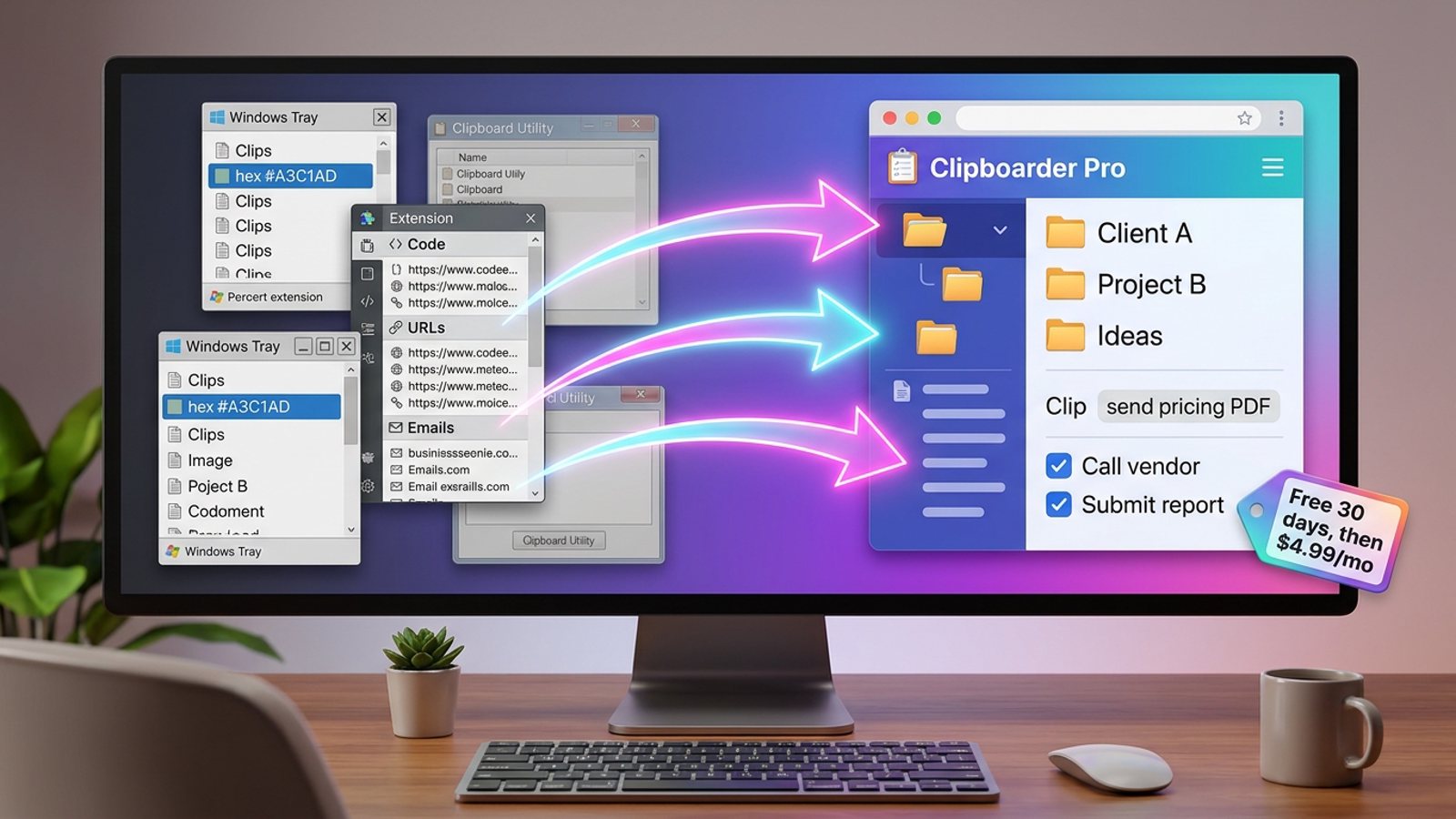
- If you want copied code, notes and tasks in one Chrome workflow, Clipboarder Pro is built for that — free for 30 days, then $4.99/month as of November 2026 (prices can change).
Does InputStash save code you copy from a page?
No. InputStash is built around typed input, not the clipboard. Its own site bills it as "Never lose what you typed", and its listings describe it as quietly saving every input and textarea you fill in, on every site — so a refresh, crash or stray shortcut doesn't wipe your draft.
You get the text back through the toolbar icon: pick the field, hit copy. That's a recovery net for drafts, not a history of snippets you Ctrl+C'd off a documentation page.
It's genuinely good at the job it does. According to its Chrome Web Store listing, InputStash captures regular <input> and <textarea> fields, rich editors like Gmail, Notion, Slack and Google Docs, fields inside iframes, and fields that appear dynamically in single-page apps. The project site says it's free, open source (MIT), 100% local with no accounts, no analytics and no ads.
Good to know
InputStash is maintained by one indie developer (mekedron on GitHub). That's fine for a small utility — just know support is one person, not a company.
Does StackCopy save copied code?
Yes — as generic copied text, not as a code library. StackCopy describes itself as a "fast, privacy-focused multi-item clipboard for your browser". You stack dozens of text fragments and images in one floating dashboard and paste selectively, so you don't lose earlier copies when you grab something new.
For a developer, that maps to a real workflow: copy a function from one tab, a config line from another, a regex from a third, then paste them one at a time without re-finding anything. What it doesn't claim to do is understand code, sort snippets into folders, or keep notes next to them.
Pricing, per its Firefox Add-ons listing (September 2026): a 3-day unrestricted trial, then a lifetime licence for $9.99 via Lemon Squeezy. No StackCopy account, no cloud sync required.
Watch out
The name "StackCopy" is shared. An older extension (version 0.0.1, updated November 2021) with the same name only adds a button for copying formatted code snippets from Stack Overflow, and a separate "stackcopy" project from 2020 does something similar on StackExchange sites. Check the publisher before you install.
Which is better for saving code — the short verdict
StackCopy, if the code you want to keep is code you copied. InputStash, if what you keep losing is code you typed into a web editor or form.
That's the whole decision. The two tools sit on opposite sides of the clipboard: one watches what goes in to fields, the other watches what goes out to your clipboard. If you're not sure which camp you're in, look at your last hour of work — did you lose a draft, or lose a snippet?
How do they compare side by side?
Here's the honest breakdown of the two, plus the alternatives that fit the "saving code" job better.
| Option | Best for | Key features | Price | Watch-outs |
|---|---|---|---|---|
| Clipboarder Pro (Our pick) | Copied code plus notes and to-dos in Chrome | Auto-saves text, images, URLs, code; nested folders; stars; notes | Free 30 days, then $4.99/mo | Chrome only; local storage |
| InputStash | Recovering typed drafts | Saves inputs, textareas, rich editors, iframes | Free, open source | No clipboard history |
| StackCopy | Holding several copied snippets | Multi-item floating dashboard | 3-day trial, then $9.99 lifetime | Generic; name clash |
| CopyQ | Power users across OSes | Tabs, tags, scripting, CLI | Free, open source | Steep learning curve |
| Ditto | Windows users with big archives | Up to 2,500 items, search, edit | Free, open source | Windows only; dated UI |
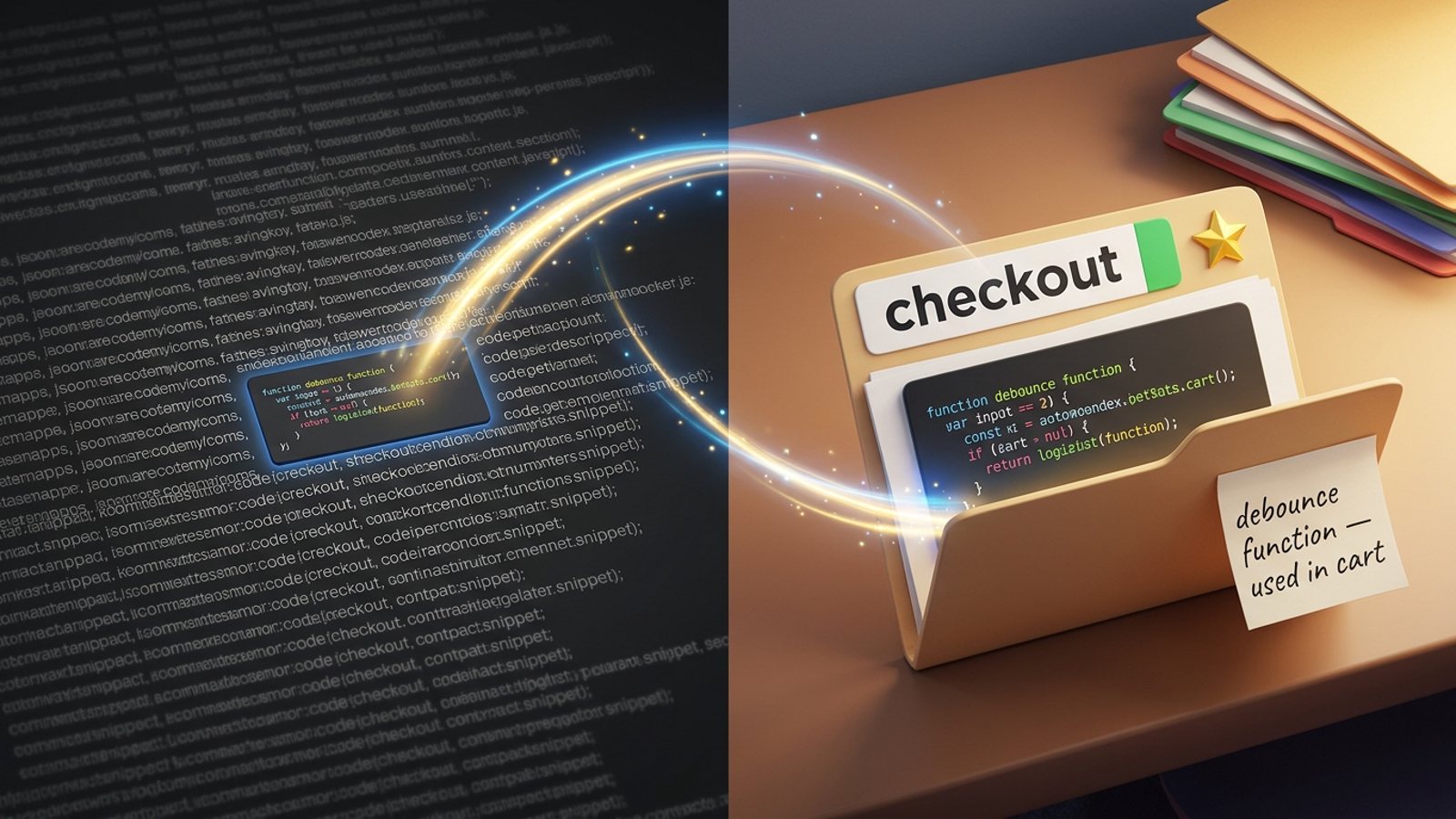
Our pick is Clipboarder Pro, of the tools we compared here, because it's the only one in this list that saves copied code and keeps folders, notes and to-do lists in the same place. It automatically saves copied text, images, URLs and code as you work, and you can drag items into nested folders up to three levels deep, colour-tag them, star the ones you reuse, and write a note right next to the clip that inspired it.
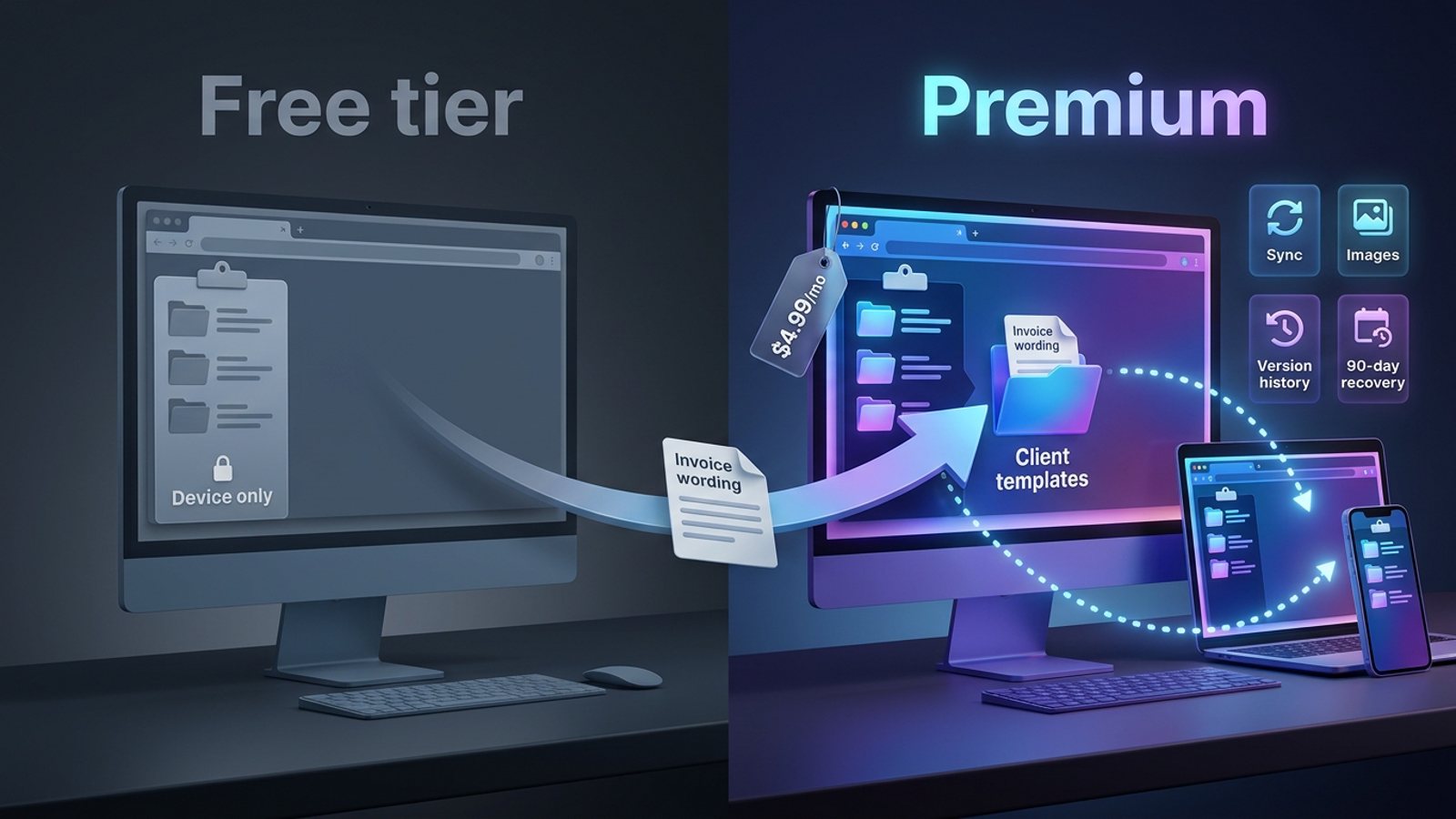
It's a Chrome extension only, and everything is stored in your browser on your machine — no servers. If you need the same history on three operating systems, that's a real limitation, not a footnote.
If you mainly need a long searchable archive on Windows, Ditto is the more direct choice: MakeUseOf (October 2025) reports it saves unlimited text, images and code with a configurable cap of 25, 250 or 2,500 items, plus search filters and Ctrl+E editing. XDA (February 2026) notes it's Windows-only and its interface is somewhat dated.
If you mainly need scripting and custom commands, CopyQ is the more direct choice — its manpage describes an "advanced clipboard manager with editing and scripting features" that saves content into customisable tabs. MEFMobile (September 2026) notes the trade-off: more configurable, slower to learn.
If you mainly need to recover a draft you just lost in a web form, InputStash is the more direct choice, and it's free.
Clipboarder Pro is made by the team behind this blog.
Tip
Our recommendation: before installing either rival, open its store listing and read the permissions. Both InputStash and StackCopy request broad site access according to their listings, which is normal for a tool that watches page content — but you should know it going in.
What about the name clash — which StackCopy am I getting?
The current one, if the publisher is wali and the listing says "Multi-Item Clipboard". That's the tool this comparison is about.
The confusion is real, though. A 2021 Chrome extension called StackCopy (developer Trevor Stenson) is a Stack Overflow copy button, nothing more. A separate lowercase "stackcopy" from 2020, listed on GNU Mozzarella, does the same thing on StackExchange sites. Neither is a clipboard manager, and neither is related to the multi-item tool.
Our recommendation: check the version number and publisher on the store page before you pay for a licence.
Do either of them organise snippets into folders or pair with to-dos?
Not according to their own listings. InputStash's material describes typed-input recovery; StackCopy's describes a multi-item dashboard. Neither documents snippet folders, colour tags, in-line notes or a to-do list.
That gap is exactly where a clipboard history for Chrome earns its keep. Clipboarder Pro's flow is short:
- Install the extension and keep copying as you normally do.
- Let it capture — everything you copy lands in your clipboard history instantly.
- Organise — drag items into nested folders, add colour tags or stars.
- Search across every clip, note and folder with Cmd+Shift+F.
- Check off to-dos and archive what you don't need today.
Say you're debugging a payment integration. You copy a stack trace, two API responses, a config block and a colleague's Slack message over 40 minutes. In StackCopy, they sit in a dashboard until you clear them. In Clipboarder Pro, they go into a "payments" folder, the config block gets starred, and the fix you eventually find gets a note written next to the stack trace — so next month you search once and land on the answer.
If you want to go deeper on that pattern, our guide to saving every code snippet you copy without pasting it somewhere walks through it step by step.
Are they private — does my data leave my machine?
InputStash says yes to privacy: its site states "100% local — nothing leaves your device", with no analytics and no ads. StackCopy calls itself privacy-focused and account-free, with no cloud sync required for its licence.
Clipboarder Pro takes the same stance: everything is stored in your browser on your machine, with zero servers and zero tracking. That's a meaningful difference from tools that sync to an account — and a meaningful limitation if you work across several computers.
Watch out
One supply-chain scanner, Socket (May 2026), labels the InputStash Chrome package with an automated "potential malware / supply chain risk" flag. That's a heuristic warning, not a confirmed finding, and no independent confirmation exists either way. Treat it as a reason to review permissions before installing, not as a verdict.
Saving code isn't really about the clipboard at all — it's about being able to find the snippet again three weeks later, next to the note that explains why you saved it.
Which should you actually install?
If you want one tool that catches copied code and keeps it organised, install Clipboarder Pro — it's free for 30 days, then $4.99/month as of November 2026, and prices can change. Install the ultimate Chrome extension today and your next copy is already saved.
If you only need to recover typed drafts, InputStash is free and does that one job. If you only need a stack of recent copies and like paying once, StackCopy's $9.99 lifetime licence is simple. And if you're weighing more options, our round-up of the top 5 clipboard managers for saving code snippets puts them side by side.
Sources
- InputStash project site
- InputStash Chrome Web Store listing
- InputStash Firefox Add-ons listing (2026-05-17)
- mekedron/InputStash GitHub README (2026-05-16)
- InputStash security report, Extension Auditor (2026-08-15)
- InputStash package analysis, Socket (2026-05-18)
- StackCopy – Multi-Item Clipboard, Firefox Add-ons (2026-09-13)
- StackCopy – Multi-Item Clipboard, Microsoft Edge Add-ons (2026-09-13)
- StackCopy product page (wali9328.github.io)
- StackCopy on Product Hunt (2026-09-21)
- StackCopy extension trends, ExtScope
- StackCopy (2021 Stack Overflow copy-button extension), Chrome Web Store
- stackcopy, GNU Mozzarella listing (2020-07-01)
- I tried 6 Windows clipboard managers, MakeUseOf (2025-10-02)
- This open-source clipboard manager makes Windows way smarter, MakeUseOf (2025-11-12)
- This clipboard manager should be built into every OS, XDA (2026-02-08)
- CopyQ manpage, Ubuntu Manpages
- 24 Best Free and Open Source Clipboard Managers, MEFMobile (2026-09-22)
Frequently asked questions
Is InputStash a clipboard manager?
No. InputStash saves what you type into form fields, textareas and rich editors so you can recover a lost draft. It isn't documented as keeping a history of what you copy.
Is StackCopy free?
It's free for a 3-day unrestricted trial, then a lifetime licence costs $9.99, per its Firefox and Edge listings (September 2026). Prices can change.
Which is better for saving code snippets — InputStash or StackCopy?
StackCopy, because it captures copied text and images. InputStash captures typed input, which is a different job. Neither offers folders, notes or to-dos.
What's the best Chrome clipboard manager for code, notes and to-dos together?
Of the tools we compared, Clipboarder Pro is the one built for that combination: it auto-saves copied text, images, URLs and code, and adds nested folders, colour tags, stars, in-line notes and to-do lists — all stored locally in Chrome.
Do InputStash and StackCopy work on Chrome?
InputStash is listed on the Chrome Web Store and Firefox Add-ons; StackCopy is listed on Firefox Add-ons and Microsoft Edge Add-ons. Check the store for your browser before installing, since listings change.