What are the top 5 clipboard managers for saving code snippets?
The five best clipboard managers for saving code snippets in 2026, compared by platform, price and how well they organize your copied code.
Clipboarder Pro Team
The best clipboard managers for code snippets, as of November 2026, are Clipboarder Pro for developers who work in Chrome, CopyQ for cross-platform power users, Ditto for Windows, Maccy for macOS and Windows clipboard history (Win+V) if you just need a small free cache. Pick by where you code and how much organizing you need.
Key takeaways
Key takeaways
- Clipboarder Pro is our pick for Chrome-based work: it auto-saves every snippet and organizes clips into folders up to 3 levels deep, with color tags, stars and in-line notes.
- CopyQ is the free, open-source cross-platform option (Windows, macOS 13+, Linux) with tabs, tags and scripting — but it takes longer to learn.
- Ditto (Windows) and Maccy (macOS) are free, open-source, local-first tools tied to one operating system.
- Windows' built-in Win+V history is free but, per a third-party comparison, holds only about 25 items with no real search or organization.
- Clipboard history can contain API keys and passwords, so check what a tool stores and where before you enable sync.
If you want to stop losing snippets between tabs today, install the ultimate Chrome extension today and keep copying as you normally do.
Why do developers lose code snippets in the first place?
Because the clipboard holds one item at a time. Chrome has no built-in clipboard history, and the operating system clipboard keeps a single entry, which is exactly why clipboard extensions exist (Clipboard History GitHub README, 2026). Copy a function, then copy a URL, and the function is gone.
The fix is a clipboard history for Chrome or a desktop manager that keeps a searchable list. The five below cover the main ways developers work.
Good to know
A Chrome extension can't see clipboard activity inside Chrome's own interface, such as the address bar or bookmarks — there's no permission that changes that (SafeClip Chrome Web Store listing, undated). Extensions capture what you copy on pages and in apps, not Chrome's own UI.
1. Clipboarder Pro — best for developers who live in Chrome
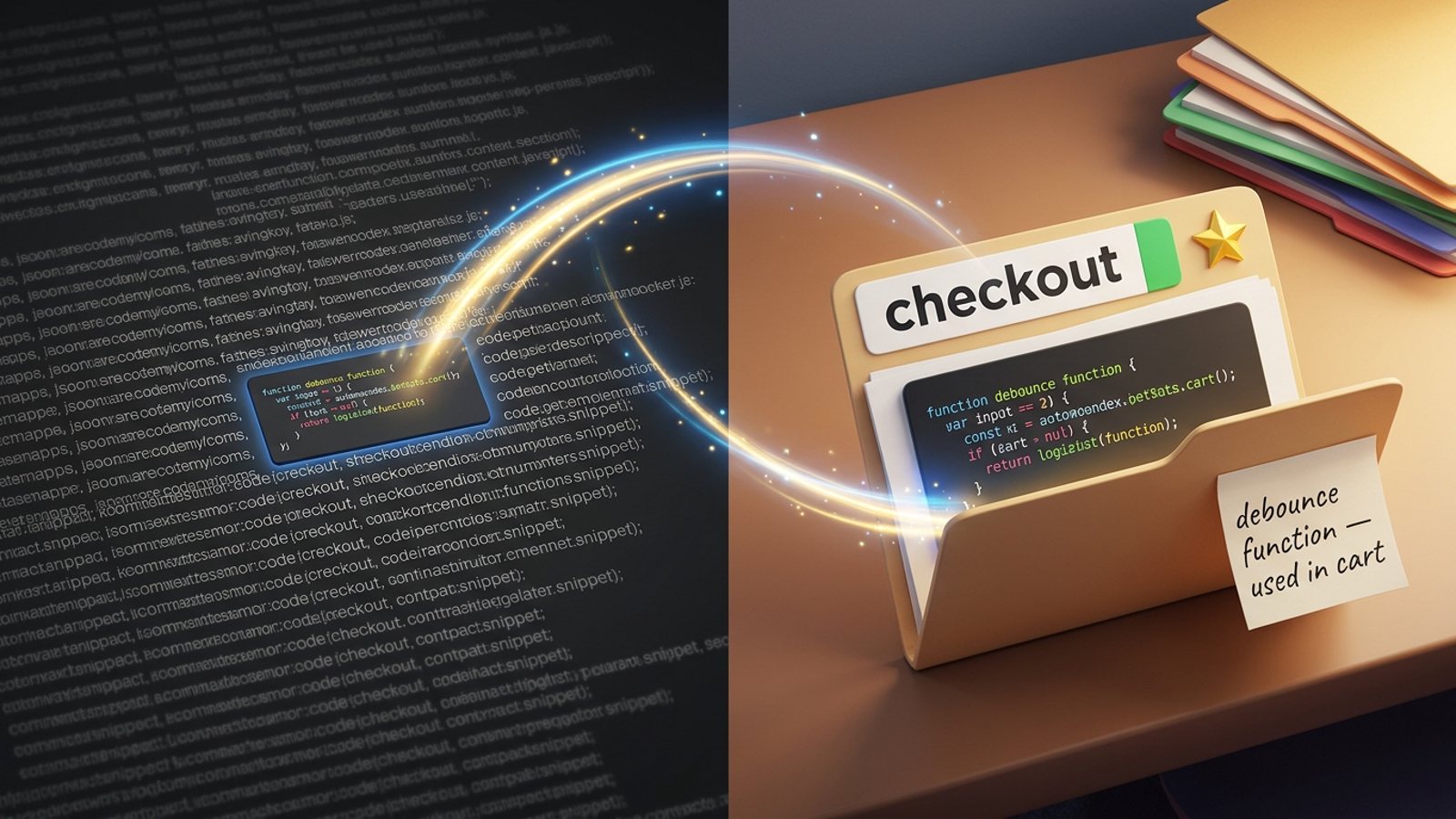
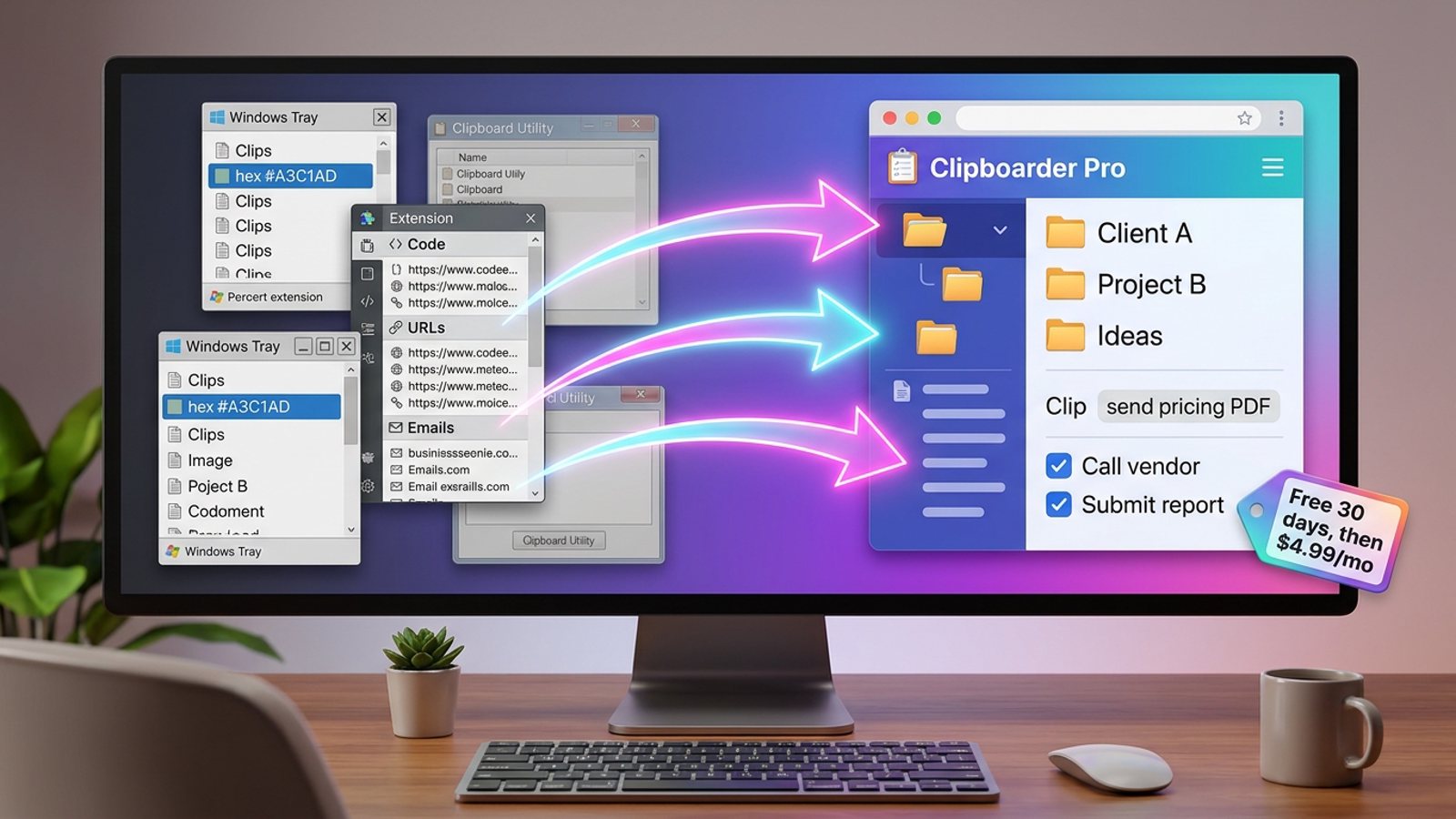
Our pick. Clipboarder Pro is a Chrome clipboard manager that automatically saves everything you copy — text, images, URLs and code — and organizes it into folders, notes and to-do lists. For a developer juggling snippets, that means no more pasting into a scratch file just to keep something.
What makes it useful for code specifically:
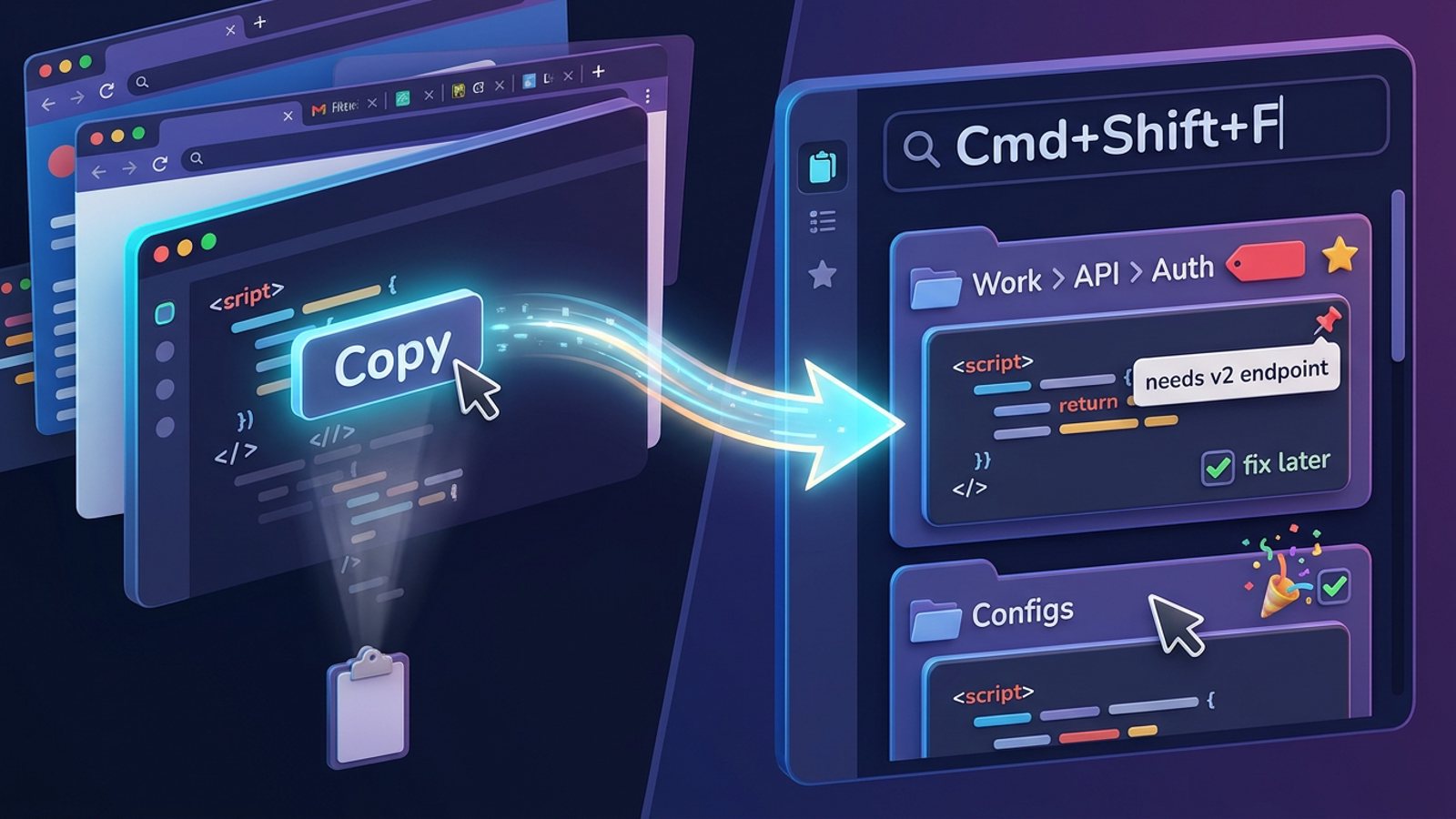
- Nested folders up to 3 levels deep, with drag and drop — e.g.
Work > API > Authfor token-refresh snippets. - Color tags and stars to mark the snippets you reach for daily.
- Multi-select copy of 5, 10 or 20 items in one shot — handy when you're assembling a config file from several saved pieces.
- In-line notes next to the clip that inspired them, so you can jot "this one needs the v2 endpoint".
- Search across every clip, note and folder with Cmd+Shift+F.
- To-do lists with check-offs, so a "fix this later" task sits next to the snippet it belongs to.
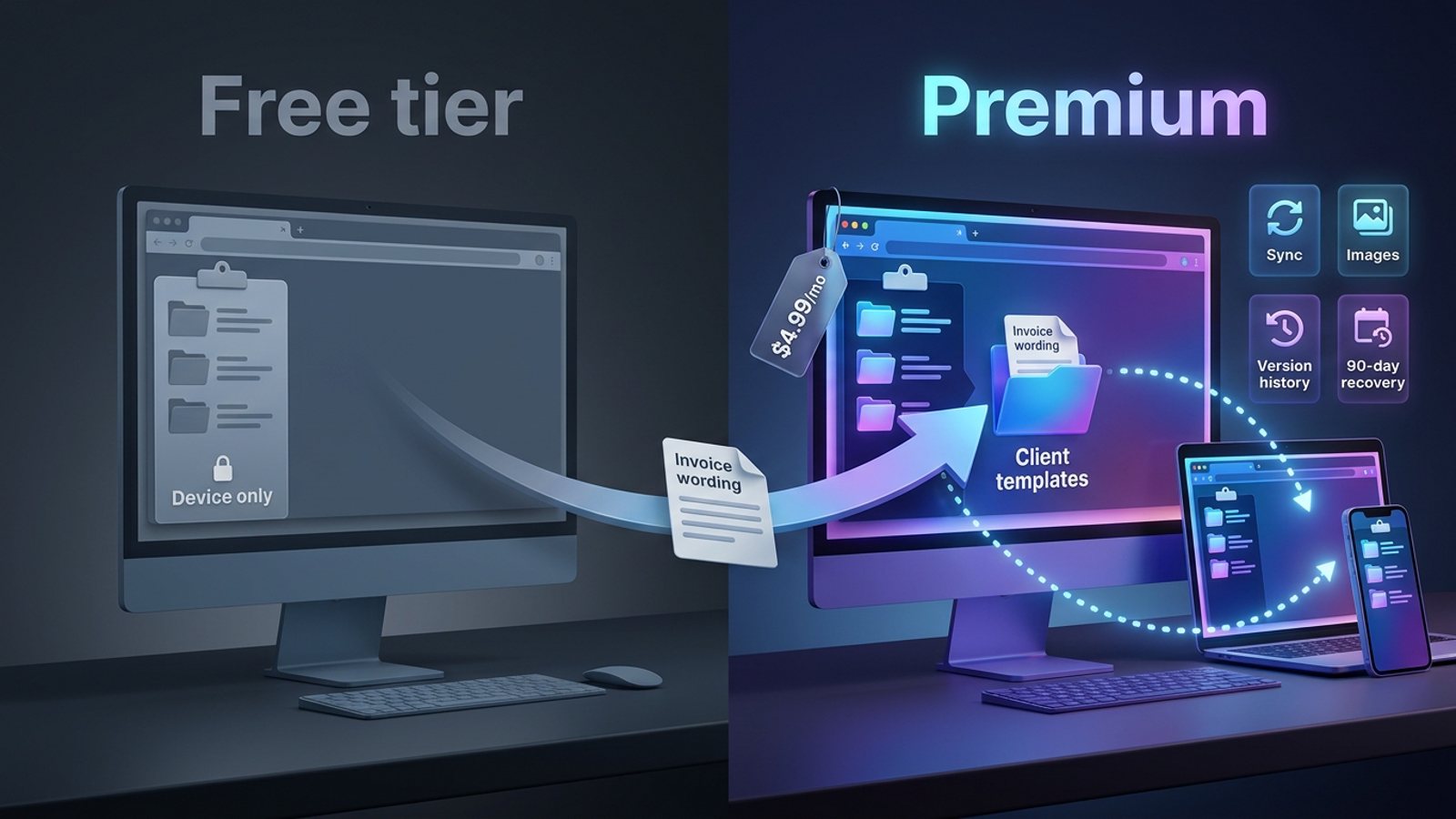
Everything is stored in your browser on your machine — zero servers, zero tracking. The honest limits: it's Chrome-only, and because storage is local there's no server backup. It's free for 30 days; after that it's $4.99 per month as of November 2026, and prices can change.
Tip
Our recommendation: star the five snippets you paste most (auth headers, logging setup, test boilerplate) and color-tag them red. Everything else can live in folders you search only when needed.
2. CopyQ — best free cross-platform option with scripting
CopyQ is described by its own docs as an "advanced clipboard manager with editing and scripting features" that monitors the system clipboard and saves content into customizable tabs (Ubuntu Manpage, CopyQ 6.0.1-1). It stores text, HTML, images and custom formats, and supports tags, notes, custom commands, a CLI and plugins (MEFMobile, 2026; TechSpot, 2026).
It's free and open source under GPL-3.0, and runs on Linux, Windows and macOS 13+ (MEFMobile, 2026). The trade-off is complexity: MEFMobile notes it's more configurable but takes longer to understand than Maccy, Ditto or desktop-integrated managers. It's a desktop app, not a browser extension — so it won't organize your snippets inside Chrome's workflow the way an extension does.
If you mainly need one scripting-heavy tool across three operating systems, CopyQ is the more direct choice.
3. Ditto — best for Windows-only, long-lived history
Ditto extends the standard Windows clipboard: it saves each item placed on the clipboard — text, images, HTML, custom formats — in a database for later retrieval (GitHub sabrogden/Ditto README, 2020). It's free, open source (GPL-3.0), with no subscription or license tiers, and ships as installer, portable, Chocolatey, WinGet and Windows Store builds.
Help Desk Geek (November 2026) lists its latest stable release as 3.25.113 (September 2025) and notes the project was still receiving code changes in October 2026. Watch-outs: it's Windows-only, its interface feels dated next to Windows 11's own panel, and its optional network sync isn't encrypted cloud sync and needs advanced setup. Default hotkey is Ctrl plus the backquote key; select an entry and press Enter to paste (MEFMobile, 2026).
4. Maccy — best keyboard-first option on macOS
Maccy is a lightweight macOS clipboard manager that keeps your copy history and lets you navigate, search and reuse it (GitHub p0deje/Maccy README 2.7.1). Open it with ⇧⌘C, type to filter, paste the entry you want. It's free, open source (MIT per a third-party table) and native, with no monthly fees (MEFMobile, 2026; maccy.at, 2025).
It positions itself as doing "exactly one job" — no dashboards, no AI assistants (maccy.at, 2025). Minimum macOS version differs between README versions (Sonoma 14+ vs Mojave 10.14+), so check the official release page before installing. The official README also warns that maccyapp.net and maccyapp.com distribute malware and that maccy.app is the only official site.
If you mainly need a fast, minimal Mac snippet history, Maccy is the more direct choice.
5. Windows clipboard history (Win+V) — best zero-install option
Windows 10 and 11 include a clipboard history opened with Win+V. It's free and needs no install, and it supports images and files (Clipboard History GitHub wiki, 2026). A third-party comparison puts its cache at roughly 25 items.
The limits are real: MakeUseOf (November 2025) notes Windows' own clipboard offers no meaningful organization or search and remembers just a handful of recent items. The cache lives at %LocalAppData%\Microsoft\Windows\Clipboard (Ultimate Systems Blog, 2025). For a quick "what did I just copy", it's fine. For a library of snippets, it isn't.
How do the top 5 clipboard managers for code snippets compare?
Here's the shortlist side by side. Clipboarder Pro is made by the team behind this blog, so treat its placement with that in mind.
| Option | Best for | Key features | Price / free option | Watch-outs |
|---|---|---|---|---|
| Clipboarder Pro (Our pick) | Chrome-based developers | Auto-capture, 3-level folders, tags, stars, multi-copy | Free 30 days, then $4.99/mo | Chrome-only; no server backup |
| CopyQ | Cross-platform power users | Tabs, tags, scripting, CLI, plugins | Free, open source (GPL-3.0) | Steeper learning curve; desktop app |
| Ditto | Windows-only long history | Database of clips, search, portable build | Free, open source (GPL-3.0) | Windows-only; dated interface |
| Maccy | macOS keyboard-first users | ⇧⌘C search, native, minimal | Free, open source | macOS-only; deliberately minimal |
| Win+V | No-install quick history | Small cache, images and files | Free, built in | No real search or organization |
For the Chrome-side workflow, install the ultimate Chrome extension today and let it capture snippets as you copy them.
Are these clipboard managers really free?
Most of them, yes. CopyQ, Ditto, Maccy and Win+V are all free — CopyQ and Ditto under GPL-3.0, Maccy under MIT per a third-party table, and Win+V built into Windows. Clipboarder Pro is free for 30 days, then $4.99 per month as of November 2026 (prices can change).
Watch out
"Free" doesn't mean "no cost to you". Clipboard history is unusually sensitive — it can hold passwords, auth codes, API keys and payment details (MEFMobile, 2026). Configure exclusions before enabling sync or unlimited retention.
Do cloud-syncing clipboard tools expose my code and secrets?
They can. Cloud clipboard managers ship every copied password, card number and code snippet to a third-party server, while local-first tools avoid that pipeline (unstore.io, June 2026). One security researcher's investigation found 287 Chrome extensions with 37.4 million installs connecting to more than 30 third-party companies (Panda Security, February 2026).
Most Chrome clipboard extensions keep storage local only, with no sync (ClipNext Chrome Web Store listing, updated May 2026). Clipboarder Pro follows the local model: everything stays in your browser on your machine, with zero servers and zero tracking — which also means no server backup if your browser data is cleared.
Tip
Our recommendation: before installing any clipboard extension, open its Chrome Web Store listing and read the "Privacy practices" section. If it discloses handling of authentication information or website content, decide deliberately whether that's acceptable for your work.
Can a clipboard manager keep code formatting?
Partly. CopyQ stores HTML and custom clipboard formats (TechSpot, 2026), which helps preserve structure. Some Chrome tools go further: Copiee auto-detects programming languages in copied code and applies syntax highlighting for 15+ languages, with search, favorites and optional cloud sync (Chrome Web Store, updated January 2026). Its listing discloses it handles personally identifiable information, authentication information and website content — worth knowing before you paste in a key.
Clipboarder Pro saves copied code as clips you can tag, folder and annotate; it doesn't claim syntax highlighting.
Which clipboard manager should you pick?
Match the tool to where you actually work:
- You code in Chrome all day → Clipboarder Pro, for folders, tags and notes right where you copy.
- You switch between Windows, macOS and Linux → CopyQ.
- You're Windows-only and want a deep archive → Ditto.
- You're on a Mac and want speed → Maccy.
- You just need "what did I copy a minute ago" → Win+V.
If you're weighing a browser extension against a desktop app, our guide to the best Chrome extension to keep a history of copied code walks through that choice, and how to save every code snippet you copy without pasting it somewhere covers the capture habit itself.
The tool you'll actually keep using is the one that sits where you already copy — everything else is a second place to check.
Ready to stop losing snippets between tabs? Install the ultimate Chrome extension today.
Clipboarder Pro is made by the team behind this blog.
Sources
- Clipboard History GitHub README (theluckystrike), 2026-02-16
- Clipboard History GitHub wiki – Alternatives and Comparisons, 2026-02-16
- MakeUseOf, 2025-11-12
- Ubuntu Manpage copyq(1), CopyQ 6.0.1-1
- TechSpot CopyQ listing, 2026-05-31
- MEFMobile "24 Best Free and Open Source Clipboard Managers", 2026-09-22
- GitHub sabrogden/Ditto README, 2020-11-12
- Help Desk Geek, 2026-11-11
- GitHub p0deje/Maccy README 2.7.1
- Maccy — maccy.at, 2025-11-27
- Chrome Web Store Copiee listing, updated 2026-01-06
- Panda Security, 2026-02-26
- unstore.io, 2026-06-15
- Chrome Web Store ClipNext listing, updated 2026-05-26
- SafeClip Chrome Web Store listing
- Ultimate Systems Blog, 2025-08-11
Frequently asked questions
Which clipboard manager is best for saving code snippets?
For developers who work in Chrome, Clipboarder Pro is our pick of the tools we compared: it auto-captures every copy and organizes snippets into 3-level folders with tags, stars and notes. If you need one tool across Windows, macOS and Linux, CopyQ is the more direct choice.
Can I use a Chrome clipboard extension and a desktop manager together?
Yes, technically — they capture at different levels. A Chrome extension saves what you copy in the browser; a desktop manager like Ditto or CopyQ watches the system clipboard. Running both means two places to search, so most developers pick one as their primary library.
Does Win+V sync my clipboard across machines?
The third-party wiki material used here describes only a local cache on the machine, at %LocalAppData%\Microsoft\Windows\Clipboard. It doesn't describe cross-machine sync.
Is it safe to install a clipboard extension?
It depends on the extension. Clipboard history can hold API keys and passwords, and one 2026 investigation found 287 Chrome extensions connecting to third-party companies (Panda Security). Check the privacy practices on each listing, and prefer tools that state plainly where your data is stored.
Do I need a paid tool to save snippets?
No. CopyQ, Ditto, Maccy and Win+V are all free. Clipboarder Pro is free for 30 days, then $4.99 per month as of November 2026 (prices can change) — the paid part buys the Chrome-native folder, note and to-do workflow rather than raw history.