Is there a clipboard history tool that works inside the browser?
Yes — a Chrome extension can save everything you copy, keep it on your own machine, and hand it back through search, folders, stars and notes. Here's how browser-based history compares with Windows
Clipboarder Pro Team
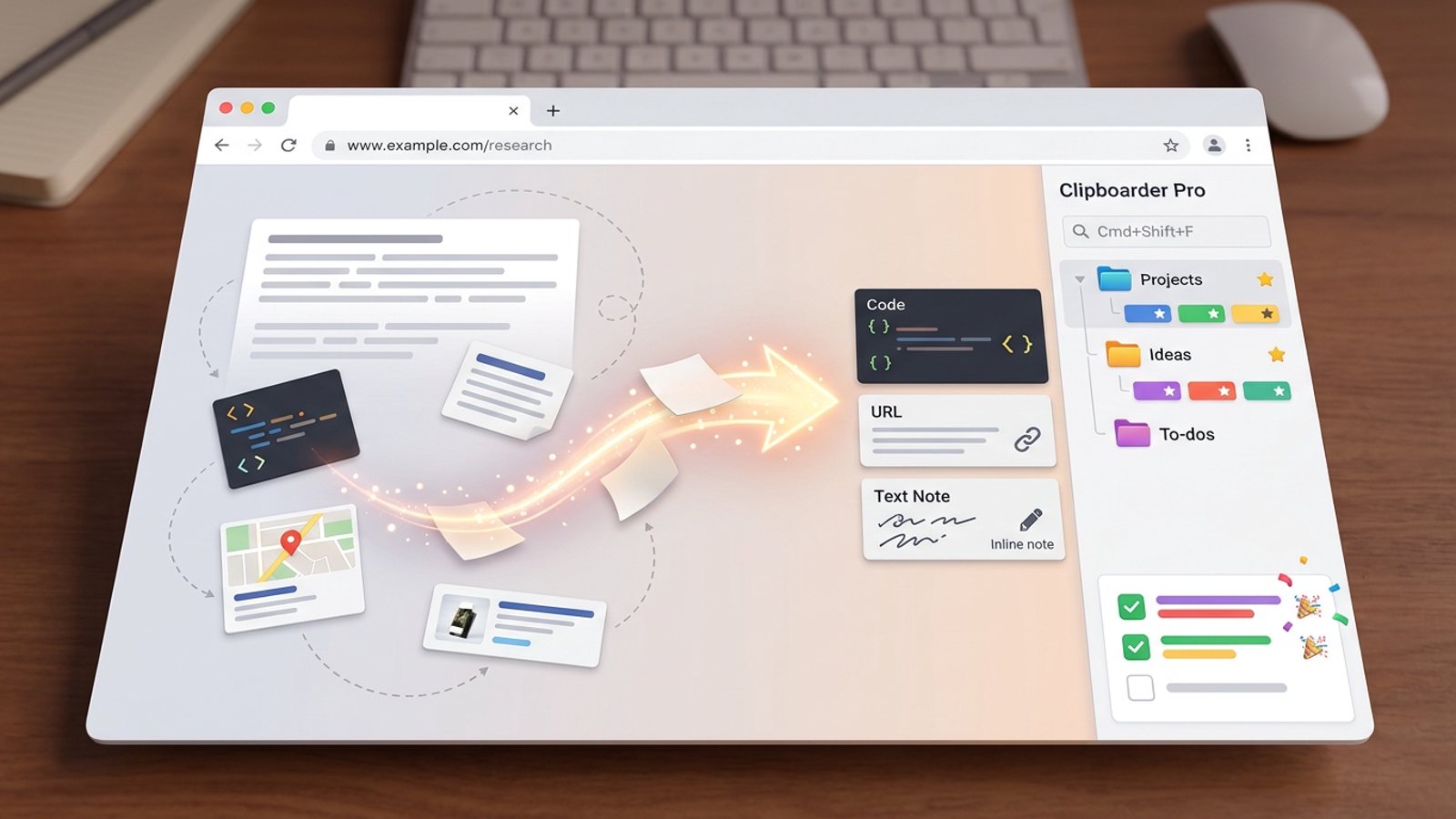
Yes. A clipboard history tool can live right inside Chrome: an extension saves what you copy as you browse, keeps it on your own machine and hands it back through search, folders and stars. That's different from a desktop clipboard app or your OS's built-in history, which sits system-wide and usually skips the notes and folders.
Key takeaways
Key takeaways
- Browser-based clipboard history saves what you copy while you work in Chrome, with no separate app to open.
- Windows 11's built-in history holds up to 25 entries (4 MB each) and macOS only gained a Spotlight history in macOS 26 Tahoe — both are OS-scoped.
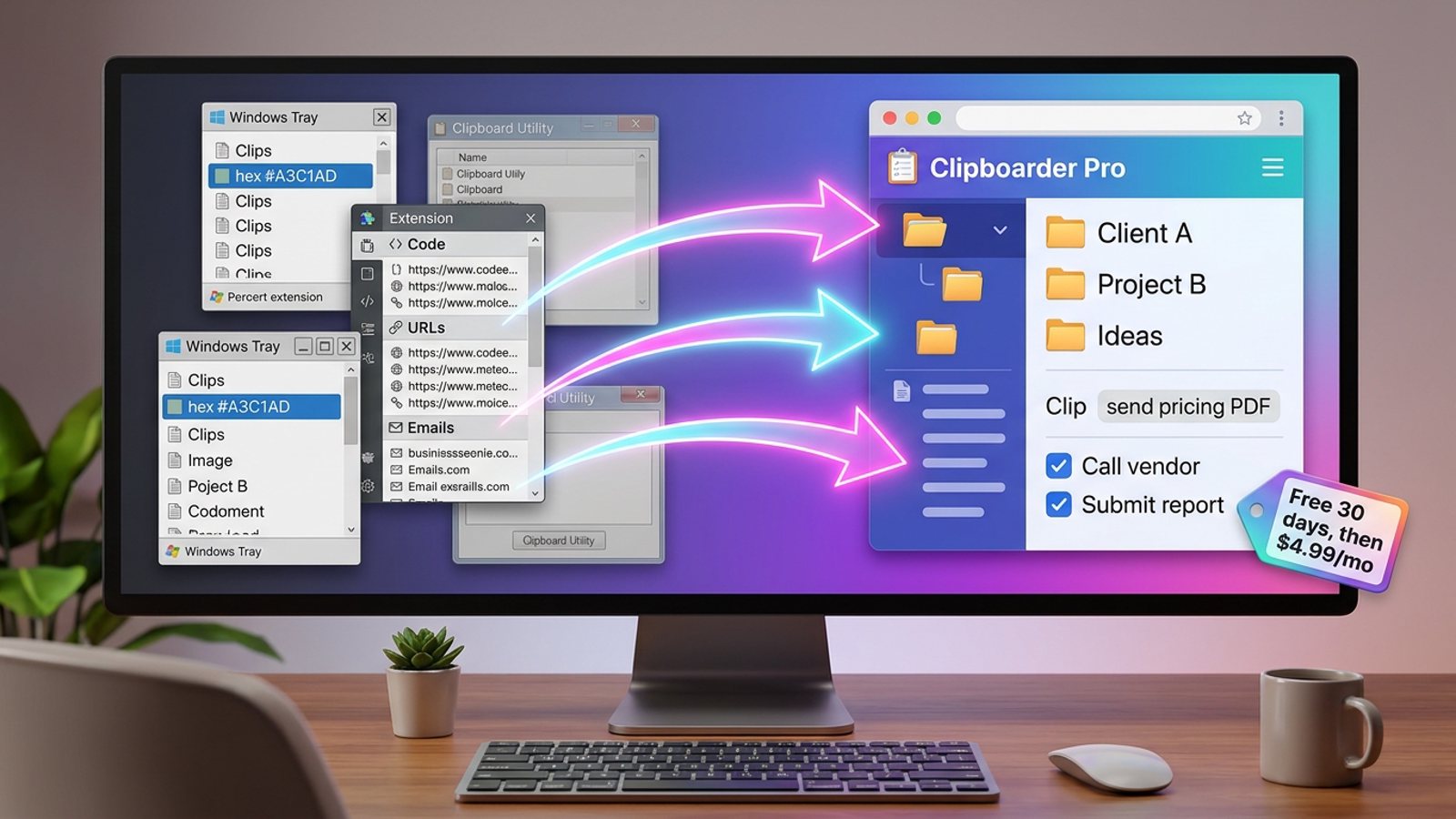
- Desktop managers like Ditto and CopyQ add search and scripting, but they're platform-bound and some store passwords in plain history.
- Clipboarder Pro is a Chrome clipboard manager that keeps clips, folders, stars, notes and to-do lists in one place — Chrome only, stored locally with no servers.
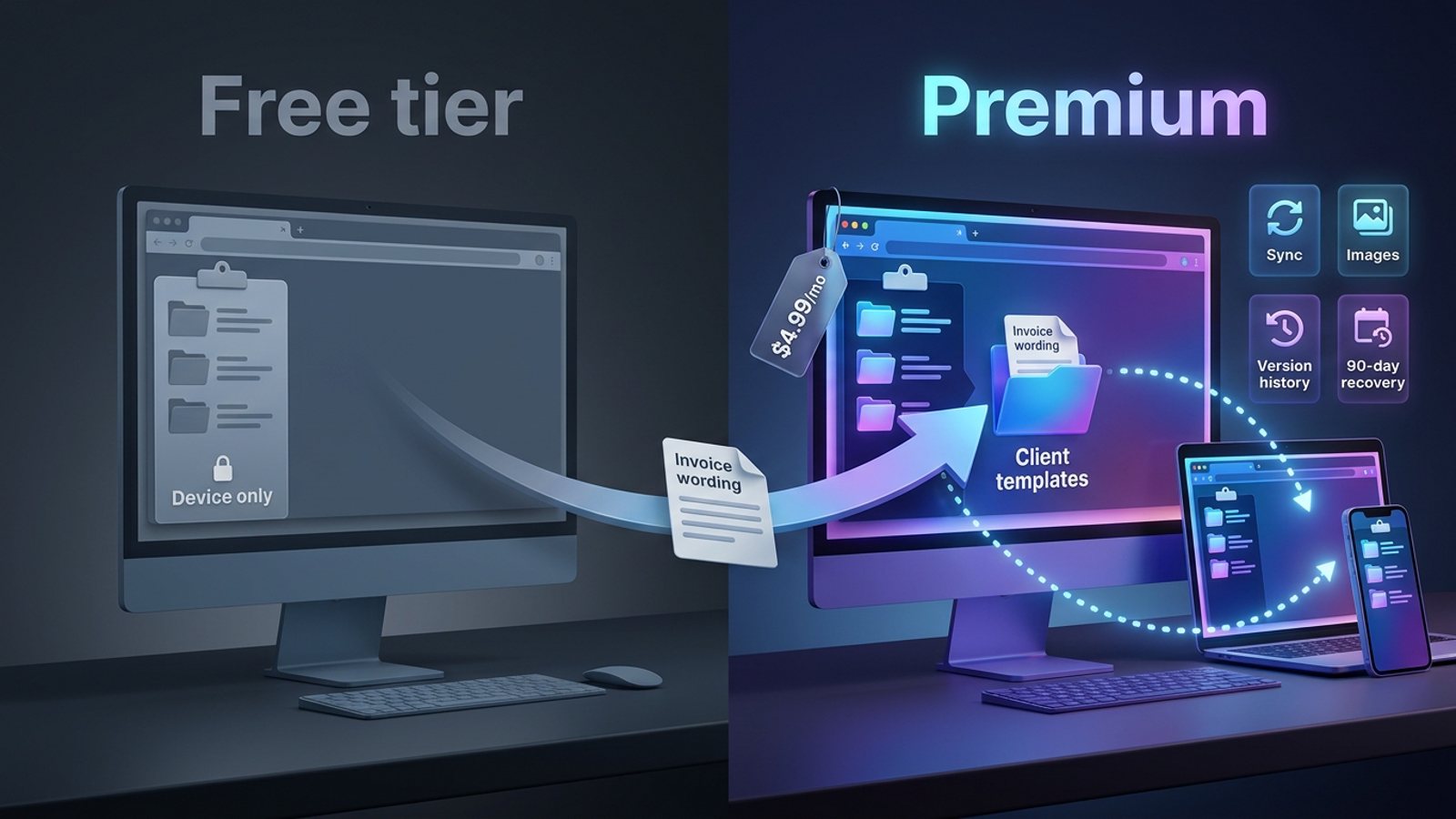
- Free for 30 days; after that it's $4.99/month as of November 2026, and prices can change.
If you've ever copied a link, a code snippet or an address and then watched it vanish the moment you copied something else, you already know why people go looking for a clipboard history tool browser users can rely on. The good news: the history can live exactly where you're already working.
Install the ultimate Chrome extension today and stop losing what you copy.
What does a browser-based clipboard history tool actually do?
It captures everything you copy while you browse and keeps it in a searchable list inside Chrome. You install the extension, keep copying as normal, and every clip — text, images, URLs and code — lands in your history automatically.
From there you can search it, star the items you use most, drop clips into nested folders, colour-code them by project or urgency, and write a note right next to the clip that sparked an idea. Some tools, Clipboarder Pro included, also let you build to-do lists in the same place.
The trade-off is scope. A browser extension sees the system clipboard, so items you copy in other apps still show up — but it can't tell which app they came from, as a developer of one such extension explained in a Hacker News thread. Desktop tools can filter by application; browser tools can't.
Good to know
Chrome extensions that read and write the clipboard must declare the clipboardRead and clipboardWrite permissions, and Chrome shows a warning like "Read data you copy and paste." That warning is normal for any clipboard tool.
How does browser clipboard history compare with built-in OS history?
Built-in OS history is free and always there, but it's tied to one operating system and usually shallow. Here's where each one stands as of November 2026.
Windows Clipboard History
Press Windows+V and Windows 11 opens its clipboard history. It's not on by default — you enable it via Settings > System > Clipboard or the "Turn on" prompt. It keeps up to 25 entries at 4 MB each, in text, HTML and bitmap formats, and older unpinned items are removed automatically (MEFMobile, 2026-10-03). Cross-device sync needs a Microsoft or work account signed in on each device.
The limits are real: it's Windows 10 and 11 only, capped at 25 entries, and admins can switch it off entirely with the AllowClipboardHistory policy (Microsoft Learn, 2026-06-21). A third-party comparison table also lists it as lacking searchable full-text history (GitHub, 2026-02-16).
macOS built-in clipboard
Before macOS 26 Tahoe, macOS stored exactly one clipboard item at a time — copy something new and the old one was gone for good (TypeFire, 2026-08-10). From macOS 26 Tahoe, Apple added clipboard history to Spotlight, configured under System Settings > Spotlight, with retention options of 30 minutes, 8 hours or 7 days (notchstar.com, 2026-11-03). One report says Spotlight can show what you copied over the past 30 days (Yahoo Tech, 2025-11-13). Either way, it's macOS only.
Tip
Our recommendation: whichever history you use, set a retention window you're comfortable with and clear anything sensitive — passwords, card numbers, one-time codes — before it lingers.
Which clipboard tools should you compare?
Five options come up most often for this job. Here's how they stack up — Clipboarder Pro first, because it's our pick of the tools we compared.
| Option | Best for | Key features | Price / free option | Watch-outs |
|---|---|---|---|---|
| Clipboarder Pro (Our pick) | Chrome users who want clips, notes and tasks together | Auto-save, nested folders, stars, colour tags, in-line notes, to-dos, multi-copy | Free for 30 days, then $4.99/month | Chrome only; local storage, no servers |
| Windows Clipboard History | Quick recent list on Windows | Win+V, 25 entries, pins, optional sync | Free with Windows 10/11 | Windows only; off by default; no full-text search |
| macOS Spotlight history | Mac users who want zero install | Spotlight results, 30 min–7 day retention | Free with macOS 26 Tahoe+ | macOS only; version-dependent |
| Ditto | Windows users who want unlimited history | Unlimited history, full-text search, pins | Not documented in our sources | Windows only |
| CopyQ | Power users who script their clipboard | Searchable history, editing, scripting | Listed among open-source managers | Stores text/images by default; password risk |
Clipboarder Pro is made by the team behind this blog. It's a Chrome clipboard manager built for people who copy, paste and think for a living: developers, writers, students, designers and business pros. Everything you copy is captured automatically, then organised into nested folders up to three levels deep with drag and drop, colour tags, stars and in-line notes — plus to-do lists with check-offs and a confetti celebration when you finish. You can select multiple clips and copy 5, 10 or 20 at once, and search everything with Cmd+Shift+F. Your data never leaves your machine: zero servers, zero tracking.
The honest limit: it's a Chrome extension only, and everything is stored in your browser on your machine with no servers. If you need system-wide capture across every app with per-app filtering, a desktop tool is the more direct choice.
Install the ultimate Chrome extension today and get your clips, notes and to-dos in one place.
When the alternatives fit better
Windows Clipboard History suits you if you just want a small recent list plus a few pins and don't want to install anything. If you mainly need that, it's the simplest option — no account, no setup beyond one toggle.
macOS Spotlight history is the right call if you're on a Mac and want history without adding software. Before Tahoe, you'll need a third-party tool.
Ditto is a Windows-only manager documented with unlimited history, full-text search and pinned favourites (GitHub, 2026-02-16, a single-developer comparison table — verify against Ditto's own site). If you need unlimited history on Windows, it's the more direct choice.
CopyQ is for people who want to edit and script their clipboard. It offers searchable history and lets you paste old items straight into another app (MEFMobile, 2026-10-03). But its own security docs warn that text and images are stored automatically by default, and passwords from password managers land in unencrypted history if secret handling is set to process all secrets. If you mainly need scripting, CopyQ wins; if you want organisation without configuration, Clipboarder Pro is simpler.
How do you set up clipboard history in the browser?
Five steps, and you're done.
- Install the extension and accept the clipboard read/write permission request — Chrome will show its warning.
- Keep copying as you normally do. Everything lands in your history automatically.
- Organise as you go. Drag items into nested folders, add colour tags or stars.
- Search instead of digging. In Clipboarder Pro, Cmd+Shift+F searches every clip, note and folder.
- Check off to-dos and archive what you don't need today. Clipboarder Pro keeps archived items with an automatic retention window of 1–365 days.
Watch out
Some extensions make automatic capture opt-in. Pastree, for example, ships with it off and needs all-site access to switch on (Firefox Add-ons, 2026-09-25). If your history looks empty after install, check the settings first.
Tip
Our recommendation: if you're switching from a desktop tool, run both for a week. You'll quickly see which one you actually reach for.
Is a browser clipboard history safe for passwords and card numbers?
Treat any clipboard history as a place sensitive data can end up. History can capture passwords pasted from a password manager, card numbers, one-time codes and private messages (uzbkx.github.io, 2026-07-27). Pastree's own policy admits its default "Exclude passwords" filter "can miss others," and that it adds no encryption of its own — "anyone who can use your browser profile can see it" (Firefox Add-ons, 2026-09-25).
Clipboarder Pro stores everything in your browser on your machine with no servers, so nothing is uploaded. Still, review your history now and then and clear what you don't want stored. This is general guidance, not legal or security advice, and rules and risks vary by workplace and by place.
If you regularly hunt for something you copied hours ago, our guide to searching old copied text walks through the technique. Developers juggling snippets may prefer our round-up of the best clipboard tool for people who copy a lot of text.
The history you never have to rebuild is the one that lives where you already work.
Clipboarder Pro is made by the team behind this blog.
Sources
- Windows 11 Clipboard History vs. Third-Party Clipboard Managers (MEFMobile, 2026-10-03)
- 24 Best Free and Open Source Clipboard Managers in 2026 (MEFMobile, 2026-09-22)
- Policy CSP – Experience / AllowClipboardHistory (Microsoft Learn, 2026-06-21)
- How to See Clipboard History on Mac (TypeFire, 2026-08-10)
- How to see your clipboard history on a Mac (notchstar.com, 2026-11-03)
- You Can Finally See Your Mac's Clipboard History in Spotlight (Yahoo Tech, 2025-11-13)
- Clipboard History — Comparison with Alternatives (GitHub, theluckystrike, 2026-02-16)
- Show HN: clipboard history Chrome extension — discussion (Hacker News mirror, undated)
- Chrome Extensions Permissions list (Chrome for Developers, undated)
- Privacy policy for Pastree (Firefox Add-ons, 2026-09-25)
- Clipboard History extension privacy policy (uzbkx.github.io, 2026-07-27)
Frequently asked questions
Does Chrome have a built-in clipboard history?
Our sources don't document a native Chrome clipboard history, so the practical route is an extension. Chrome does require clipboard extensions to declare read/write permissions and shows you a warning when they do.
Can a browser extension see what I copy in other apps?
Yes. The system clipboard is shared, so items copied in a code editor or elsewhere appear in the extension's history. It can't tell which app they came from, so it can't filter by application the way a desktop tool can.
How many items does Windows Clipboard History keep?
Up to 25 entries at 4 MB each, in text, HTML and bitmap formats, with pinned items exempt from automatic cleanup (MEFMobile, 2026-10-03). It's off by default until you enable it.
Can I get clipboard history on a Mac without installing anything?
On macOS 26 Tahoe and later, yes — Spotlight shows recent copies with retention of 30 minutes, 8 hours or 7 days (notchstar.com, 2026-11-03). On earlier versions, the clipboard holds one item at a time.
Which clipboard history tool should I use?
If you work in Chrome and want clips, folders, notes and to-dos together, Clipboarder Pro is our pick of the tools we compared — free for 30 days, then $4.99/month as of November 2026, and prices can change. If you need system-wide capture with per-app filtering, a desktop manager like Ditto or CopyQ is the more direct choice.