What is the best clipboard tool for developers who copy a lot of text?
The best clipboard tool for heavy copiers is the one that finds old clips fastest. For Chrome-heavy work, Clipboarder Pro's Cmd+Shift+F search and starred clips win; outside the browser, built-ins
Clipboarder Pro Team
If most of your copying happens in Chrome, the best clipboard tool for heavy copiers is a browser clipboard manager that saves every clip and lets you search it — Clipboarder Pro is our pick of the tools we compared, because Cmd+Shift+F finds any past clip. Outside the browser, Windows clipboard history or Ditto, and macOS Tahoe's Spotlight history or Raycast, are the honest starting points.
Key takeaways
Key takeaways
- The best tool is the one with the fewest clicks between "I copied that an hour ago" and the clip itself.
- Built-ins are free but capped: Windows clipboard history keeps the last 25 items, and macOS only gained clipboard history in Tahoe (version 26).
- Clipboarder Pro is our pick of the tools we compared for Chrome-heavy work: automatic capture, Cmd+Shift+F search, starred clips and nested folders, stored on your machine.
- Free for 30 days, then $4.99 per month as of November 2026 — prices can change.
- Turn on password-manager exclusions and a retention window before you trust any tool with your daily copying.
Why does my clipboard only hold one item?
Because that is the default on most systems: macOS keeps only the most recent copied item unless you are on macOS Tahoe or install a tool, according to MacObserver (2025).
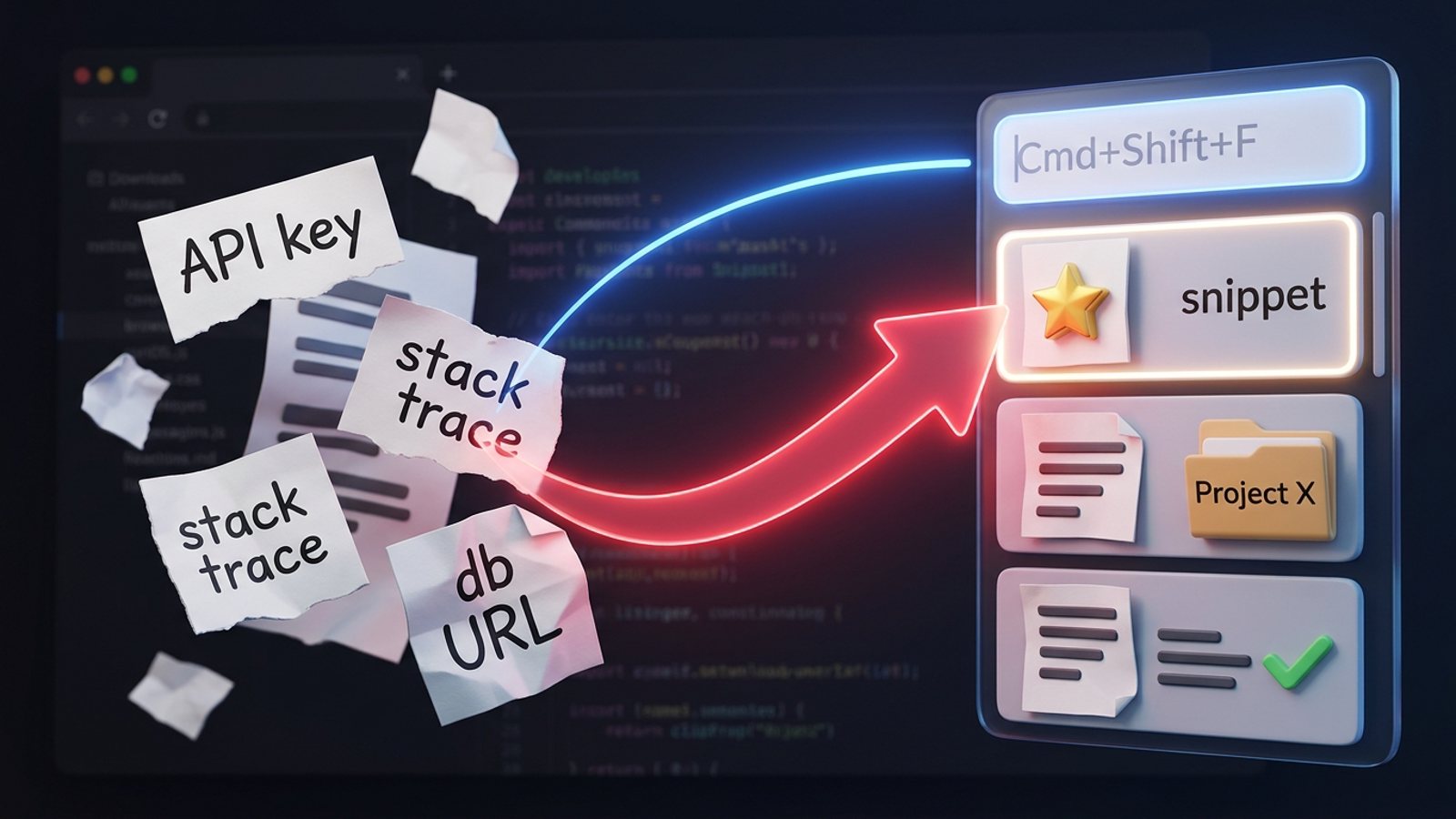
That single-slot behaviour is the problem you already know. You copy a database URL, then a stack trace, then an API key, and the URL is gone. You go back to the tab and copy it again. Multiply that by twenty times a day.
The fix is a clipboard history for Chrome or for your operating system — something that keeps a list instead of a slot. Everything below is a version of that idea, at different levels of power.
A clipboard tool only pays off if finding an old clip takes less time than re-copying it.
What should a developer look for in a clipboard tool?
Four things, in this order: search, recovery, organisation and where your data lives.
- Search. If you cannot type three words and land on the clip, the archive is just a longer list to scroll.
- Recovery. How far back does it go, and what happens when it fills up?
- Organisation. Folders, stars or tags — anything that separates "the snippet I paste fifty times a day" from "the URL I copied once".
- Storage. Local or synced, and whether it captures things you never wanted saved.
A developer-focused roundup from 2026 advises avoiding any manager that records copies from password managers or syncs clips through a cloud you don't control. Sound advice regardless of which tool you pick.
Watch out
Clipboard history tools become another place where customer details, tokens and private keys linger. StackBriefly (2026) flags exactly this — set exclusions and a retention period before you copy anything sensitive.
Which clipboard tool is best for developers? The options compared
Clipboarder Pro comes first because this blog makes it — and because for Chrome-based work it covers the search-and-recovery job in one extension.
| Option | Best for | Key features | Price / free option | Watch-outs |
|---|---|---|---|---|
| Clipboarder Pro (Our pick) | Chrome-heavy copying | Auto-capture, Cmd+Shift+F search, stars, folders | Free 30 days, then $4.99/month | Chrome only; local storage only |
| Windows clipboard history | Quick undo of recent copies | Win+V, last 25 items | Free, built in | 25-item cap, no folders |
| Ditto | Windows power users | Keeps everything, hotkeys, network sync | Free | Windows only |
| macOS Tahoe Spotlight | Mac users, zero install | Clipboard history in Spotlight | Free with macOS 26 | Short retention |
| CopyQ | Cross-platform power users | Tabs, tags, scripting, plugins | Free, open source | Steeper setup |
Clipboarder Pro — our pick for Chrome work
If your day is tabs, docs, pull requests and a terminal in the next window, this is the shortest path from "I copied it" to "I found it".
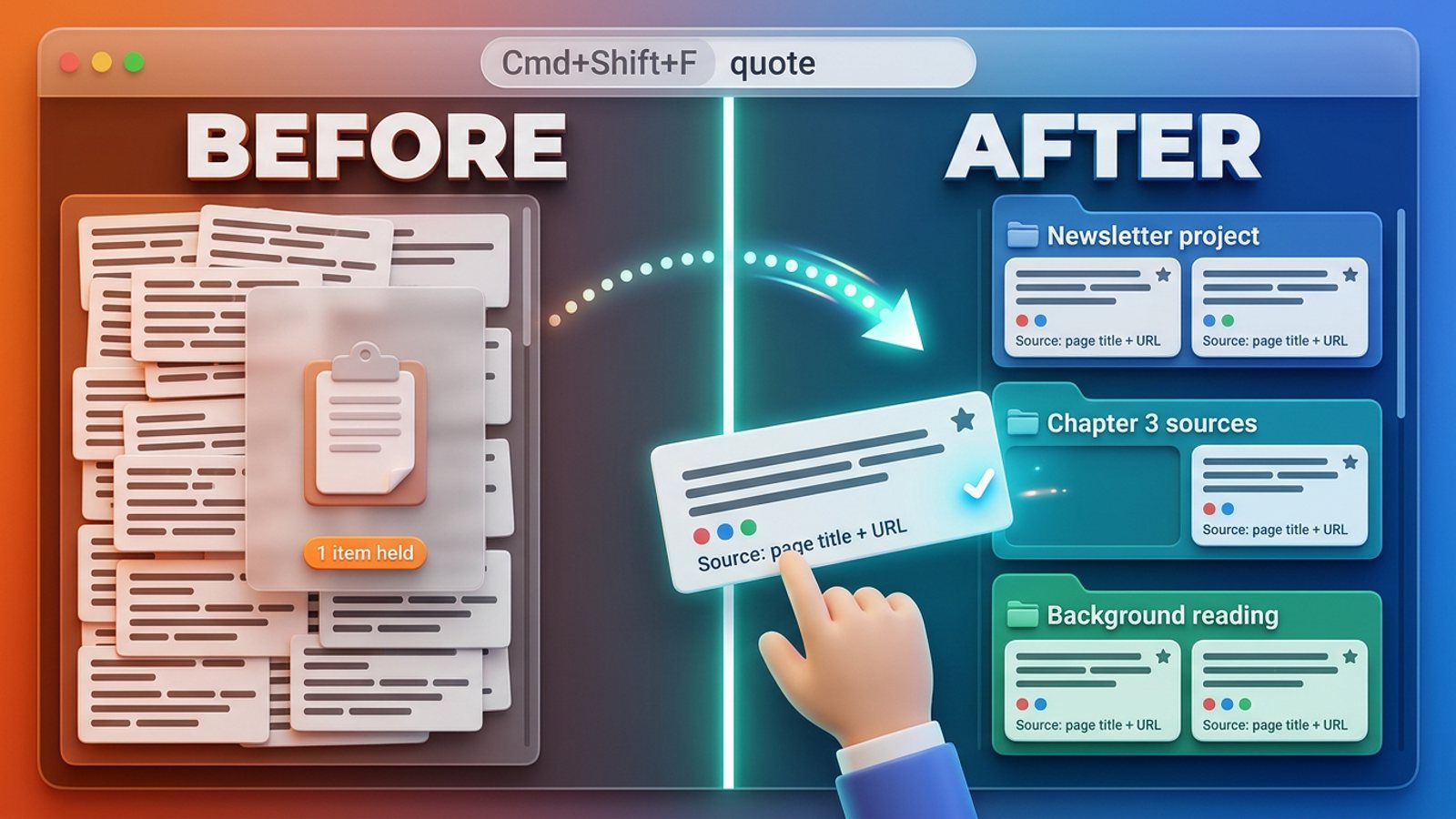
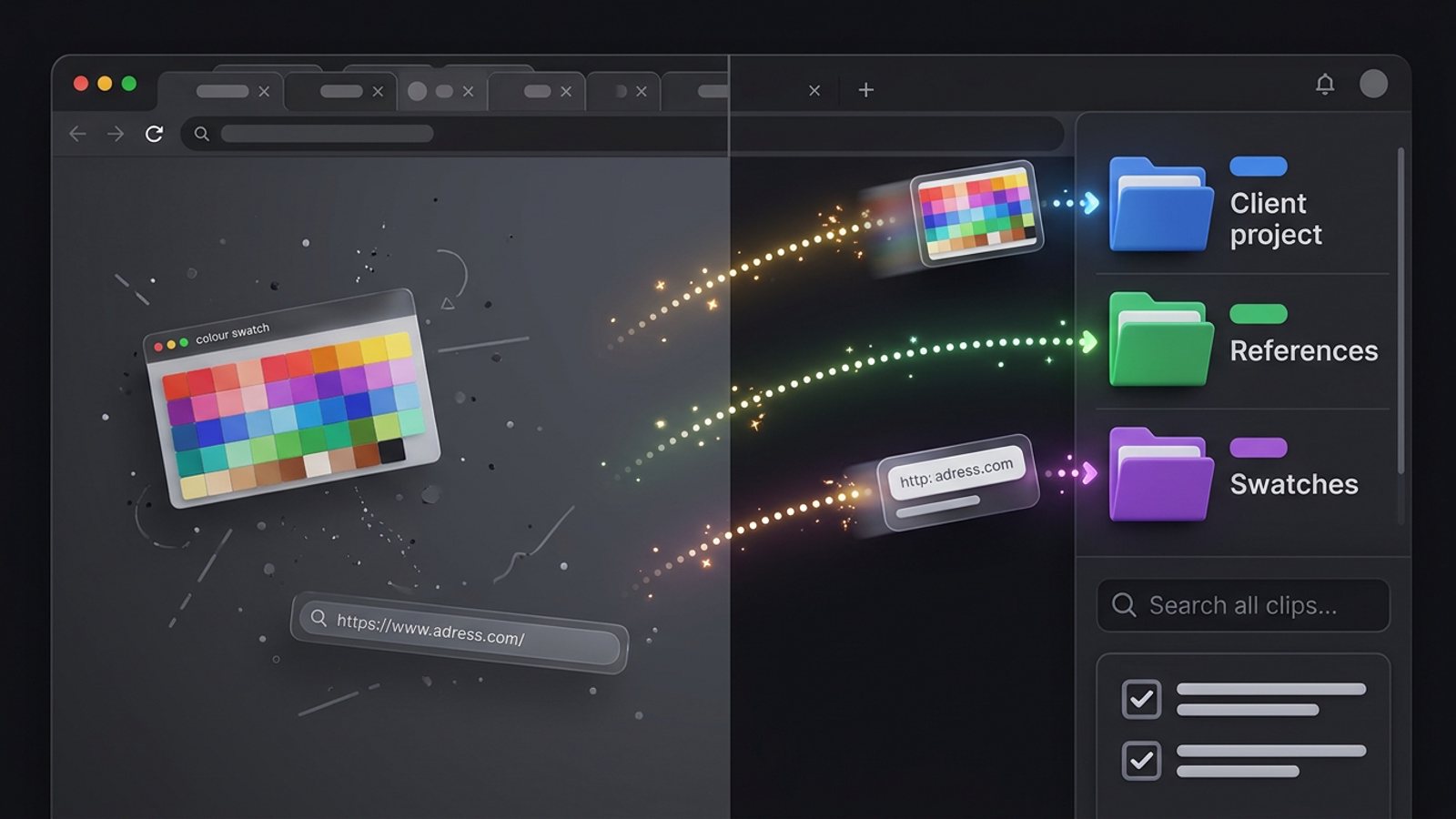
It saves copied text, images, URLs and code automatically as you work — no extra step, no "save this one" button. Search across every clip, note and folder with Cmd+Shift+F. Star the snippets you paste all day for one-click access, drag the rest into nested folders up to three levels deep, and colour-code by project or urgency.
Two details that matter for heavy copiers: you can select multiple clips and copy 5, 10 or 20 items in one shot, and you can archive items without deleting them, with an automatic retention window of 1–365 days. Notes sit in-line next to the clip that inspired them, and to-do lists live in the same place.
Everything is stored in your browser on your machine — zero servers, zero tracking. The honest limits: it is a Chrome extension only, and there is no cloud sync or server backup, so your clips live on that machine.
Pricing: free for 30 days, then $4.99 per month as of November 2026. Prices can change.
Clipboarder Pro is made by the team behind this blog.
Install the ultimate Chrome extension today and stop re-copying the same three snippets.
Windows clipboard history — free and already there
Press Win+V and you get the last 25 copied items, accepting text, HTML and images up to 4 MB, per EaseUS (2025). No install, no setup.
That is enough for "undo my last few copies". It is not an archive: 25 items, no folders, no notes, no long-term history. If you copy all day, you will hit the cap before lunch.
Ditto — the Windows power-user archive
Ditto remembers everything you copy without overwriting previous items, supports hotkeys and quick-paste without opening the full history, and can sync between computers over a network, according to a 2026 roundup relaying MakeUseOf. A Windows-focused roundup from November 2025 names Ditto and CopyQ as the picks for power users who want effectively unlimited archives.
It is Windows-only (MEFMobile, checked October 2026), so a mixed Mac/Windows team needs a second answer for the Mac side. Its pricing page was not part of our material, so we are not quoting a price.
macOS Tahoe Spotlight clipboard history — new, and short
macOS only keeps the most recent item on older versions; there is no native history viewer there at all (MacObserver, 2025). macOS Tahoe (version 26) adds clipboard history inside Spotlight, covering text, links and images (MacObserver, 2025).
How far back it goes is version-dependent and the sources disagree: 9to5Mac (2025) reported the beta went back about eight hours, while IT之家 (2025) reported several days. 9to5Mac's piece also notes third-party tools keep searchable archives of hundreds of clips by comparison.
CopyQ — cross-platform, scriptable
CopyQ runs on Windows, macOS and Linux with tabs, tags, scripting, plugins and encrypted storage (Windows Forum, 2025). It structures clips by tabs, labels and filters, with built-in search and pinning of frequently used fragments, and starts at system boot (КТРК, 2026).
If you want one tool across three operating systems and don't mind configuring it, CopyQ is the more direct choice. If you mainly need zero-setup search inside Chrome, Clipboarder Pro gets you there faster.
What about Alfred and Raycast?
Both had clipboard history before Apple built it into Spotlight (IT之家, 2025). The developer-focused roundup from 2026 suggests Raycast for people who already live in a launcher, and Alfred if you already own the Powerpack — its paid tier. Prices for both were not in our material, so check their sites.
Is Windows+V the same as a clipboard manager?
No. Windows+V is a short recent-items list; a clipboard manager keeps a searchable archive you can organise.
The difference shows up on day two. Win+V answers "what did I copy ten minutes ago". A manager answers "where is that connection string from last Tuesday". Only one of those is a real workflow.
Tip
Our recommendation: test any tool with a recovery drill before you rely on it. Copy three things in a row, then try to find the first one by search. If that takes more than a few seconds, the tool is not saving you time.
Will a clipboard manager capture my passwords and API keys?
It can, which is why exclusions and retention settings matter more than most feature lists.
StackBriefly (2026) points out that clipboard history becomes another place where customer details and sensitive text linger. Some browser clipboard extensions skip capturing text pasted into password, payment-card and one-time-code fields, plus strings that look like private keys, access tokens or API keys — the Pastree privacy policy (updated September 2026) documents that design for that extension.
Our recommendation: check what your chosen tool does with sensitive fields, and set a retention window for anything you haven't starred. In Clipboarder Pro, the archive retention window of 1–365 days is the lever for that.
Is a browser extension enough if I copy mostly in Chrome?
Yes — if Chrome is where the copying happens, a browser-based tool is the shortest route.
Think about a typical hour: you copy a URL from a ticket, a code block from a pull request, a snippet from the docs, a command from a chat thread. All of it starts in the browser. A desktop manager sees the same clipboard, but you pay for it with an install, a separate window and a second search box.
A Chrome clipboard manager keeps that loop inside the tab you are already in. If you want the mechanics of automatic capture, our guide to saving everything you copy in Chrome automatically walks through it.
Good to know
At the time of writing, menus and shortcuts in browser extensions and operating systems change often — if a key combination doesn't work, check the tool's current settings page.
Can I sync clips between two computers?
Sometimes — but check exactly how before you assume it.
Ditto can sync between multiple computers over a network (КТРК, 2026). Clipboarder Pro does not: everything is stored in your browser on your machine, with no servers, so there is no cloud sync or server backup. That is a deliberate trade — your clips never leave the device.
If you work across a laptop and a desktop and need the same snippets everywhere, a syncing tool is the more direct choice, and you accept the cloud that comes with it.
How do I set this up in ten minutes?
Start with the built-in, then add only what the built-in can't do.
- Turn on the built-in first. Win+V on Windows (last 25 items, 4 MB cap); Spotlight clipboard history on macOS 26.
- Add a dedicated tool if the cap bites. Ditto or CopyQ on Windows; Maccy, Raycast or Alfred on Mac.
- Set exclusions and retention. Password-manager exclusions on, retention window for unstarred items.
- If most copying happens in Chrome, add a browser clipboard manager and work from search and starred clips instead of scrolling.
- Run the recovery drill. Copy three things, find the first by search.
Step four is where a Chrome clipboard manager earns its place — start with Clipboarder Pro free for 30 days and see whether search beats scrolling for your own clipboard.
If your problem is specifically code, our post on the best Chrome extension for copied code history goes deeper, and if it's search itself, read about finding old copied text.
Sources
- What Is the Windows + V Equivalent on Mac? (MacObserver, 2025-11-16)
- How to Use Clipboard History on macOS Tahoe (MacObserver, 2025-09-15)
- macOS Tahoe's new Spotlight clipboard manager leaves plenty of room for powerful third-party apps (9to5Mac, 2025-06-17)
- 苹果再陷 Sherlocked 风波 (IT之家, 2025-06-09)
- Como recuperar o histórico excluído da área de transferência no Windows (EaseUS, 2025-05-10)
- Пять менеджеров буфера обмена (КТРК, relaying MakeUseOf, 2026-01-04)
- 24 Best Free and Open Source Clipboard Managers in 2026 — page 2 (MEFMobile, checked 2026-10-14)
- Best Clipboard Managers for Windows 11 in 2026 (Windows Forum, 2025-11-26)
- Best Clipboard Manager for Developers in 2026 (Pelvic Health and Rehabilitation Center blog, 2026-10-17)
- Clipboard Managers in 2026: Ditto vs CopyQ vs Paste vs Maccy vs CopyClip 2 (StackBriefly, 2026-10-19)
- Privacy policy for Pastree (Firefox Add-ons, updated 2026-09-26)
Frequently asked questions
Which clipboard tool is best for a developer who copies all day?
For Chrome-heavy work, Clipboarder Pro is our pick of the tools we compared: automatic capture, Cmd+Shift+F search, stars and nested folders, stored locally. For copying outside the browser, Windows clipboard history or Ditto on Windows, and macOS Tahoe's Spotlight history or Raycast on Mac, are the honest choices.
Does macOS have clipboard history yet?
Only from macOS Tahoe (version 26), which adds clipboard history inside Spotlight covering text, links and images (MacObserver, 2025). Older macOS versions keep just the most recent copied item. Retention is version-dependent — 9to5Mac reported about eight hours in the beta, IT之家 reported several days.
How many items does Windows clipboard history keep?
The last 25 copied items, accepting text, HTML and images up to 4 MB, according to EaseUS (2025). For a longer archive you need a dedicated tool like Ditto or CopyQ.
Is a free tool enough, or should I pay?
Try free first. Windows clipboard history and macOS Spotlight history cost nothing, and Ditto and CopyQ are free. Pay only when the free option's cap or missing search costs you more time than the subscription — Clipboarder Pro is free for 30 days, then $4.99 per month as of November 2026, and prices can change.
Will a clipboard manager slow my machine down?
None of the tools in our material are described as heavy, but a manager that starts at boot and keeps a large archive does use resources — CopyQ, for example, starts at system boot (КТРК, 2026). Our recommendation: start with one tool, not three, and watch how it behaves over a week.