TextSaver vs Context Capture Saver: which is better for designers?
Text Saver reuses text fast; Context Capture Saver keeps structured source captures. For catching every hex code, image URL and client copy automatically, a Chrome clipboard manager with folders fits
Clipboarder Pro Team
If you're choosing between textsaver vs context capture saver, the honest answer is that they fix different halves of a designer's day. Text Saver (the tagged-snippet tool, version 3.0) wins for reusing text fast — hex codes, client copy, boilerplate replies. Context Capture Saver wins for keeping structured, provenance-rich copies of articles, PDFs and YouTube transcripts. Neither is built as a visual clipboard with image thumbnails.
Key takeaways
Key takeaways
- Text Saver is a snippet library with tags and a
//quick-insert box — it does not record everything you copy, and its listing describes text only. - Context Capture Saver clips pages, PDFs and YouTube transcripts into local JSON, Markdown or SQLite with notes and highlights.
- For colour codes, image URLs and client copy in one searchable place, a Chrome clipboard manager with folders and colour tags fits better than either.
- Both tools are tiny: Text Saver showed 30 users and 4 ratings, Context Capture Saver 5 users and no ratings, as of November 2026.
- Your browser's built-in clipboard remembers only the last copy, so any of these three beats manual pasting.
Two small extensions, two very different jobs. Here's how to pick — and where a third option quietly does more of the designer's work.
What does a designer actually need to save all day?
Start with the clipboard work itself, because it decides the answer. A designer's day is a stream of colour codes, logo SVGs, screenshots, exported PNGs, image URLs and client copy. One 2026 write-up on designer clipboard tools (Edge Drop, August 2026) describes that work as visual — swatches, logos, screenshots — and argues the right shape for a designer's tool is one that holds them as visible thumbnails you can drop into Figma or Photoshop.
That framing splits the job in three:
- Reuse text fast — paste the same hex code, brand line or client reply again and again.
- Keep a faithful copy of a source — an article, a PDF brief, a YouTube tutorial transcript, with the URL and date attached.
- Catch everything you copy — including the things you didn't plan to save.
Text Saver is built for the first. Context Capture Saver is built for the second. The third is where both fall short — and where a Chrome clipboard manager earns its place.
Good to know
Chrome's built-in clipboard remembers only the last copy. A searchable history needs an extension — that's stated plainly in a competing extension's Chrome Web Store listing (undated).
What is Text Saver best at for designers?
Text Saver is a snippet library: you save text with a title, content and tags, then pull it back out. The listing (ooak.studio.101, version 3.0, updated 15 March 2026) describes the core loop as saving text, opening a search panel by typing // in any input field, and inserting the chosen snippet.
For a designer, that's a genuinely useful trick. Say you're sending the same brand-guidelines paragraph to a third client this week, or typing the same four hex values into a handoff doc. Save it once, type //, pick it, done.
What else the listing describes:
- Right-click saving of a selected passage, tagged automatically with the URL and date.
- Bookmarks that pin frequent items to the top.
- Relevance-scored search — title prefix first, then contains, then tag, then content.
- A side panel on Alt+L, plus hover previews.
- Export to JSON, Markdown or plain text.
- Optional Google Drive backup to a single
text_saver_backup.jsonfile, run only when you start it. Default storage is local browser storage.
One caution before you install: there are at least three different Chrome extensions called "Text Saver". The tagged-snippet tool described here is the one listed by ooak.studio.101 (ID starting cildcemg). A separate Notepad-style "Text Saver" with password-protected tabs and 2,000 users is a different product. Check the developer name before you click install.
Watch out
Name collisions are common in the Chrome Web Store. Confirm you have the ooak.studio.101 listing — otherwise the workflow below won't match what you see.
What is Context Capture Saver best at for designers?
Context Capture Saver is a source clipper. Its listing (version 1.4.2, updated 9 March 2026) says it saves article-focused page content, PDFs and YouTube transcripts into local JSON, Markdown and/or SQLite "for research and AI workflows where you want structured, provenance-aware data".
"Provenance-aware" is the useful phrase. Each capture keeps where it came from — the page URL, title and timestamp — so a quote in a client deck can be traced back. The privacy policy (GitHub, last updated 21 February 2026) lists exactly what it stores: selected text, page URL and title, timestamp, and any optional notes.
How you capture:
- Right-click, shortcuts, popup or bubble menu — save content, save with note, save with highlight, highlight, highlight with note.
- YouTube transcripts as plain text, timestamped segments, or both.
- PDFs — text plus metadata, though the vendor notes the browser's PDF viewer can affect selection.
- Four storage backends — JSON (default, one file per save), Markdown with YAML frontmatter (the vendor calls it lossy), SQLite as a single graph-ready database, or JSON plus SQLite.
- A local folder you choose — no account, no required remote backend, and open source.
For a designer, this shines on the research side: a competitor teardown article, a 40-page brand PDF, a conference talk on YouTube. Capture it once, keep the structure, feed it to whatever comes next.
It is not, however, a clipboard recorder. The listing describes no continuous capture of what you copy, no colour or hex handling, no image capture and no thumbnail shelf. The clipboard is read only as a fallback when a capture is triggered and the selection can't be read.
Tip
Our recommendation: if you're capturing a source you'll quote later, use "save with note" rather than plain save. The note travels with the URL and date, which is what makes the capture defensible in a client review.
How do the two compare side by side?
Here's the head-to-head on the things a designer actually checks.
| Text Saver | Context Capture Saver | |
|---|---|---|
| Best for | Reusing text fast | Capturing sources |
| Captures | Text snippets, tags | Pages, PDFs, transcripts |
| Images | Not described | Not described |
| Organisation | Tags, bookmarks | Notes, highlights, files |
| Search | Relevance-scored | Not described |
| Export | JSON, Markdown, text | JSON, Markdown, SQLite |
| Storage | Local browser storage | Local folder you pick |
| Price | Free to install | Free, open source |
| Watch-outs | Three tools share the name | All-site host access |
Both listings are undated on the store; the version dates above come from the same pages.
Read the table as a split, not a scoreboard. If the sentence you'd say is "I need that hex code again", Text Saver is the more direct choice. If it's "I need to keep this article exactly as it was, with the source attached", Context Capture Saver is.
Which one handles colour codes and hex values?
Neither listing describes colour or hex handling. Text Saver can store a hex code as a snippet and insert it with //, which is a workable manual system. Context Capture Saver's listing says nothing about colour at all.
Worth knowing: the demand is real enough that dedicated colour tools exist. ColorAlias, a Chrome extension for design tokens, does eyedropper capture, palette storage and export to Figma, Photoshop and ASE (Chrome Web Store, undated). A separate hex-palette app on the Apple App Store exports .ase, JSON, CSS or SwiftUI for Figma, Photoshop and Xcode (13 September 2026). If colour is your main pain, a colour-specific tool plus a clipboard manager may beat either of today's two.
Which one saves images and screenshots?
Neither, according to the listings. Text Saver's listing describes text snippets only. Context Capture Saver's describes page content, PDFs and transcripts — no image capture or thumbnail shelf.
That's the gap the Edge Drop piece points at: designers work visually, and a thumbnail you can drag into Figma is the shape that fits.
Which one keeps everything you copy automatically?
Neither listing describes continuous clipboard capture as a core feature. Text Saver is a library you add to deliberately. Context Capture Saver reads the clipboard only as a capture fallback.
So if the thing you keep losing is the URL you copied two hours ago — not a snippet you meant to save — both tools leave that hole open. That's the third option's territory.
Which is better for designers — and where does a Chrome clipboard manager fit?
For a designer saving colour codes, image URLs and client copy all day, the closest single fit of the three is a Chrome clipboard manager that captures everything automatically and organises it — because that's the half of the job both rivals leave open. Text Saver is better if you mainly need fast text reuse. Context Capture Saver is better if you mainly need structured source capture.
Clipboarder Pro is made by the team behind this blog.
Here's how the three compare, with our product first for the reasons in its own documentation.
| Option | Best for | Key features | Price | Watch-outs |
|---|---|---|---|---|
| Clipboarder Pro (Our pick) | Catching every copy | Auto-saves text, images, URLs, code | Free 30 days, then $4.99/month | Chrome only; local storage |
| Text Saver | Fast text reuse | Tags, // insert, side panel | Free to install | Text only; name clash |
| Context Capture Saver | Source capture | PDFs, transcripts, JSON/SQLite | Free, open source | All-site access; small base |
| Chrome built-in | One-off pastes | Nothing to install | Free | Last copy only |
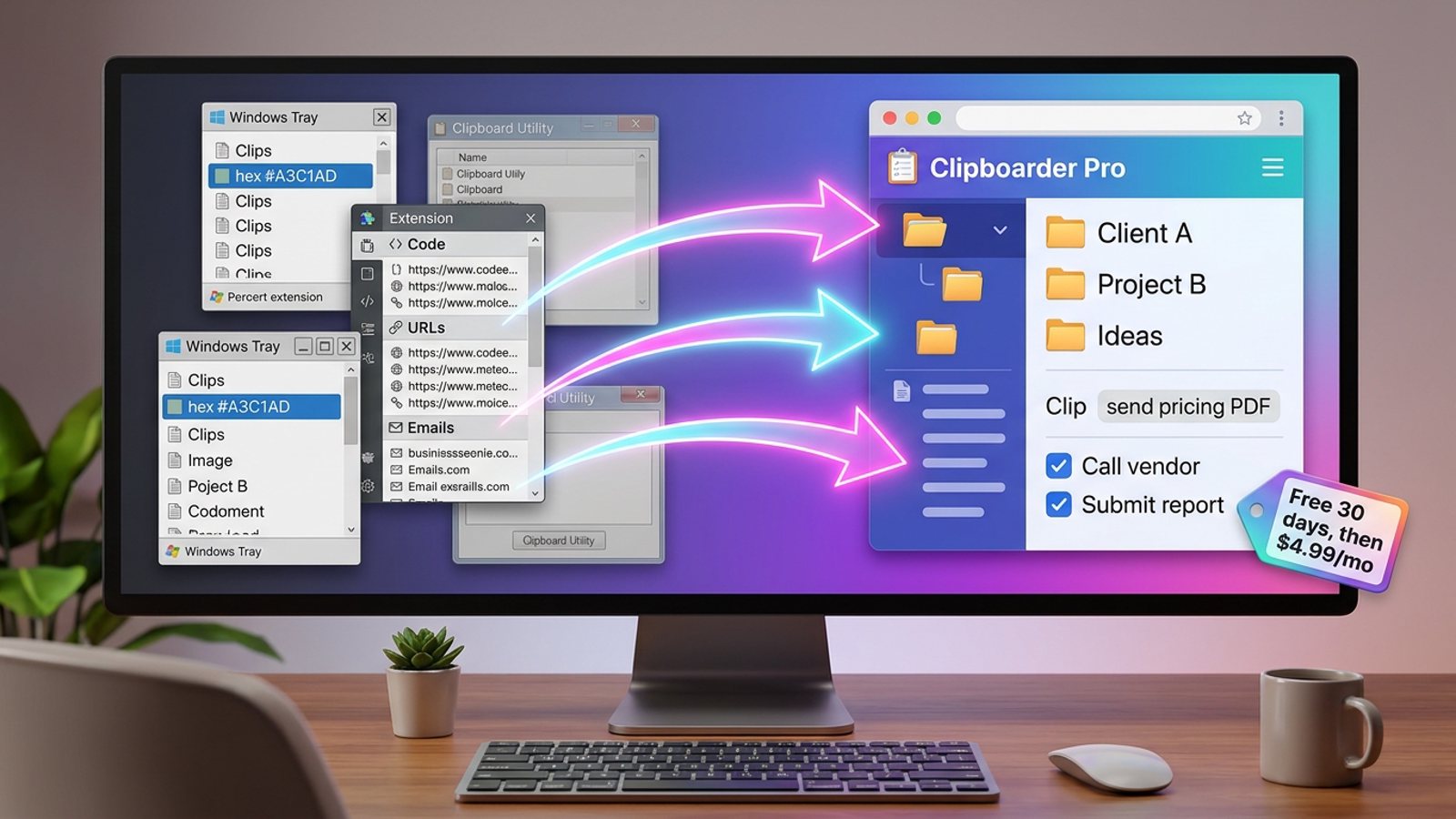
Of the tools we compared, Clipboarder Pro is our pick for the designer's core problem — it automatically saves copied text, images, URLs and code as you work, so the hex code, the image URL and the client paragraph are all caught without you deciding to save them. You organise them into nested folders up to three levels deep with drag and drop, colour-code items by urgency, project or mood, and star the ones you use most for one-click access. Notes sit in-line next to the clip that inspired them, and to-do lists have check-offs, hiding of completed items and a confetti celebration. You can select multiple clips and copy 5, 10 or 20 items in one shot, and archive items with a retention window of 1–365 days. Search across every clip, note and folder runs on Cmd+Shift+F.
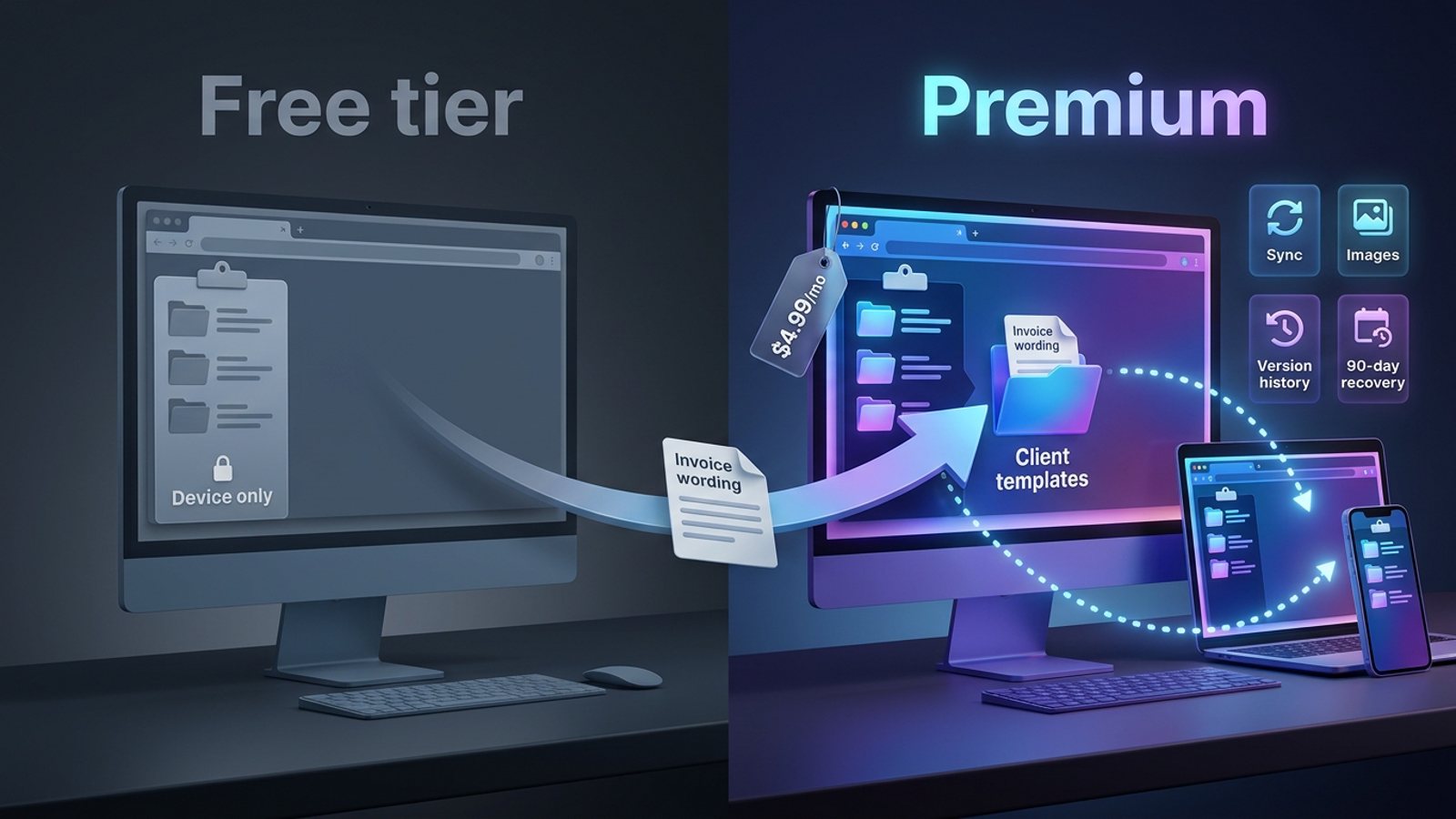
Two honest limits, straight from the product facts: it's a Chrome extension only, and everything is stored in your browser on your machine, with no servers. No cloud sync.
Pricing, as of November 2026: free for 30 days, then $4.99 per month. Prices can change.
If you mainly need to retype the same text faster, Text Saver is the more direct choice. If you mainly need provenance-rich captures of long sources, Context Capture Saver is. If you mainly need to stop losing what you copy, that's the clipboard-manager route.
The tool that wins for a designer is the one that catches the copy you didn't plan to save.
Ready to stop re-finding the same hex code? Install the ultimate Chrome extension today and let a Chrome clipboard manager hold the clips, notes and to-dos in one place.
How do you set up a designer's clipboard workflow in 2026?
Pick by task, then layer. A short decision list beats installing everything and using none of it.
- Decide what you lose most. Old URLs and stray hex codes → clipboard manager. Repeated paragraphs → Text Saver. Long sources → Context Capture Saver.
- Install one, not three. Run it for a week on real work before adding another.
- Set up folders that match your projects. One designer's 2026 LinkedIn post describes organising client work into folders — brief, fonts, logos, exports, source files — specifically to cut time spent searching (Fabian Warislohner, 29 July 2026; one designer's opinion).
- Colour-code by urgency or project so priorities are visible without reading labels.
- Star the five things you paste daily and reach them in one click.
- Archive, don't delete. Old client copy may come back.
If you want the deeper version of step 3, our guide to the best clipboard manager for designers in 2026 walks through folder structures. And if your problem is specifically old links, see how to find a link you copied hours ago in Chrome.
Watch out
A common mistake: treating a snippet library as a clipboard history. If you never saved it deliberately, Text Saver won't have it — and neither will Context Capture Saver.
Sources
- Text Saver — Chrome Web Store (ooak.studio.101, undated; v3.0 updated 2026-03-15)
- Text Saver (Notepad-style, different developer) — Chrome Web Store (undated)
- Context Capture Saver — Chrome Web Store (undated; v1.4.2 updated 2026-03-09)
- Privacy Policy for Context Capture Saver — GitHub (2026-02-21)
- Clipboard History — Chrome Web Store (undated)
- Best Clipboard Manager for Designers in 2026 — Edge Drop (2026-08-11)
- Organize Client Projects — LinkedIn post, Fabian Warislohner (2026-07-29)
- ColorAlias — Design Tokens & Contrast Studio — Chrome Web Store (undated)
- Colour Palette Saver: Hex RGB — Apple App Store (2026-09-13)
Frequently asked questions
Does Text Saver save images or screenshots?
Its Chrome Web Store listing describes text snippets only — no image capture. If you need to keep screenshots and exported PNGs, plan for a different tool.
Can I get my data out of Text Saver?
Yes. Version 3.0 added export to JSON, Markdown and plain text, plus an optional Google Drive backup to a single text_saver_backup.json file that runs only when you start it, per the listing.
Does Context Capture Saver need an account or a cloud service?
No account and no required remote backend. Captures are written to a local folder you choose, the tool is open source, and its privacy policy (GitHub, 21 February 2026) says there's no data collection, no analytics and no profiles.
Can Context Capture Saver grab YouTube transcripts and PDFs?
Yes to both, per its listing. YouTube transcripts come as plain text, timestamped segments or both; PDFs give text plus metadata, with a vendor caveat that the browser's PDF viewer can affect selection.
Which tool should a designer actually install?
If you want one tool that catches everything you copy — text, images, URLs and code — and organises it into folders with colour tags, notes and to-dos, Clipboarder Pro is our pick of the tools we compared. If you mainly need fast text reuse, choose Text Saver; if you mainly need structured source capture, choose Context Capture Saver.