What software saves what I copy so I can find it later?
Clipboard managers save what you copy so you can search it later. Here's what built-in tools keep, what they lose, and which software actually helps you find a link you copied hours ago.
Clipboarder Pro Team
Plenty of software saves what you copy. ChromeOS, Windows 11 and macOS 26 Tahoe all have a small built-in clipboard history, and free tools like Ditto and CopyQ keep far more with search. To find something I copied earlier days later, you want a manager with search, folders and pinning — and none of them can recover anything you copied before you installed them.
Key takeaways
Key takeaways
- Built-in histories are small: ChromeOS keeps five items, Windows caps at 25, and macOS Tahoe shows roughly 10–30 days of copies depending on the source.
- Unpinned items in Windows Clipboard History are lost on restart; pinning is what makes a clip survive.
- For web work, a browser-based manager with folders, stars and search beats a system panel you can't organise.
- Nothing can recover clips from before you installed it — capture starts at install.
- Clipboarder Pro is free for 30 days, then $4.99/month as of November 2026, and prices can change.
Ready to stop losing links? Install the ultimate Chrome extension today and everything you copy from now on is saved.
How long does a clipboard history actually keep things?
Short answer: not long, unless you pin or archive. Each built-in tool has its own ceiling, and it's lower than most people assume.
| Tool | Keeps | Survives restart? |
|---|---|---|
| ChromeOS built-in | 5 items | No |
| Windows Clipboard History | 25 items | Only pinned items |
| macOS 26 Tahoe | ~10 clips to ~30 days | Per source |
| Ditto / CopyQ | Unlimited (vendor table) | Yes |
ChromeOS's history holds up to five recent items — text, links and images — opened with Launcher/Search + V or right-click → Clipboard, per AirDroid (updated August 2026) and How-To Geek (September 2025). Windows' built-in history has a hardcoded maximum of 25 items, with no native setting to raise it, according to a Microsoft Q&A answer from September 2026.
On a Mac, macOS 26 Tahoe added clipboard history to Spotlight, showing roughly the last 30 days of copies (Yahoo Tech, November 2025) — though Tom's Guide (October 2025) puts it at around 10 clips and calls it "not exhaustive." Before Tahoe, Mac users relied on third-party apps like Alfred, Raycast, Paste or Maccy (MacObserver, June 2025).
Watch out
If your Windows clipboard history vanished after a restart, that's expected: unpinned items live in memory and are cleared on shutdown, per Microsoft Q&A (July 2025). Pin the keepers from the Win + V panel.
Why can't I find the link I copied hours ago?
Because a list of 25 recent items isn't a filing system. The link is probably still there — you just can't search it, tag it or sort it.
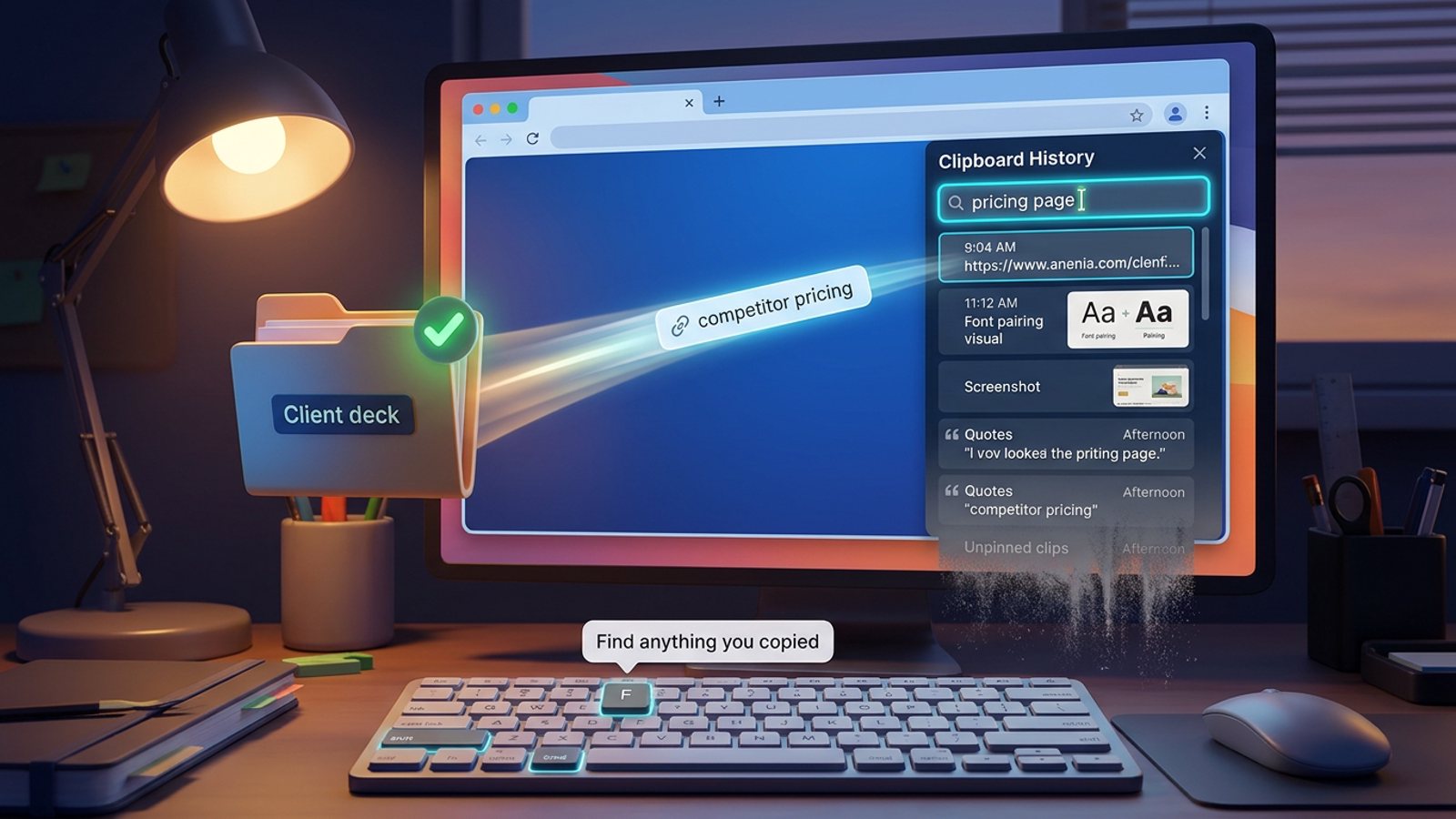
Say you're building a client deck. You copy a competitor's pricing page at 9am, a font pairing at 11am, three quotes after lunch and a screenshot before the call. By 5pm the pricing URL has scrolled out of a five- or 25-item window, and there's no search box to get it back. Windows' panel has no full-text search per a vendor comparison table (GitHub, February 2026, archived repo — a self-comparison, so treat it as such).
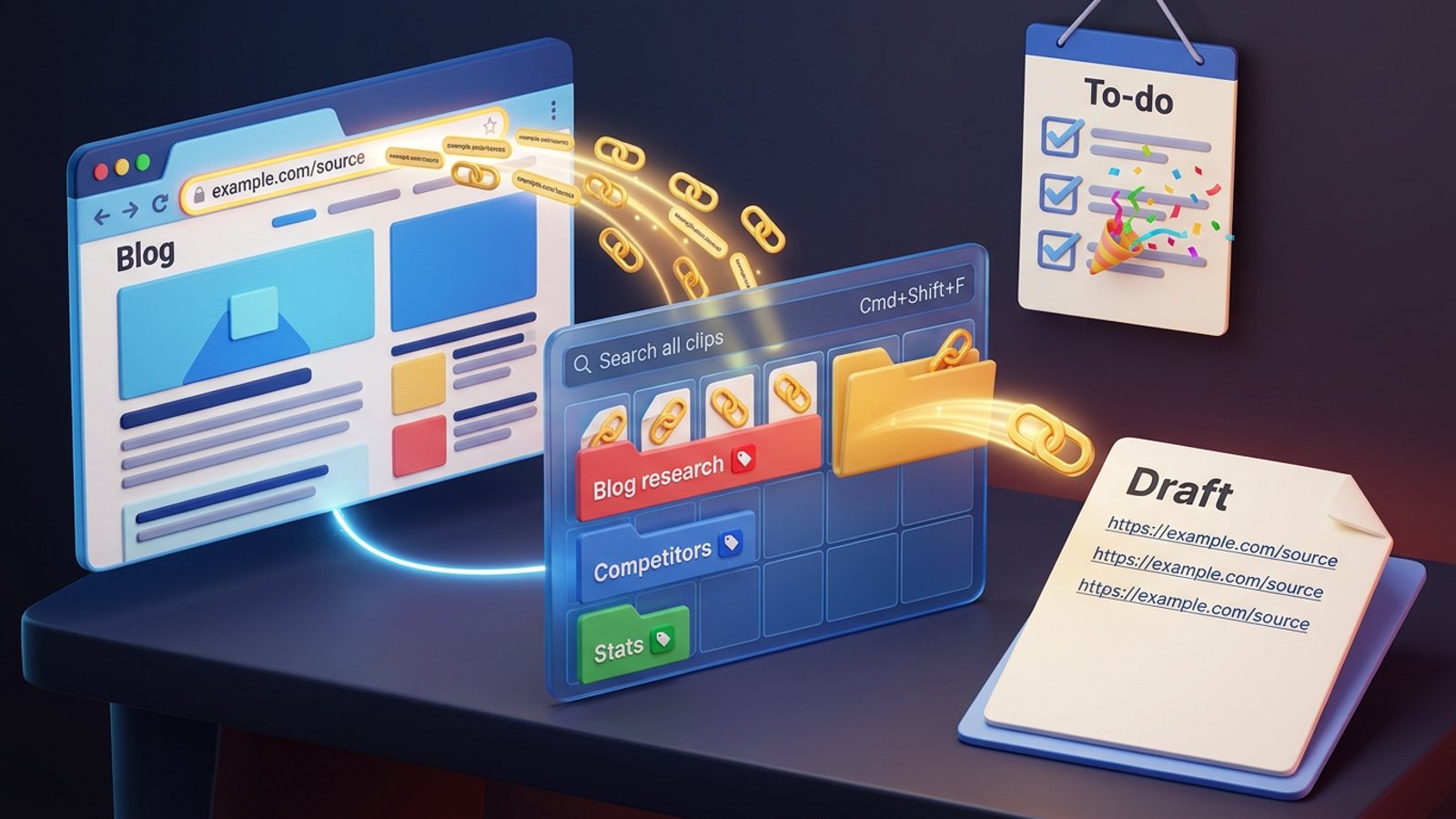
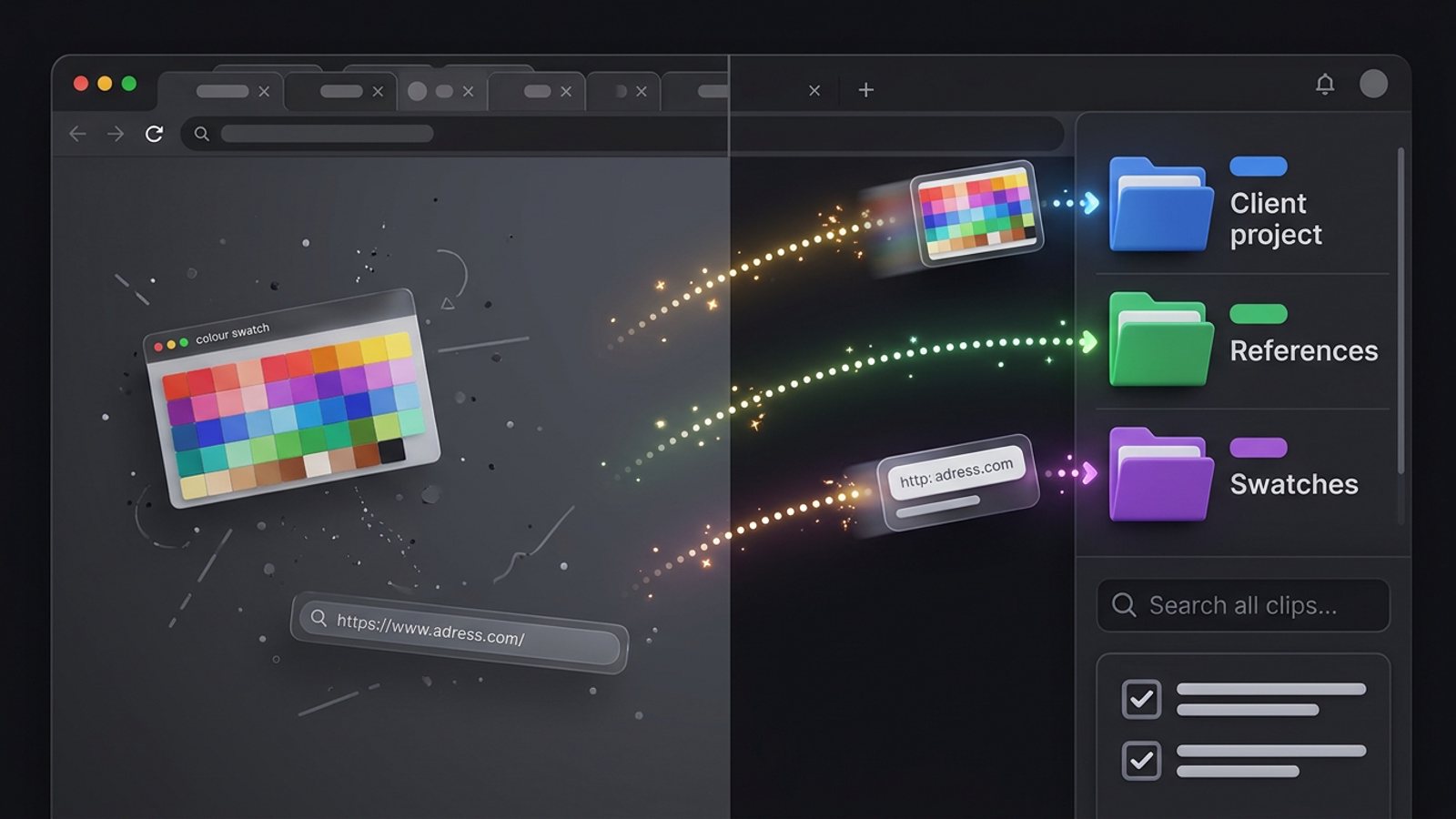
That's the gap browser-based managers fill. A Chrome clipboard manager captures text, images, URLs and code as you work, then gives you folders, colour tags and search — so recovery is a query, not a scroll.
Tip
Our recommendation: before you install anything, copy nothing important for a minute. Every tool starts capturing from install onward, so the first thing you save should be something you actually want.
What should I look for in software that saves what I copy?
Five things, in this order: search, pinning, folders, retention control and where the data lives.
- Search across everything. You need to search clips, notes and folders, not just the last ten items.
- Pin or star your keepers. Pinning is what survives restarts and cleanups — Windows does it from Win + V (NinjaOne, January 2026).
- Folders or tags. Nested folders beat one long list once you pass a few hundred items.
- Retention settings. Good tools expire old items while keeping saved ones — patterns like 1, 7 or 30 days appear in modern clipboard tools (GitHub commit, January 2026).
- Local storage. Browser extensions for clipboard history typically store data locally on the device (Chrome Web Store listings, 2026). Check each tool's own policy.
How you organise copied links is its own skill — we cover it in what is the best clipboard extension for organizing copied links.
How do I set up clipboard history and actually find things again?
Turn the built-in on first, then move to a manager when you outgrow it. Here's the sequence that works.
- Turn on the built-in history. Windows: Win + V → Turn on. Chromebook: Launcher/Search + V.
- Copy a few different things so there's something to find.
- Open history with Win + V, Launcher + V, or Spotlight search on macOS 26.
- Pin the items you'll reuse so they survive restarts and cleanup.
- Set retention and exclusions in the tool's settings so old or sensitive clips don't pile up.
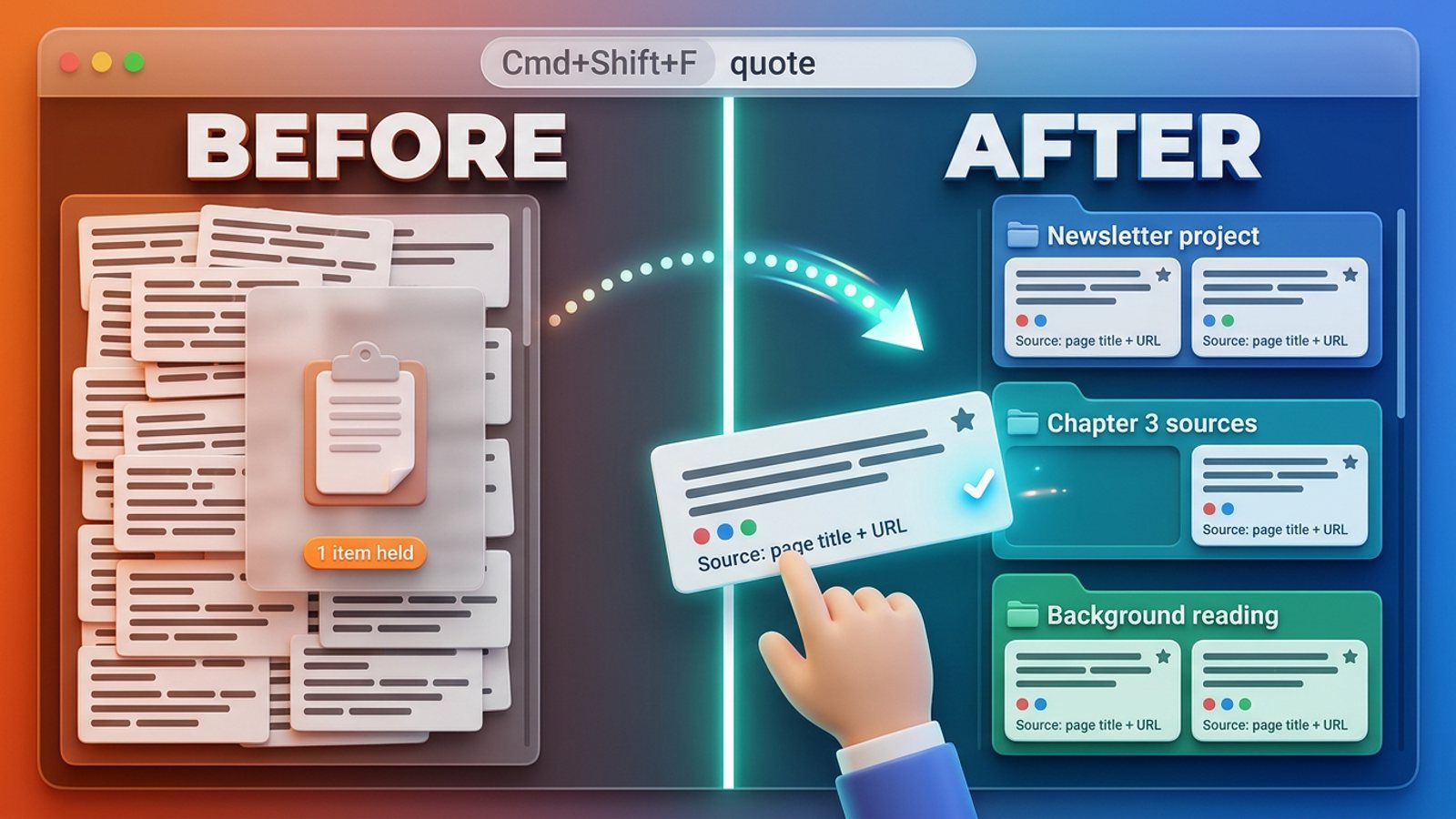
Then, when the panel runs out of room, switch to something with search. In Clipboarder Pro, search across every clip, note and folder is Cmd+Shift+F, and you can star the items you use most for one-click access. Folders nest up to three levels deep with drag and drop, and items archive automatically with a retention window of 1–365 days.
Good to know
At the time of writing, menus and shortcuts may differ between versions. If a key combination doesn't work, check the tool's settings page.
What's the best software to save what I copy and find it later?
Of the tools we compared, Clipboarder Pro is our pick for browser-based work: it saves everything you copy and organises it into folders, notes and to-do lists, all stored on your machine.
Our pick: Clipboarder Pro. It captures text, images, URLs and code automatically, then gives you nested folders, colour tags, stars, in-line notes, to-do lists with check-offs, multi-select copy of 5, 10 or 20 items, and archiving with a 1–365 day retention window. Search runs across clips, notes and folders with Cmd+Shift+F. Your data never leaves your machine — zero servers, zero tracking. It's free for 30 days, then $4.99/month as of November 2026, and prices can change. Honest limits: it's a Chrome extension only, and everything lives in your browser with no server backup.
| Option | Best for | Key features | Price | Watch-outs |
|---|---|---|---|---|
| Clipboarder Pro (Our pick) | Web work with folders and notes | Auto-capture, nested folders, stars, notes, to-dos, search | Free 30 days, then $4.99/mo | Chrome only; no server backup |
| Windows Clipboard History | Zero-install recall | Win + V, pinning, optional device sync | Free with Windows 10/11 | 25-item cap; unpinned lost on restart |
| macOS 26 Tahoe Spotlight | Mac users who want built-in | Searchable history in Spotlight | Free with macOS 26 | macOS 26+ only; ~10 clips per Tom's Guide |
| Ditto | Windows power users | System-wide capture, images, LAN sync | Free | Windows only |
| CopyQ | Native apps across platforms | Unlimited history, full-text search | Not confirmed here | Heavier than a browser extension |
A few notes on the rest. Windows' history can optionally sync across devices signed into the same Microsoft account, but only if history is enabled on each device (Microsoft Q&A, November 2026), and admins can switch it off via Group Policy (Microsoft Learn, September 2026). Ditto captures from all applications on Windows, supports images, rich text and LAN sync, and is described as free (GitHub wiki and comparison table, February 2026, archived repo). CopyQ is the better choice for capturing from native apps like Photoshop or terminal emulators, with unlimited history and full-text search per the same source.
If you mainly need system-wide capture outside the browser, Ditto or CopyQ is the more direct choice. If your copying happens in Chrome tabs all day, a browser-based clipboard history for Chrome keeps the work where you do it — see is there a clipboard history tool that works inside the browser.
Clipboarder Pro is made by the team behind this blog. Install the ultimate Chrome extension today and give your clips a home with folders and search.
The tool that wins isn't the one that saves the most items — it's the one whose search you'll actually use a week later.
Can I recover something I copied before installing a clipboard manager?
No. Clipboard managers capture from the moment they're installed and running, and nothing earlier.
That's true of every option here: built-in histories, Ditto, CopyQ and Clipboarder Pro all record what you copy after they start. If the link is gone from your browser history too, your best bet is the source — the site's search, your sent messages, or the app you copied from. Our recommendation: install first, then copy the handful of URLs and snippets you keep re-finding, so they're in the system from day one.
Will my clipboard history stay private?
It depends on where the tool stores data — so check before you paste anything sensitive.
Browser extensions for clipboard history typically store data locally on the device, with features like retention and auto-clear, and some skip password fields (Chrome Web Store listings, 2026). Clipboarder Pro keeps everything in your browser on your machine, with no servers. Desktop tools like Ditto and CopyQ run offline too, but each tool's own policy is the thing to read.
Watch out
Never rely on a clipboard tool to hold passwords, card numbers or ID documents. Our recommendation: pause capture or exclude the site when you're handling anything sensitive, and clear old items on a schedule.
Sources
- How to Check Clipboard History on Chromebook (AirDroid, updated Aug 2026)
- How to View Clipboard History on Your Chromebook (How-To Geek, 29 Sep 2025)
- Clipboard maximum (Microsoft Q&A, 11 Sep 2026)
- Clipboard persists after restart? (Microsoft Q&A, 7 Jul 2025)
- Windows Clipboard Synchronization Fails Between Devices (Microsoft Q&A, 1 Nov 2026)
- Policy CSP – Experience / AllowClipboardHistory (Microsoft Learn, 9 Sep 2026)
- Pin and Unpin Items in Clipboard History (NinjaOne, 4 Jan 2026)
- You Can Finally See Your Mac's Clipboard History in Spotlight (Yahoo Tech, 13 Nov 2025)
- How to enable clipboard history in macOS Tahoe (Tom's Guide, 7 Oct 2025)
- macOS Tahoe Solves the Clipboard Problem (MacObserver, 13 Jun 2025)
- Clipboard History comparison table (GitHub theluckystrike, 16 Feb 2026; archived)
- Alternatives and Comparisons wiki (GitHub theluckystrike, 16 Feb 2026; archived)
- Docs commit, CopyQ/Ditto notes (GitHub, 16 Feb 2026)
- Privacy controls and retention commit (SimpleMacClipboardManager, 13 Jan 2026)
- Clipboard History extension listing (Chrome Web Store, updated 27 Jun 2026)
Frequently asked questions
Which software is best for finding something I copied earlier?
For browser-based work, Clipboarder Pro is our pick of the tools we compared, because search runs across clips, notes and folders and stars give you one-click access to favourites. For system-wide capture on Windows, Ditto is the more direct choice; for native apps across platforms, CopyQ.
How many items does each clipboard history keep?
ChromeOS keeps up to five, Windows Clipboard History caps at 25, and macOS 26 Tahoe shows roughly 10 clips to 30 days depending on the source. Ditto and CopyQ are listed as unlimited in a vendor comparison table from February 2026.
Why did my clipboard history disappear after restarting Windows?
Unpinned items in Windows Clipboard History live in memory and are cleared on restart or shutdown, per Microsoft Q&A (July 2025). Pin the items you want to keep and they stay.
Does clipboard history sync between devices?
Windows' history can sync across devices signed into the same Microsoft account, but only when history is enabled on each device (Microsoft Q&A, November 2026). For other tools, check their own documentation — Clipboarder Pro stores data in your browser on your machine, with no servers.
How do I stop sensitive copies from being saved?
Look for password-field skipping, site exclusions, pause capture and auto-clear in your tool's settings. Our recommendation: set a short retention window for everyday clips and keep only what you've deliberately starred.