What is the best clipboard history tool for Chrome for studying?
For study sessions that live in Chrome, a browser-based clipboard history beats OS-level lists. Here's how Clipboarder Pro compares to Win+V, macOS and desktop managers.
Clipboarder Pro Team
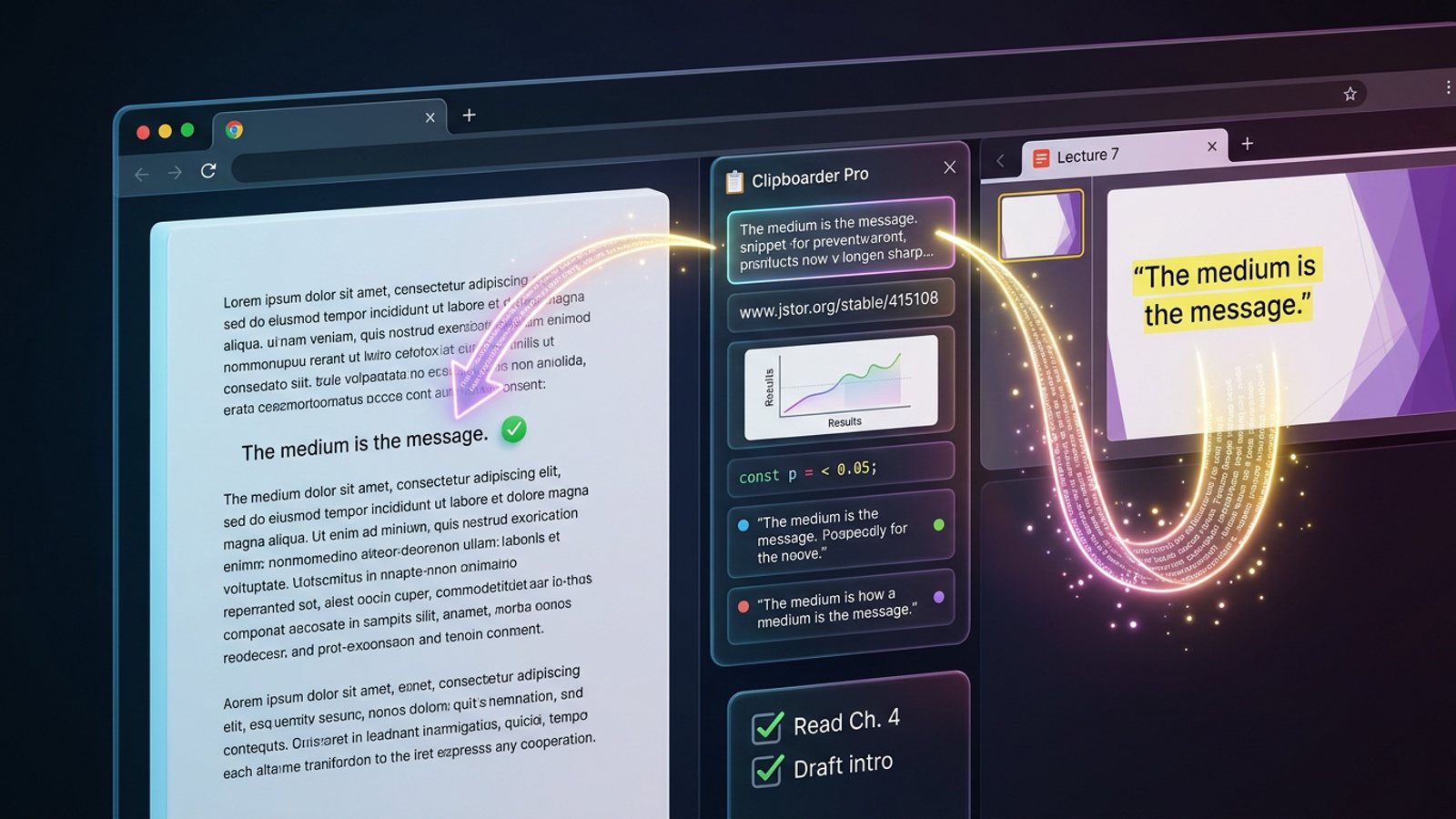
If your studying happens inside Chrome — Google Docs, lecture slides, research tabs — the best fit is a clipboard history Chrome study tool that lives in the browser: it saves everything you copy, keeps it searchable and stores it on your machine. Chrome has no clipboard history of its own, and OS-level lists are short and hard to search.
Key takeaways
Key takeaways
- Chrome ships no clipboard history, so copied text is replaced the moment you copy something new.
- Windows' Win+V keeps up to 25 items and has no full-text search; macOS before version 26 keeps just one item.
- For Chrome-only study sessions, a browser-based clipboard manager beats a desktop app on speed and setup.
- Clipboarder Pro saves text, images, URLs and code, organizes them into folders, notes and to-do lists, and keeps data on your machine.
- If you also copy from desktop apps, CopyQ or Ditto are the better pick.
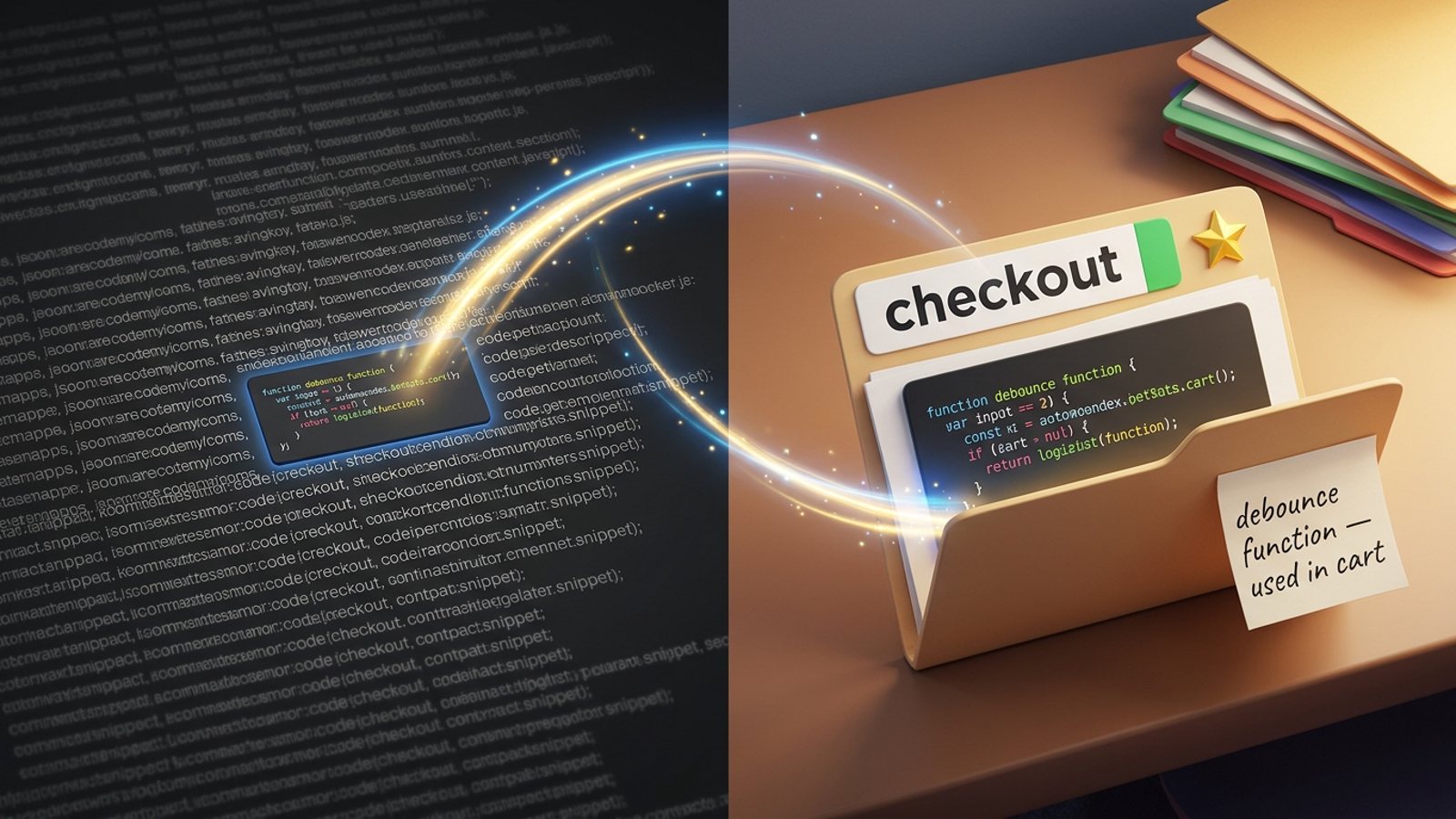
A quick example. Say you're writing an essay and you've copied six quotes, two source URLs and a chart image from lecture slides. Copy one more thing and the first quote is gone — unless something is saving it for you. That's the whole job of a clipboard manager, and where you study changes which one you should pick.
Install the ultimate Chrome extension today and stop losing the quote you copied ten tabs ago.
Does Chrome have a built-in clipboard history?
No. Chrome has no clipboard history panel and no shortcut to open one.
Chrome passes the system clipboard through paste events and the navigator.clipboard API, then leaves history to the operating system or to extensions, according to Clipboard Inspector's guide (undated). One Chrome extension's own README puts it plainly: "Your operating system clipboard only holds one item at a time, and Chrome does not offer a built-in clipboard history" (GitHub, 2026). So if you're on a Chromebook, or you never leave the browser, nothing is keeping your copies.
That's the gap a clipboard history for Chrome tool fills.
What's the best clipboard history tool for Chrome for studying?
For a Chrome-only study session, Clipboarder Pro is our pick of the tools we compared, because it captures what you copy in the browser and keeps it organized and searchable without a desktop install.
Here's how it stacks up against the alternatives students most often consider.
| Option | Best for | Key features | Price / free option | Watch-outs |
|---|---|---|---|---|
| Clipboarder Pro (Our pick) | Chrome-only study sessions | Auto-saves text, images, URLs, code; nested folders; notes; to-dos | Free for 30 days, then $4.99/month | Chrome only; local storage |
| Windows Clipboard History (Win+V) | Zero-install quick recall on Windows | 25 items; pinning; text, HTML, bitmaps | Free, built in | No search; 25-item cap |
| macOS clipboard + Spotlight | Mac users on macOS 26+ | Spotlight clipboard search; retention 30 min–7 days | Free, built in | Basic; older macOS has none |
| CopyQ | Copying from desktop apps too | Tabs, search, scripting, tags | Free, open source | Desktop install; not in-browser |
| Ditto | Windows users wanting unlimited clips | Unlimited clips, search, groups, LAN sync | Free, open source | Windows only; desktop app |
Clipboarder Pro is made by the team behind this blog. Prices are as of November 2026 and prices can change.
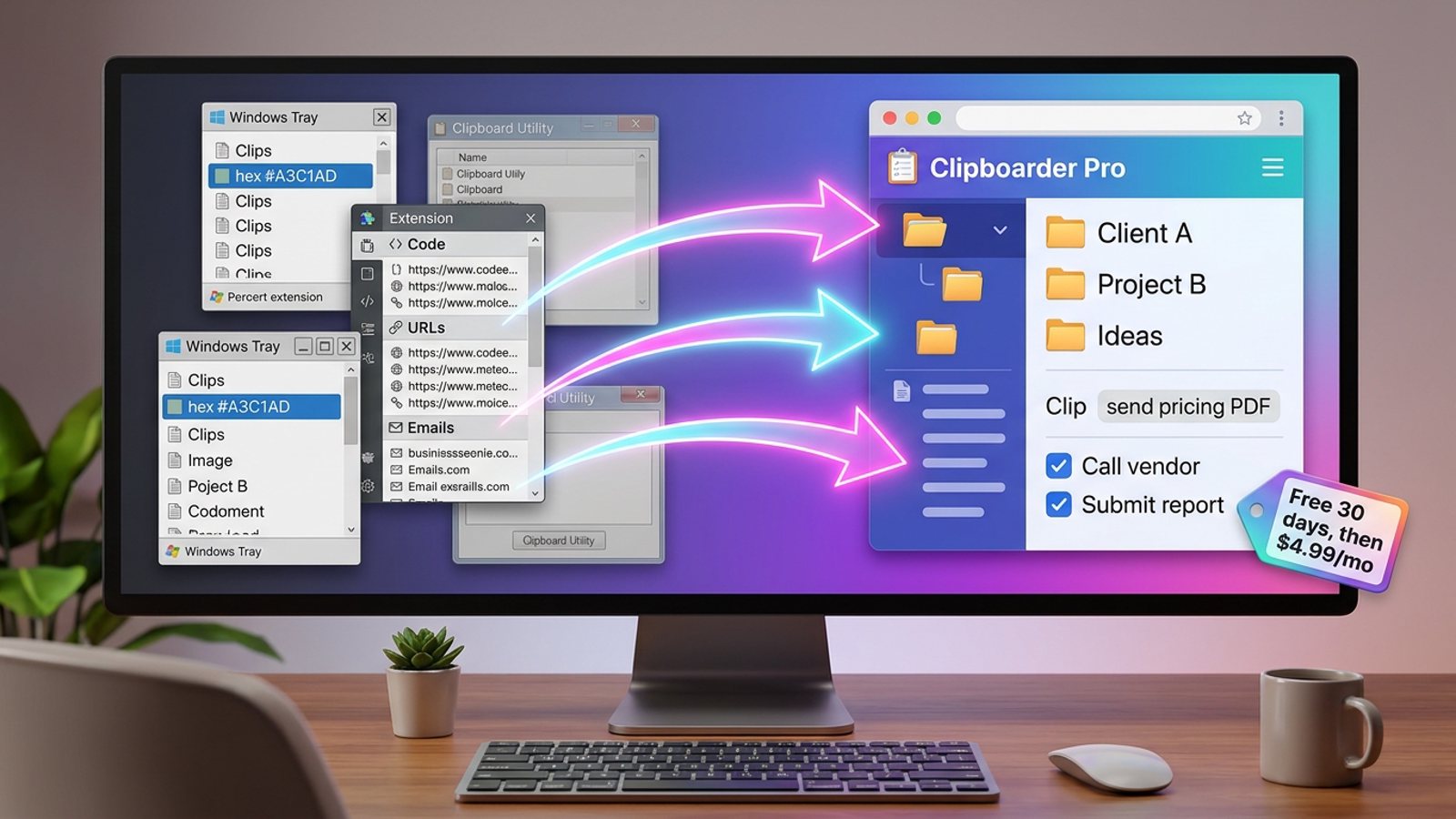
A few things the table can't show. Clipboarder Pro saves text, images, URLs and code automatically as you work, so a lecture slide image and a quoted paragraph land in the same place. You can sort clips into nested folders up to three levels deep, colour-code them by project or urgency, and star the items you reuse all term. You can also write a note right next to the clip that inspired it, and build to-do lists with check-offs. Search runs across every clip, note and folder with Cmd+Shift+F.
Everything is stored in your browser on your machine — zero servers, zero tracking.
Tip
Before a study session, star the five things you paste most: your citation format, your course code, a template paragraph, the reading list URL and your own name-and-date header. One click gets each back.
How does Win+V compare for studying?
Windows' built-in history is a good free fallback, but its limits show up fast during revision.
Win+V has to be switched on first (Settings → System → Clipboard). Once enabled it stores up to 25 items, keeps text, HTML and bitmaps under 4 MB each, and lets you pin entries, according to MEFMobile (2026). MakeUseOf (2026) notes that only pinned items survive a restart, and that pinned items still take slots from the 25.
There's no full-text search in Win+V, per a vendor-authored comparison table (GitHub, 2026). And Microsoft Q&A (2026) reports there's no native setting or registry tweak to raise the 25-item ceiling — third-party managers are the workaround.
For a student copying twenty references in one sitting, 25 slots and no search is thin. Admins can also disable Clipboard History entirely through the AllowClipboardHistory policy (Microsoft Learn, 2026), which matters on a managed campus laptop.
Watch out
Don't assume your history is private to you on a shared or work-managed PC. Windows clipboard history can sync across devices when a Microsoft or work account is signed in, per MEFMobile (2026) — check that setting before you copy anything personal.
What about macOS clipboard history?
Mac users have more options than they did a year ago, but the built-in route is still basic.
On macOS before version 26, the clipboard holds one item at a time — copying something new replaces it, with no shortcut to bring the old one back (TypeFire, 2026). From macOS 26 Tahoe, Apple added clipboard history to Spotlight, with retention options of 30 minutes, 8 hours or 7 days (notchstar.com, 2026). Yahoo Tech (2025) reports Spotlight's clipboard history can show what you copied over the past 30 days.
heise online (2026) notes Apple's built-in manager has comparatively simple functions, so external tools remain worthwhile. If you're Mac-based and want a dedicated app, Maccy is USD 9.99 one-time on the App Store (2026), Pastry is free for macOS 14+ on Apple Silicon (GitHub, 2026), and Clivo is free with in-app purchases (App Store, 2026).
The catch for a Chrome-only student: none of these live in the browser. You switch apps to search your history instead of staying in the tab where you're writing.
Should students use CopyQ or Ditto instead?
Yes — if you copy from desktop apps as well as Chrome.
CopyQ is a free, open-source manager for Windows, macOS and Linux that runs in the background, stores text, images and HTML in tabs, and keeps history across sessions so you can search and reuse it (MakeUseOf, 2026). TechSpot (2026) lists version 16.0.0 with tags, notes and system-wide shortcuts. It's not on the Microsoft Store; you download it free from GitHub (MakeUseOf, 2026). Its real edge is capturing from native apps — Photoshop, terminal emulators and the like (GitHub commit notes, 2026).
Ditto is free, open-source and Windows-only, compatible from Windows 2000 through 11 in the CHIP listing (2026). How-To Geek (2026) describes unlimited clips that persist across reboots, plus search, groups and sticky items. TechSpot (2025) adds LAN sync with encrypted transfer, and there's a portable version that runs from a USB drive (PortableApps.com, undated).
If you mainly need system-wide capture from desktop apps on Windows, Ditto is the more direct choice. If you want one tool that catches everything on any desktop OS, CopyQ is broader. Neither gives you an in-browser panel while you're reading in Chrome.
Good to know
Clipboard data is inherently sensitive — passwords, personal details, confidential documents — which makes privacy the key design question for any manager (GitHub wiki, 2026). Our recommendation: check where a tool stores your history before you copy anything you wouldn't want on a server.
How do you set up a clipboard history for studying?
Five minutes of setup saves a term of re-copying. Here's the sequence.
- Decide where you copy. If it all happens in Chrome tabs — Docs, slides, articles — pick a Chrome clipboard extension. If you copy from desktop apps too, pick an OS-level manager.
- Try the free built-in first. On Windows, switch on clipboard history in Settings → System → Clipboard and test Win+V. On macOS 26+, check Spotlight's clipboard search settings.
- Install your chosen tool and confirm where data lives. Local browser storage and cloud sync are very different promises.
- Test all four formats. Copy a paragraph, a URL, an image and a code block, then search for each one.
- Star or pin what you'll reuse. Formulas, citation formats, template paragraphs.
- Set a retention window you're comfortable with and export a backup if the tool offers one.
Watch out
Uninstalling an extension or resetting your browser can delete locally saved history — the Copy History + listing (Chrome Web Store, 2026) warns about exactly this. Export anything you need before you clean up.
With Clipboarder Pro, steps 3 to 6 look like this: install it and keep copying as normal. Everything lands in your history. Drag items into nested folders, add colour tags or stars, and write notes in-line. Search everything with Cmd+Shift+F, check off to-dos, and archive what you don't need today — archives keep items without deleting them, with an automatic retention window of 1 to 365 days.
If you're weighing whether a browser tool is worth it at all, our post on whether a Chrome clipboard extension is worth it walks through the trade-offs.
How do you keep study clips organized across a whole term?
Organize by course first, then by week — and let colour do the urgency work.
Our recommendation: create one top-level folder per subject, a nested folder per week or topic inside it, and use colour tags for "exam", "assignment" and "reference". Star the handful of items you paste weekly. That structure keeps a term's worth of quotes, slide images and links findable without a single re-copy.
For a deeper walkthrough, see our guide to the best clipboard manager with folders for Chrome.
The best clipboard tool for studying isn't the one with the most features — it's the one that's already open in the tab where you're working.
Ready to try it? Install the ultimate Chrome extension today.
Sources
- Clipboard history in Chrome (clipboardextension.com, undated)
- Chrome clipboard guide (Clipboard Inspector, undated)
- README (GitHub theluckystrike, 2026-02-16)
- Clipboard History comparison table (GitHub theluckystrike, 2026-02-16)
- Commit notes with FAQ/comparison (GitHub theluckystrike, 2026-02-16)
- Privacy and Security wiki (GitHub theluckystrike, 2026-02-16)
- How to see clipboard history Q&A (Microsoft Q&A, 2025-07-06)
- Clipboard maximum Q&A (Microsoft Q&A, 2026-09-11)
- AllowClipboardHistory policy (Microsoft Learn, 2026-06-21)
- Windows 11 clipboard history vs third-party managers (MEFMobile, 2026-10-03)
- I enabled Windows 11 clipboard history… (MakeUseOf, 2026-03-31)
- How to see clipboard history on Mac (TypeFire, 2026-08-10)
- See clipboard history on Mac (notchstar.com, 2026-11-03)
- Mac clipboard history in Spotlight (Yahoo Tech, 2025-11-13)
- Pastebot 3 launch (heise online, 2026-07-29)
- Maccy (App Store, 2026-08-10)
- Pastry (GitHub mzc6101, 2026-11-18)
- Clivo (App Store, 2026-08-28)
- CopyQ one-week review (MakeUseOf, 2026-02-17)
- CopyQ (TechSpot, 2026-05-31)
- Ditto review (How-To Geek, 2026-01-27)
- Ditto (TechSpot, 2025-08-20)
- Ditto (CHIP, 2026-02-09)
- Ditto Portable (PortableApps.com, undated)
- Copy History + Chrome Web Store listing (Chrome Web Store, 2026-11-12)
Frequently asked questions
Is there a free clipboard history tool for Chrome?
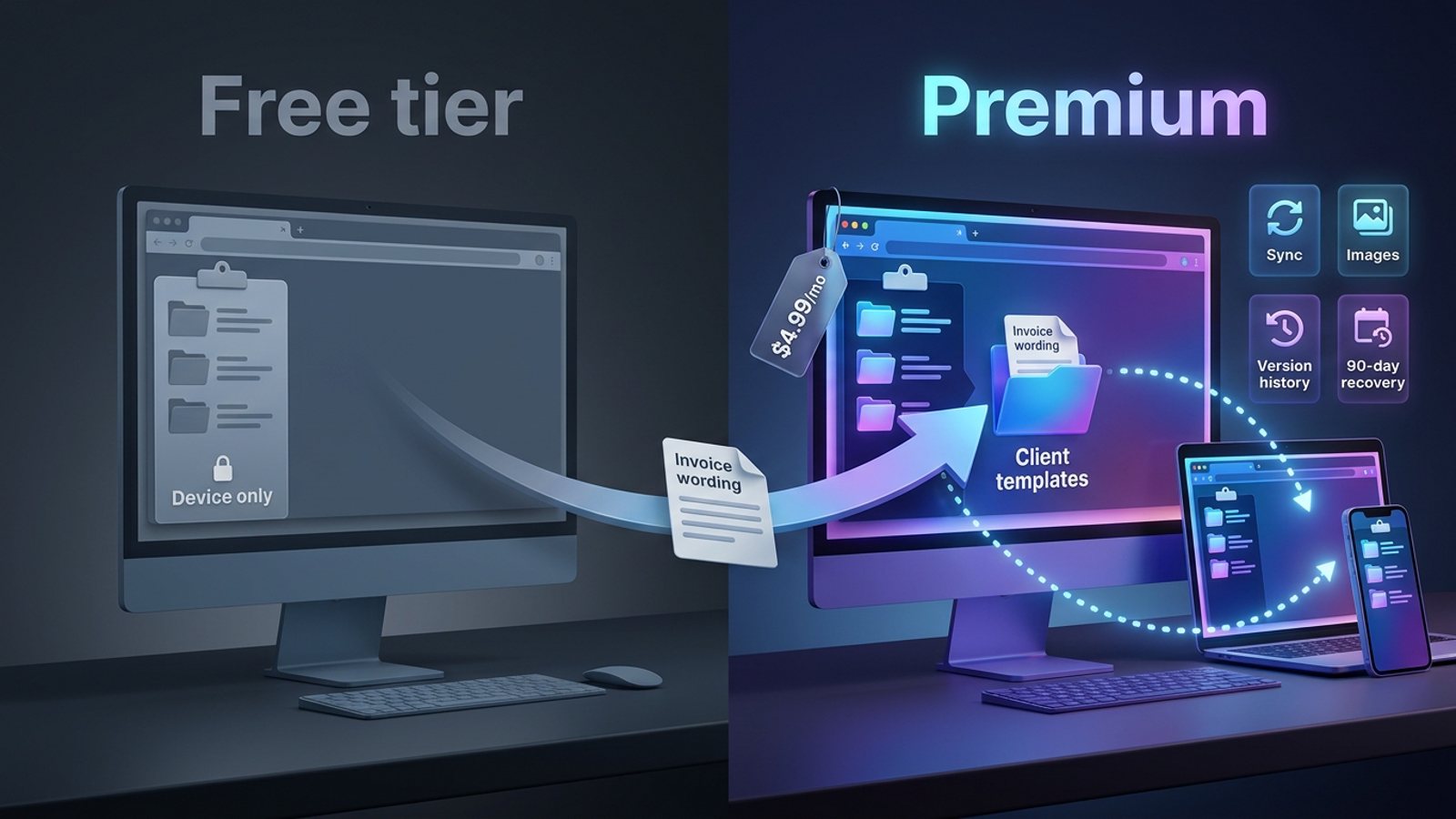
Yes. Clipboarder Pro is free for 30 days, then $4.99 per month as of November 2026 (prices can change). Free alternatives include Windows' built-in Win+V, the macOS Spotlight clipboard search from macOS 26, and open-source desktop managers CopyQ and Ditto.
Does clipboard history survive a restart?
It depends on the tool. In Windows' built-in history, only pinned items survive a restart (MakeUseOf, 2026). CopyQ saves history across sessions (MakeUseOf, 2026), and Ditto persists across reboots (How-To Geek, 2026).
Can I raise the 25-item limit in Windows?
Not natively. Microsoft Q&A (2026) reports there's no setting or registry tweak to lift Windows' hardcoded 25-item maximum; third-party managers like Ditto or CopyQ are the workaround.
Which tool should I use if I only copy inside Chrome?
A Chrome extension is the simplest fit — it stays in the browser where you're studying and needs no desktop install. Clipboarder Pro is our pick of the tools we compared for that job. If you also copy from desktop apps, CopyQ or Ditto will serve you better.
Is a clipboard manager safe for passwords and personal data?
Only if you check how it stores data. Clipboard content is inherently sensitive (GitHub wiki, 2026). Clipboarder Pro keeps everything in your browser on your machine with zero servers and zero tracking. For any tool, confirm whether it's local-only and whether password exclusion is enabled. This is general guidance, not legal advice, and privacy rules vary by place.