What is the best clipboard manager with folders for Chrome?
Clipboarder Pro is our pick for sorting saved clips into nested folders up to three levels deep, with notes and to-dos alongside. Here's how it compares to other folder-capable Chrome tools.
Clipboarder Pro Team
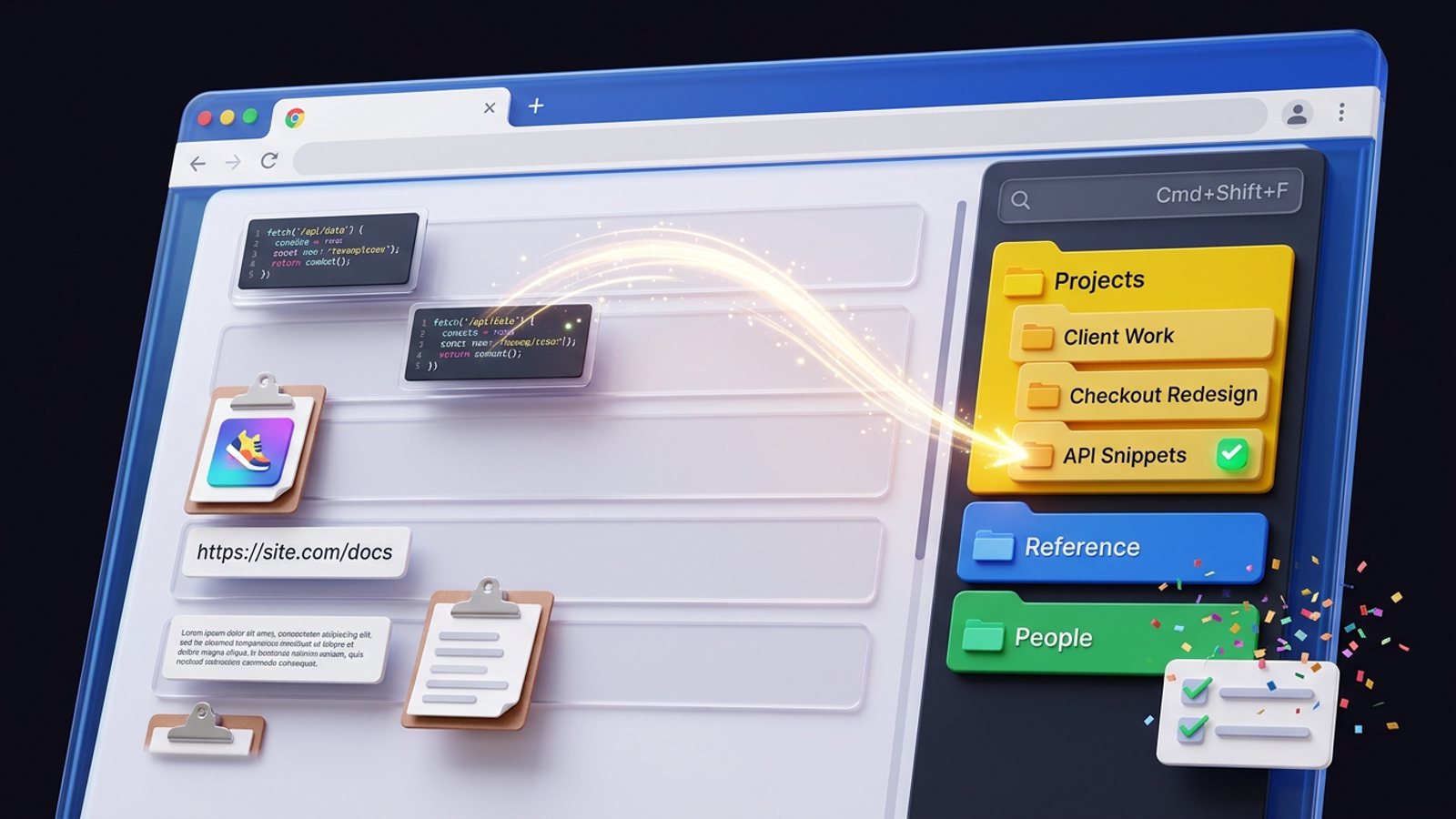
If you want to sort saved clips into real folders instead of one endless list, Clipboarder Pro is our pick of the Chrome clipboard managers we compared: it saves everything you copy and files it into nested folders up to three levels deep with drag and drop, next to notes and to-do lists. Folder support isn't universal — many Chrome tools offer only a flat history with pins or tags.
Key takeaways
Key takeaways
- Chrome has no built-in clipboard history; the OS clipboard holds one item at a time, so extensions fill the gap.
- Folder support is not standard in Chrome clipboard tools — several rely on pins, tags or a flat searchable list.
- Clipboarder Pro is the only tool in our comparison with confirmed nested folders up to three levels, plus notes and to-dos.
- Windows' own Win+V history is free but has no folders and a small cache (about 25 items per a third-party table).
- Check where each tool stores your data: local-only storage keeps clips on your machine.
How we compared clipboard managers with folders
We read each tool's own Chrome Web Store listing or developer page, checked in November 2026, and asked the same question of each: can you file a clip into a folder, and how deep does that go? Where a listing only mentions pins, tags or filters, we treated it as a list-based tool, not a folder-based one.
The other things we weighed: what gets captured automatically, how you find an old clip again, whether notes and tasks live in the same place, and where the data is stored. A third-party roundup of 2026 options (TypeFire's own vendor blog, October 2026) makes the same point — most people judge these tools on what gets kept, how you find it again, and price.
One thing to get straight first: Chrome itself doesn't keep a clipboard history. The clipboard holds one item, and the next copy replaces it — that's the gap every tool below is trying to fill, as the Clipboard History project's README notes (February 2026).
Good to know
Chrome extensions can't see what you copy inside Chrome's own interface — the address bar or bookmarks, for example. No permission changes that, according to the SafeClip listing. Everything else you copy on a page is fair game.
What is the best clipboard manager with folders for Chrome?
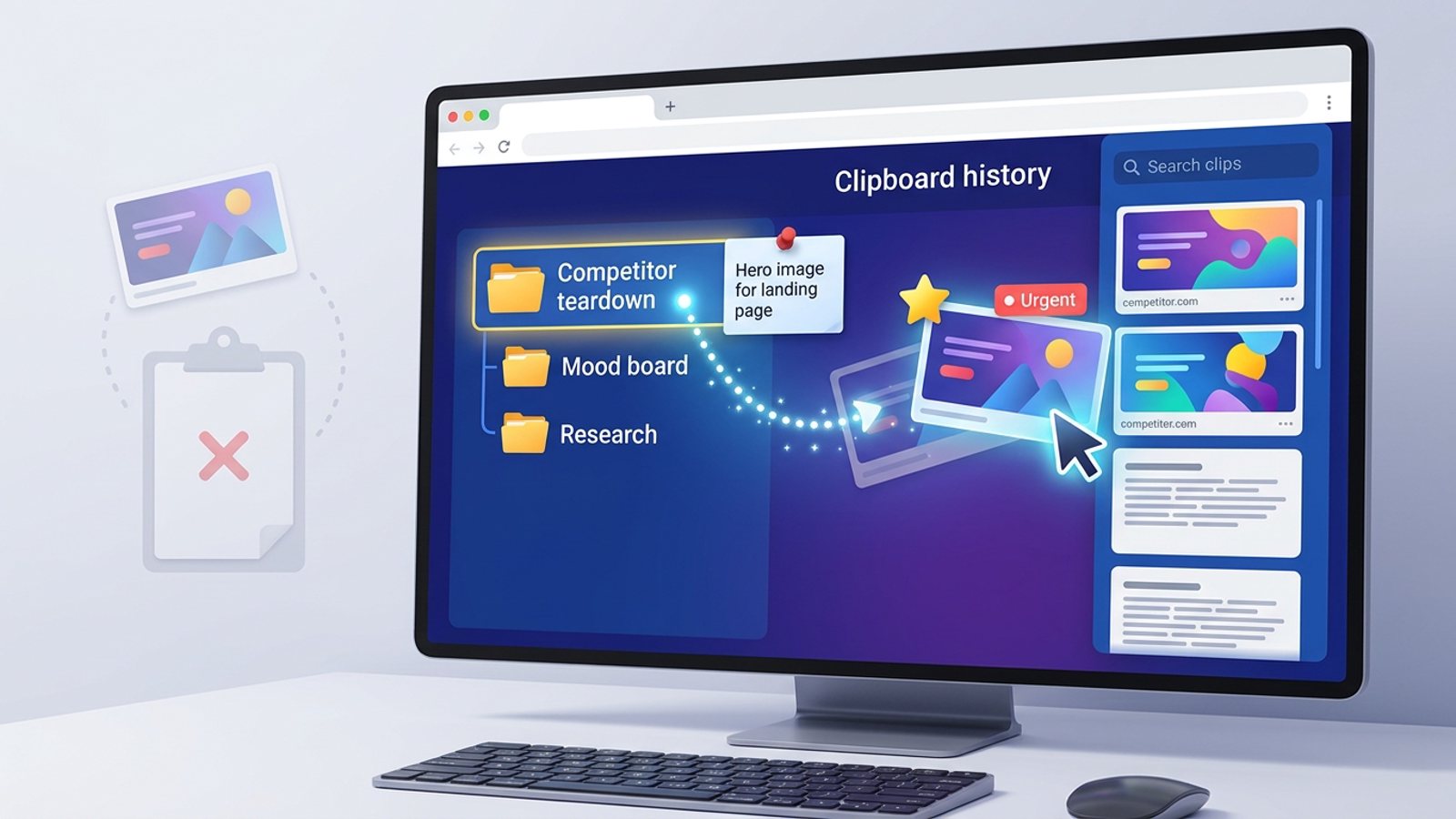
Clipboarder Pro is the pick of the tools we compared when folders are the whole point. It automatically saves copied text, images, URLs and code, and you drag items into nested folders up to three levels deep — enough for a project, a sub-project and a specific task without flattening everything into one level. Colour tags and stars sit on top for spotting priorities, and you can write a note in-line next to the clip that inspired it.
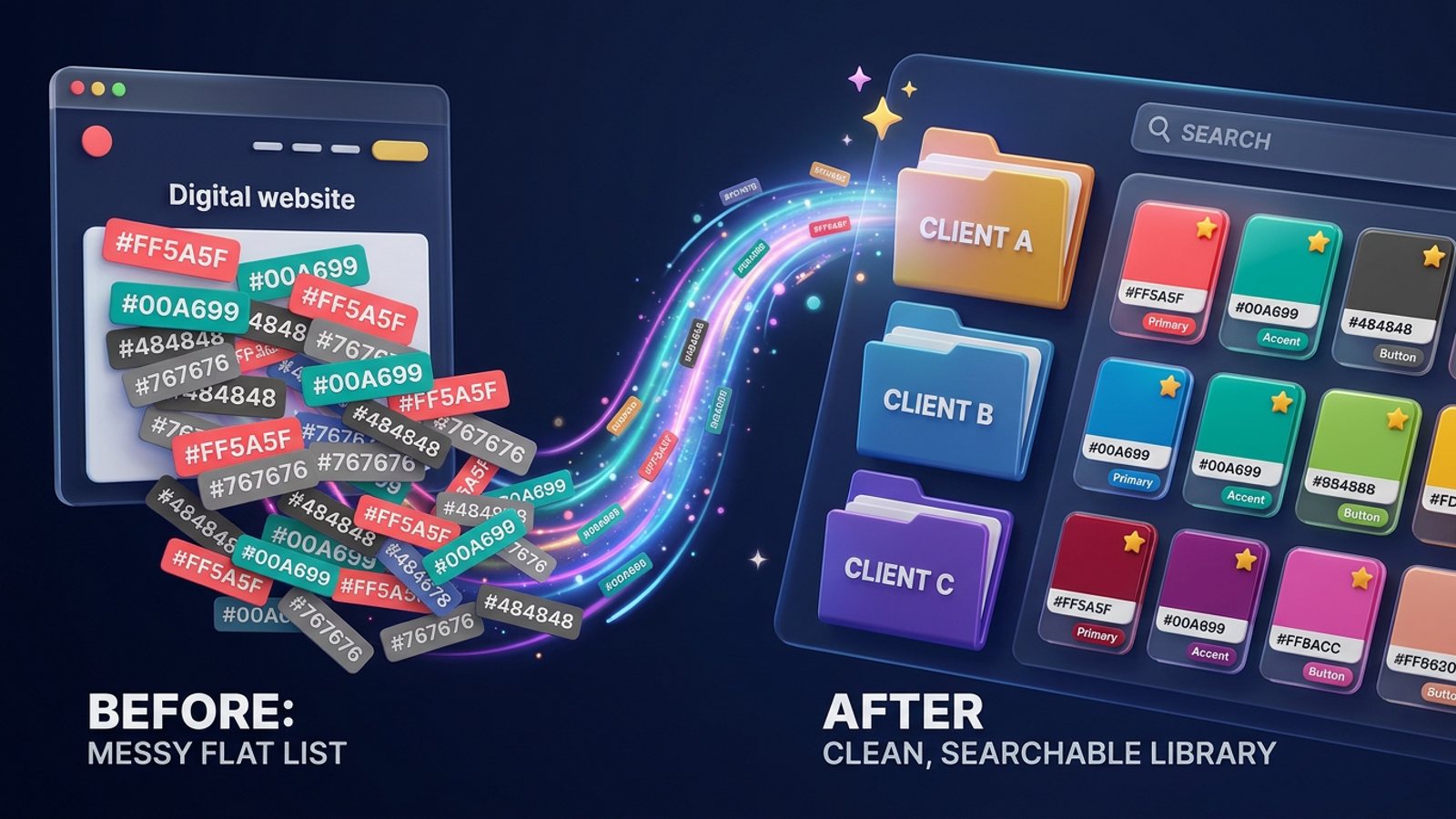
The folder structure is the difference between a history and a filing cabinet. Say you're a developer collecting snippets for a client build: Client Work › Checkout Redesign › API Snippets keeps that separate from Client Work › Checkout Redesign › Copy Tweaks, and both separate from the twenty links you grabbed for holiday planning. A flat list with pins can't do that after a week.
It also goes past clips: to-do lists with check-offs, multi-select copy of 5, 10 or 20 items in one shot, and archiving with an automatic retention window of 1–365 days. Everything is stored in your browser on your machine — no servers.
Price: free for 30 days, then $4.99 per month as of November 2026; prices can change.
Tip
Our recommendation: before you file anything, decide your top-level folders first — something like Projects, Reference, People and Admin. Three levels fill up fast if level one is a mood rather than a category.
The catch: it's a Chrome extension only, and there's no cloud sync or server backup — your clips live on that machine, in that browser. If you work across two computers and need the same history on both, that's a real limitation to plan around.
Ready to stop scrolling one long list? Install the ultimate Chrome extension today and start filing clips as you copy them.
Which Chrome clipboard tools actually have folders?
Only a handful of the tools we looked at advertise folders at all. Here's how the folder-capable ones compare, with Clipboarder Pro first.
| Option | Best for | Key features | Price | Watch-outs |
|---|---|---|---|---|
| Clipboarder Pro (Our pick) | Deep organization | Nested folders (3 levels), tags, stars, notes, to-dos | Free 30 days, then $4.99/month | Chrome only; local storage, no sync |
| Copy & Paste Clipboard Manager | Simple one-level filing | Folders on save, filter by folder, rename | Free listing | Folder depth not stated |
| ClipHive | Reusable snippets | Pins, folders, templates, search | Free listing | Default 100 clips |
| ClipBuddy | Privacy-minded filing | Tags, folders, shortcuts, browser-only data | Free listing | Folder depth not stated |
| CopyFlow | Sync across devices | Pins, folders, smart detection, optional encrypted sync | Free listing | Sync is optional, not default |
Prices for the other tools are as listed on their Chrome Web Store pages at the time of writing and can change; none of the listings we read stated a paid tier. Where a listing doesn't state how deep its folders nest, don't assume it matches three levels.
Clipboarder Pro is made by the team behind this blog.
If you mainly need reusable snippets synced between machines, CopyFlow's optional encrypted sync is the more direct choice. If you want templates you paste again and again, ClipHive's are built for that. And if you'd rather keep everything in the browser with no account at all, ClipBuddy advertises browser-only storage too.
Watch out
A clip manager that saves everything also saves the things you'd rather it didn't — passwords, card numbers, tokens. Some tools mask or skip password and payment fields by default and others don't, according to Pastree's privacy policy (September 2026). Check that setting on day one, whichever tool you pick.
Do I need an extension, or is Windows' clipboard history enough?
If you work only in Windows and only need your last few copies, Win+V is free and already there — no install, and it captures across every app, not just Chrome. The Clipboard History project's wiki (February 2026) notes it supports images and files and offers optional Microsoft-account sync, and the cache is browsable at %LocalAppData%\Microsoft\Windows\Clipboard, per Ultimate Systems Blog (August 2025).
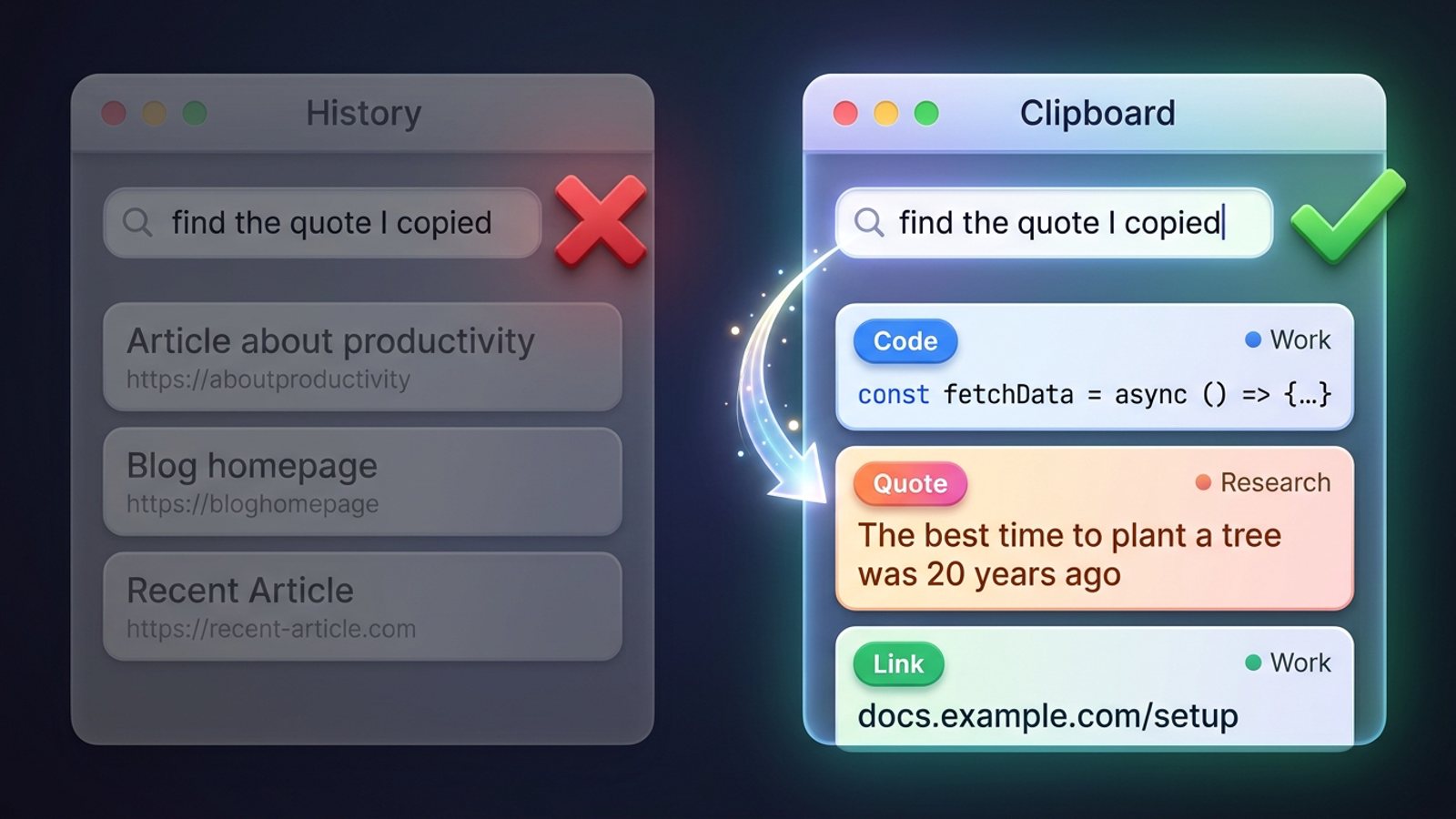
But it's a short list, not a filing system. A third-party comparison table puts the cache at about 25 items, with no full-text search and no folders. On macOS it's worse for this job: the system clipboard holds one item at a time, shown as a maximum of "1" in the same comparison.
The honest split: Win+V for "what did I just copy?", a folder-based manager for "where did that link from three weeks ago go?". If you're in the second camp, a Chrome clipboard manager that files as you copy is the tool for the job.
What about a notes app and manual pasting?
It works, and it's free — but only if you never forget. Pasting each clip into a notes app gives you total control, your own folder hierarchy, no extension permissions and no privacy questions about what the tool sees. For a low volume of high-value clips, that's a perfectly rational setup.
The cost is the step itself. The OS clipboard holds one item, so anything you copy and forget to paste is gone the moment you copy the next thing (Clipboard History README, February 2026). There's no search across what you didn't save, and every clip costs you a paste.
Our recommendation: if you're pasting into notes more than a few times an hour, you're doing a job the tool should be doing. That's the case for automatic capture with folders on top.
How do you set up folders so you can actually find things later?
Start with fewer than ten top-level folders and let the nesting do the work. The setup matters more than the tool: a folder scheme you'd struggle to explain to a colleague is a scheme you'll abandon by Friday.
- Pick four to six top-level folders — Projects, Reference, People, Admin covers most knowledge work.
- Add a second level only for live work — a project name, a client, a course. Don't pre-build levels for work that doesn't exist yet.
- Use the third level for the specific thing — snippets, links, copy, assets.
- Drag as you go — file a clip the moment you save it, not in a weekly clean-up you'll skip.
- Star the ten clips you paste most so they're one click away regardless of folder.
- Archive rather than delete — Clipboarder Pro's archive keeps items with a retention window you set between 1 and 365 days.
Tip
Our recommendation: name folders the way you'd search for them. "Q4 launch" beats "Misc 2" every time, and it keeps your search results clean.
Then use search as the shortcut, not the main road. Clipboarder Pro searches across every clip, note and folder with Cmd+Shift+F. If finding old text is your main pain, our guide to a clipboard manager that lets you search old copied text goes deeper.
A folder scheme is only as good as the tool that lets you nest it — one level is a drawer, three is a filing cabinet.
What should I check before installing any clipboard extension?
Check three things: where the data goes, what gets captured, and what happens to your history if you remove the tool. Clipboard extensions see a lot of what passes through your browser, so the storage question matters more than the feature list.
On storage: many Chrome clipboard tools keep data locally in chrome.storage.local or IndexedDB with no sync — ClipNext's listing (updated May 2026) is one example that stores locally and pays for it in cross-device sync. Others advertise optional encrypted sync. Read the privacy disclosure rather than assuming.
On the wider risk: a security researcher's investigation reported by Panda Security (February 2026) found 287 Chrome extensions with 37.4 million installs connecting to more than 30 third-party companies. That's not a reason to avoid extensions — it's a reason to read the permissions and the privacy line before you install one that watches your clipboard.
On your history: if a tool stores everything locally, removing the extension can take the history with it. Export or archive anything you need first.
287
Chrome extensions found connecting to third-party companies
37.4million
Combined installs of those extensions
30+
Third-party companies they connected to
Source: Panda Security
Sources
- Clipboard History GitHub README (theluckystrike, 2026-02-16)
- Clipboard History GitHub COMPARISON.md (theluckystrike, 2026-02-16)
- Clipboard History GitHub wiki: Alternatives and Comparisons (theluckystrike, 2026-02-16)
- Clipboard Folder Paths on Windows 10 & 11 (Ultimate Systems Blog, 2025-08-11)
- Copy & Paste Clipboard Manager (Chrome Web Store, 2026-09-26)
- ClipHive (Chrome Web Store, not dated)
- ClipBuddy (Chrome Web Store, not dated)
- CopyFlow (Socket, 2026-03-06)
- ClipNext (Chrome Web Store, updated 2026-05-26)
- Are Your Chrome Extensions Spying on You? (Panda Security, 2026-02-26)
- SafeClip: Encrypted Clipboard History (Chrome Web Store, not dated)
- Pastree privacy policy (Firefox Add-ons, 2026-09-26)
- Best Clipboard Manager Chrome Extensions in 2026 (TypeFire blog, 2026-10-04)
Frequently asked questions
Which clipboard manager with folders should I use in Chrome?
For nested folders, notes and to-dos in one place, Clipboarder Pro is our pick of the tools we compared — three levels of folders with drag and drop, plus colour tags, stars and archiving. If you only need a flat history, Windows' Win+V is free and already installed.
Do clipboard extensions work in every part of Chrome?
No. Extensions can't capture what you copy in Chrome's own interface, such as the address bar or bookmarks, per the SafeClip listing — no permission changes that. On web pages, copied text, links, images and code are captured normally.
Can I sync my saved clips between computers?
It depends on the tool. Clipboarder Pro stores everything in your browser on your machine with no servers, so there's no sync or server backup. CopyFlow advertises optional encrypted sync, and Windows' Win+V offers optional Microsoft-account sync — check each tool's own disclosure before relying on it.
Is a free clipboard manager enough for organizing clips?
Often, yes — several folder-capable tools are free listings on the Chrome Web Store. The trade-off is usually depth and extras: only Clipboarder Pro's facts confirm nested folders up to three levels, alongside notes, to-dos and multi-select copy of up to 20 items.
Will a clipboard manager save my passwords?
It can, if it captures everything and you copy a password. Some tools skip or mask password and payment fields by default and others don't (Pastree privacy policy, September 2026). Check the setting before you start copying sensitive text — and this is general guidance, not security or legal advice.