Best ClipStash alternatives in 2026
The best ClipStash alternative depends on which ClipStash you have. For Chrome work, Clipboarder Pro adds folders, notes and to-dos; for system-wide capture, Ditto and CopyQ are the free open-source
Clipboarder Pro Team
The best clipstash alternatives 2026 depend on which ClipStash you mean. If you use the Chrome extension, its free plan stops at 50 entries, so a Chrome clipboard manager like Clipboarder Pro is the natural upgrade. If you need capture outside the browser, Ditto (Windows) or CopyQ (cross-platform) are the free open-source picks.
Key takeaways
Key takeaways
- "ClipStash" is several unrelated products: Chrome extensions, an iPad app and a YouTube bookmark tool — check which one you have before switching.
- The ClipStash Chrome extension's free plan caps history at 50 entries, which is the usual reason people shop around.
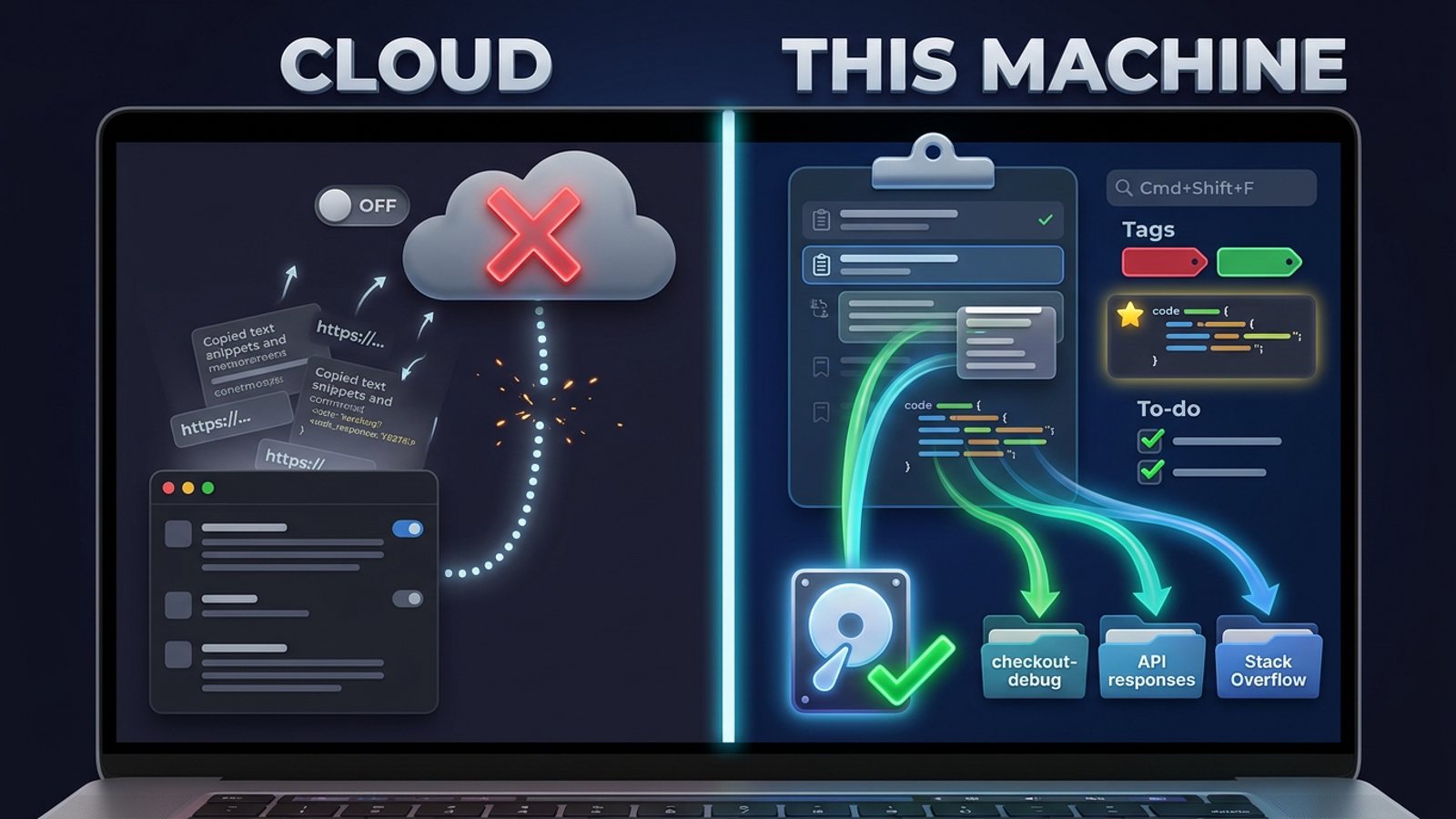
- Clipboarder Pro is our pick for browser work: clips, notes and to-dos in one place, stored on your machine with no servers.
- Ditto and CopyQ are free, open-source and capture system-wide — but they are desktop apps, not browser organisers.
- Win+V is the zero-install baseline on Windows, capped at 25 items with no search.
Which ClipStash do you actually have?
Before you switch, work out which ClipStash is on your machine, because the name covers at least four different things. The "ClipStash – Clipboard History Manager" Chrome extension saves text and images with no sign-up, no cloud and no tracking, and its free plan caps history at 50 entries, according to its Chrome Web Store listing. A second Chrome extension, "ClipStash - Privacy-First Clipboard Manager", also claims zero network access and keeps history in the browser Side Panel, per Socket's 2026 package page and an ExtPose listing from April 2026.
A third Chrome extension called ClipStash pops up a title box when you press Ctrl+C and saves snippets with a custom title to a personal library, its store listing says. Separately, an iPad app called "ClipStash - clipboard manager" runs a free tier (last 50 clips, 30-day expiry, 3 pins) plus paid Standard and Premium plans with a vault and cross-device sync, per its App Store listings. And a "Clipstash" on Google Play is a YouTube timestamp tool, not a clipboard manager at all.
There is one more wrinkle. The extension previously listed as "Clipstash — one-click web highlighter, local only, never cloud" has been renamed "Cliplet — Web Highlighter & Quote Keeper" (v1.7.0, updated 19 November 2026), and its listing confirms existing saves carried over. It is a highlights and quotes tool rather than a clipboard-history manager.
Good to know
If your ClipStash is the highlighter, you are not really looking for a clipboard manager — you are looking for a quote keeper. The tools below will still work, but check what you actually miss first.
What should you look for in a ClipStash alternative?
Write down what is missing before you install anything. In practice, most people leave ClipStash for one of five reasons: the 50-entry limit, no folders or notes, no to-do lists, no capture outside the browser, or no Mac support. Match the tool to the gap and you will not waste an afternoon migrating.
Here is the short version of the decision:
- Browser-only work? Pick a Chrome clipboard manager that also holds notes and to-dos.
- Need capture in every app on Windows? Try Win+V free first, then Ditto or CopyQ.
- On macOS or Linux? CopyQ covers all three desktop platforms.
- Want zero install? Win+V, if you accept 25 items and no search.
What is the best ClipStash alternative in 2026?
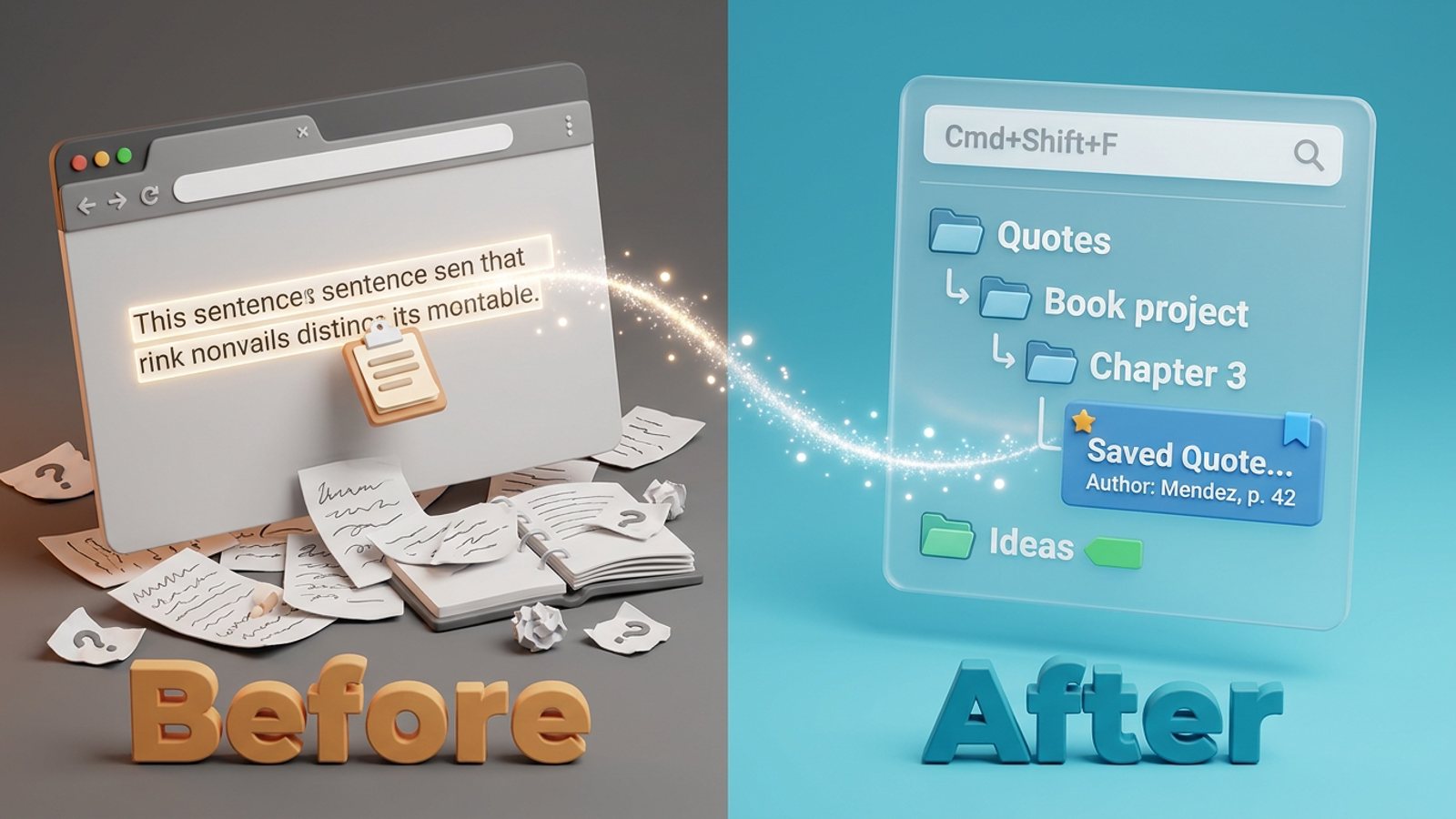
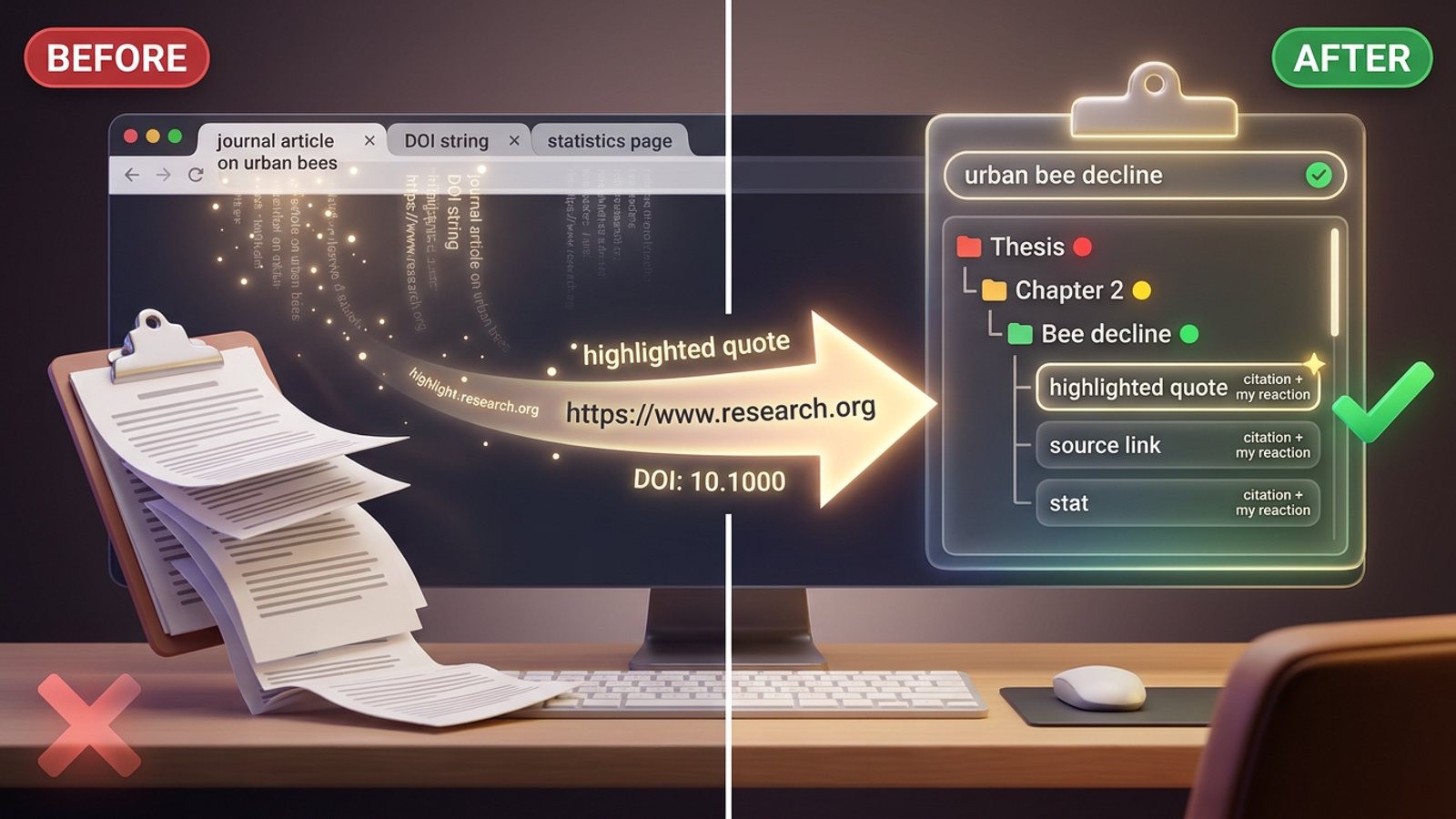
Clipboarder Pro is our pick of the tools we compared for anyone whose copying happens mostly in Chrome. It saves everything you copy — text, images, URLs and code — automatically, and lets you organise clips into nested folders up to three levels deep with drag and drop. You can colour-code items, star the ones you use most for one-click access, and write notes in-line right next to the clip that inspired them. It also builds to-do lists with check-offs and a confetti celebration when you finish.
Search runs across every clip, note and folder with Cmd+Shift+F, and you can select multiple clips and copy 5, 10 or 20 items in one shot. Everything is stored in your browser on your machine — zero servers, zero tracking. It is free for 30 days, then $4.99 per month as of November 2026, and prices can change.
The honest limits: it is a Chrome extension only, and because everything lives in your browser with no servers, there is no cloud sync or server backup. If you need your history on a phone or across devices, that is a real reason to look elsewhere.
If that fits how you work, you can install the ultimate Chrome extension today and keep copying as normal.
How do the alternatives compare?
| Option | Best for | Key features | Price/free option | Watch-outs |
|---|---|---|---|---|
| Clipboarder Pro (Our pick) | Browser-heavy work | Clips, folders, notes, to-dos, search | Free 30 days, then $4.99/mo | Chrome only; local storage |
| Ditto | Windows system-wide history | Searchable database, hotkey, images | Free, open source | Windows only |
| CopyQ | Cross-platform power users | Tabs, tags, scripting, encryption | Free, open source | Technical interface |
| Windows clipboard (Win+V) | Zero-install basics | 25 items, pinning | Free, built in | No search, no folders |
Clipboarder Pro is made by the team behind this blog.
Clipboarder Pro leads this list because it is the only option here that treats clips, notes and to-dos as one workspace — and it keeps all of it on your machine. The trade-off is scope: it lives in Chrome, so anything you copy in Photoshop or Slack on the desktop stays outside it.
Ditto is a free, open-source clipboard manager for Windows only, keeping text, images and files in a searchable database on your own PC, opened with a customisable hotkey, per How-To Geek (July 2026). It has been around since roughly 2003 and defaults to Ctrl+~, according to XDA (February 2026). The project states no login, cloud or telemetry in ordinary use, per MEFMobile (September 2026), and CHIP listed Ditto 3.25.113 as free for Windows 2000 through 11 in February 2026. Its limitation is plain: Windows only, and the richer options can overwhelm casual users, How-To Geek notes. If you mainly need unlimited system-wide history on Windows, Ditto is the more direct choice.
CopyQ is free, open-source and cross-platform (Windows, macOS and Linux), storing text, images and HTML across sessions with unlimited history, search, tabs and tags, per MakeUseOf (February 2026). It adds scripting and automation — shortcuts that strip formatting, convert data or run shell commands — and supports AES-256 encryption for stored clips, per MakeUseOf (November 2025). It is not on the Microsoft Store and its interface looks technical, MakeUseOf notes. If you want automation and you work across operating systems, CopyQ is the stronger fit.
Windows clipboard history (Win+V) is free and built into Windows 10 and 11, but off by default, per Mashable (October 2026). It holds up to 25 items, and only pinned items survive a restart or reboot, Microsoft's Windows tips page confirms. Microsoft's own answer to raising that cap points users to third-party managers like Ditto or CopyQ (Microsoft Q&A, September 2026). If you need nothing more than yesterday's copy on one PC, Win+V costs you nothing.
Tip
Our recommendation: export or re-save your important clips before you switch. Each tool stores its data separately, so nothing moves across automatically.
Which alternative is best if you only work in the browser?
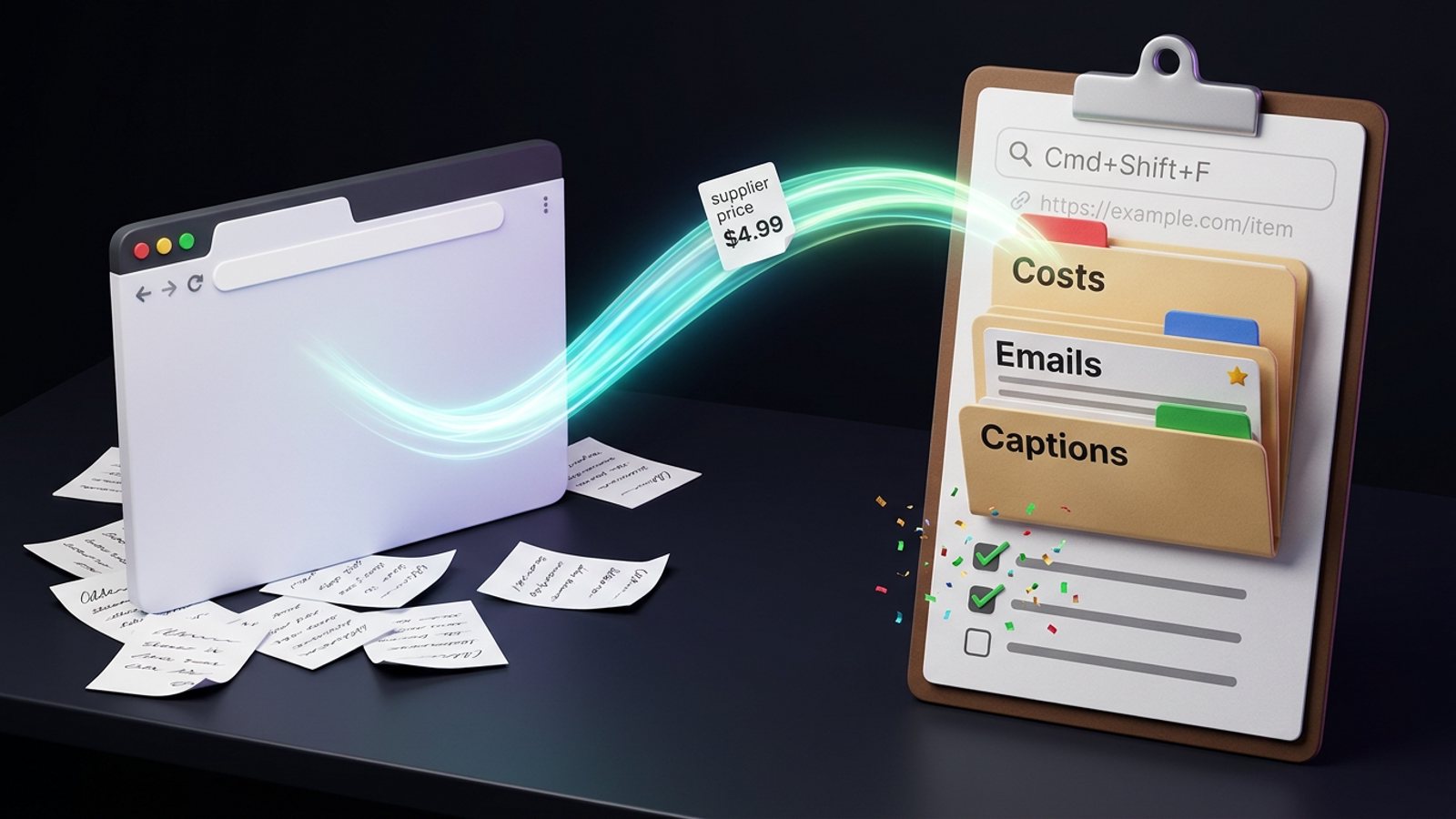
If your day is tabs, docs and code in Chrome, a dedicated Chrome clipboard manager beats a desktop tool because it sits where you already work. Say you run a small bakery and spend the morning copying supplier prices, customer emails and Instagram captions. With Clipboarder Pro, each copy lands in your history automatically; you drag the supplier prices into a "Costs" folder, star the email template you send ten times a day, and turn the caption ideas into a to-do list you tick off as you post.
That is the pattern worth learning regardless of which tool you choose: capture first, organise second, search third. Never organise while you research — you will break your own flow. Copy, keep working, and sort in one batch at the end of the session. Our recommendation: set aside ten minutes at the end of each work block to file what you saved.
Which alternative is best if you need capture outside the browser?
For system-wide capture on Windows, Ditto and CopyQ are the two free open-source options the sources keep pointing to. Both support text, HTML, images and custom formats, though MEFMobile cautions that this does not guarantee every target app pastes every format correctly — so test your main apps in the first week.
On macOS, CopyQ is available, and its Mac App Store companion app is free with in-app purchases and stores all data on the Mac, per its App Store listing (August 2026). Note that Ditto and Win+V are Windows-only, so they are not options on a Mac at all.
Watch out
Do not assume a clipboard tool's history is backed up. Local-first tools — including Clipboarder Pro — keep everything on your machine with no servers, so a wiped browser profile or a dead laptop takes the history with it.
Is Win+V enough instead of a ClipStash alternative?
For many Windows users, yes — with caveats. Win+V is free, needs no install, and handles text, HTML and images under 4 MB, with pinning for the items you want to keep. But it caps at 25 entries with no way to raise it, has no full-text search, and clears unpinned items on reboot. There are no folders, no notes and no to-dos.
If you have ever scrolled Win+V hunting for a link you copied an hour ago, you have already met its limit. That is the moment a real clipboard manager earns its place.
How do you switch without losing your clips?
Switching is mostly about not losing the things you saved. Work through this in order:
- Identify your ClipStash — Chrome extension, Cliplet highlighter, iPad app or the YouTube tool.
- List what is missing — entry limit, folders, notes, to-dos, system-wide capture, Mac support.
- Pick the match — browser work: Clipboarder Pro; Windows system-wide: Ditto; cross-platform: CopyQ.
- Re-save what matters — copy your most-used snippets into the new tool's first folder before you uninstall the old one.
- Set your hotkeys — learn the search shortcut on day one, not week three.
If your work leans towards research rather than code, our guide to the best clipboard tool for organizing research in 2026 walks through the same decision from a researcher's angle. Developers comparing browser options will find more in our round-up of the top 5 clipboard extensions for developers in 2026.
When you are ready to try the browser route, install the ultimate Chrome extension today — it takes a minute and you keep copying exactly as you do now.
Sources
- ClipStash – Clipboard History Manager (Chrome Web Store)
- ClipStash - Privacy-First Clipboard Manager (Socket, 2026-03-12)
- ClipStash - Privacy-First Clipboard Manager (ExtPose, 2026-04-05)
- ClipStash (Chrome Web Store)
- Cliplet — Web Highlighter & Quote Keeper (Chrome Web Store, 2026-11-19)
- ClipStash - clipboard manager (App Store)
- ClipStash - Google Play (2026-05-14)
- I used this free clipboard manager for a week (MakeUseOf, 2026-02-17)
- This open-source clipboard manager makes Windows way smarter (MakeUseOf, 2025-11-12)
- Clipboard History - CopyQ (App Store, 2026-08-17)
- This open-source clipboard manager slowly became my most important productivity tool (How-To Geek, 2026-07-04)
- This clipboard manager should be built into every operating system (XDA, 2026-02-08)
- I replaced Windows 11's default apps with these open-source tools (Yahoo Tech, 2026-02-07)
- 24 Best Free and Open Source Clipboard Managers in 2026 (MEFMobile, 2026-09-22)
- Ditto - Clipboard Manager 3.25.113 (CHIP, 2026-02-09)
- I enabled Windows 11 clipboard history and immediately turned off the cloud sync (MakeUseOf, 2026-03-31)
- 5 Windows settings most people don't know about (Mashable, 2026-10-18)
- Histórico da área de transferência (Microsoft)
- clipboard maximum (Microsoft Q&A, 2026-09-11)
Frequently asked questions
What is the free limit on ClipStash?
The ClipStash Chrome extension's free plan caps history at 50 entries, according to its Chrome Web Store listing. The iPad app's free tier also keeps the last 50 clips, with a 30-day expiry and 3 pins, per its App Store listings.
Can I raise the 25-item limit in Windows clipboard history?
No. Microsoft's own answer to that question points users to third-party clipboard managers such as Ditto or CopyQ for larger histories (Microsoft Q&A, September 2026). Win+V stays at 25 items.
Which ClipStash alternative should I use?
It depends on where you copy. For Chrome-based work with folders, notes and to-dos, Clipboarder Pro is our pick of the tools we compared. For system-wide capture on Windows, Ditto is the more direct choice; for cross-platform power use, CopyQ.
Is my clipboard history stored locally or in the cloud?
With Clipboarder Pro, Ditto, CopyQ and Win+V, history is stored on your own machine. That means privacy by default — and no server backup, so keep your own copies of anything critical.
Does Clipboarder Pro work outside Chrome?
No. It is a Chrome browser extension only, and everything is stored in your browser on your machine with no servers. If you need capture in desktop apps, pair it with a system-wide tool like Ditto or CopyQ.