What is the best clipboard history tool for a web developer?
For Chrome-heavy web work, Clipboarder Pro saves URLs, snippets, error text and tokens with folders, notes and fast search. For system-wide capture, Ditto or Maccy are the honest picks.
Clipboarder Pro Team
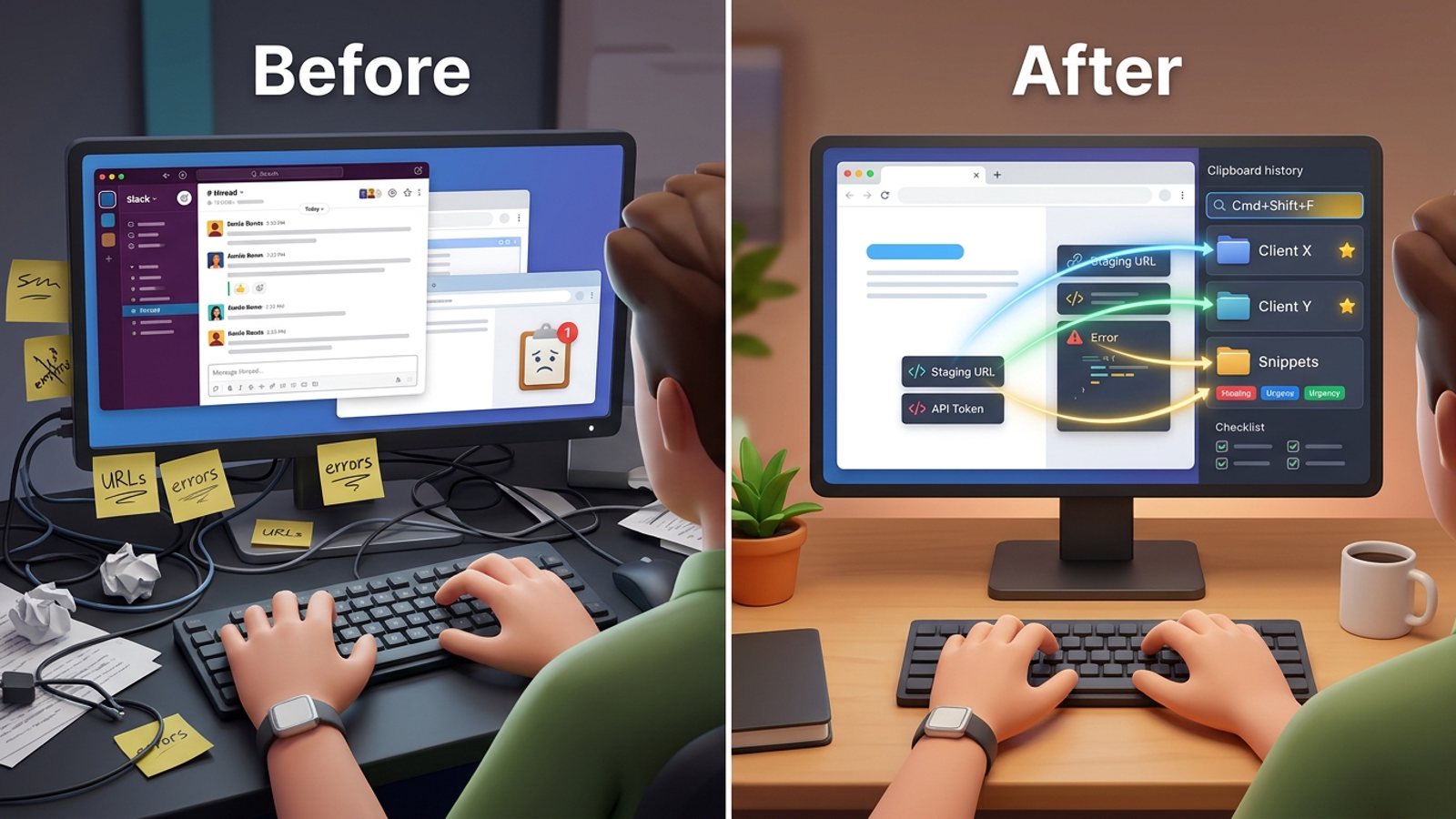
If most of your copying happens in Chrome — URLs, snippets, error text and tokens — the best clipboard history web developer tool is a browser-scoped manager like Clipboarder Pro, which saves text, images, URLs and code with folders, notes, to-dos and search at Cmd+Shift+F. If you copy system-wide, use Windows Clipboard History or Ditto on Windows, or Maccy or Raycast on a Mac.
Key takeaways
Key takeaways
- Your best tool depends on where you copy: OS-level tools catch everything, browser tools keep web work in one window.
- Windows Clipboard History is free but capped at 25 items and 4 MB each, with no real search (MEFMobile, 2026).
- Macs kept a single clipboard item until macOS 26 Tahoe added Spotlight clipboard history.
- Clipboarder Pro is a Chrome clipboard manager: it saves everything you copy, sorts it into folders, and finds it again fast.
- Whatever you pick, check how it handles tokens and passwords before you trust it.
Why does a web developer need a clipboard history tool at all?
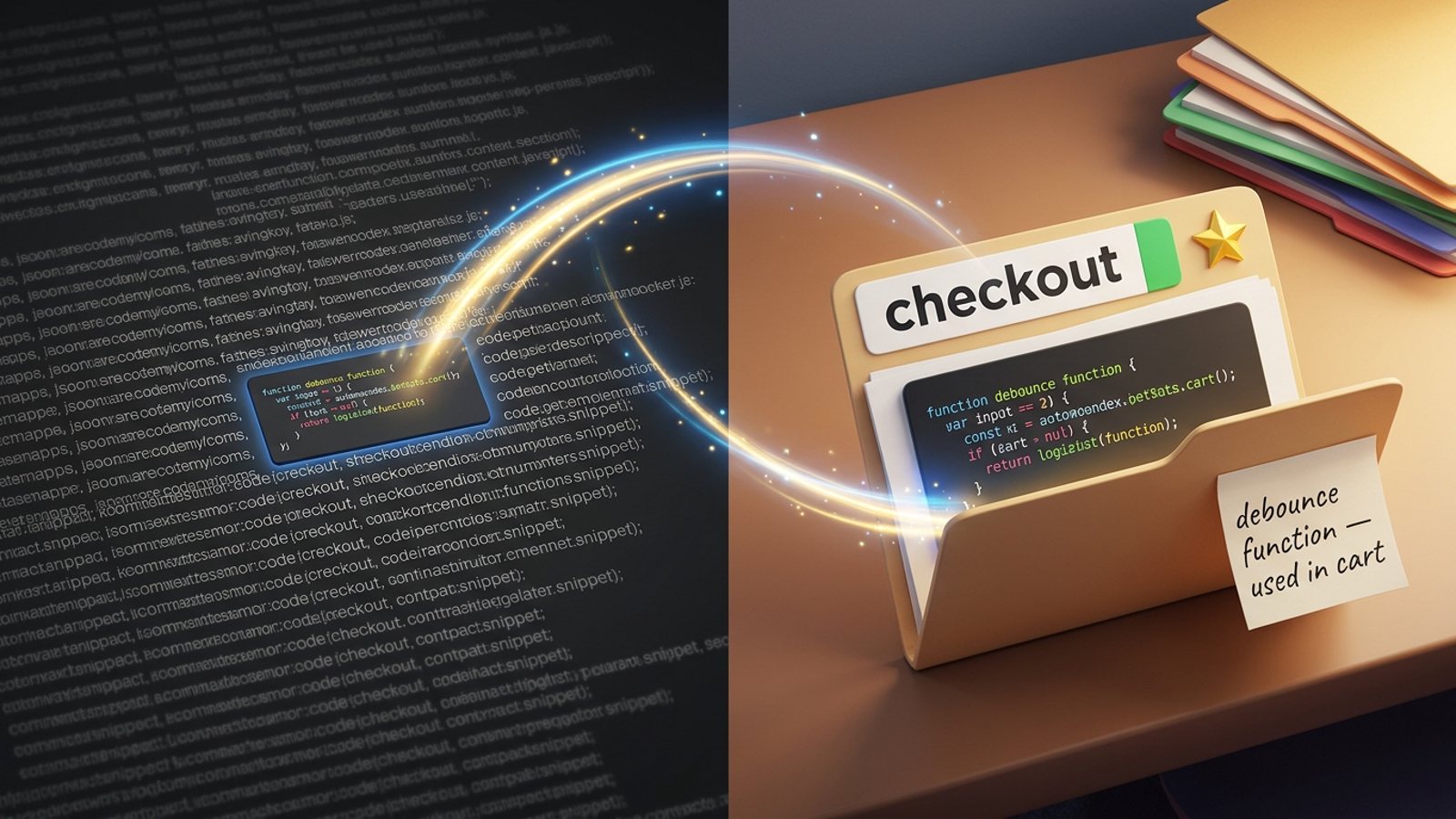
Because a web developer's day is one long copy-paste chain, and the clipboard only holds one link in it. You copy a staging URL, then a snippet, then an error message, then a token — and each copy silently erases the last one.
The real cost isn't the copying. It's the re-finding. You copied a deploy URL three hours ago and now you're scrolling Slack to find it again.
A clipboard history setup fixes that pattern. Instead of one slot, you get an archive you can search. The question is whether that archive should live in your operating system or in your browser — and that depends on where you actually copy.
Good to know
Browser-based clipboard managers are described as less intrusive and cross-platform by default, though a browser-scoped manager can't tell which app a copy came from (Hacker News thread, date not given).
What should a web developer look for in a clipboard history tool?
Look for four things: fast search, a way to pin or star the clips you reuse, organization that matches your projects, and clear handling of sensitive copies. Everything else is a bonus.
- Search speed. You should be able to type three characters of an error message and land on the clip. Maccy, for example, is search-as-you-type: you type a fragment of a hostname or error and hit Return (low-confidence source — verify on Maccy's own site).
- Pinning or starring. Recurring clips — a staging URL, a
docker runline — should be one click away, not buried. - Organization. Folders, tags or tabs, so your "client X" snippets don't mix with "client Y" URLs.
- Sensitive-copy handling. CopyQ's own security docs warn that text and images are stored automatically by default, and that passwords from password managers land in unencrypted history if secret handling is set to process all secrets (MEFMobile, 2026).
That fourth point matters more for web developers than for almost anyone else, because you copy API tokens and connection strings all day.
Watch out
Before you trust any clipboard tool with your whole day, test it with a fake token first. Copy a dummy string from your password manager and check whether it appears in the tool's history.
What is the best clipboard history tool for a web developer in 2026?
For Chrome-heavy work, Clipboarder Pro is our pick of the tools we compared, because it saves text, images, URLs and code automatically and keeps them organized in the same window you're already working in. For system-wide capture, the built-in OS tools and the open-source desktop managers are the honest alternatives.
| Option | Best for | Key features | Price | Watch-outs |
|---|---|---|---|---|
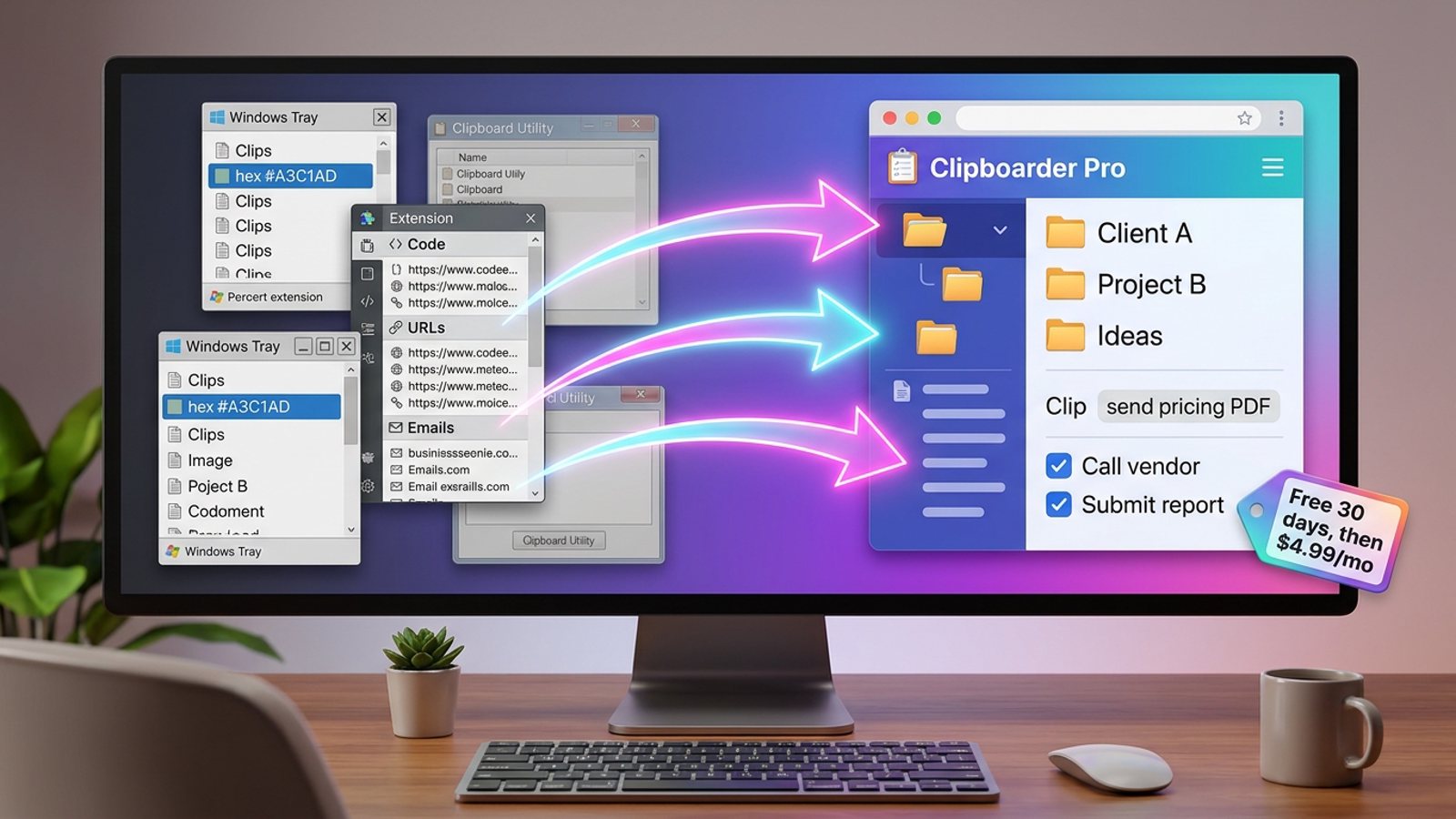
| Clipboarder Pro (Our pick) | Chrome-centric web work | Auto-saves text, images, URLs, code; nested folders; stars; notes; to-dos; Cmd+Shift+F search | Free 30 days, then $4.99/mo | Chrome only; stored locally in your browser |
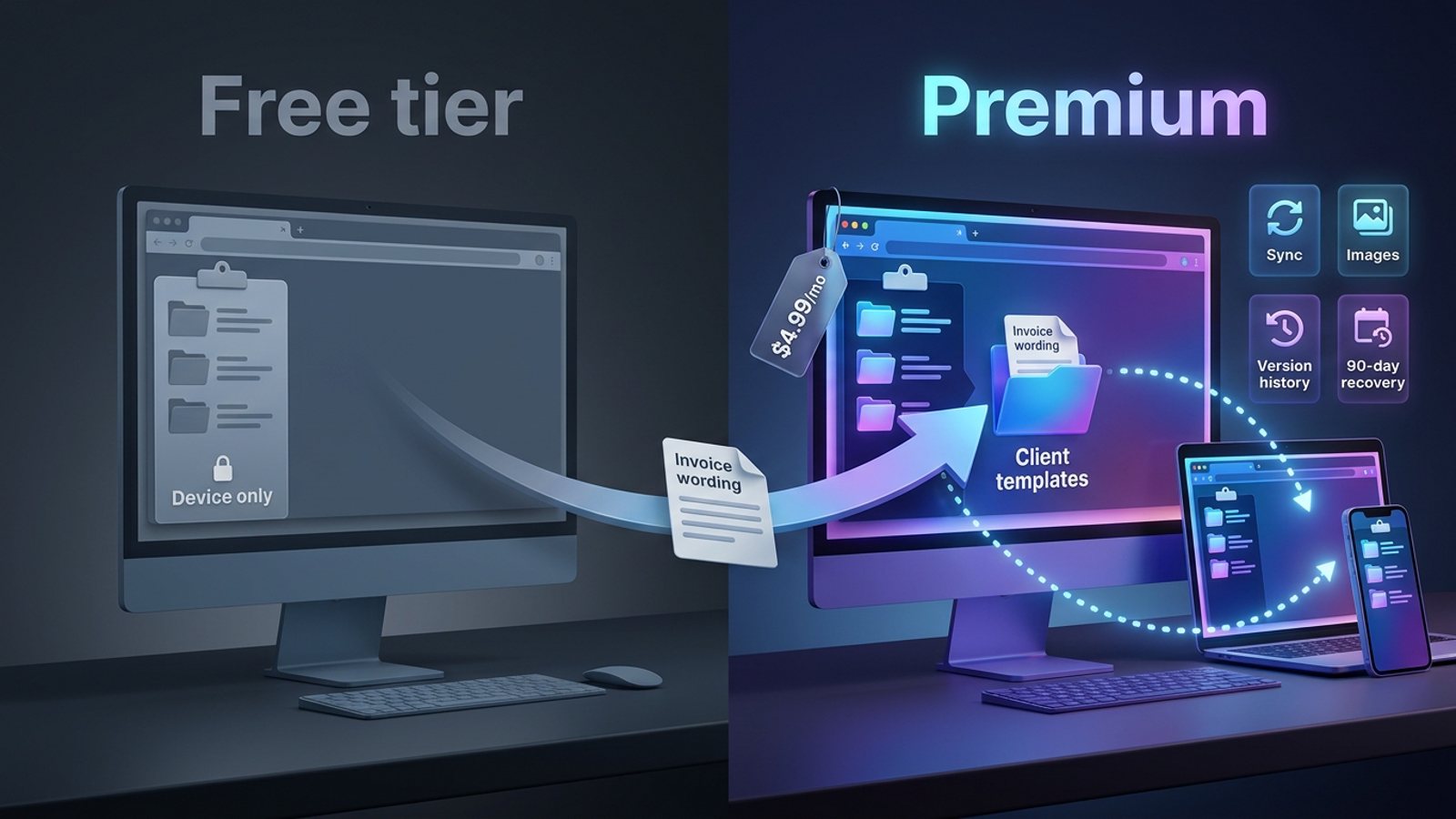
| Windows Clipboard History | Quick free recall on Windows | Win+V; 25 items; pins; optional account sync | Free with Windows 10/11 | No real search; 4 MB per item; Windows only |
| macOS Spotlight history | Zero-install history on macOS 26+ | Text, links, images in Spotlight; retention options | Free with macOS 26 | macOS 26+ only; no folders or notes |
| Ditto | Deep Windows archive | Searchable database; custom limits; merge paste; LAN sync | Free, open source | Windows only; desktop install |
| Maccy | Free Mac keyboard-first history | Search-as-you-type; pinning; local-only | Free, open source (MIT) | No folders or notes; sources conflict on sync |
| Raycast | People already in a launcher | Text, images, colours, links; pinning; plain/rich paste | Free (3-month history); Pro $10/mo or $96/yr | Unlimited history needs Pro; no device sync |
Clipboarder Pro is built for the exact mix this article is about: URLs, snippets, error text and tokens copied in Chrome. It captures everything you copy as you work, lets you drag items into nested folders up to three levels deep, colour-code by urgency or project, and star the items you use most for one-click access. Search runs across every clip, note and folder with Cmd+Shift+F. Everything is stored in your browser on your machine — no servers, no tracking.
Clipboarder Pro is made by the team behind this blog.
Pricing is $4.99 per month after a free 30-day trial, as of November 2026 — prices can change.
Windows Clipboard History is the free starting point on Windows. Windows+V opens it, it holds up to 25 entries at 4 MB each in text, HTML and bitmap, and pinned items survive the automatic cleanup (MEFMobile, 2026). It's off by default — enable it in Settings > System > Clipboard. The catch: MakeUseOf (2025) notes the native clipboard offers no meaningful organization or search. And admins can switch it off entirely with the AllowClipboardHistory policy (Microsoft Learn, 2026).
macOS Spotlight clipboard history arrived with macOS 26 Tahoe and saves recent text, links and images inside Spotlight (MacObserver, 2025). Retention is reported inconsistently — notchstar.com (2026) lists options of 30 minutes, 8 hours or 7 days, while Yahoo Tech (2025) says the past 30 days, and a 9to5Mac piece from the developer beta (2025) said about eight hours. Check your own Mac. Before macOS 26, Macs stored one clipboard item at a time with no way back (TypeFire, 2026).
Ditto is the Windows power-user answer: an open-source manager that keeps a searchable database of text, images, HTML and files, with a history limit you set yourself — one MakeUseOf writer set 200 (2026). It supports merge-paste of several clips at once and can sync across machines over a LAN or a synced folder (百度百科, 2026). It's Windows-only and needs a desktop install.
Maccy is free, open source under the MIT licence, keyboard-first and local-only — it keeps everything on your computer (NotchStar, 2026). There's also a $9.99 App Store build for people who want to support development (AppBreakup, 2026). One comparison says it has no snippet library; sources also conflict on iCloud sync and default item counts, so verify on Maccy's site.
Raycast folds clipboard history into a launcher. It handles text, images, colours and links, lets you pin entries and paste as plain or rich text, and Raycast says copied content never leaves your computer and is encrypted locally (FavTray, 2026). The free plan keeps three months of history; unlimited history needs Pro at $10 a month or $96 a year (NotchStar, 2026).
If you mainly need a deep system-wide archive on Windows, Ditto is the more direct choice. If you live in a Mac launcher all day, Raycast earns its place. If you want your web work organized without a second app running, a Chrome clipboard manager keeps it in the browser.
How do you set up clipboard history for a Chrome-heavy workflow?
Start by installing the extension and then doing nothing differently — the setup that works is the one that doesn't interrupt your copying. Everything else is organization you add later.
- Install and keep copying. Install the extension and work as normal; everything you copy is captured in your clipboard history automatically.
- Star your top five. Star the staging URL, the API base URL, your most-pasted snippet and anything else you reach for daily.
- Make folders per project. Drag items into nested folders — up to three levels deep — so each client or repo has its own shelf.
- Colour-code by urgency. Tag items by urgency, project or mood so priorities jump out when you scan the list.
- Write notes next to the clip. When a snippet needs context — "this fixes the CORS error on staging" — write the note in-line next to the clip that inspired it.
- Search instead of scrolling. Use Cmd+Shift+F to search across every clip, note and folder when you need something you copied hours ago.
Tip
Our recommendation: after your first week, archive anything you haven't touched. Clipboarder Pro archives items without deleting them, with an automatic retention window you can set between 1 and 365 days.
How do you find something you copied hours ago?
Search, not scroll. The whole point of a history tool is that retrieval is faster than re-finding the source — so the tool you pick should get you to a three-word fragment of the clip in seconds.
Say you're debugging a checkout flow. At 10am you copied a Stripe error message from the console. At 3pm you need it for a ticket. With a single-slot clipboard it's gone. With a history tool, you type "card_declined" and it's back.
This is where the browser-scoped approach earns its keep for web developers: the URL, the error text and the snippet were all copied in Chrome, so they're all in the same searchable list as the notes you wrote about them.
If you want the mechanics in more detail, our guide to searching your clipboard history in Chrome for an old snippet walks through it step by step.
Can a browser extension see copies made in VS Code or Terminal?
It can see the content once it's on the system clipboard, but it can't tell which app it came from. That's the honest trade-off of a browser-scoped manager.
A browser-based manager is described as less intrusive and cross-platform by default, but a browser-scoped manager can't identify the source app of a copy (Hacker News thread, date not given). So if your day is split between Chrome and your editor, an OS-level tool like Ditto or Maccy will capture both — it just won't organize them around your web projects the way a browser tool does.
Our recommendation: match the tool to where the majority of your copying happens. If it's 80% Chrome, a browser manager wins on organization. If it's 50/50 with your terminal, an OS-level tool is the safer base.
Will a clipboard manager store my API tokens and passwords?
It depends entirely on the tool, and you should check before you install. This is the one question web developers ask least and should ask first.
CopyQ's own security documentation warns that text and images are stored automatically by default, and that passwords from password managers will be stored in unencrypted history if secret handling is set to process all secrets (MEFMobile, 2026). A Mac developer roundup warns against any manager that records password-manager copies or syncs clips through a cloud you don't control (low-confidence source — verify independently).
Clipboarder Pro stores everything in your browser on your machine, with no servers — so nothing is uploaded. Our recommendation: whichever tool you choose, paste a dummy token from your password manager once and confirm whether it shows up in history. If it does, decide deliberately whether that's acceptable.
Watch out
Never paste a live production token into a clipboard tool you haven't tested with a dummy first. Clearing history afterwards is not the same as never storing it.
Which clipboard tool is best if you work across Windows and Mac?
None of the built-in options cross the gap cleanly. Windows Clipboard History is Windows-only, macOS tools are mostly local-only, and browser tools keep history in the browser profile.
Ditto can sync across devices over a LAN, a VPN or a synced folder (百度百科, 2026). Windows' own clipboard sync needs a Microsoft or work account signed in on each device, and can be set to automatic or manual per item (MEFMobile, 2026). Raycast's free plan offers no device sync, and its history stays local (eone.one, 2026).
For most web developers, the practical answer is to pick one machine as your primary dev environment and keep the clipboard tool there. If you need the same snippets on both, a shared notes doc or a snippet library in your editor is a more reliable bridge than clipboard sync.
Ready to stop losing what you copy? Install the ultimate Chrome extension today and your next copied snippet will still be there hours from now.
Sources
- Windows 11 Clipboard History vs third-party clipboard managers (MEFMobile, 2026-10-03)
- AllowClipboardHistory / Experience policy CSP (Microsoft Learn, 2026-06-21)
- This open-source clipboard manager makes Windows way smarter (MakeUseOf, 2025-11-12)
- How to see clipboard history on Mac (TypeFire, 2026-08-10)
- Use clipboard history on macOS Tahoe (MacObserver, 2025-09-15)
- Windows+V for Mac (MacObserver, 2025-11-16)
- See clipboard history on Mac (notchstar.com, 2026-11-03)
- Finally, see your Mac's clipboard history (Yahoo Tech, 2025-11-13)
- Spotlight clipboard manager vs Keyboard Maestro (9to5Mac, 2025-06-17)
- Best Mac Clipboard Managers Compared (NotchStar, 2026-11-03)
- Best Mac clipboard manager 2026 (eone.one, 2026-08-28)
- Is Maccy Free? Pricing vs Raycast & Alternatives (AppBreakup, 2026-10-24)
- Paste App Alternatives for Mac (FavTray, 2026-10-13)
- I replaced Windows clipboard history with a free app (MakeUseOf, 2026-09-19)
- This clipboard manager should be built into every OS (XDA, 2026-02-08)
- Ditto (百度百科, 2026-05-07)
- Ditto Clipboard Manager (CHIP, 2026-02-09)
- Best Clipboard Manager for Developers in 2026 (pelvicpainrehab.com, 2026-10-17 — low-confidence source)
- Browser-based clipboard managers discussion (Hacker News thread, date not given)
- Chrome clipboard API permissions (Chrome for Developers)
Frequently asked questions
Does Windows have a built-in clipboard history, and is it enough for web development?
Yes — Windows+V opens Clipboard History, holding up to 25 items at 4 MB each, with pins that survive automatic cleanup (MEFMobile, 2026). For web development it usually isn't enough: MakeUseOf (2025) notes the native clipboard offers no meaningful organization or search, so you can't find the error message you copied four hours ago.
Is Maccy really free?
Yes. Maccy is free and open source under the MIT licence via direct download or Homebrew, and there's also a $9.99 App Store version for people who want to support the developer or prefer App Store updates (AppBreakup, 2026).
Do I need Alfred's Powerpack for clipboard history on a Mac?
Yes. Alfred's core app is free, but clipboard history requires the paid Powerpack — £34 for a single licence, £59 for Mega Supporter, as of November 2026 (NotchStar, 2026). If you already own it, Alfred is a sensible choice; if not, Maccy is free.
What Chrome warnings will I see when installing a clipboard extension?
Chrome extensions that read and write the clipboard must declare the clipboardRead and clipboardWrite permissions, and Chrome shows users warnings such as "Read data you copy and paste" and "Modify data you copy and paste" (Chrome for Developers). That's expected for any clipboard extension — read the permission list before you install.
Which clipboard history tool should a web developer actually use?
If most of your copying happens in Chrome — URLs, snippets, error text and tokens — use Clipboarder Pro: it saves everything you copy, organizes it into folders with notes and to-dos, and finds it again with Cmd+Shift+F. If you copy system-wide on Windows, use Ditto; on a Mac, Maccy is the free, local-only pick.