What are the top 5 clipboard tools for students on a laptop?
The five clipboard tools worth knowing for a laptop study day, judged on search, folders and where your data lives — plus which one fits your workflow.
Clipboarder Pro Team
For a student on a laptop, the five worth knowing are Clipboarder Pro (best if you copy mostly inside Chrome and want clips, notes and to-dos in one place on your machine), Windows clipboard history, the macOS built-in clipboard, Ditto and CopyQ. Judge them on three things: how fast you can search, how you file clips, and where the data lives.
Key takeaways
Key takeaways
- Clipboard tools for students come in two shapes: browser-based managers and system-wide desktop apps.
- Windows clipboard history (Win+V) holds up to 25 items and is off by default; macOS keeps only the last item you copied.
- Ditto and CopyQ add search, groups or tabs and long history — both free and open-source.
- Where your data sits matters on a shared or lab laptop: check sync settings and clean up before you log off.
- Clipboarder Pro is free for 30 days, then $4.99 per month as of November 2026 (prices can change).
What are the top 5 clipboard tools for students on a laptop?
Here's the short list, in the order we'd hand it to a student opening a laptop on day one.
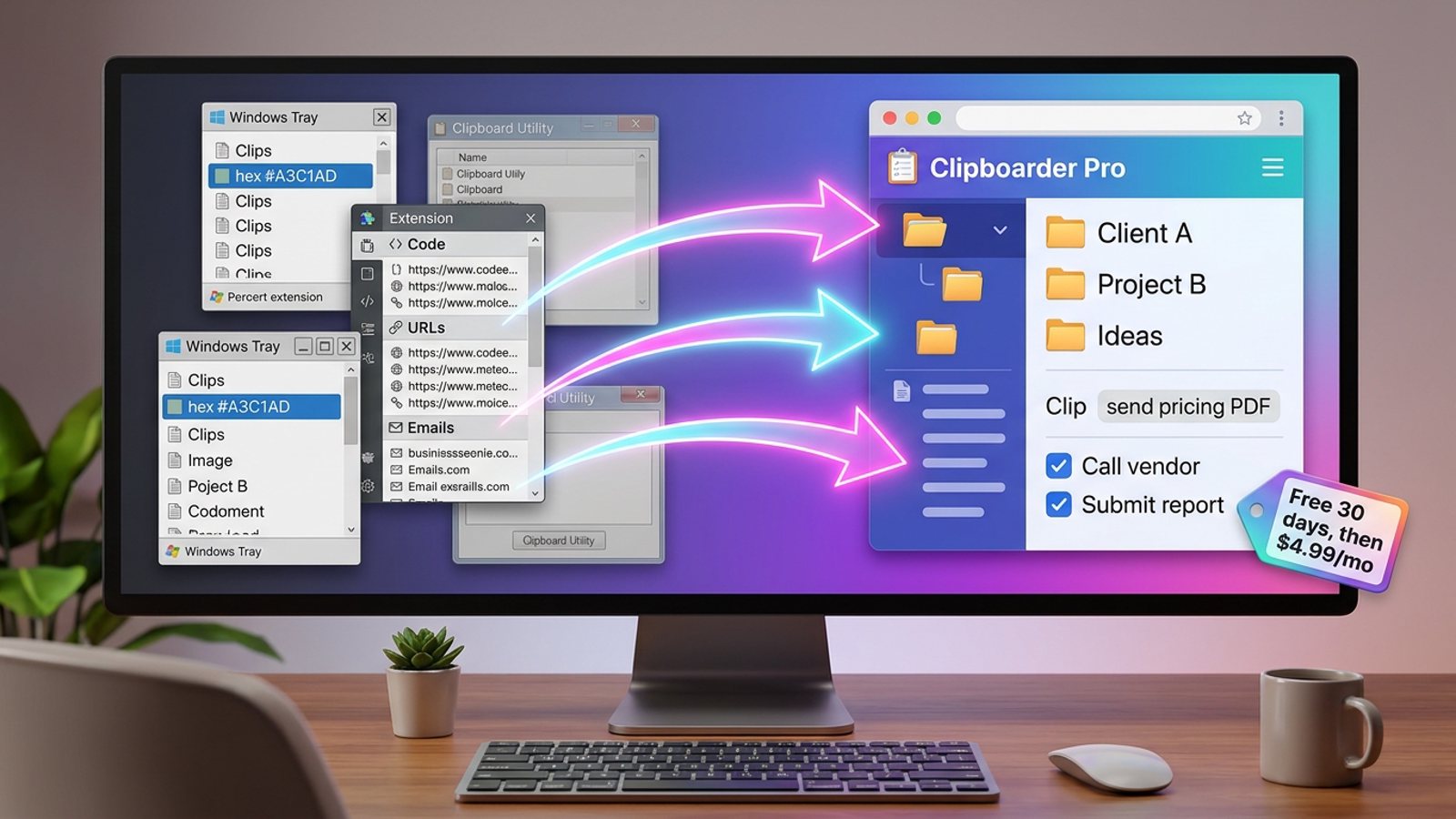
- Clipboarder Pro — a Chrome clipboard manager that saves everything you copy and files it into folders, notes and to-do lists, stored on your machine with zero servers, zero tracking.
- Windows clipboard history (Win+V) — free, built in, nothing to install, capped at 25 items.
- macOS built-in clipboard — free, built in, keeps exactly one item.
- Ditto — free, open-source, Windows-only, with search, groups and unlimited history.
- CopyQ — free, open-source, cross-platform, with tabs, tags and scripting.
That ranking is editorial judgement based on the features below — the sources don't rank these tools.
If you spend your study day copying quotes, links and code inside Chrome, install the ultimate Chrome extension today and everything you copy lands in one searchable place.
How should a student choose a clipboard tool?
Choose by where you copy, not by feature count. If most of your copying happens in a browser tab — lecture slides, journal PDFs, Stack Overflow answers — a browser-based manager fits your day better than a desktop app. If you copy across Word, Excel, a PDF reader and a terminal, you want something system-wide.
Then ask three questions: Can I search it in one keystroke? Can I group clips so a citation doesn't drown in a flat list? And where does the data go — is it on my machine, or syncing somewhere I didn't plan?
Tip
Our recommendation: turn on the built-in option first (Win+V on Windows) and use it for a week. If you keep scrolling past the 25-item cap or losing citations, that's your signal to install a proper manager.
1. Clipboarder Pro — best for students who copy inside Chrome
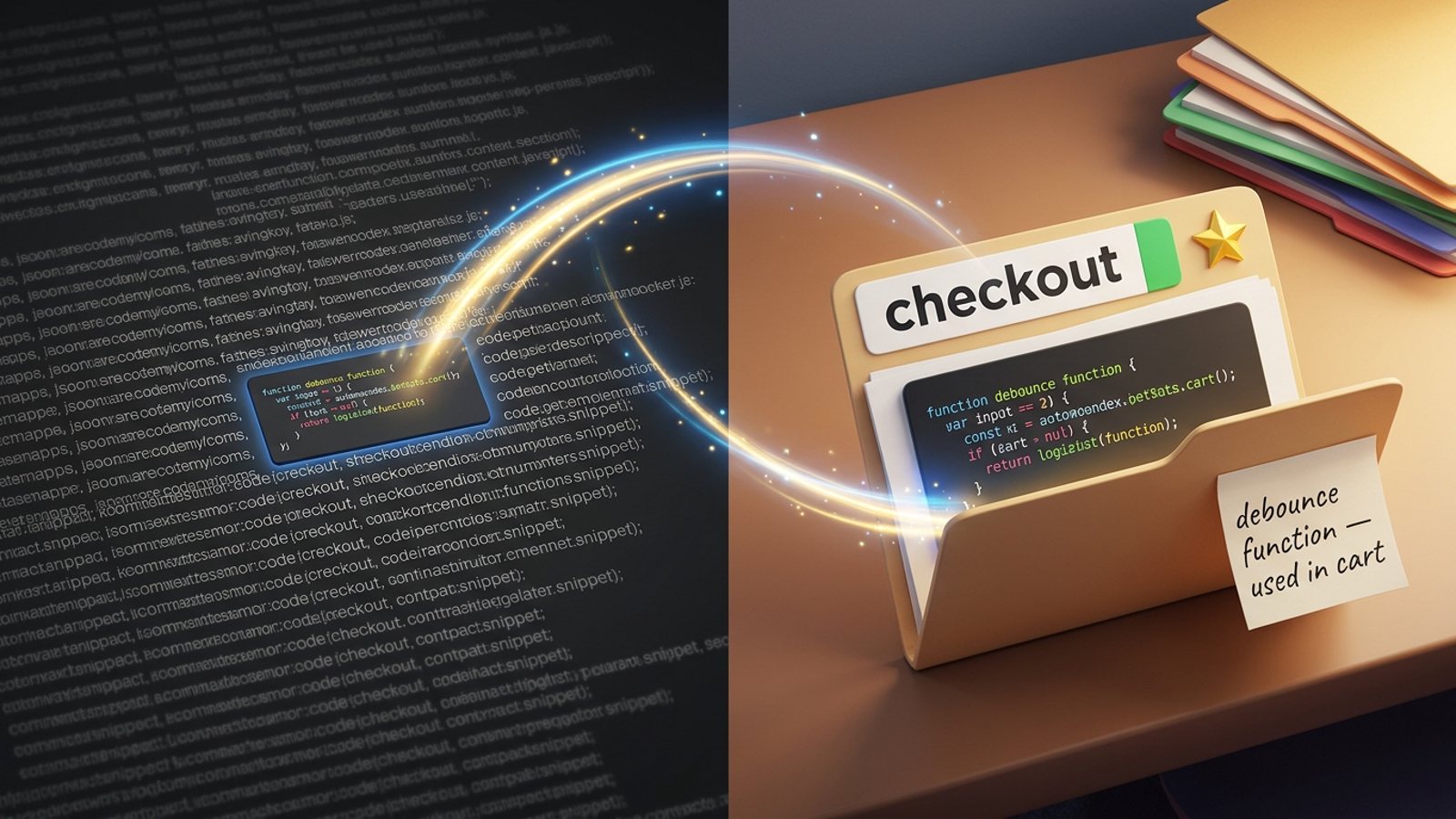
Clipboarder Pro automatically saves copied text, images, URLs and code as you work, then lets you organise them into nested folders up to three levels deep with drag and drop. You can colour-code items by urgency or project, star the ones you use most for one-click access, and write notes in-line right next to the clip that inspired them.
It also builds to-do lists with check-offs, lets you select multiple clips and copy 5, 10 or 20 in one shot, and archives items without deleting them on a 1–365 day retention window. Search runs across every clip, note and folder with Cmd+Shift+F.
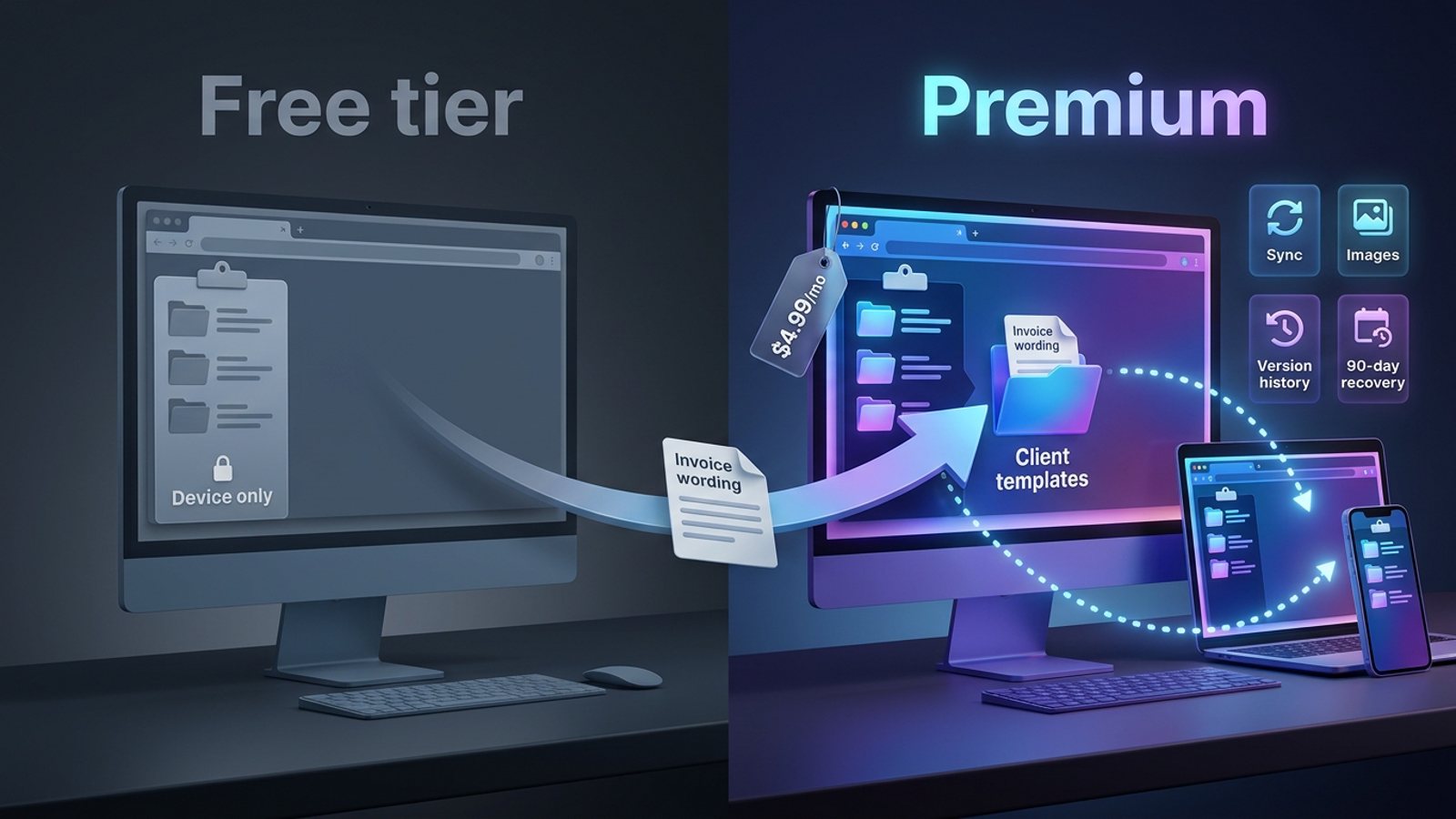
The honest limit: it's a Chrome extension only, and everything is stored in your browser on your machine — no servers, no cloud sync. That's excellent for privacy on a shared laptop, but it won't follow you to a desktop app or a second device.
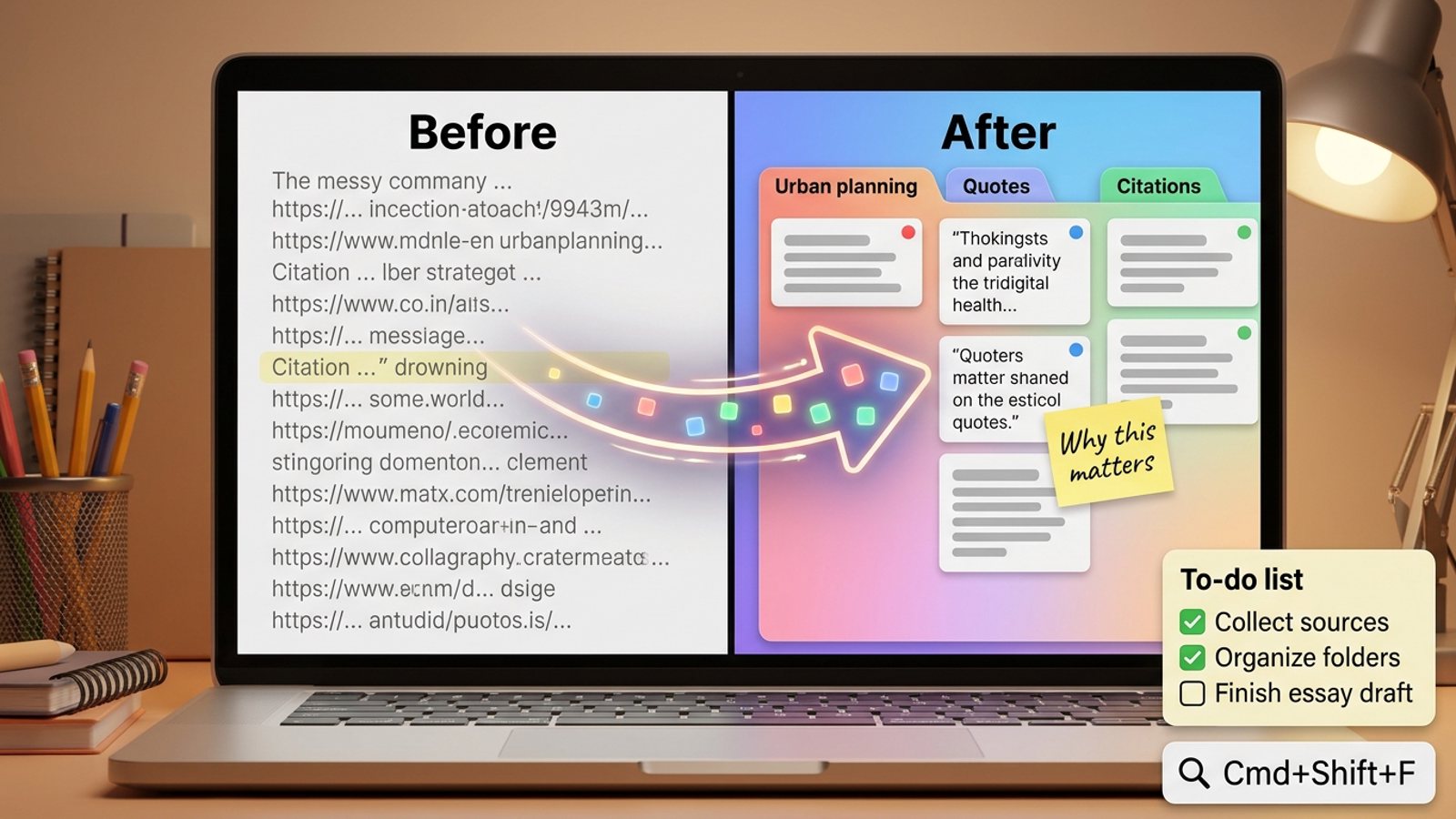
Say you're writing an essay on urban planning. You copy a statistic from one paper, a quote from another, and a link to a city report. Each lands in a folder called "Urban planning", tagged by source, with your own note next to the quote about why it matters. Three weeks later you search one phrase and it's all there.
2. Windows clipboard history — best when you want zero installs
Press Win+V and Windows shows your recent clips. It's free and built in, but it's off by default, so you have to enable it from Win+V or Settings, per MakeUseOf (2026).
Microsoft's own Q&A (2026) lists support for Text, HTML and Bitmap formats with a 4 MB per-item limit, and older unpinned items drop off automatically. The cap is 25 items, and Microsoft's Q&A (2026) confirms there's no native setting or registry tweak to raise it.
Watch out
Windows clears clipboard history on restart except for pinned items — and Microsoft's own tips page notes pinned items still count toward the 25-item limit. A MakeUseOf writer (2026) also reported that the optional sync-across-devices setting was on without them realising. If you're on a shared or lab machine, check that setting before you copy anything private.
3. macOS built-in clipboard — best if you just want to check what you're about to paste
macOS keeps only the most recent copied item. There's no native history viewer and no shortcut for one, per MacObserver (2025). To see that single item, use Finder > Edit > Show Clipboard, or type pbpaste in Terminal — though Setapp (2026) notes images and files return only the file name.
There's a hidden second clipboard: Control+K cuts and Control+Y pastes, running separately from Command+C, and it works with text only (Setapp, 2026).
Clipboard history is reported as arriving in macOS 26 via Spotlight — How-To Geek flagged it in 2025 ahead of release, so treat it as reported rather than confirmed on Apple's own pages. Until then, Mac students who copy a lot need a manager.
4. Ditto — best free Windows manager for long history
Ditto is free, open-source and Windows-only. You reach it from the system tray or the default Ctrl + ~ shortcut (Yahoo Tech, 2026). It stores text, images, HTML and custom formats, supports search and paste of previous entries, shows image thumbnails, and pastes by double-click, Enter or drag-and-drop (TechSpot, 2025).
It keeps unlimited clips that persist across reboots, with search, groups and sticky items — and you can set your own limit, such as 20, 100 or 1,000 entries (Yahoo Tech/How-To Geek, 2026; MakeUseOf, 2026). There's a portable build, Ditto Portable 3.25.113, a 4 MB download that runs without installing (PortableApps.com). Ditto's README states ordinary use needs no login, cloud service or telemetry — a project claim, not an independent audit.
Limitations: Windows-only, visually dated, and groups aren't real folders or tags (MEFMobile, 2026).
5. CopyQ — best for cross-platform students who like to tinker
CopyQ is free, open-source and lightweight, and treats the clipboard "like a database" with tabs, search and automation (MakeUseOf, 2025). It runs on Linux, Windows and macOS 13+ under GPL-3.0, storing text, HTML, images and custom formats with tabs, tags, editing, keyboard shortcuts and scripting (CopyQ README; MEFMobile, 2026).
Items can be edited, moved between tabs, drag-and-dropped, tagged or noted, and history is kept between shutdowns (CopyQ README; XDA, 2025). The current release was listed as version 15.0.0 on 12 April 2026 (MEFMobile, 2026).
Limitations: it's more configurable than Ditto or a built-in tool but takes longer to understand, and scripting is overkill for a simple study day (MEFMobile, 2026).
How do the five compare?
| Option | Best for | Key features | Price | Watch-outs |
|---|---|---|---|---|
| Clipboarder Pro (Our pick) | Copying inside Chrome | Folders, notes, to-dos, search | Free 30 days, then $4.99/mo | Chrome only, local-only |
| Windows history | Zero-install baseline | Win+V, pinning, images | Free | 25-item cap |
| macOS clipboard | Checking one item | Show Clipboard, pbpaste | Free | One item only |
| Ditto | Long Windows history | Search, groups, portable | Free | Windows only |
| CopyQ | Cross-platform power use | Tabs, tags, scripting | Free | Steep learning curve |
Clipboarder Pro is our pick of the tools we compared for the laptop study day, because clips, notes and to-dos sit in the same Chrome window you're already working in, with fast search and nothing leaving your machine. If you mainly need unlimited desktop history on Windows, Ditto is the more direct choice. If you work across Linux, macOS and Windows, CopyQ wins.
Clipboarder Pro is made by the team behind this blog.
Prices for other tools are as of November 2026 and can change. Clipboarder Pro's price is from the product facts: free for 30 days, then $4.99 per month as of November 2026, and prices can change.
Where should your clipboard data live?
On your own machine, unless you've deliberately chosen otherwise. A student-focused guide from Edge Drop (2026) argues the right student tool is free, runs locally, and clears cleanly on a shared lab PC so the next user doesn't see what you copied.
Clipboard history can hold passwords, auth codes, API keys and private documents, so MEFMobile (2026) advises configuring exclusions before enabling sync or unlimited retention.
Good to know
Portable clipboard managers run from a USB stick on locked-down lab or borrowed machines with no installer and no admin rights (Edge Drop, 2026). Ditto and CopyQ both offer portable builds.
How do you set one up in five steps?
- Pick by where you copy — mostly in Chrome: Clipboarder Pro. Anywhere on Windows: Ditto or CopyQ. Nothing to install: Win+V or macOS's built-in clipboard.
- Turn on the built-in option first — press Win+V on Windows and enable clipboard history; on Mac use Finder > Edit > Show Clipboard to see what's stored.
- Decide your cap and cleanup — set a history limit in Ditto or a retention habit in the browser, and unpin or purge anything sensitive before a shared-lab session.
- Organise — use groups in Ditto, tabs and tags in CopyQ, or folders in Clipboarder Pro so a citation isn't lost in a flat list.
- Search instead of scrolling — learn each tool's search shortcut (Ditto's Ctrl + ~, CopyQ's filter box, Clipboarder Pro's fast search) so you retrieve in a keystroke.
The tool you can search in one keystroke beats the tool with the longest feature list — every time.
Does a clipboard tool sync between a laptop and phone?
Some do, some don't. Ditto does LAN sync with encryption on the wire (TechSpot, 2025). Windows offers optional device sync — the setting a MakeUseOf writer (2026) found switched on without their knowledge. Most free local tools don't sync at all.
Clipboarder Pro doesn't sync: everything is stored in your browser on your machine, with no servers. For a student who wants their notes to stay on their own laptop, that's a feature, not a gap.
Sources
- Windows clipboard history (MakeUseOf, 2026-08-24)
- Microsoft Q&A: repair Win+V (Microsoft, 2026-10-27)
- Microsoft Q&A: clipboard maximum (Microsoft, 2026-09-11)
- Microsoft Windows tips: clipboard history (Microsoft, date n/a)
- Windows 11 clipboard cloud sync (MakeUseOf, 2026-03-31)
- Windows + V equivalent on Mac (MacObserver, 2025-11-16)
- macOS clipboard history (Setapp, 2026-09-22)
- Clipboard history on Mac (FavTray, 2026-10-13)
- macOS 26 Tahoe features (How-To Geek, 2025-06-11)
- 24 best free and open-source clipboard managers (MEFMobile, 2026-09-22)
- CopyQ README (GitHub, date n/a)
- CopyQ README v2.8.3 (GitHub, date n/a)
- CopyQ review (MakeUseOf, 2025-11-12)
- CopyQ review (XDA, 2025-04-20)
- Ditto download page (TechSpot, 2025-08-20)
- Ditto vs Windows clipboard (Yahoo Tech / How-To Geek, 2026-01-27)
- Replaced Windows default apps: Ditto (Yahoo Tech, 2026-02-07)
- Ditto history limit (MakeUseOf, 2026-09-19)
- Ditto Portable (PortableApps.com, date n/a)
- Best clipboard manager for students (Edge Drop, 2026-08-12)
- Portable clipboard managers (Edge Drop, 2026-10-04)
Frequently asked questions
Does Windows have clipboard history built in?
Yes. Press Win+V and Windows shows up to 25 recent items — text, HTML and images with a 4 MB per-item limit. It's off by default, so enable it the first time you press the shortcut.
Can I make Win+V remember more than 25 items?
No — Microsoft's Q&A confirms there's no native setting or registry tweak to raise the cap. A third-party manager such as Ditto or CopyQ is the way to keep more.
Does a Mac have clipboard history?
Not through macOS 15 Sequoia — only the last item is kept. History is reported as arriving in macOS 26 via Spotlight, so verify on Apple's pages before relying on it.
Is my clipboard history private on a shared laptop?
Not automatically. Windows clears history on restart except pinned items, but a persistent desktop manager or a portable build needs its own cleanup plan. Our recommendation: purge sensitive clips before you hand the machine back.
Which clipboard tool should a student actually install?
It depends on where you copy. For Chrome-heavy study days, Clipboarder Pro keeps clips, notes and to-dos together on your machine. For system-wide Windows history, Ditto is the more direct choice; for cross-platform work, CopyQ.