Is there a tool that turns what I copy into a to-do list automatically?
Yes — a clipboard manager with check-offs keeps the task beside the copied text it came from, while task apps like Todoist split a pasted list into separate tasks.
Clipboarder Pro Team
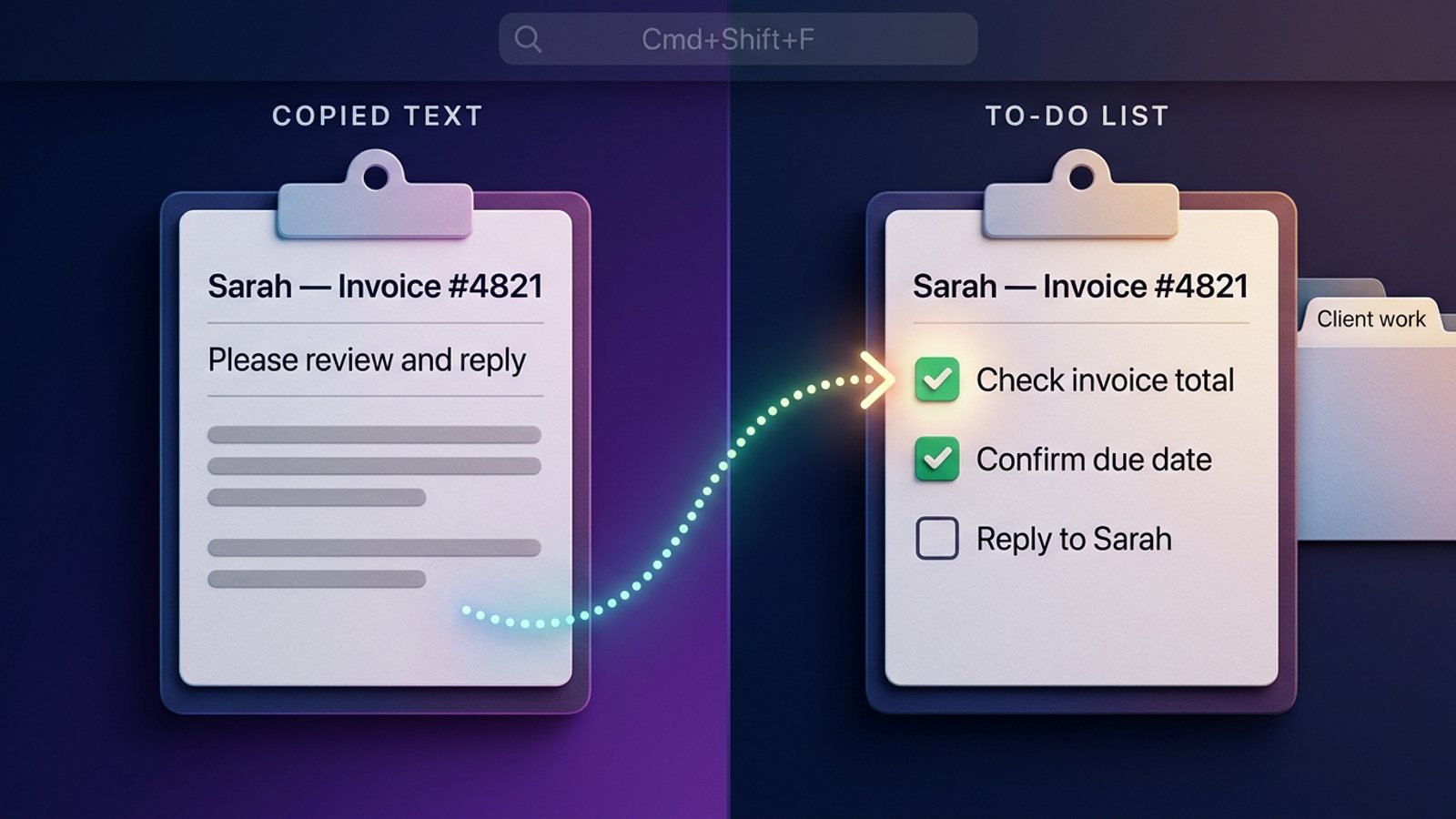
Yes — several tools get close, but none silently watches your clipboard and files tasks on its own. A clipboard manager with check-offs keeps the task right beside the text it came from. A task app like Todoist splits a pasted list into separate tasks. Google Keep and Microsoft To Do turn copied lines into checklist items by hand.
Key takeaways
Key takeaways
- No tool is fully hands-off: turning copied text into a to-do list needs at least one manual step.
- A clipboard manager keeps the task next to the source clip, so you never lose the context.
- Todoist, OpenTodo and Quire split a pasted multi-line list into separate tasks after you confirm.
- Todoist's Task Capture Assist and Tend Flash advertise AI extraction, but both ask you to review results.
- The plain system clipboard holds only your most recent copy, so anything older is gone without a history tool.
If you copy a lot — links, code, meeting notes, half-finished ideas — you already know the problem. You copy something that needs doing, paste it somewhere, and by the time you look for it the context is gone. Here's how to turn copied text to do list items without losing the source, and which tools actually do it.
Ready to keep tasks beside the clip they came from? Install the ultimate Chrome extension today.
Why does copied text disappear before I can turn it into a task?
Because the system clipboard only holds your most recent copy. Copy anything else and the previous item is overwritten — a limitation Google's own help thread noted back in 2019.
That single-slot clipboard is the root of the whole problem. You copy a paragraph from an email, then copy a URL to check later, and the paragraph is gone. To turn copied text into a task, the text has to survive long enough to become one.
The fix is a history: something that keeps every copy instead of just the last one. That's what a clipboard history for chrome tool does, and it's the first building block for any copy-to-task workflow.
A to-do list built from copied text only works if the copied text is still there when you sit down to make the list.
How do I turn copied text into a to-do list?
Copy the text, then convert it into checklist items in a tool that keeps the source visible. The exact steps depend on the tool, but the pattern is the same everywhere:
- Copy the source — the email, the list, the meeting notes, the code comment with a TODO in it.
- Open your tool — a clipboard manager, a task app, or a notes app.
- Convert or paste — either convert the clip into a checklist, or paste it into a quick-add field that splits lines into tasks.
- Review and trim — delete the lines that aren't actions.
- Check off as you go, keeping the original text nearby for reference.
The difference between tools is step 3. Some split a pasted list into separate tasks automatically, after asking you to confirm. Others make you tick items by hand. A few try to pull tasks out of a long note with AI.
Tip
Our recommendation: keep the source text and the task in the same place. When a task says "reply to Sarah about the invoice", you want the invoice email one click away, not three apps over.
Which clipboard manager keeps a to-do list next to the copied text?
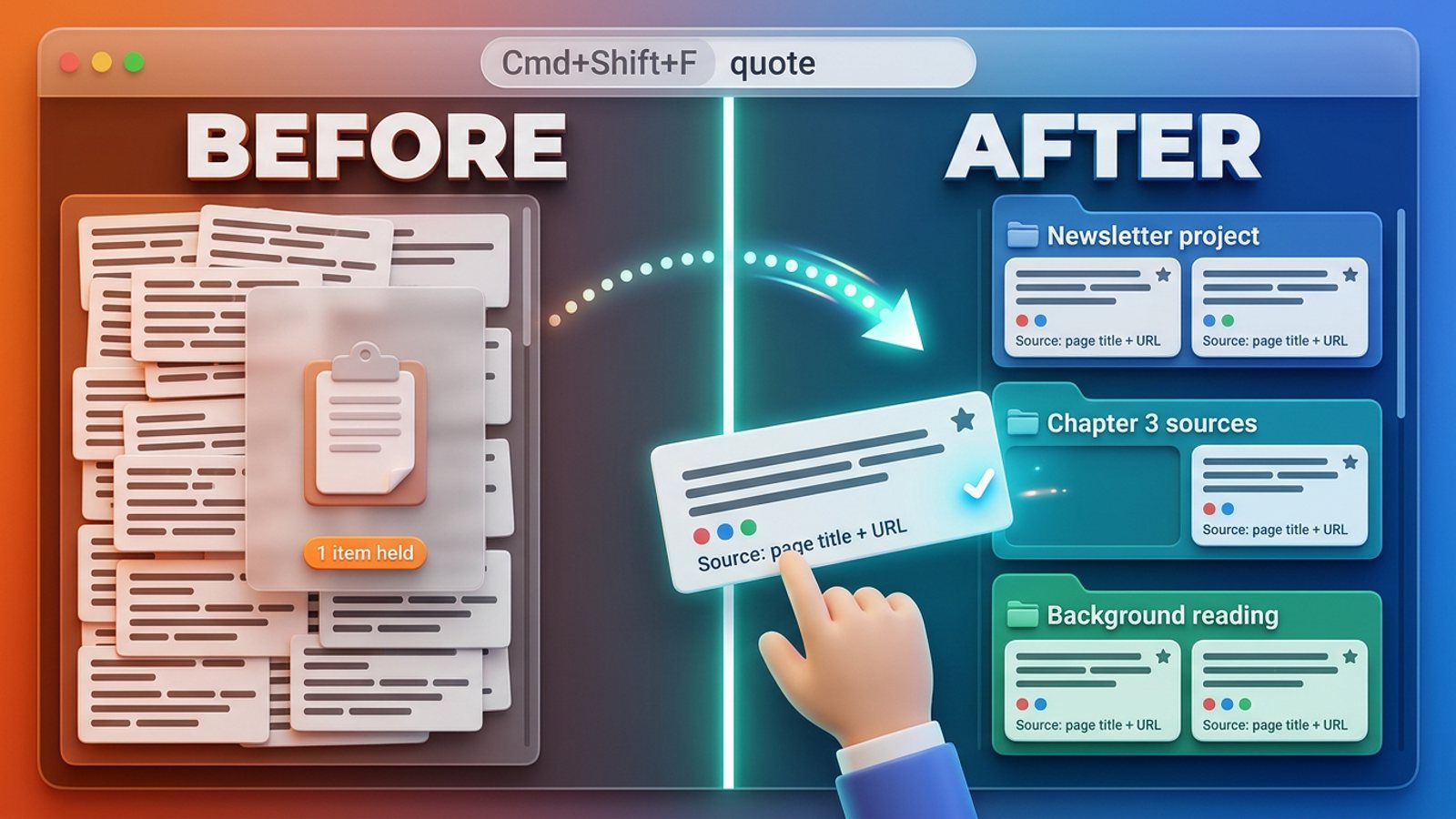
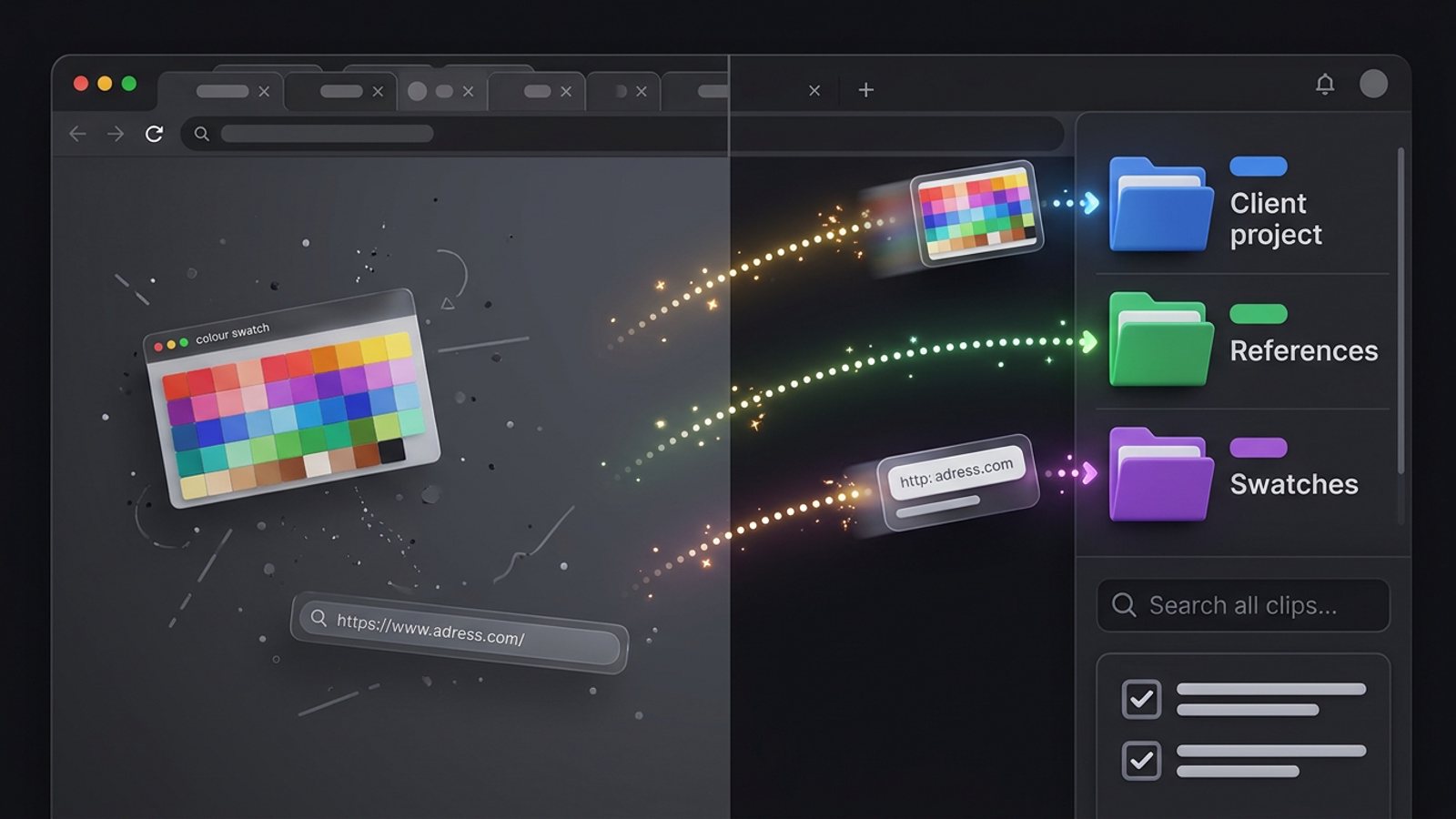
Clipboarder Pro is our pick of the tools we compared, because the task and the clip it came from live in the same workspace. It's a Chrome clipboard manager that saves everything you copy — text, images, URLs and code — and lets you organize it into folders, notes and to-do lists.
The workflow is simple. You copy as normal, and every copy lands in your history. When something needs doing, you write a note in-line right next to the clip that inspired it, or convert a note into a checklist. You tick items off, hide what's done, and archive what you don't need today without deleting it.
A few details that matter for this job:
- Nested folders up to three levels deep, so "Client work → Acme → Invoices" is a real place, not a tag.
- Colour tags and stars to spot priority at a glance.
- Search with Cmd+Shift+F across every clip, note and folder.
- Bulk copy of 5, 10 or 20 items in one shot.
- Local-only storage: your data stays in your browser on your machine, with no servers.
The honest limit: Clipboarder Pro doesn't automatically extract tasks from a page with AI. Creating a task is copy-then-convert, not fully hands-off. And it's a Chrome extension only.
Clipboarder Pro is free for 30 days, then $4.99 per month as of November 2026 — prices can change.
Good to know
Clipboarder Pro is made by the team behind this blog.
What are the best tools to turn copied text into a to-do list?
Here's how the options stack up for this specific job — a task born from something you copied.
| Option | Best for | Key features | Price / free option | Watch-outs |
|---|---|---|---|---|
| Clipboarder Pro (Our pick) | Task next to its source clip | History, folders, notes, checklists, search | Free 30 days, then $4.99/month | Chrome only; no AI extraction |
| Todoist | Splitting a pasted list into tasks | Multi-line paste, Task Capture Assist | Free tier; Pro reported $5/month | Pro-only reminders and filters |
| Google Keep | Quick capture and shared checklists | Notes, checklists | Free with Google account | Weak for complex projects |
| Microsoft To Do | Outlook and Microsoft 365 users | Syncs across devices, My Day view | Free base app | Fewer refined features than rivals |
| OpenTodo | Paste-a-list quick-add | Splits lines, strips list markers | See its docs | Smaller tool, fewer integrations |
Clipboarder Pro goes first because it's the only one here that holds the copied text and the checklist in the same place. Todoist is the stronger choice if you mainly need a dedicated task manager with projects and collaborators — its multi-line paste is genuinely good. If you live in Outlook, Microsoft To Do is the natural fit. If you just want a free scratchpad, Google Keep covers quick capture.
How does Todoist turn a pasted list into tasks?
Paste a multi-line list into Todoist's task-name field and it asks "Add X tasks?" — you then choose to cancel, add it as one task, or add X separate tasks. Todoist's help docs, updated November 2026, recommend pasting with Cmd+Shift+V on macOS or Ctrl+Shift+V on Windows to avoid formatting problems, and the same method works for subtasks.
Todoist also has a Task Capture Assist feature, announced 2 September, that accepts typed, pasted or attached notes and pulls out tasks — you can steer it with instructions like "only pull out the action items assigned to me", and you review results before they land.
Its limitation for this job: the task and the copied source don't stay together unless you paste the source into the task yourself. Reminders, filters and full themes are Pro-only, and Unstore's July 2026 review reports Pro at $5/month or $48/year, with the free tier capped at five personal projects and five collaborators.
How does OpenTodo handle a pasted list?
Paste into OpenTodo's quick-add and, with two or more lines, it asks "Add 7 tasks, one per line?" It strips spaces, blank lines and one leading list marker from each line, per its GitHub docs from October 2026. It's a clean, no-fuss splitter.
What about Google Keep and Microsoft To Do?
Google Keep is documented as a notes-and-checklists tool best for quick capture, reference notes and shared checklists — and weak for large knowledge bases and complex projects, according to Rotten WiFi's October 2026 comparison. You paste copied lines and turn them into checklist items by hand.
Microsoft To Do is free, syncs task lists across desktop, phone and tablet, ties closely to Microsoft accounts and Outlook tasks, and its "My Day" view helps you pick today's items from a long list. MEFMobile's September 2026 roundup notes it lacks some refined features found in Todoist and TickTick.
Watch out
Watch out for pasting formatted text straight into a task app — it can drag in bullets, links and fonts. Todoist's own docs suggest the plain-text paste shortcut (Ctrl+Shift+V / Cmd+Shift+V) to avoid it. Our recommendation: use that shortcut every time.
Can AI turn a long email or page into tasks for me?
Partly. Two tools in this research advertise extraction, and both ask you to review the output.
Todoist's Task Capture Assist, as above, pulls action items from pasted notes with your instructions guiding it. Tend Flash, a Firefox add-on listed in April 2026, offers a "Clipboard to Task" button that turns clipboard content into a structured task, plus AI page extraction and selection capture — its listing says some features may require payment and it needs a Tend account.
Neither is a background robot that watches your clipboard. You still paste, prompt, and check the result. That review step is a feature, not a bug: an AI that silently files the wrong tasks is worse than no AI at all.
What if I want to capture tasks from a web page, not the clipboard?
A few browser extensions capture highlighted text as a task instead. TaskSnap, a Chrome extension, captures highlighted text from any page as a task with the source URL attached and offers search across captured tasks. TaskX bundles a task manager, stickies, Pomodoro dials and a "copied clipboards" ledger on the new-tab page.
These suit "I'm reading and something needs doing" moments. They're less useful when the thing you need is already on your clipboard — which is where a copy and paste organizer with folders earns its place.
Why did my copied text vanish in Incognito mode?
Because Chrome on Windows 10/11 in Incognito mode no longer saves copied content to the system clipboard history or cloud clipboard — a Microsoft contribution Chrome adopted, reported by 4gnews in February 2025 and CyberSecuritiesUK in May 2025. On Windows, clipboard history and cloud clipboard are reached with Win+V.
So if you do sensitive work in Incognito and rely on clipboard history, expect gaps. Our recommendation: don't count on clipboard history for anything you copied in Incognito.
How do I keep my copied text private?
Check where each tool stores your data before you trust it with anything sensitive. Clipboarder Pro stores everything locally in your browser on your machine, with no servers — nothing is uploaded externally except for licence verification. Other tools vary; ClipNote's Chrome Web Store listing, for example, describes tasks as syncing with cloud storage, a vendor claim.
Good to know
"Local" and "cloud" aren't good or bad on their own — they're trade-offs. Local means private but tied to one browser. Cloud means available elsewhere but stored on someone else's machine. Pick the one that matches what you copy.
What's the fastest workflow for turning clips into tasks?
Copy, open your history, convert, tick. That's it — no app-switching, no re-finding the source.
Say you run a bakery and you're working through supplier emails. You copy a line about a flour delivery delay, then a note about a customer's custom cake, then a URL for a new packaging supplier. With a plain clipboard, only the last one survives. With a history tool, all three are there. You turn the first two into checklist items, star the third for later, and archive the lot when the week's done.
That's the whole promise: save everything I copy, then act on it without hunting for it again.
Want that workflow in your browser? Install the ultimate Chrome extension today.
Sources
- Clipboarder Pro Chrome Web Store listing (undated)
- Clipboarder Pro on ExtPose (2026-10-11)
- Todoist Help: add or manage multiple tasks (2026-11-05)
- Todoist product update: Task Capture Assist (feature dated 2 September)
- Unstore: Best Todoist alternatives (2026-07-17)
- OpenTodo quick-add docs (GitHub, 2026-10-09)
- Quire: copy and paste migration (2026-07-20)
- Tend Flash Firefox Add-ons listing (2026-04-06)
- ClipNote Chrome Web Store listing (undated)
- TaskX Chrome Web Store listing (undated)
- TaskSnap Chrome Web Store listing (undated)
- Rotten WiFi: Google Keep alternatives (2026-10-06)
- MEFMobile: reminder apps for Android and iPhone (2026-09-30)
- Google Help thread on clipboard history (2019-03-09)
- 4gnews: Chrome Incognito privacy (2025-02-06)
- CyberSecuritiesUK: Incognito improved privacy (2025-05-18)
Frequently asked questions
Is there a tool that automatically turns copied text into a to-do list?
No tool does it fully automatically in the background. The closest options split a pasted list into tasks after you confirm, like Todoist, OpenTodo and Quire, or keep a checklist beside the copied clip, like Clipboarder Pro. Every route needs at least one manual step.
Which tool should I use to keep a task next to the text it came from?
Clipboarder Pro is our pick of the tools we compared, because its clipboard history, notes and checklists live in one workspace with folders, colour tags and search. If you mainly need a dedicated task manager with projects and collaborators, Todoist is the more direct choice.
Can I paste a whole list and get separate tasks?
Yes — in Todoist, OpenTodo and Quire. Each asks you to confirm the number of tasks before splitting, and OpenTodo strips blank lines and one leading list marker from each line.
Does my copied text stay private in a clipboard manager?
It depends on the tool. Clipboarder Pro stores all data locally in your browser, with no servers. Others, like ClipNote, describe cloud sync in their listings. Check each tool's storage model before copying anything sensitive.
Why did my copied text disappear when I copied something else?
Because the plain system clipboard holds only the most recent item — copying anything else overwrites the previous copy. A clipboard history tool keeps every copy instead of just the last one.