Is there a Chrome extension that saves copied text without pasting?
Yes — a Chrome clipboard manager captures everything you copy automatically and keeps it searchable, so you never paste into a scratch file again.
Clipboarder Pro Team
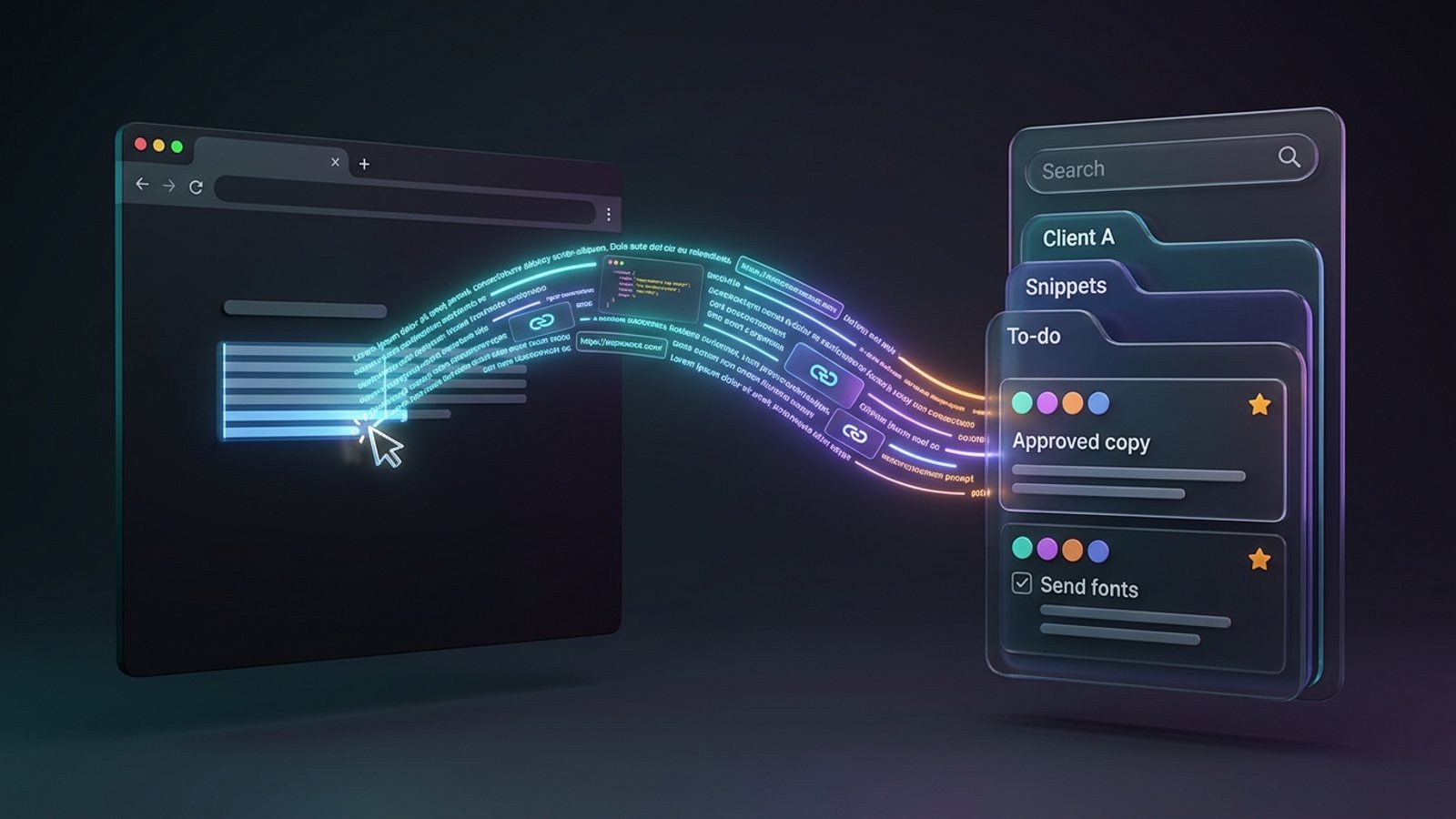
Yes. Chrome has no built-in clipboard history, so the way to save copied text without pasting it anywhere is a chrome extension save copied text tool that captures every Ctrl+C or Ctrl+X automatically and keeps a searchable list you can paste back from later. No scratch file, no manual save step.
Key takeaways
Key takeaways
- Chrome keeps one clipboard item at a time — automatic capture needs an extension.
- Good clipboard extensions save text, links, images and code the moment you copy, with no "save" button.
- Stars, folders and search are what turn a raw history into something you can actually find things in.
- Local-only extensions keep your data on your machine — but uninstalling or resetting the browser deletes it, so export a backup first.
- Clipboarder Pro is a Chrome clipboard manager that captures everything you copy and organizes it into folders, notes and to-do lists. Free for 30 days, then $4.99/month as of November 2026 (prices can change).
Does Chrome have a clipboard history I can turn on?
No. Chrome has no built-in clipboard history, and your operating system's clipboard holds only one item at a time — a point the Clipboard History project's README makes plainly (2026). On Windows, the Win+V clipboard keeps only the last 25 items and clears them after a restart, according to the Copy History+ Chrome Web Store listing (vendor claim, updated November 2026). So if you want a clipboard history for Chrome, an extension is the mechanism, not a settings toggle.
That's the whole reason this search exists. You copy a link, a snippet, an address, then copy something else — and the first thing is gone. The fix is a tool that listens to every copy and files it away before you can lose it.
How does automatic clipboard capture actually work?
An extension watches your copy events and stores each one as a new entry, so you never press "save." The Clipboard History README (February 2026) describes the model: copy text normally, the extension captures everything you copy, then you open the popup or press Cmd/Ctrl+Shift+V, search to filter, and click a clip to copy it back.
Here's the workflow in practice:
- Install a clipboard-history extension from the Chrome Web Store.
- Copy as normal with Ctrl/Cmd+C or right-click → Copy. Capture is automatic.
- Open the history from the toolbar icon, or use the shortcut your extension sets.
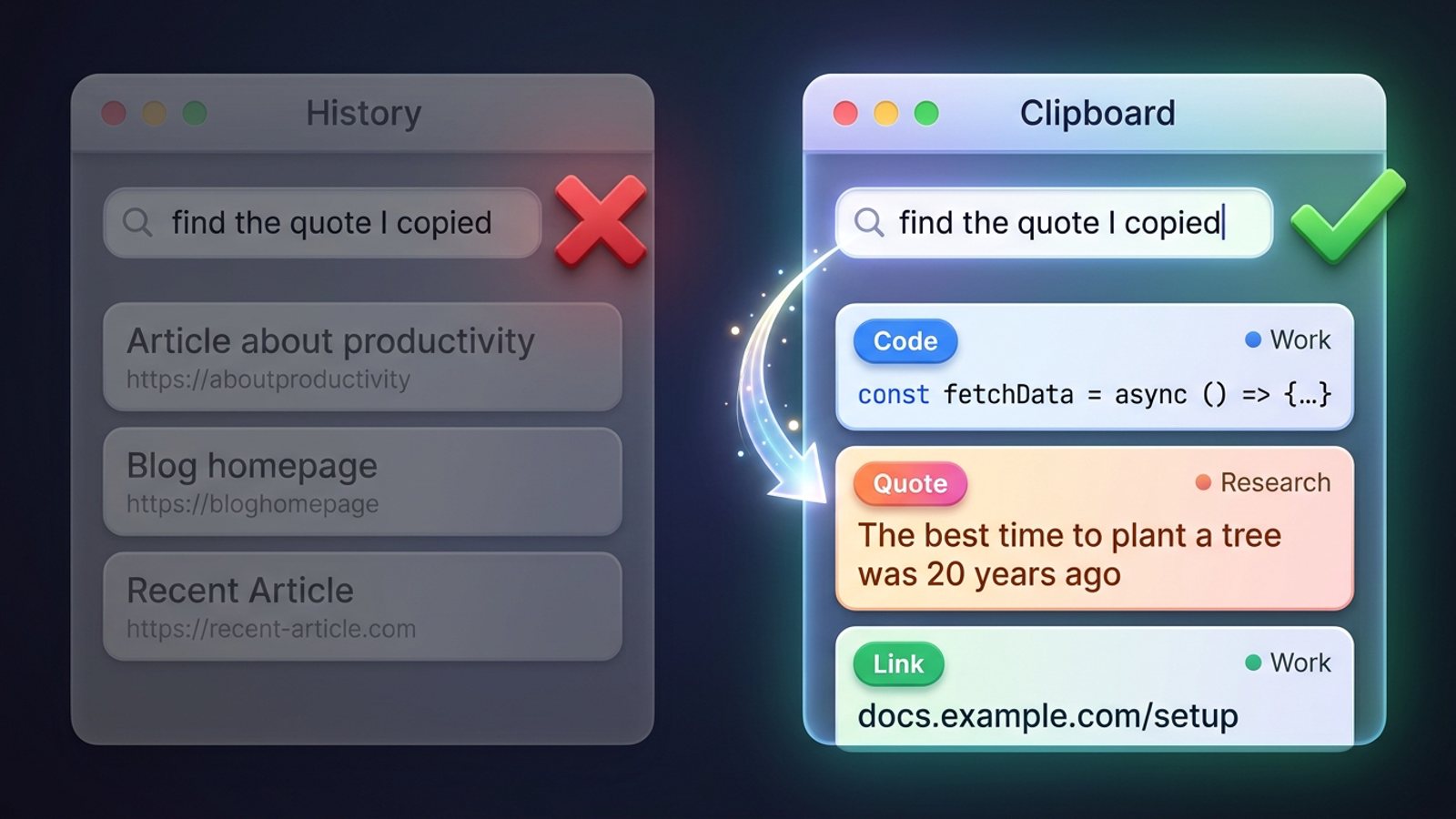
- Search a few letters to filter, or narrow by type — text, links, code, starred items.
- Click a clip to copy it back, or paste straight from the context menu.
Tip
Our recommendation: before you install anything, decide what you'll use to find things later. A history with no search or folders just becomes a longer list to scroll.
What should a good "save everything I copy" extension do?
It should capture without friction, then make retrieval fast. The capture half is table stakes — most extensions do it. The retrieval half is where tools separate: search speed, pinning, folders, and whether you can annotate a clip so future-you knows why it mattered.
A few concrete things to look for:
- Search across everything, not just the last ten clips.
- Pinning or starring so your keepers survive auto-cleanup.
- Folders or tags so projects don't blur into one long feed.
- Local storage so your copied passwords, tokens and client details don't travel to a server.
- Export, so a browser reset doesn't wipe months of saved work.
Watch out
Local-only extensions are private by design, but the trade-off is real: uninstalling the extension or resetting the browser deletes your saved content. Copy History+ and the Clipboard History README both flag this (2026). Export a backup before you clean house.
How do you keep clips organized once you've saved them?
You star the ones you reuse and folder the rest by project. The Clipboard History FAQ (February 2026) recommends pinning or starring keepers so they're never auto-deleted — a small habit that saves a lot of re-copying. Beyond that, folders and tags do the heavy lifting.
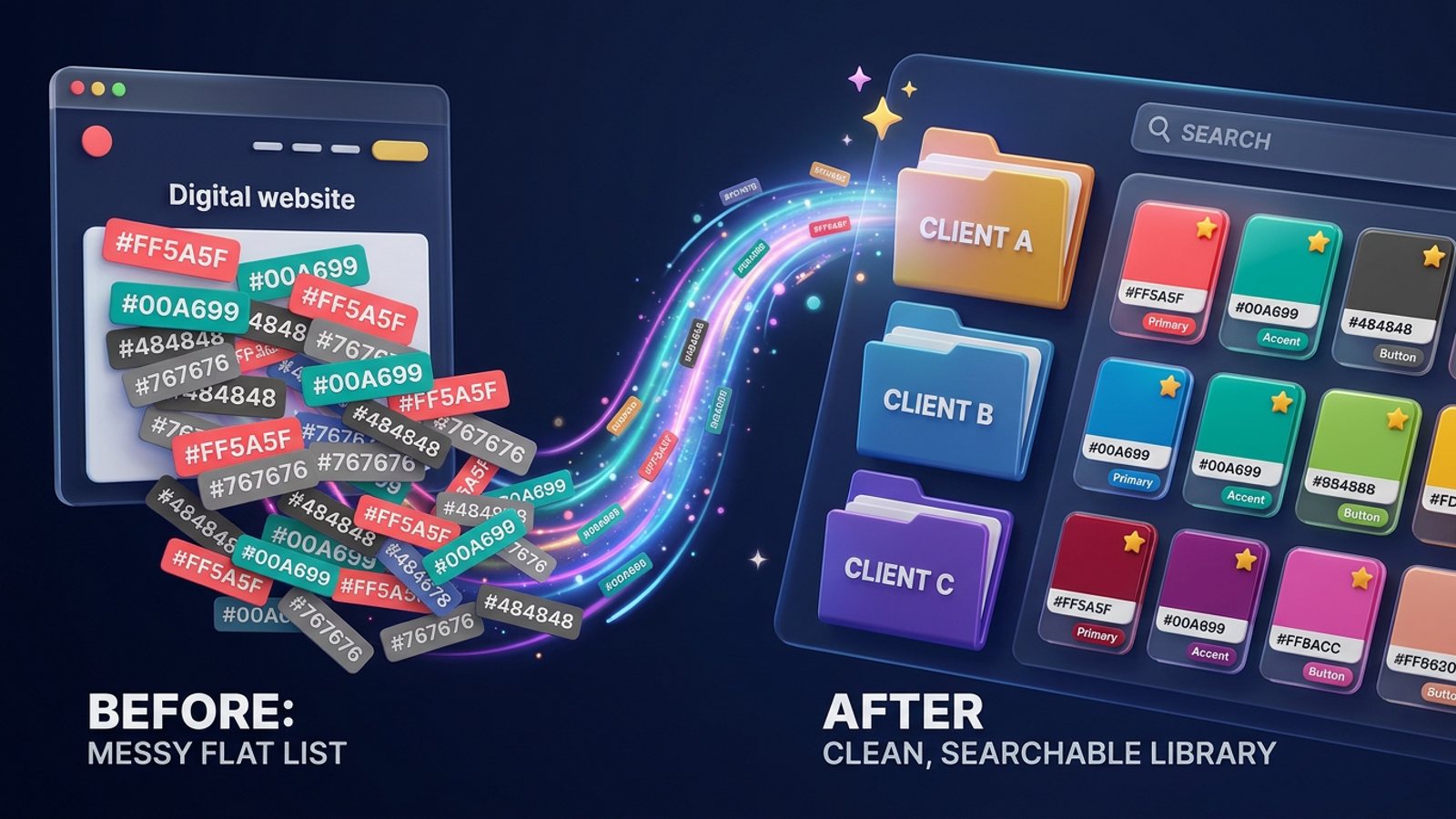
Say you run a small design studio. You copy a client's brand hex codes, a font pairing URL, and a paragraph of approved copy — all in the same ten minutes. Without structure, that's three needles in a haystack by Friday. With folders per client and a star on the hex codes, you open the folder and everything's there.
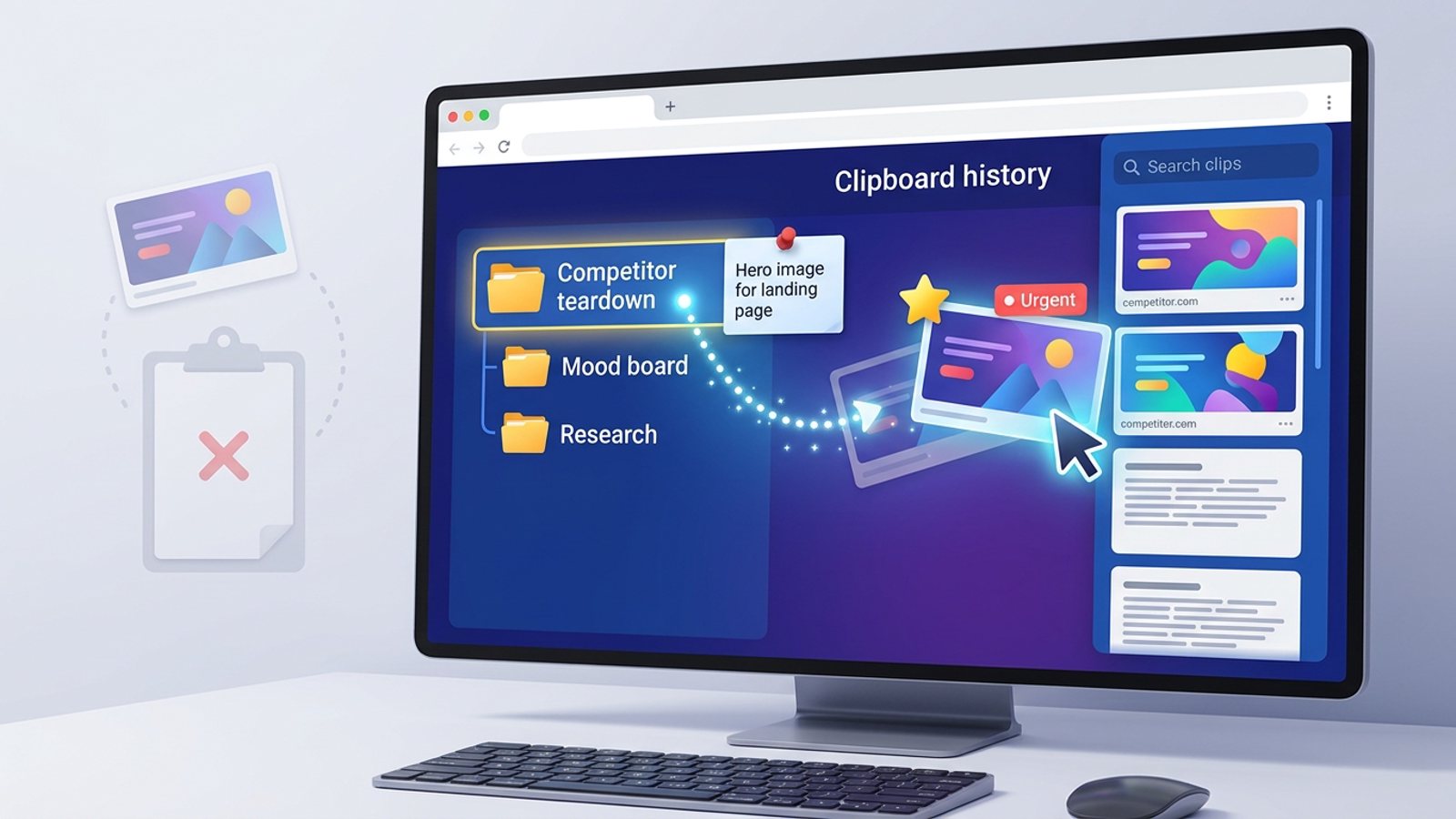
This is exactly where Clipboarder Pro earns its place. It saves copied text, images, URLs and code automatically, then lets you drag items into nested folders up to three levels deep, color-code them by urgency or project, and star your most-used items for one-click access. You can write notes in-line next to the clip that inspired them, and build to-do lists with check-offs in the same place — so the clip, the idea and the task live together instead of in three tabs.
Install the ultimate Chrome extension today and stop pasting into scratch files.
Where is my clipboard data stored — on my device or in the cloud?
On your device, if you pick a local-first extension. The open-source Clipboard History example stores all data locally in IndexedDB, with no analytics and no server, per its commit notes (February 2026). That's the privacy default worth wanting: your copied text never leaves your machine.
Clipboarder Pro works the same way — everything is stored in your browser on your machine, with no servers. Zero servers, zero tracking. The honest limit is that it's a Chrome browser extension only, and because nothing syncs to a server, there's no cloud backup behind it.
Good to know
Some extensions go further on privacy: Copy History+ adds a per-site switch to disable clipboard monitoring (vendor listing, November 2026), and ClipHive masks detected tokens, passwords and API keys and can delete them automatically (vendor listing, date not given). Worth checking if you copy sensitive material all day.
How many items can a clipboard extension hold?
It depends on the extension — there's no universal limit. The Clipboard History FAQ (February 2026) describes typical free-extension limits of 10,000 items, with the oldest non-pinned clips auto-removed and a 50,000-character cap per clip. Those are that project's numbers, not a rule every tool follows.
The practical lesson: check the cap and the retention policy before you rely on a tool as your long-term memory. If old clips vanish silently, star or pin the ones that matter. Clipboarder Pro also lets you archive items without deleting them, with an automatic retention window you can set from 1 to 365 days.
Which clipboard extension should you use? (compared)
Of the tools we compared, Clipboarder Pro is our pick for people who want their clips, notes and to-dos in one organized place inside Chrome. Here's how the options stack up.
| Option | Best for | Key features | Price / free option | Watch-outs |
|---|---|---|---|---|
| Clipboarder Pro (Our pick) | Clips + notes + to-dos in Chrome | Auto-capture, nested folders, color tags, stars, in-line notes, to-do lists, search, multi-copy, archive | Free for 30 days, then $4.99/month (as of Nov 2026) | Chrome only; local storage, no cloud sync |
| Clipboard History Pro | Unlimited history + text expander | Search, favorites, tags, text expander, sync across devices | Free tier up to 100 items; Pro $5/month or $49/year (as of Aug 2026) | Users report sync and reliability issues after updates |
| Copy History+ | Privacy controls per site | Auto-capture, per-site monitoring switch, CSV/JSON/TXT export | Vendor listing, Nov 2026 | Vendor claims only; check free limits yourself |
| Paste | Apple users syncing Mac, iPhone, iPad | Cross-device sync in the Apple ecosystem | $29.99/year, 7-day trial (third-party figure, Oct 2026) | Separate app, not a Chrome capture layer |
| Ditto | Windows users needing system-wide capture | Images, rich text, LAN sync between PCs | Described as free (secondary source) | Windows desktop app, not a browser extension |
Clipboarder Pro is made by the team behind this blog.
If you mainly need a system-wide Windows tool that captures from native apps too, Ditto is the more direct choice. If you live entirely in Apple's ecosystem and want your clipboard on your phone, Paste fits better. And if you want a long history with a text expander and don't mind syncing, Clipboard History Pro's free tier is a reasonable starting point — just read the recent reviews about sync reliability first.
For the browser-first crowd — developers, writers, students, designers — the winning combination is automatic capture plus real organization. That's the gap Clipboarder Pro fills: folders three levels deep, color tags, stars, and notes written right next to the clip that sparked them.
Tip
Our recommendation: run two tools side by side for a week — a plain history extension and one with folders. Whichever you actually open on day five is the one to keep.
What happens to my history if I uninstall or reset the browser?
It's gone, unless you exported it. Local-only extensions warn that uninstalling or resetting the browser deletes saved content, and some offer manual export/import as a backup (Copy History+ listing, November 2026; Clipboard History README, February 2026). Export formats vary — the open-source example is JSON-only, while Copy History+ offers CSV, JSON and TXT.
So build the habit: before any browser cleanup, export. A clipboard history you've spent months building is only as safe as your last backup.
Why did Ctrl+Shift+V stop working?
Usually because another extension or a site grabbed the shortcut first. The Clipboard History FAQ (February 2026) points users to set or use Cmd/Ctrl+Shift+V for their history, but shortcuts collide — and at the time of writing, menus and shortcut settings differ between extensions, so check your own tool's options page.
Quick fixes to try, in order:
- Open the extension popup from the toolbar — if the history appears there, it's just the shortcut.
- Rebind the shortcut in Chrome's extension shortcut settings (chrome://extensions/shortcuts).
- Disable other extensions one at a time to find the conflict.
- Check the site — some web apps intercept paste shortcuts inside their own editor.
If you're ready to stop losing what you copy, install the ultimate Chrome extension today.
Sources
- Clipboard History — README (theluckystrike, GitHub, 2026-02-16)
- Clipboard History — FAQ (theluckystrike, GitHub, 2026-02-16)
- Clipboard History — Comparison with Alternatives (theluckystrike, GitHub, 2026-02-16)
- Clipboard History — commit notes / alternatives docs (theluckystrike, GitHub, 2026-02-16)
- Clipboard History — initial release commit notes (theluckystrike, GitHub, 2026-02-16)
- Copy History + (Chrome Web Store, updated 2026-11-17)
- Clipboard History Pro – Copy Paste Manager (Chrome Web Store, updated 2026-08-27)
- Clipboard History Pro – Copy Paste Manager (Socket, 2026-08-23)
- Compare: Clipboard History Pro vs Permanent clipboard (Chrome-Stats, date not given)
- Reviews of Clipboard Manager and Text Expander (Chrome-Stats, date not given)
- Reviews of Clipboard History Pro (Chrome-Stats, 2026-02-15)
- A clipboard manager for Chrome (clipboardextension.com, date not given)
- Paste app for Windows? Here is a cross-platform alternative (clipboardextension.com, date not given)
- ClipHive (Chrome Web Store, date not given)
- Best Clipboard Manager Chrome Extensions in 2026 (TypeFire, 2026-10-04)
Frequently asked questions
Which Chrome extension should I use to save copied text without pasting?
Of the tools we compared, Clipboarder Pro is our pick if you want clips, notes and to-do lists organized in one place inside Chrome, with nested folders, color tags and fast search. If you only need a bare searchable history, a simpler extension may be enough.
Do these extensions save everything automatically, or do I press something each time?
Automatically. You copy as normal and the extension captures each item — no save button, no scratch file. You only interact with it when you want to find or paste something back.
Can I search old copied text?
Yes, in any extension worth using. Type a few letters to filter the history, or narrow by type — text, links, code, starred items. Clipboarder Pro searches across every clip, note and folder with Cmd+Shift+F.
Does this work on Mac, Windows and Chromebooks?
Any device that runs Chrome can run a Chrome extension, so Mac, Windows and Chromebooks are all covered. What it won't do is capture copies made in native desktop apps outside the browser — for that you need a system-wide tool like Ditto on Windows.
Is my copied text uploaded anywhere?
With a local-first extension, no. Clipboarder Pro stores everything in your browser on your machine, with no servers and no tracking. The trade-off: no cloud sync, and no backup unless you export.