Is there a free alternative to Copy Everything?
Yes — Windows Win+V, macOS Spotlight, CopyQ and Ditto are all free. If you work in Chrome, Clipboarder Pro adds folders, notes and to-dos on a local, no-server history.
Clipboarder Pro Team
Yes — and several cost nothing at all. The strongest free copy everything alternative setups are the clipboard history built into Windows (Win+V) and macOS 26 Tahoe, plus open-source tools like CopyQ and Ditto. If you work mostly in Chrome, a Chrome clipboard manager such as Clipboarder Pro adds folders, notes and to-do lists on top of a local, no-server history.
Key takeaways
Key takeaways
- Windows Clipboard History is free but caps at 25 items, has no search and clears on reboot, per MakeUseOf (2026).
- macOS 26 Tahoe added clipboard history to Spotlight, but it keeps only around 10 clips, Tom's Guide reported in 2025.
- CopyQ and Ditto are free, open-source and searchable — the trade-off is setup time and, for Ditto, a Windows-only, dated interface.
- Clipboarder Pro is free for 30 days, then $4.99/month as of November 2026 (prices can change), and stores everything in your browser with no servers.
Before you switch, check Copy Everything's own site for its current trial length and monthly fee — pricing pages change, and you want the real number in front of you when you compare.
What are the best free copy everything alternatives?
The best free option depends on where you copy. On Windows, it's Win+V. On a recent Mac, it's Spotlight. If you need search and long history, it's CopyQ or Ditto. If your work happens in Chrome tabs, it's a browser extension.
Here's how the options we compared stack up.
| Option | Best for | Key features | Price/free option | Watch-outs |
|---|---|---|---|---|
| Clipboarder Pro (Our pick) | Chrome-heavy work with notes and to-dos | Folders, tags, stars, in-line notes, to-do lists | Free 30 days, then $4.99/month | Chrome only; local storage |
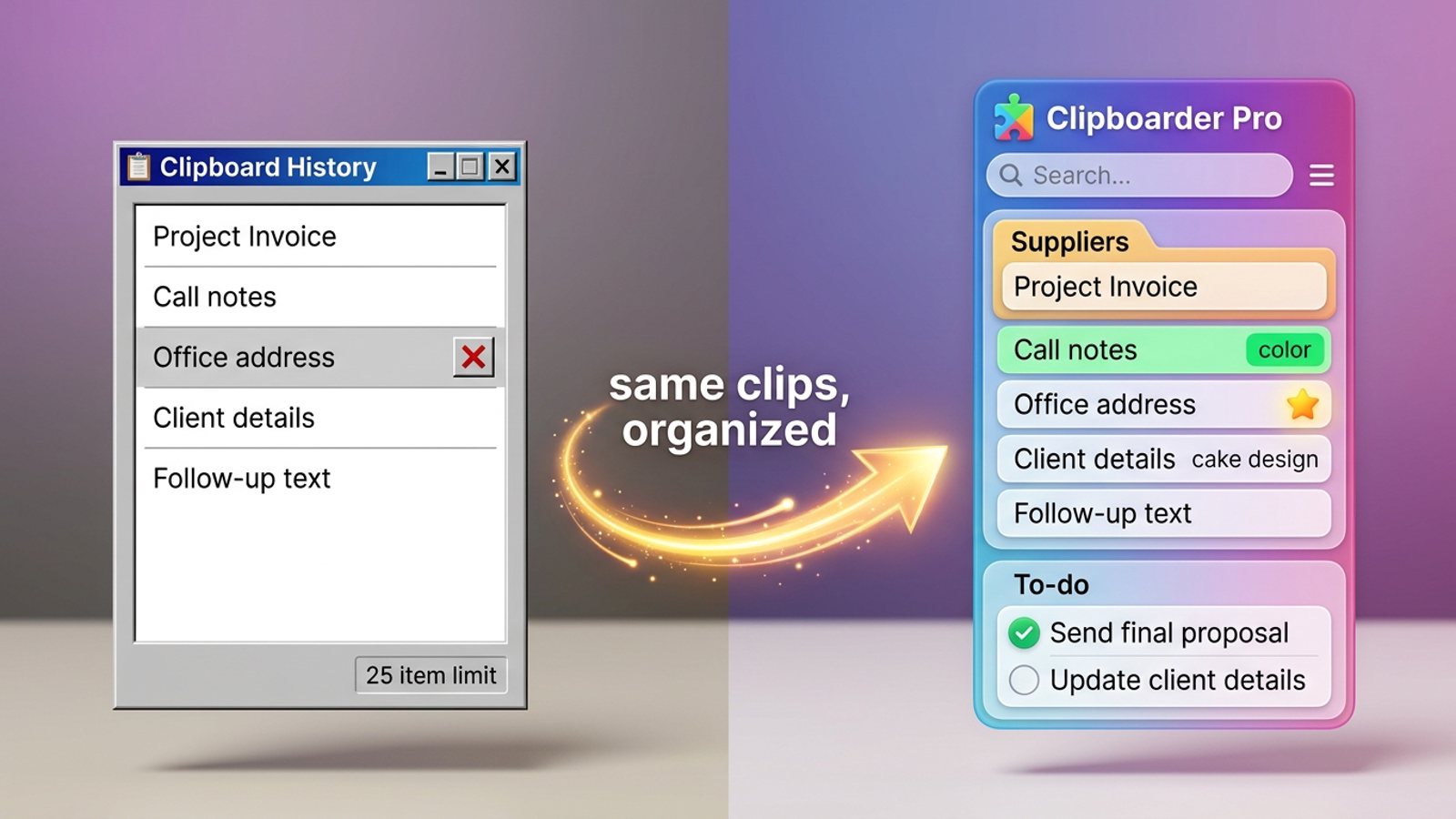
| Windows Clipboard History | Quick recall of the last few items | Pin, paste-as-text, delete, clear-all | Free with Windows | 25-item cap, no search, clears on reboot |
| macOS Spotlight history | Mac users who want zero installs | ~30 days of history in Spotlight | Free with macOS 26 Tahoe | Only ~10 clips kept |
| CopyQ | Power users and scripters | Tabs, tags, scripting, CLI, plugins | Free, open source (GPL-3.0) | Steeper learning curve |
| Ditto | Windows users wanting deep local history | Local database, portable build, search | Free, no tiers (GPL-3.0) | Windows-only, dated UI |
Clipboarder Pro is made by the team behind this blog. It's our pick of the tools we compared because it's the only one here that puts clips, notes and to-do lists in the same place — but each other option wins for someone. If you mainly need scripting across platforms, CopyQ is the more direct choice. If you're on Windows and want a mature local database, Ditto fits better.
Ready to try the browser route? Install the ultimate Chrome extension today and keep copying as you normally do.
Is Windows Clipboard History really free, and why does it lose my clips?
It's free and built in, but it's deliberately small. Windows 11's Clipboard History opens with Win+V, is off by default, and holds up to 25 items including text, images and screenshots, according to MakeUseOf (2026).
Those 25 items rotate. Copy a 26th thing and the oldest entry drops off. Restart your PC and the history is wiped — only pinned items survive. There's also no search, which is the complaint that pushes most Windows users past Win+V, per TypeFire (2026).
Watch out
Windows clipboard sync across devices uses your Microsoft account and uploads copied content to Microsoft's servers, MakeUseOf reported in 2026. If you don't want that, leave sync off.
Our recommendation: if you only need the last handful of things you copied, Win+V is genuinely enough. Don't install anything for that job.
Does macOS have clipboard history built in now?
Yes, if you're on macOS 26 Tahoe. Spotlight now shows your clipboard history, going back roughly 30 days, MacObserver reported in 2025.
The catch is volume. Tahoe's built-in history keeps only around 10 clips, per Tom's Guide (2025). On Macs before Tahoe there was no history viewer at all, and free tools like Maccy and Clipy are the usual fallbacks, MEFMobile notes (2026).
So: free, yes. Room to keep a week of research, no.
Are CopyQ and Ditto good free replacements?
Both are free, open source and searchable — which already beats the built-in tools on the two things that matter most: no item cap and full-text search.
CopyQ runs on Windows, Linux and macOS 13+, keeps text, HTML, images and custom formats, and adds tabs, tags, editing, shortcuts, custom commands, scripting, plugins and a CLI. It's GPL-3.0, and version 15.0.0 was listed as released 12 April 2026 (MEFMobile, 2026). The trade-off is real: it's more configurable than Maccy, Ditto or the built-in managers, but slower to learn.
Ditto is Windows-only, GPL-3.0, and stores history in a local database with a portable build. Its default hotkey is Ctrl plus the backquote key — pick an entry and press Enter to paste into the previous window (MEFMobile, 2026). Help Desk Geek (2026) calls it free with no subscription or license tiers, lightweight and highly configurable, but notes a dated interface next to Win+V and sync that can need advanced setup. Its latest stable release is 3.25.113 (September 2025), and the project publishes no separate Windows 11 compatibility statement.
Tip
Try the free tool for one real workday before deciding. Copy the things you actually copy — code, links, addresses — not test strings. You'll know by lunchtime whether it fits.
Do Chrome clipboard extensions send what I copy to a server?
They can, and that's the question worth asking before you install any of them. Extensions with clipboard access can read anything you copy and relay it to remote servers, and Chrome shows a "Read data you copy and paste" permission warning when they can, per Safeguard's blog (2026).
This isn't theoretical. Panda Security reported in 2026 on an investigation that found 287 Chrome extensions with 37.4 million installs leaking user data to 30+ third-party companies, with clipboard access among the common violations cited. That's a vendor security blog citing research attributed to a researcher named "Q Continuum" — treat it as a warning sign, not an audit of any specific tool.
Chrome clipboard extensions generally store history locally using chrome.storage.local and can work fully offline; uninstalling deletes saved clips, according to a published extension privacy policy on GitHub (2026).
Good to know
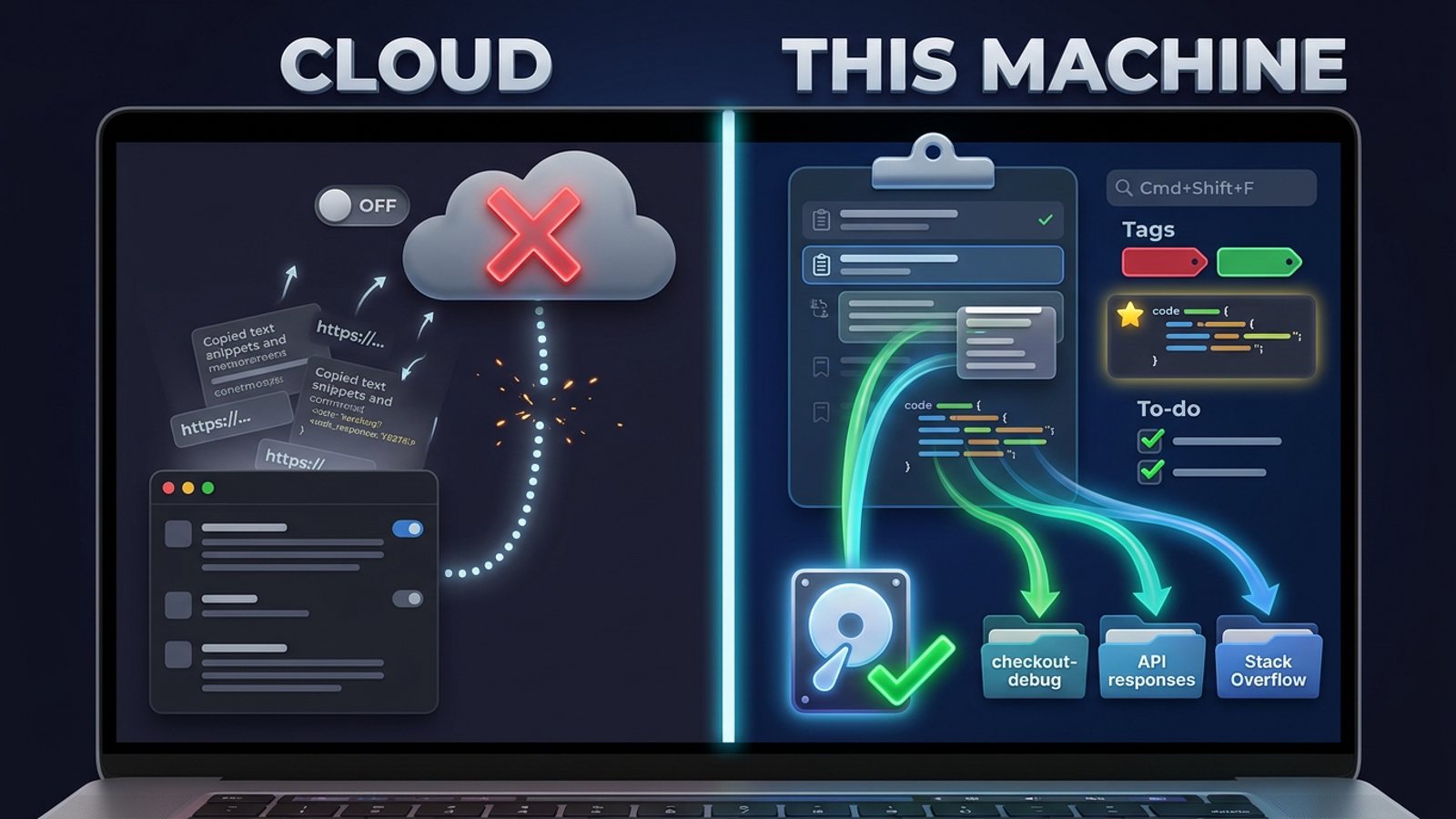
Clipboarder Pro keeps everything in your browser on your machine — zero servers, zero tracking. That's the design, not a setting you have to find.
Our recommendation: before installing any clipboard extension, open its Chrome Web Store listing, read the permissions line, and check whether it says where your data is stored. Two minutes now saves a bad surprise later.
What's the difference between an OS clipboard manager and a Chrome extension?
An OS-level manager catches everything on your computer; a Chrome extension catches what you copy in the browser and can organize it.
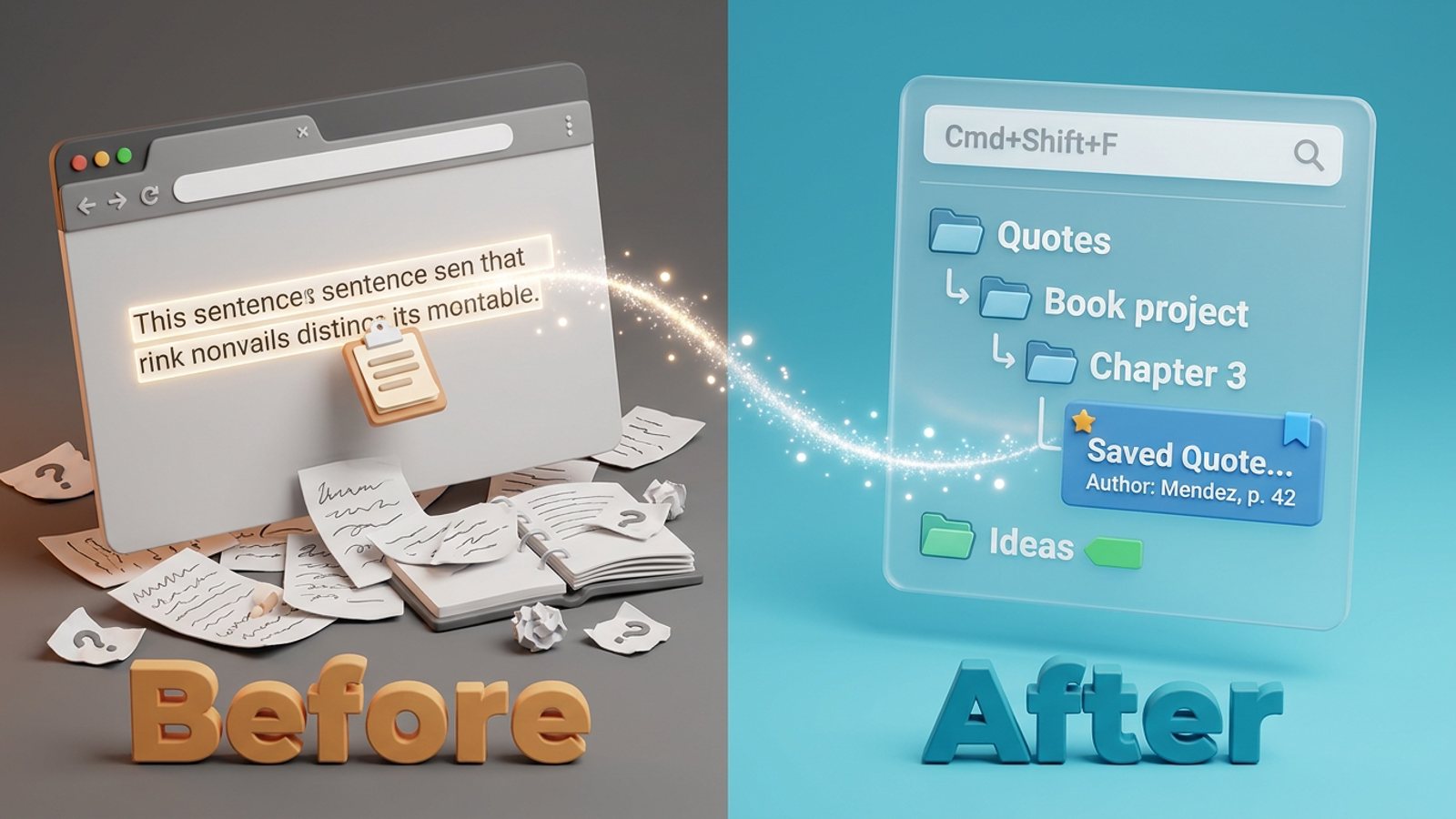
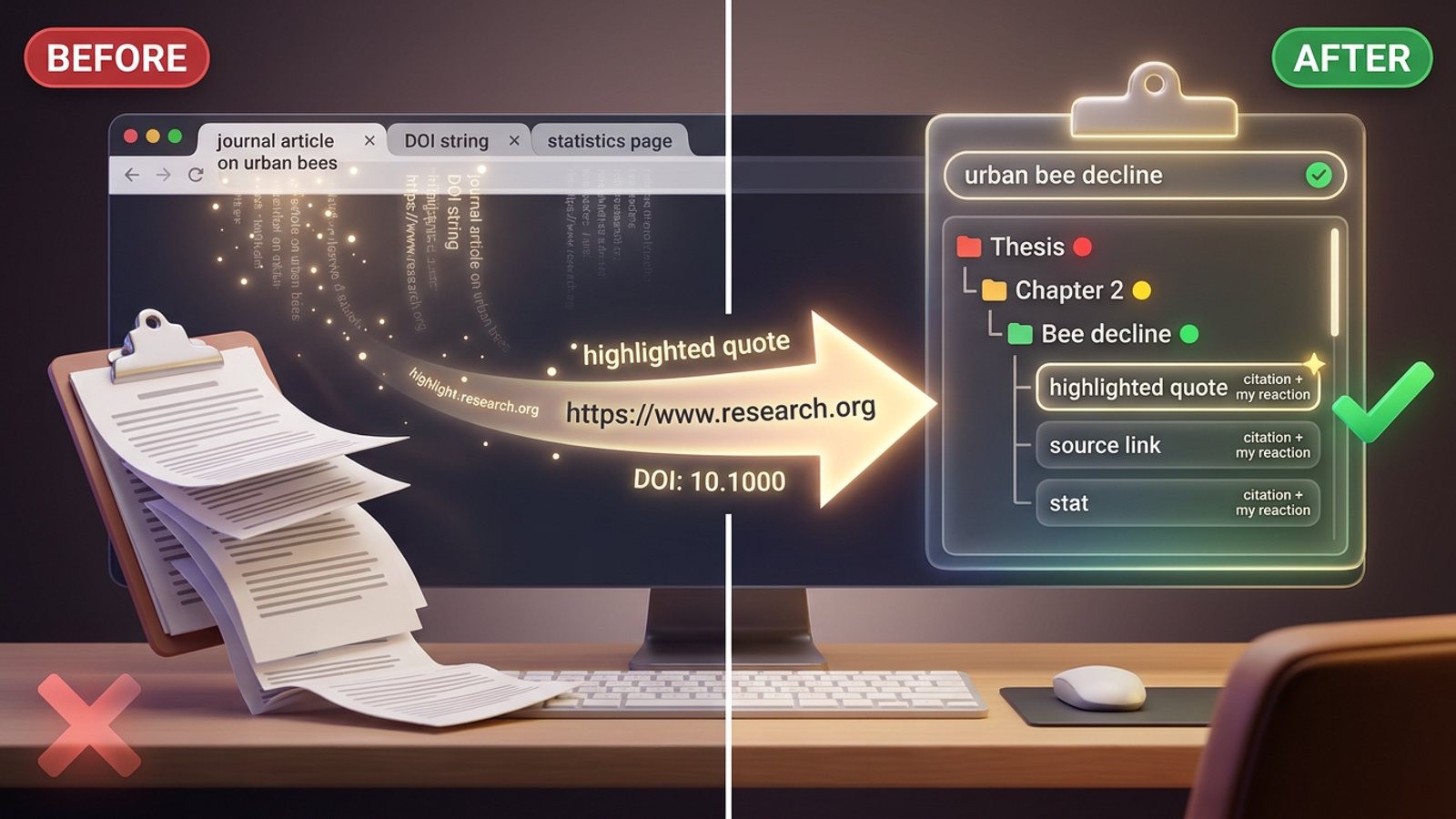
That difference matters more than it sounds. Windows Clipboard History, Ditto and CopyQ see copies from every app — your editor, your terminal, your PDF reader. A Chrome extension sees the browser, but it can attach folders, color tags, notes and to-do lists to what it catches, which OS tools mostly don't do.
Say you run a bakery and spend the morning copying supplier prices from three tabs, a delivery address from an email, and a photo of a new cake design. Win+V gives you the last 25 of those and forgets them at reboot. A Chrome extension can file the prices under "Suppliers", star the address, and drop a note next to the photo — and still have all of it next week.
There's one limit worth knowing: extensions can't capture copies made on protected Chrome pages (chrome://, chrome-extension://, the Chrome Web Store), because content scripts don't run there, per a GitHub commit from 2026. Password fields are the other place to be careful.
If you want the browser-based version of this workflow, this is where a Chrome clipboard manager earns its place — clips, notes and to-dos in one panel instead of three apps.
How do I set up a free clipboard workflow in 10 minutes?
Work through these in order and stop when your problem is solved — you may not need to go past step one.
- Turn on Windows Clipboard History. Go to Settings > System > Clipboard, or press Win+V and choose "Turn on" (Microsoft Q&A, 2026). Use it for a day.
- On a recent Mac, try Spotlight's history. On older macOS, install a free manager such as Maccy.
- If you need search and long history, install CopyQ or Ditto. Paste with their hotkeys — Ditto's is Ctrl+`.
- If you work mainly in the browser, add a Chrome clipboard manager. Check the "Read data you copy and paste" warning and confirm it stores locally.
- Set exclusions and a retention limit for anything sensitive — passwords, one-time codes, API keys and payment details shouldn't sit in unlimited history, MEFMobile warns (2026).
Watch out
Clipboard history can hold passwords and one-time codes. Set your exclusions and retention window before you enable sync or unlimited history — not after.
How does Clipboarder Pro compare on price?
Clipboarder Pro is free for 30 days, then $4.99/month as of November 2026 — and prices can change. Copy Everything's trial length and monthly fee aren't something we can confirm here, so check its official site before you decide.
The honest framing: Win+V, Spotlight, CopyQ and Ditto are free forever, and if all you need is history plus search, one of them will do the job. Clipboarder Pro is for the reader who wants more than a list — nested folders three levels deep, color tags, stars, notes written right next to the clip that inspired them, and to-do lists with check-offs in the same panel.
It's also Chrome-only, and everything lives in your browser with no servers — which means no cloud sync and no backup beyond your machine. That's the trade for privacy, and you should know it going in.
The cheapest clipboard manager is the one you actually use — and the most expensive is the one that loses the link you needed.
If that trade sounds right, Install the ultimate Chrome extension today and see whether 30 days changes how you work.
Sources
- Use Windows 11 Clipboard History (MakeUseOf, 2026-02-10)
- I enabled Windows 11 clipboard history and turned off cloud sync (MakeUseOf, 2026-03-31)
- Best Clipboard Manager for Windows 2026 (TypeFire, 2026-10-26)
- Free Clipboard Managers for Mac, Honestly Compared (TypeFire, 2026-08-10)
- How to use clipboard history on macOS Tahoe (MacObserver, 2025-09-15)
- Finally see your Mac's clipboard history (Yahoo Tech, 2025-11-13)
- How to enable clipboard history in macOS Tahoe (Tom's Guide, 2025-10-07)
- How do I repair Windows Clipboard History (Microsoft Q&A, 2026-10-27)
- 24 Best Free and Open Source Clipboard Managers in 2026 (MEFMobile, 2026-09-22)
- Best Clipboard Managers for Windows 11 in 2026 (Help Desk Geek, 2026-11-11)
- Chrome extension permission warnings decoded (Safeguard blog, 2026-10-17)
- Chrome extensions spying on you (Panda Security, 2026-02-26)
- Clipboard History privacy policy (GitHub: theluckystrike, 2026-02-16)
- Clipboard History commit on protected pages (GitHub: theluckystrike, 2026-02-16)
Frequently asked questions
Is there a completely free clipboard manager for Chrome?
Chrome has no built-in clipboard history — the OS clipboard holds only the most recent item, per a GitHub project README (2026). Free options exist as extensions or OS tools; Clipboarder Pro is free for 30 days, then $4.99/month as of November 2026.
Which free clipboard tool should I actually use?
It depends on your platform. Win+V for light Windows use, Spotlight on macOS 26 Tahoe, CopyQ if you want scripting across systems, Ditto for deep Windows history, and a Chrome extension if your work lives in browser tabs. None of them is wrong — they solve different problems.
Can I get more than 25 items of clipboard history on Windows without paying?
Yes. Ditto and CopyQ are free, open source and don't impose the 25-item cap that Win+V does. Both add search, which Win+V lacks entirely.
Do free clipboard tools keep my data private?
It varies. Ditto's README says ordinary use needs no login, cloud service or telemetry — a project claim, not an audit. Chrome extensions vary widely, so check permissions and storage details before installing. Clipboarder Pro stores everything locally with no servers.
Will I lose my clips if I uninstall the extension?
Yes. Chrome clipboard extensions that store history locally have their saved clips deleted on uninstall, per a published privacy policy (2026). Export or copy anything you need first.